Connecting data sources and integrations
This article explains how data sources are connected in Kaseya SIEM, where those connections are initiated in the UI, and how telemetry is associated with organizations.
In Kaseya SIEM, data sources can be connected using two different UI entry points:
-
A Settings‑initiated flow, used to create integrations from an administrative or partner context
-
An organization‑initiated flow, used to add applications within the context of a specific organization
Both workflows associate telemetry with an organization.
Key concepts
Integrations (partner‑level management)
An integration defines how Kaseya SIEM connects to a data source and receives telemetry. Integrations represent partner‑managed tools, such as MSP RMM platforms, PSA systems, or shared security services.
Integrations are created and managed centrally from Settings > Integrations. Creating an integration here establishes how the data source connects, what credentials or authorization are used, and which organization incoming telemetry is routed to.
Integrations created at the Settings level may be reused when connecting multiple environments, depending on the integration.
Applications (organization‑level association)
An application represents how a data source is connected and associated with a specific organization in the UI.
Applications are visible from Organizations > Edit organization > Applications tab.
Applications may represent:
-
Customer‑owned SaaS services (for example, Microsoft)
-
Organization‑specific security tools
-
Partner‑managed tools that are connected in the context of a single organization
These examples describe how data sources appear in the UI when connected and do not correspond to the documentation categories used elsewhere in this section.
Adding an application associates telemetry from that source with the selected organization.
Organizations (data ownership and analysis boundary)
An organization defines the boundary in which telemetry is stored and analyzed in Kaseya SIEM.
Incoming telemetry must be associated with an organization to appear in alerts and investigations. Connection workflows differ in how the association is initiated, but the organization ultimately determines visibility.
Workflow 1: Connecting an integration from Settings (partner‑level)
This workflow is used when initiating a connection from the administrative Settings area and is commonly used for partner‑managed integrations.
UI path
-
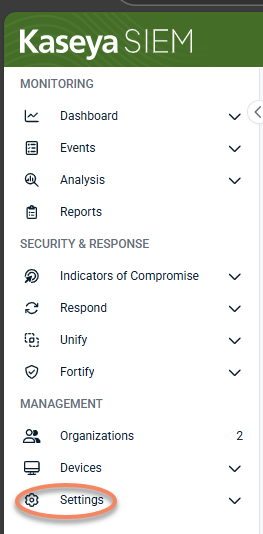
From the side navigation menu, click Settings.
-
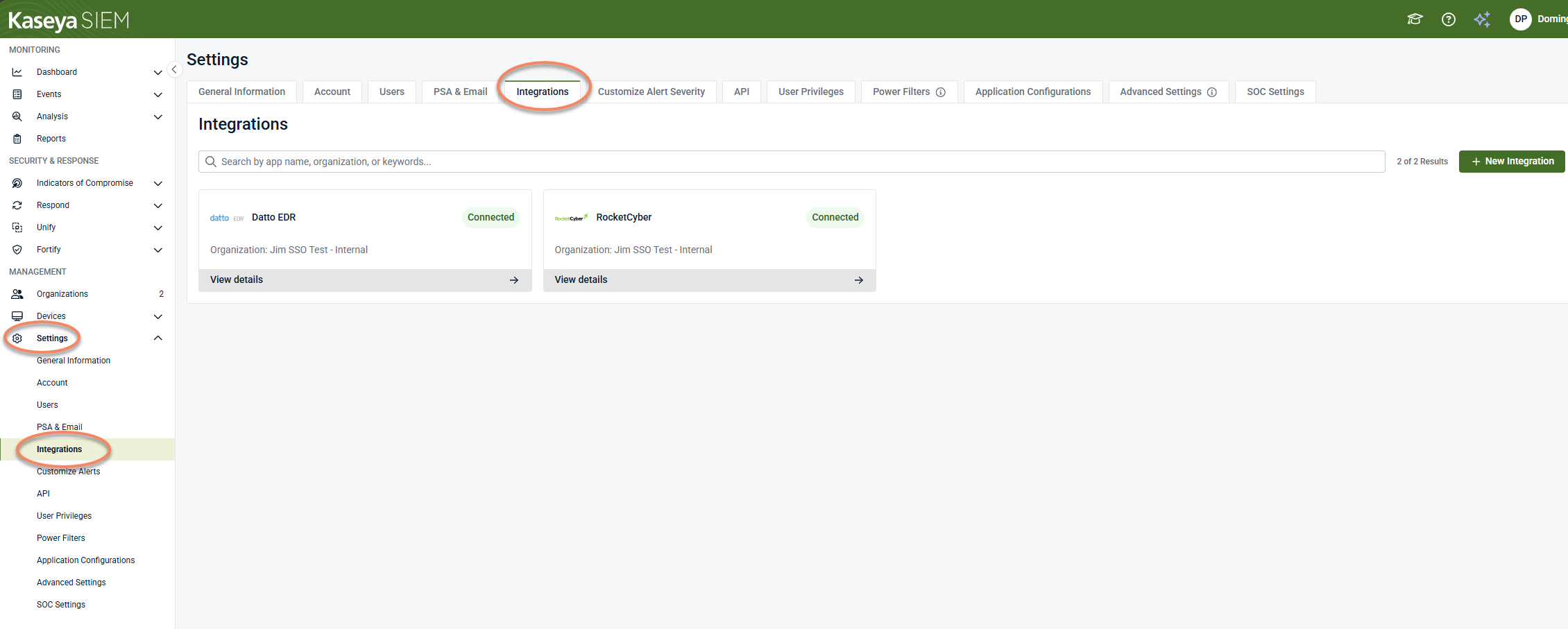
Select Integrations.
-
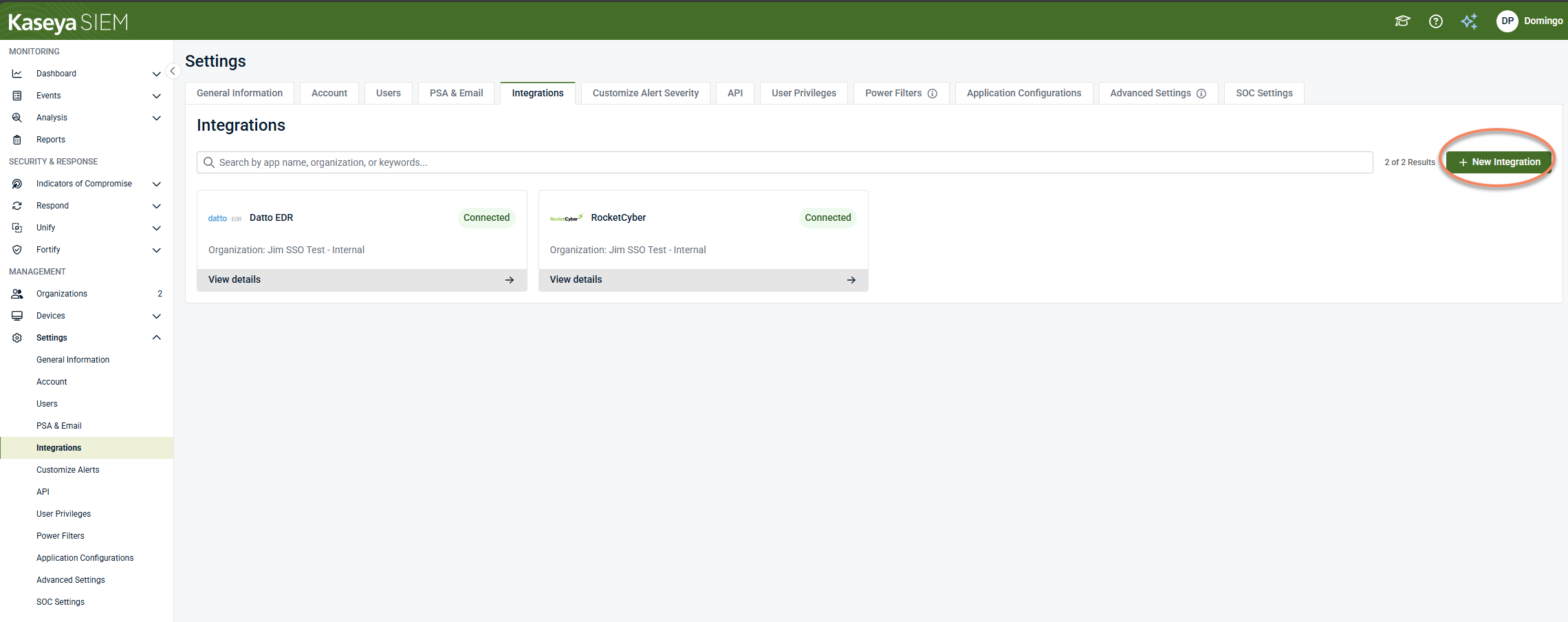
Click + New Integration
-
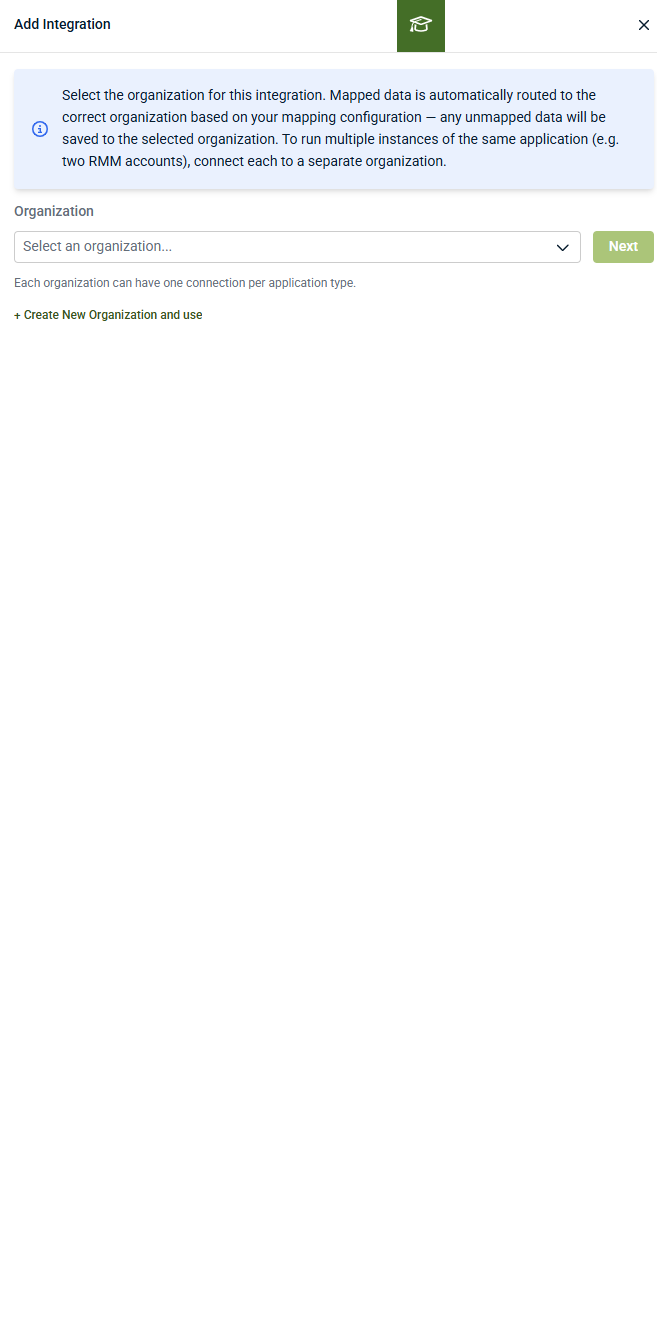
Select an organization to route incoming data.
-
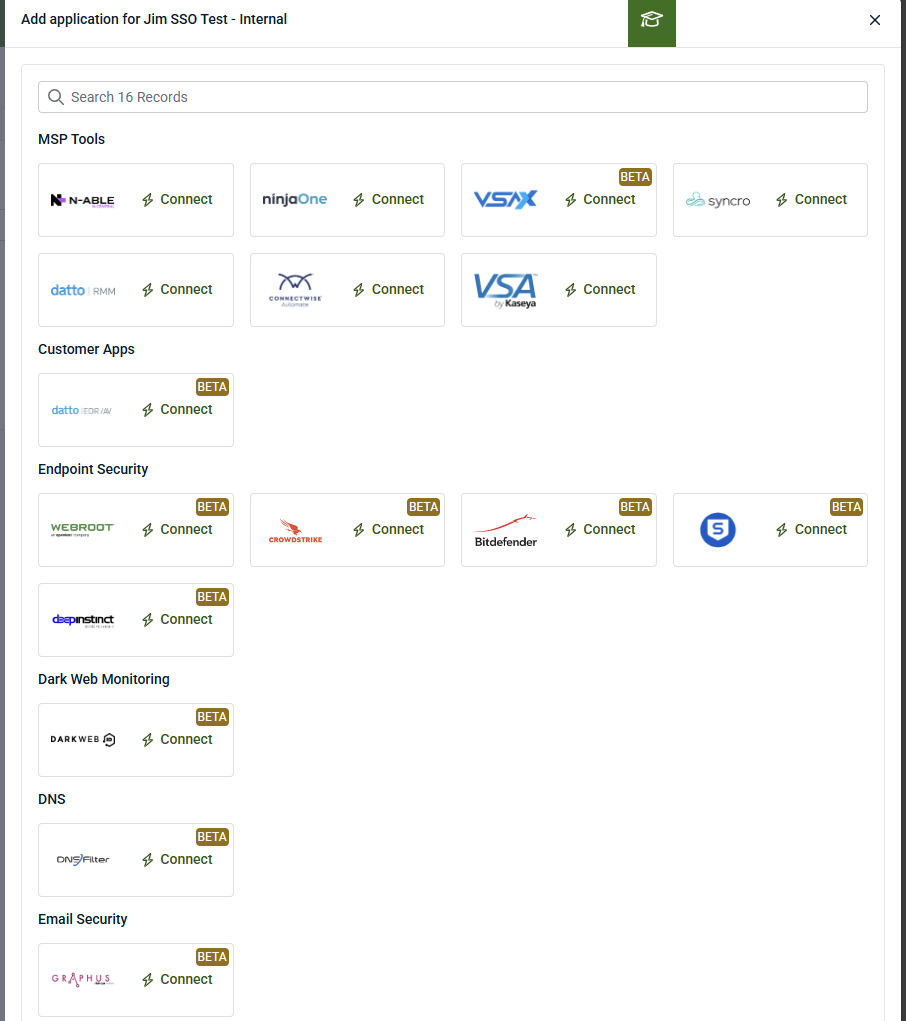
Choose the integration type.
-
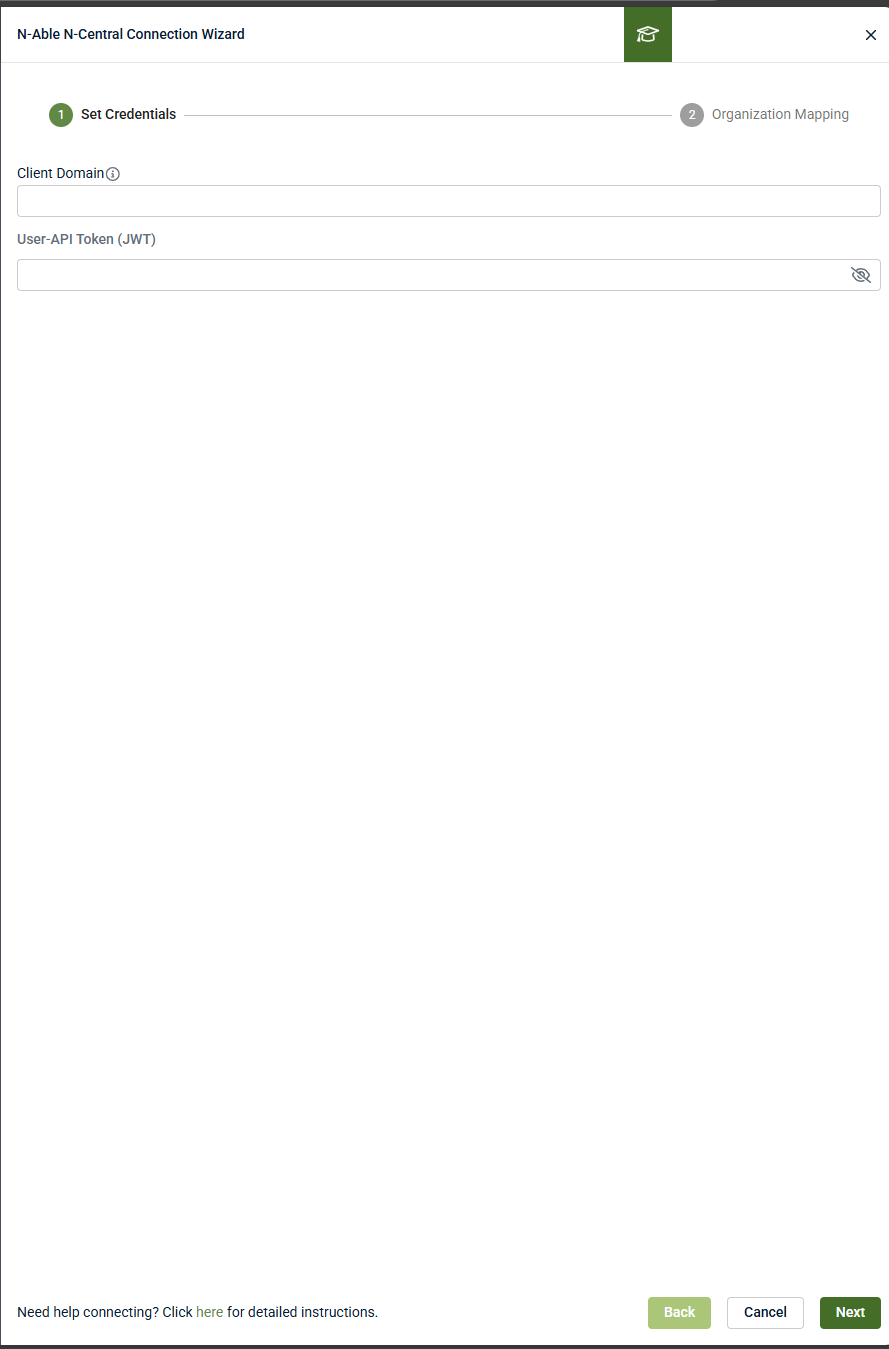
Provide the required credentials or authorization.
-
Click Next to continue setup.
Common integrations
You can select any supported PSA, RMM, or endpoint security integration to map organizations, depending on how your environment is managed.
For a complete, category-sorted list of every supported integration with links to setup instructions, see the Kaseya SIEM Integrations guide.
A few commonly used starting points:
Organization selection during setup
During setup, you are prompted to map the integration to an organization. This mapping determines where incoming telemetry is routed for analysis.
The Add Integration screen also indicates constraints and behaviors such as:
-
Each organization supporting only one connection per application type
-
Multiple instances of the same application requiring separate connections
-
How mapped and unmapped data is handled for the selected organization
Organization mapping behavior
When connecting an integration from Settings:
-
All mapped telemetry is routed to the selected organization
-
Unmapped telemetry is stored under the selected organization.
-
Each organization can have one connection per application type
To connect multiple instances of the same tool (for example, two separate RMM environments), each instance must be connected separately and mapped to its own organization.
Integration warnings and constraints
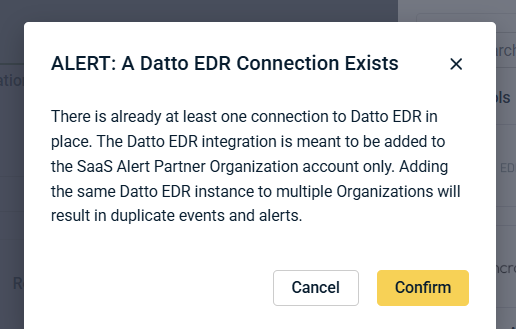
During setup, warning messages may appear indicating that:
-
A connection already exists for a given application
-
Adding the same integration instance to multiple organizations may result in duplicate events or alerts
These warnings are integration‑specific and enforced by the setup interface.
Workflow 2: Adding an application from within an organization
Kaseya SIEM also supports initiating connections from within an organization.
Use this workflow when:
-
The connection is customer‑specific
-
The customer must complete authorization or consent
-
The data source is scoped to a single organization
UI path
-
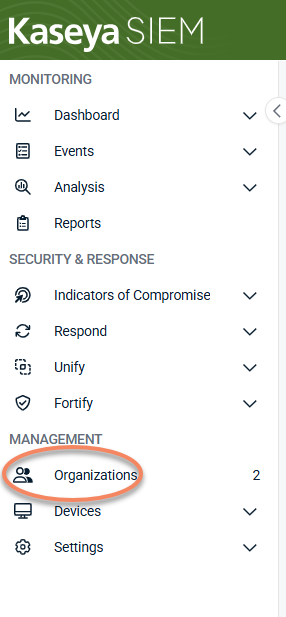
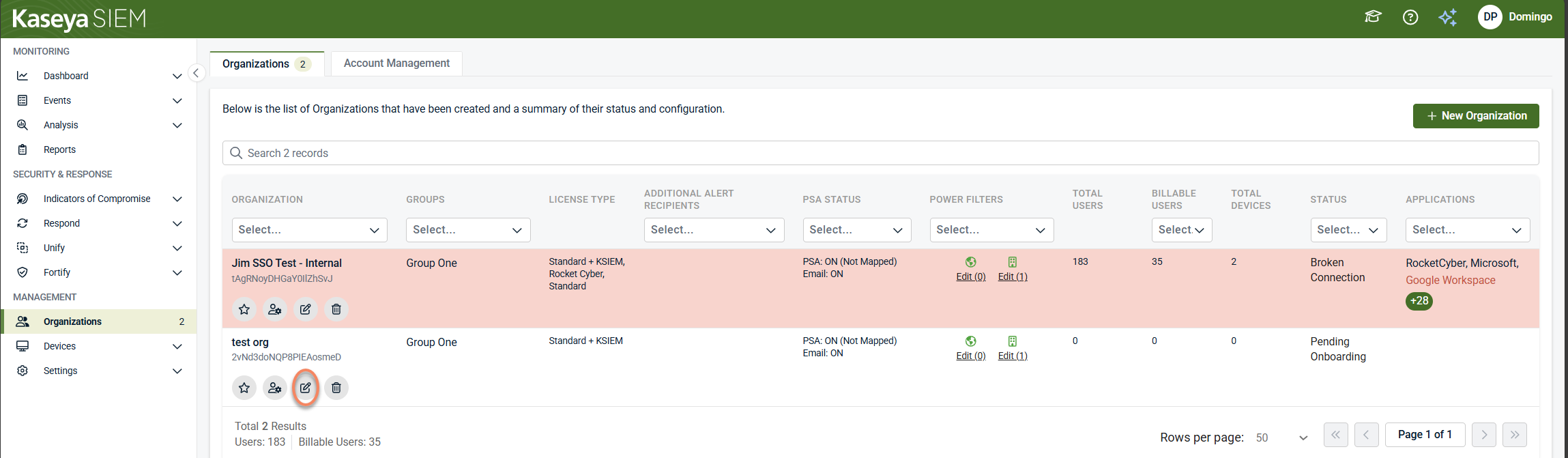
From the side navigation menu, click Organizations.
-
Click Edit organization.
-
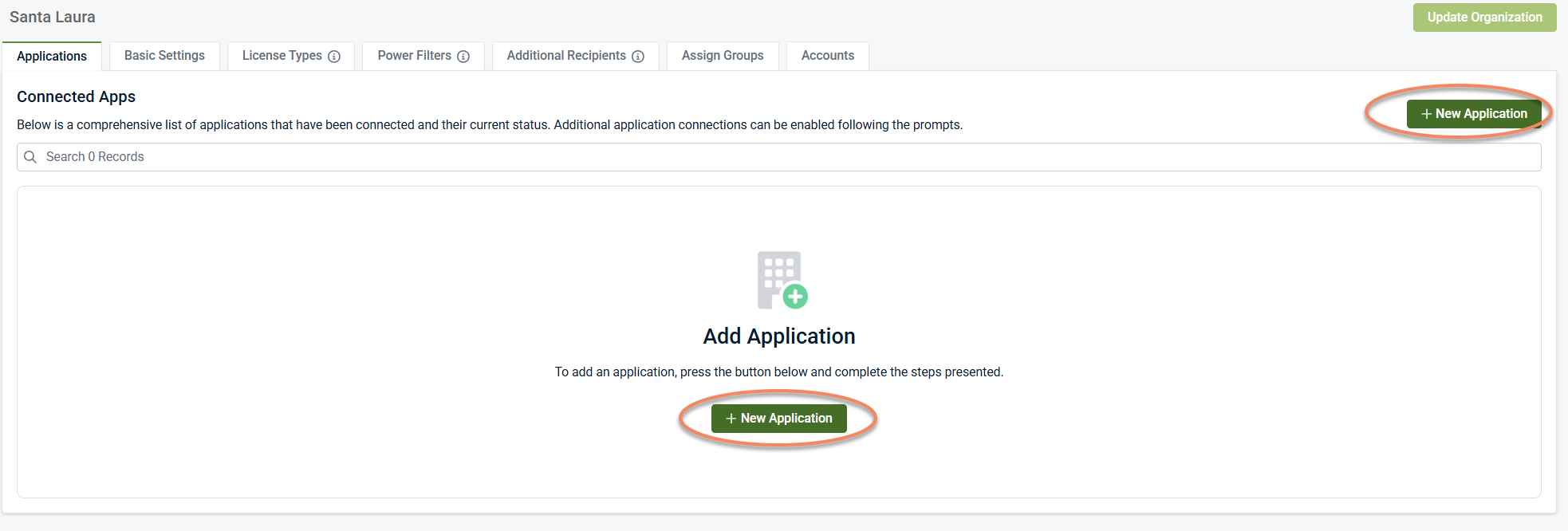
Open the Applications tab.

-
Click + New Application.
-
Select the application and complete the connection.
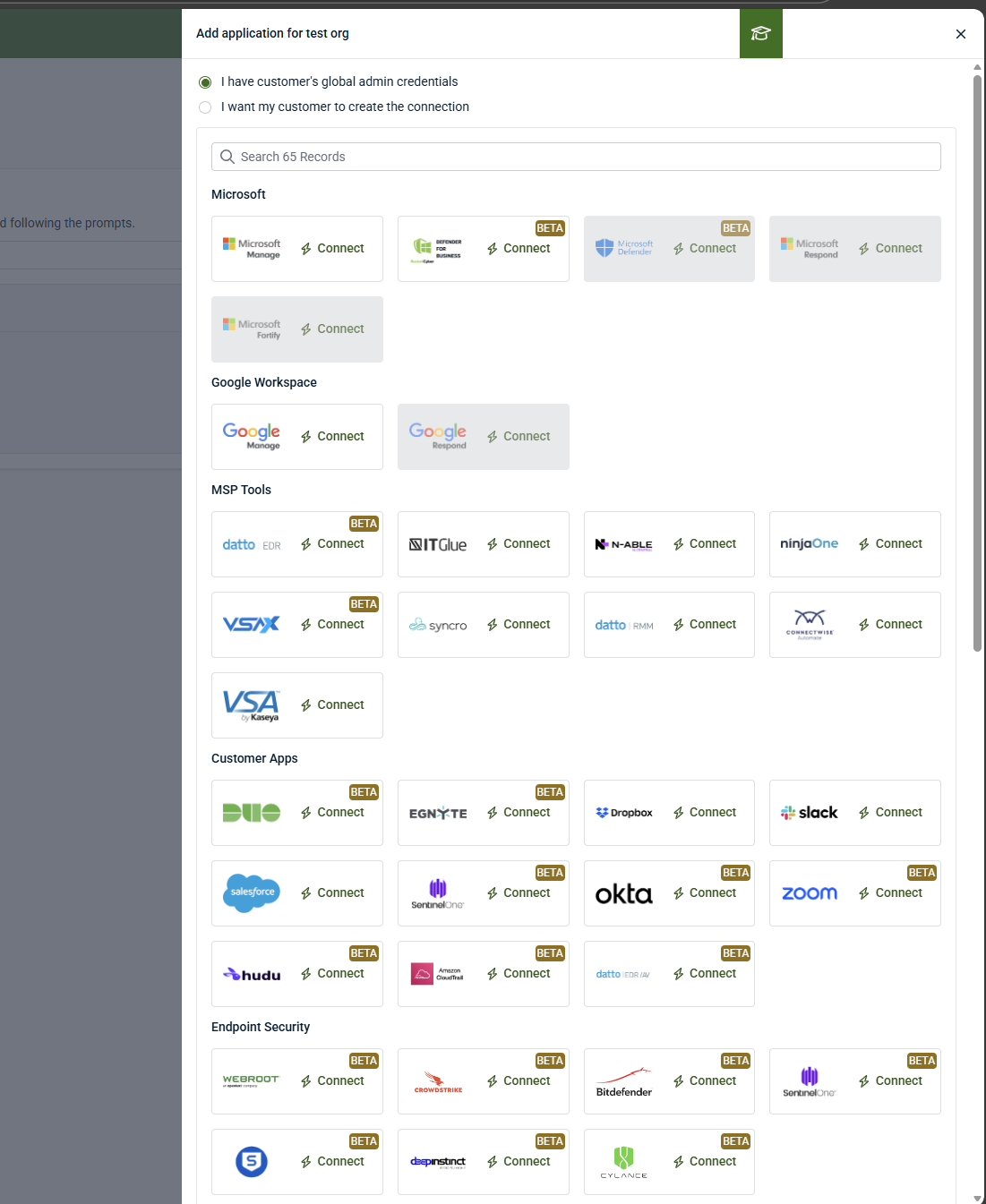
Applications are grouped into categories (for example, MSP Tools, Customer Apps, Endpoint Security) to reflect ownership and scope.
Credential and delegation options
When adding an application from within an organization, the interface may present options indicating who completes the authorization step, such as:
-
Using partner or administrator credentials
-
Allowing the customer to complete authorization
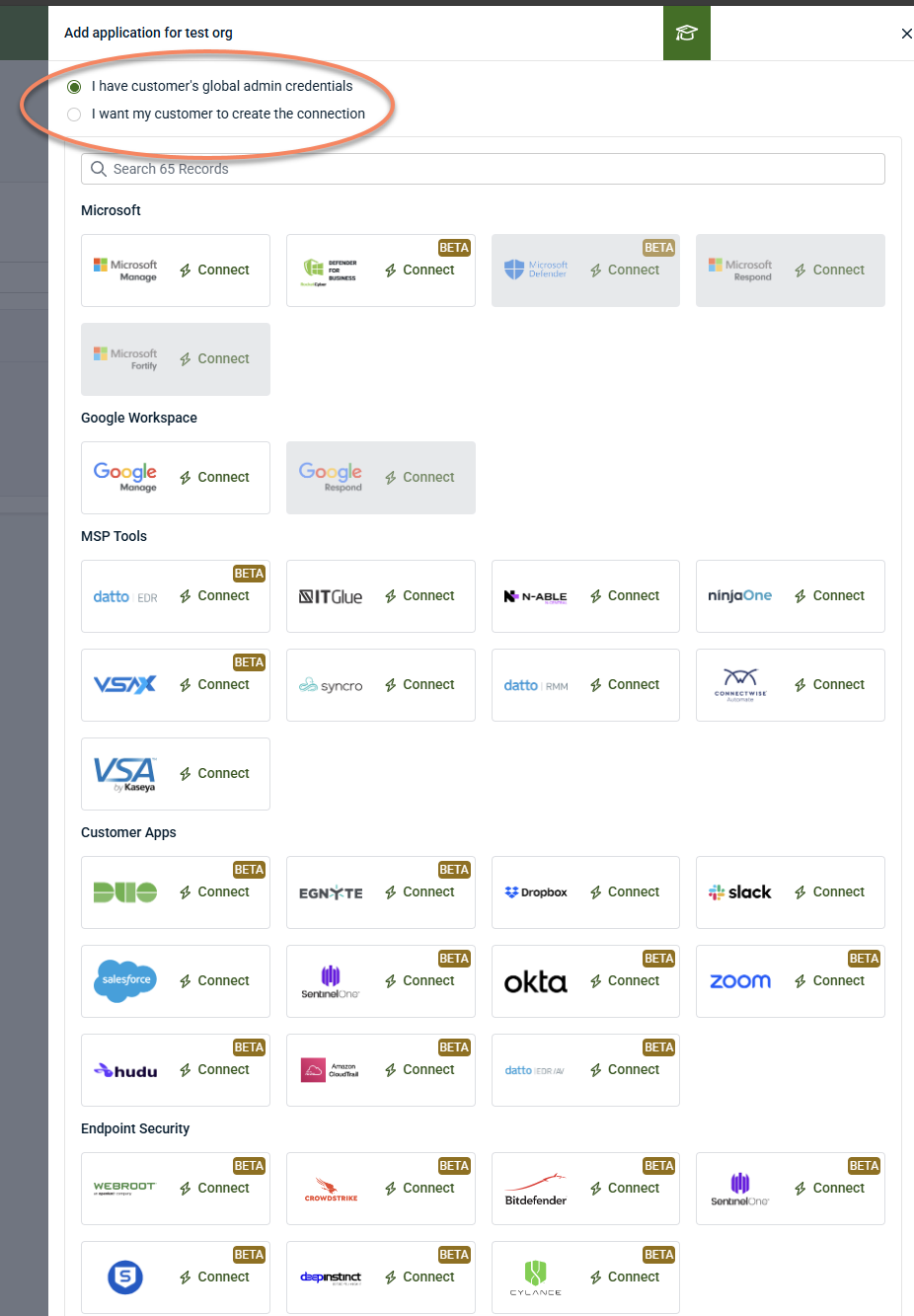
These options affect who performs authorization, not how telemetry is processed after the connection is established.
How connection scope affects visibility
Where a connection is created affects where it appears in the interface:
-
Integrations created from Settings appear at the platform level.
-
Applications added from within an organization appear under that organization’s Applications tab.
Both workflows result in telemetry ingestion once the data source is connected.
What happens after a data source is connected
After a data source is connected, its telemetry becomes available within the associated organization, and existing alerting and investigation behavior applies.
If you’re coming from SaaS Alerts or Kaseya MDR
For environments that previously used SaaS Alerts or Kaseya MDR, existing integrations and configuration are available in Kaseya SIEM. In most cases, integrations do not need to be recreated in Kaseya SIEM.
Some integrations may require review or reauthorization depending on the integration and permission model. Microsoft integrations, in particular, may require reauthorization due to differences in permissions and licensing.
Key takeaway
-
Settings > Integrations is used to create integrations from an administrative or partner context.
-
Organizations > Edit Organization > Applications is used to connect data sources within a specific organization.
-
During setup, integrations are mapped to an organization so telemetry can be routed for analysis.
-
The two workflows reflect different starting contexts in the UI, not differences in how telemetry is processed or analyzed.
Related articles
-
Kaseya SIEM Integrations guide: A single, category-sorted list of every supported integration with links to setup instructions.
-
Integrations and data sources: Explains the categories of supported data sources in Kaseya SIEM and how different integration types contribute telemetry for analysis
-
Application Configurations: Explains how behavior, processing, and handling of ingested data can be adjusted after a data source is connected, including configuration settings that affect analysis and investigations
-
Detection, IOCs, and Respond Rules: Describes how detections, indicators of compromise (IOCs), and response rules operate on ingested telemetry after data sources are connected and associated with an organization


