Integration: Kaseya SIEM and INKY
 Security and navigation
Kaseya SIEM
NAVIGATION Organizations > Edit Organization > New Application
PERMISSIONS Administrative access to configure applications
INKY
NAVIGATION Settings > Integrations
PERMISSIONS Access to generate API keys
Overview
The INKY integration allows Kaseya SIEM to ingest INKY email security events as they are generated.
Once configured, events generated by INKY are ingested into Kaseya SIEM and become part of your monitored activity. These events can include analysis results, user-reported activity, outbound analysis, and workflow-related actions. This provides visibility into INKY activity alongside other monitored applications in Kaseya SIEM.
This integration is available to customers with either an INKY Advanced or INKY Pro subscription.
Event coverage and behavior may evolve as additional data and use cases are validated.
Prerequisites
Before configuring the integration, ensure the following:
-
Access to a Kaseya SIEM Partner Organization account
-
Administrative access in Kaseya SIEM
-
An INKY Advanced or INKY Pro subscription with API access enabled
-
Access to generate an API key in INKY
Use case
Use this integration to monitor INKY email security events within Kaseya SIEM and investigate them using standard alerting and event workflows.
How the integration works
The INKY integration in Kaseya SIEM is configured by adding INKY as an application and providing an API key generated in INKY.
During setup:
-
You select the INKY environment (for example, US or EU)
-
You provide an API key generated in INKY.
Kaseya SIEM uses this information to establish the connection and begin event ingestion.
After the connection is established:
-
Events generated by INKY are ingested into Kaseya SIEM
-
Events are mapped into Kaseya SIEM and included in monitored activity
Once configured, event ingestion occurs automatically.
How to...
Set up the integration in Kaseya SIEM
To enable the integration, complete the following steps:
Step 1: Navigate to Applications
In Kaseya SIEM:
-
From the side navigation menu, click Organizations.
-
Select the organization where you want to configure INKY.
-
Click New Application.
Step 2: Select INKY
-
Locate and select INKY from the list of available applications.
-
Proceed to the configuration screen.
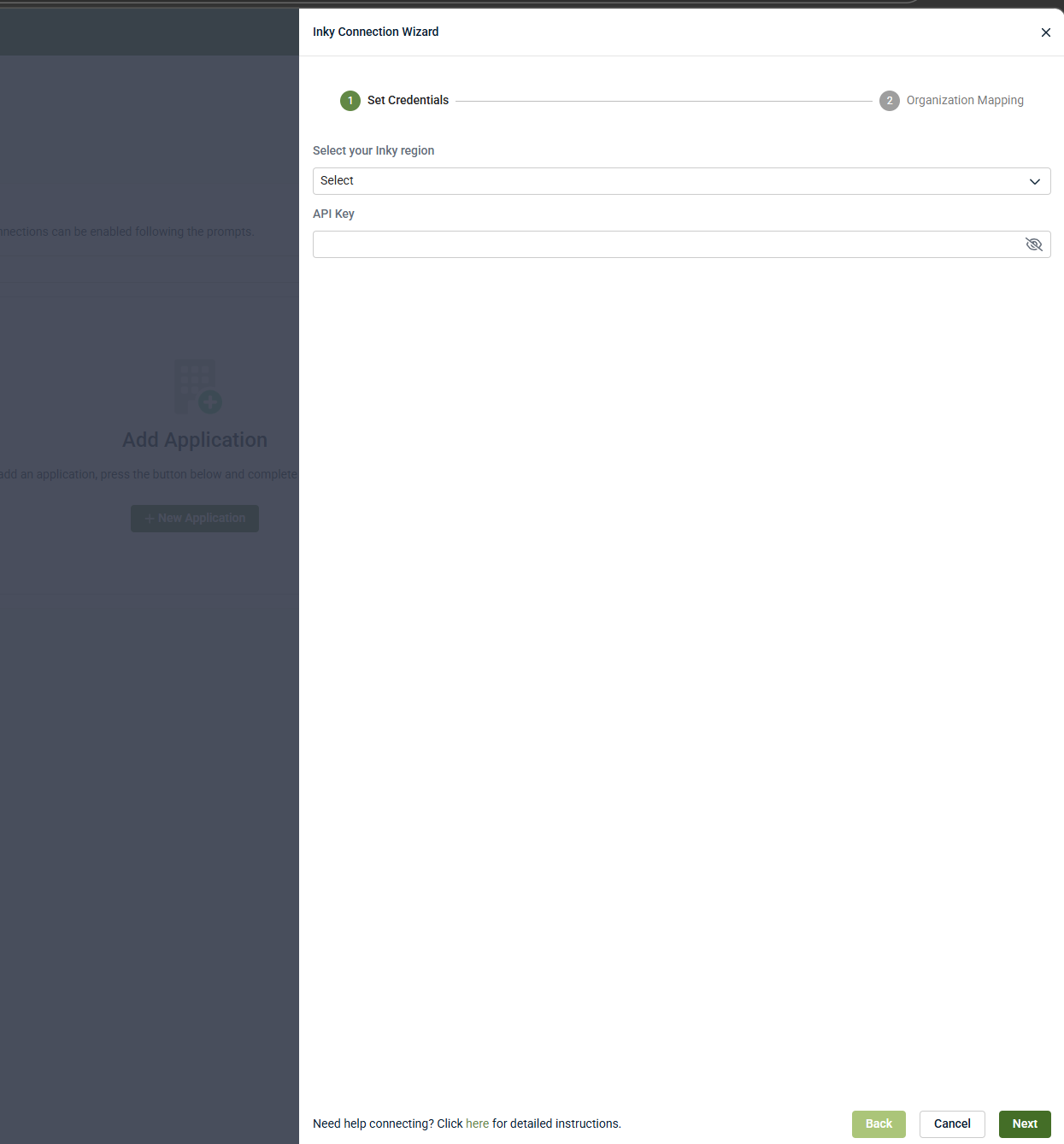
Step 3: Configure integration details
The INKY integration requires two values:
-
INKY instance (region): Select the environment where your INKY data is hosted (for example, US or EU).
-
API key: Paste an API key generated in INKY (see the next section).
After entering the required values, save the configuration. Kaseya SIEM will attempt to establish the connection using the provided details.
Once the connection is established, event ingestion begins.
Avoid configuring duplicate INKY integrations
If an INKY integration already exists, Kaseya SIEM displays a warning indicating that a connection is already in place.
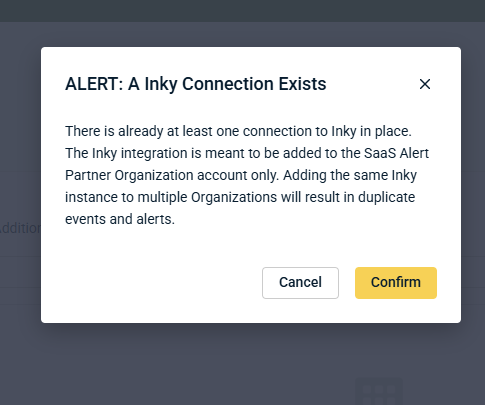
The INKY integration should be configured in the Kaseya SIEM Partner Organization account. Adding the same INKY instance to multiple organizations can result in duplicate events and alerts.
Set up the integration in INKY
It is recommended that you set up the integration at the root level of your organization. In the team selector, the root-level team is identified by a building icon next to its name. Configuring the integration at this level ensures that Kaseya SIEM receives events from all of your organization’s teams.
This integration requires generating an API key in INKY.
To generate the API key:
-
Sign in to your INKY environment.
-
Navigate to Admin Center > Integrations.
-
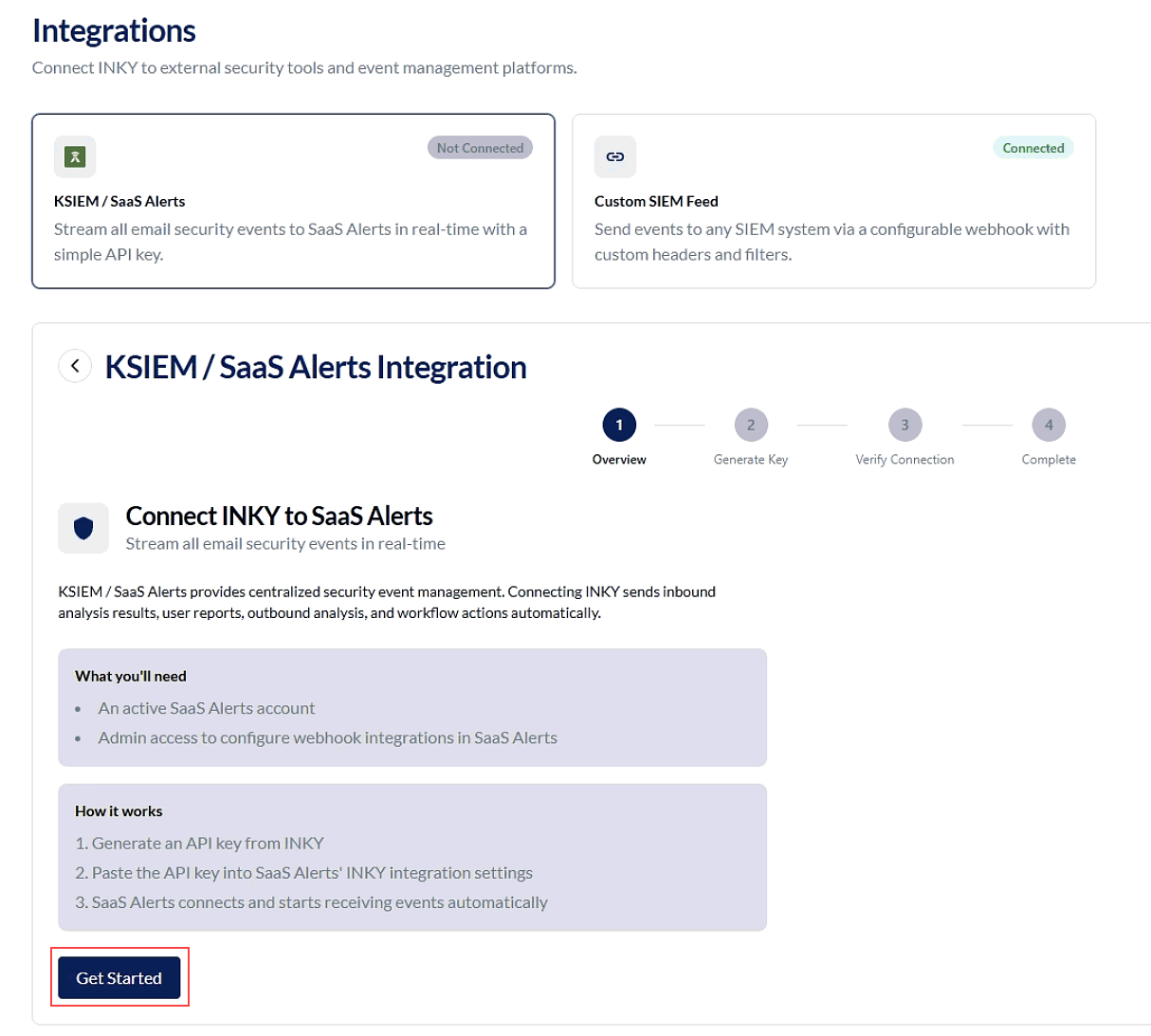
Click the KSIEM / SaaS Alerts card to open the setup wizard.
-
Click Get Started.
-
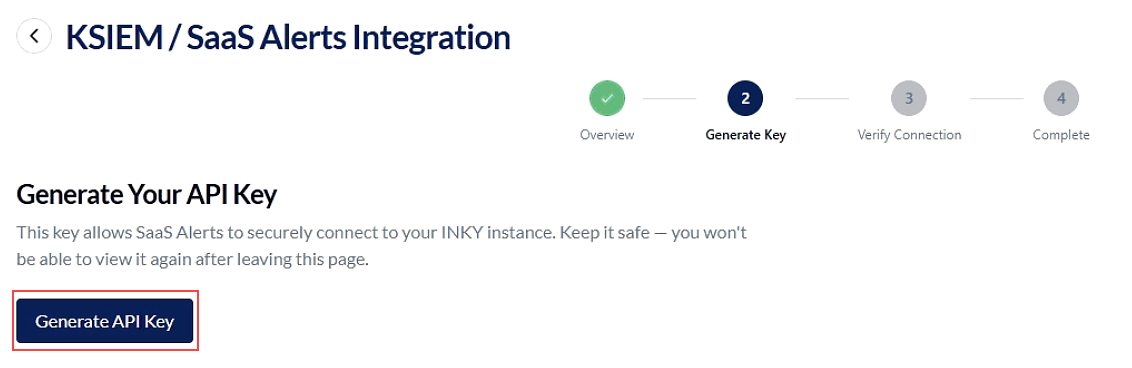
Click Generate API Key. Copy the key when it is generated. The full API key cannot be viewed again after it is generated.
-
After generating the key, return to Kaseya SIEM to paste the API key into the corresponding field mentioned in Step 3.
-
In INKY, click I've Pasted the Key — Verify Connection.
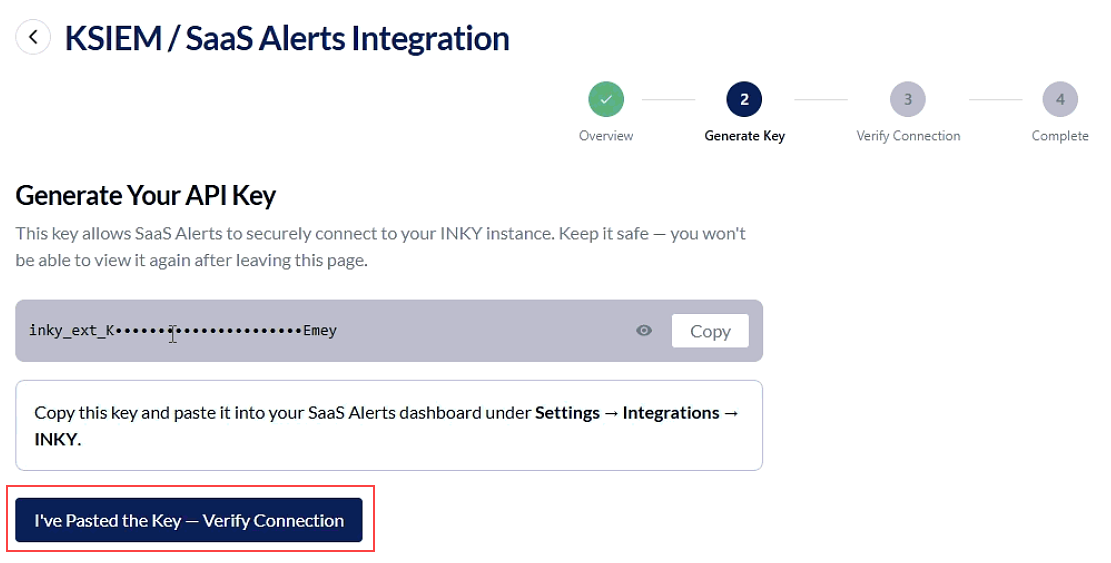
INKY verifies the connection after the API key is entered in Kaseya SIEM. This typically takes a few seconds after you paste the key. The page shows a live status:
-
Waiting: Awaiting connection from Kaseya SIEM
-
Taking longer than expected: No connection detected after 2 minutes; verify that the API key was pasted correctly in Kaseya SIEM and try again
-
Error: A verification error occurred; retry or skip and verify later
If needed, you can proceed even if verification is not complete and confirm the connection status afterward.
When the connection is successful, INKY indicates that the integration is active and events are being sent.
If required, the API key can be regenerated or revoked in INKY. Regenerating the key requires updating the configuration in Kaseya SIEM. Revoking the key stops event ingestion.
If an API key is generated but the connection is not completed, INKY may detect that a key exists without an active connection.
In this case, return to the integration in INKY and regenerate or revoke the key to restart the setup process.
Connection status
The KSIEM / SaaS Alerts card on the integrations list shows one of three states:
-
Connected: The integration is active and events are being received
-
Pending: A key has been generated but the connection is not yet established
-
Not connected: No active integration key is configured
Disable the integration in Kaseya SIEM
To disable the integration, complete the following steps:
- In Kaseya SIEM, go to Organizations and select the organization where the INKY integration is configured.
-
Open the INKY application configuration in the Applications tab.
-
In the Connection Status section, select Disconnect Application.
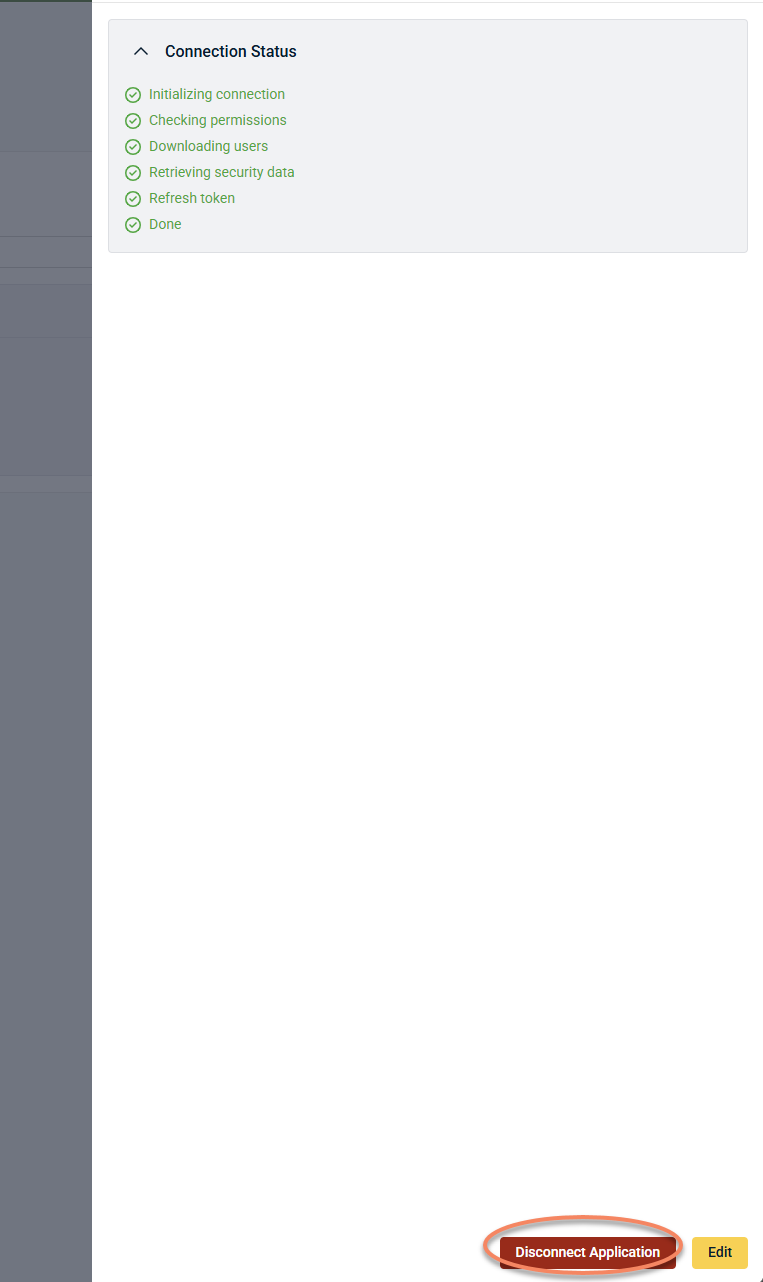
After disconnecting:
-
The integration is removed and no new events are ingested into Kaseya SIEM
-
Existing data remains available for investigation and reporting
-
Disable the integration in INKY
Click Revoke Key to remove the integration key and disconnect Kaseya SIEM. Event data stops flowing to Kaseya SIEM immediately.
To disable the integration, complete the following steps:
-
Navigate to Admin Center > Integrations.
-
Click the KSIEM / SaaS Alerts card.
-
Click Revoke Key.

Event behavior and coverage
The INKY integration sends email security-related events into Kaseya SIEM. A set of event mappings is configured as part of this integration, including:
-
Events mapped to specific conditions
-
A general catch‑all event for additional data
Event coverage may expand over time. Additional patterns and mappings may be introduced as support for additional INKY event types becomes available.
Where events appear in Kaseya SIEM
After the integration is active:
-
INKY events are visible alongside other Kaseya SIEM event data
-
Events can be reviewed through the standard alerting and event workflows
-
Filtering, investigation, and response behavior follow standard Kaseya SIEM patterns
Event visibility depends on:
-
Successful connection to INKY
-
Activity occurring in the INKY environment
-
Normal ingestion and processing timing
Validation after setup
After configuring the integration, verify that it is working as expected:
-
Confirm that the INKY application appears under the organization
-
Confirm that the connection is active (no errors in configuration)
-
Review recent events to confirm that INKY activity is visible
If events are not visible immediately, allow time for:
-
Event generation in INKY
-
Ingestion and processing in Kaseya SIEM
A delay in event visibility does not necessarily indicate a configuration issue.
Troubleshooting
INKY does not appear in the application list
-
Confirm that the INKY integration is enabled for your Kaseya SIEM instance. If the integration is not available, contact Support.
Unable to connect after entering API key
-
Verify that the API key was copied correctly from INKY.
-
Confirm that the correct INKY region (US or EU) is selected.
-
Check the connection status displayed in the INKY setup wizard for additional information.
-
Regenerate the API key in INKY and update the configuration in Kaseya SIEM.
-
Retry the connection.
No events appear in Kaseya SIEM
-
Confirm that the integration status in INKY shows Connected.
-
Confirm that the integration is active in Kaseya SIEM.
-
Confirm that activity is occurring in the INKY environment.
-
Allow time for event ingestion and processing after the connection is established.


