Firewall Log Analyzer (Firewall log ingestion)
This article explains how to configure firewall log ingestion in Kaseya SIEM using the Firewall Log Analyzer application.
Firewall log ingestion is configured at the organization level through Settings > Application Configurations.
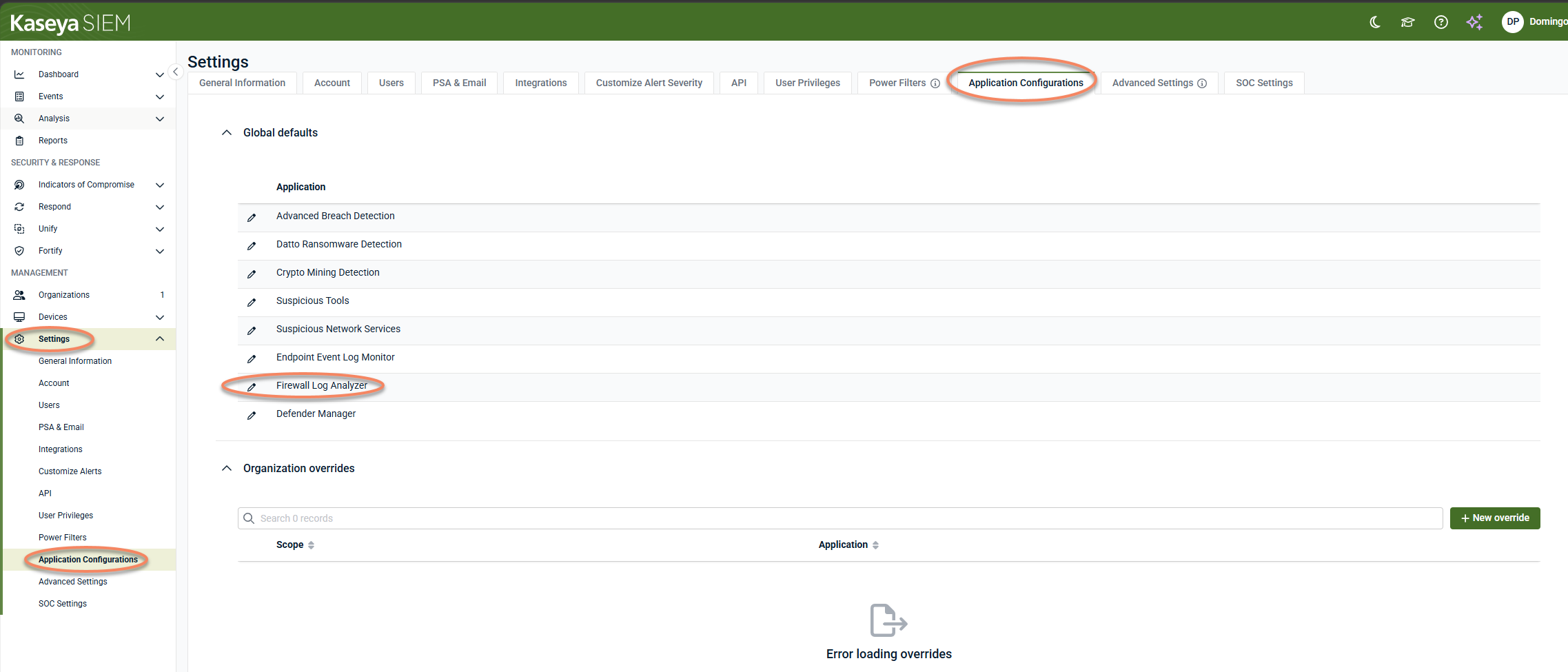
This configuration determines how firewall and network‑device logs are ingested and which deployed agent receives and processes those logs.
This article explains where to configure firewall log ingestion, what each screen represents, and how supported firewall vendors fit into the model. It does not include vendor‑specific firewall setup instructions.
How firewall log ingestion works
In Kaseya SIEM, firewall log ingestion is:
-
Organization‑scoped, not device‑scoped
-
Configured through Settings, using organization‑level overrides
-
Currently implemented as a centralized, syslog‑based ingestion model
Firewall devices themselves are not deployed or configured from the SIEM interface. They are configured externally to send syslog telemetry to a designated log‑receiving device.
The Devices > Firewalls view is used only for visibility and validation after ingestion has been configured. It is not used to configure firewalls or ingestion behavior.
Syslog server requirements
Before configuring Firewall Log Analyzer, verify that the selected syslog server device meets the following minimum requirements and that the required network ports are available.
| Minimum requirements for a single firewall and syslog server deployment | |
|---|---|
| Software / Hardware | Minimum Requirement |
| Operating System |
Windows 10 Windows Server 2012, 2016, 2019, 2022, 2025 |
| CPU | 1.4 GHz |
| Memory | 4 GB |
| Protocol | Inbound UDP (From Firewall to Syslog Host) |
| Port | 514 (Default configuration) |
| HDD / Local Log Storage | Local log storage is disabled by default. If enabled, the maximum log size is configurable, with a default value of 10 GB. |
NOTE Syslog server functionality is supported only on Windows devices running the agent. Linux and macOS devices cannot be used as syslog servers.
Step 1: Open Application Configurations
Firewall log ingestion is configured from Settings > Application Configurations, within the context of a specific organization.
Organization‑level overrides are used to:
-
Enable firewall log ingestion for an organization
-
Define how firewall logs are ingested and handled
-
Select the deployed device that will receive and process firewall logs
Step 2: Select the organization and application
-
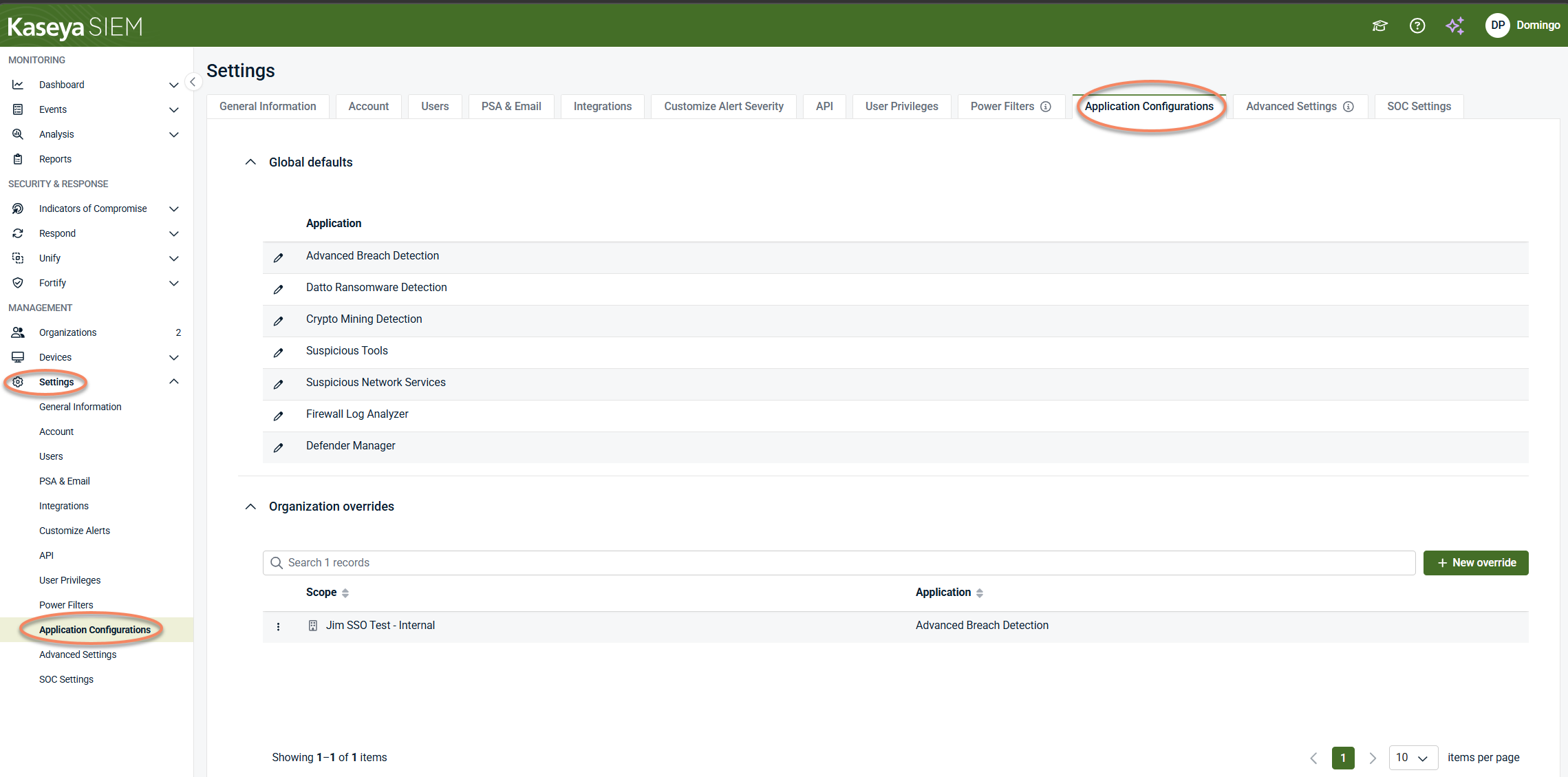
From the side navigation menu, click Settings.
-
Select Application Configurations.
-
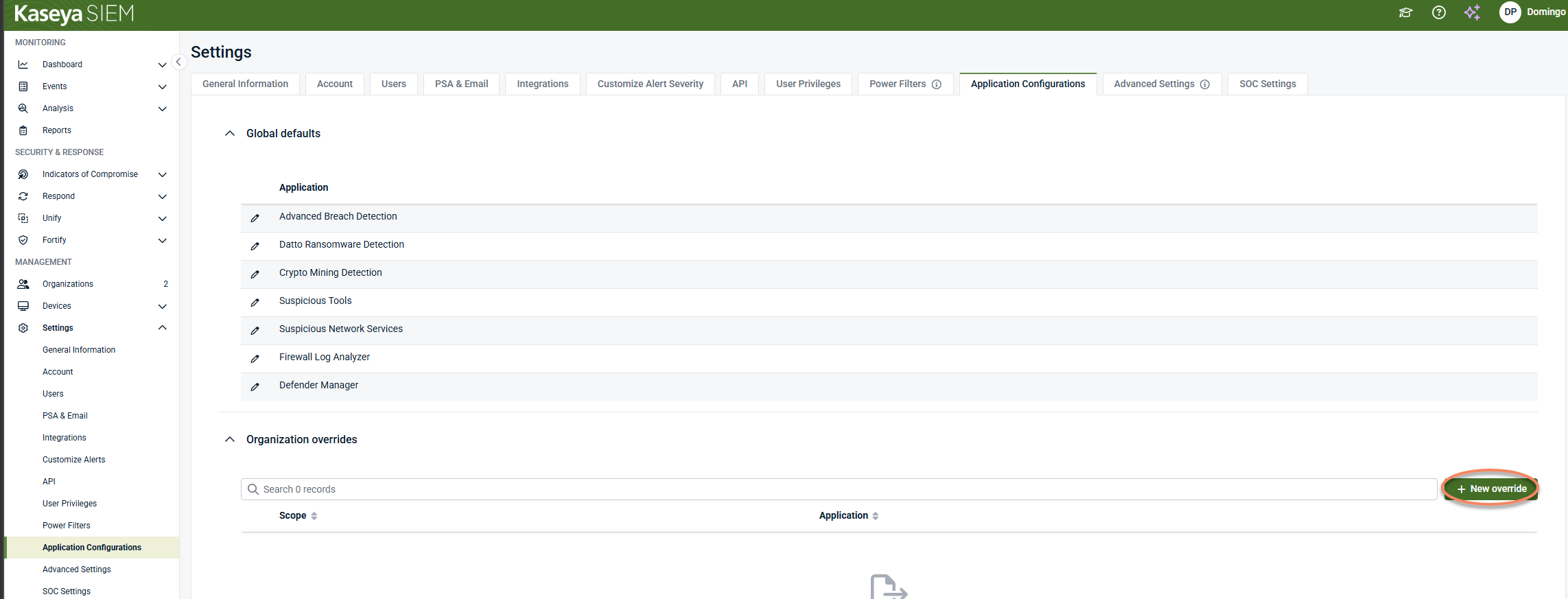
Click + New override, or select an existing organization override.
-
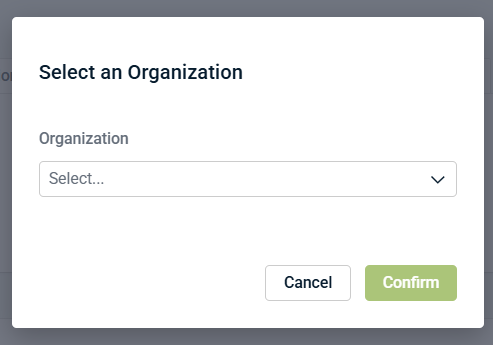
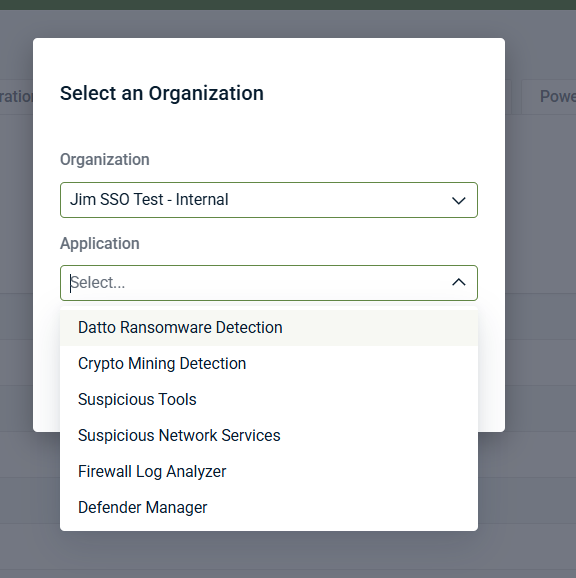
In Select an Organization, choose the target organization.
-
In Application, select Firewall Log Analyzer.
-
Click Confirm.
This opens an organization‑scoped configuration for firewall log ingestion. Select Firewall Log Analyzer only when configuring firewall log ingestion. Other applications in this list control different detection or analysis capabilities and do not ingest firewall logs.
Step 3: Review organization details
At the top of the Firewall Log Analyzer screen, the Organization details panel provides context, including:
-
Organization name
-
Group assignment
-
PSA status
-
Last online timestamp
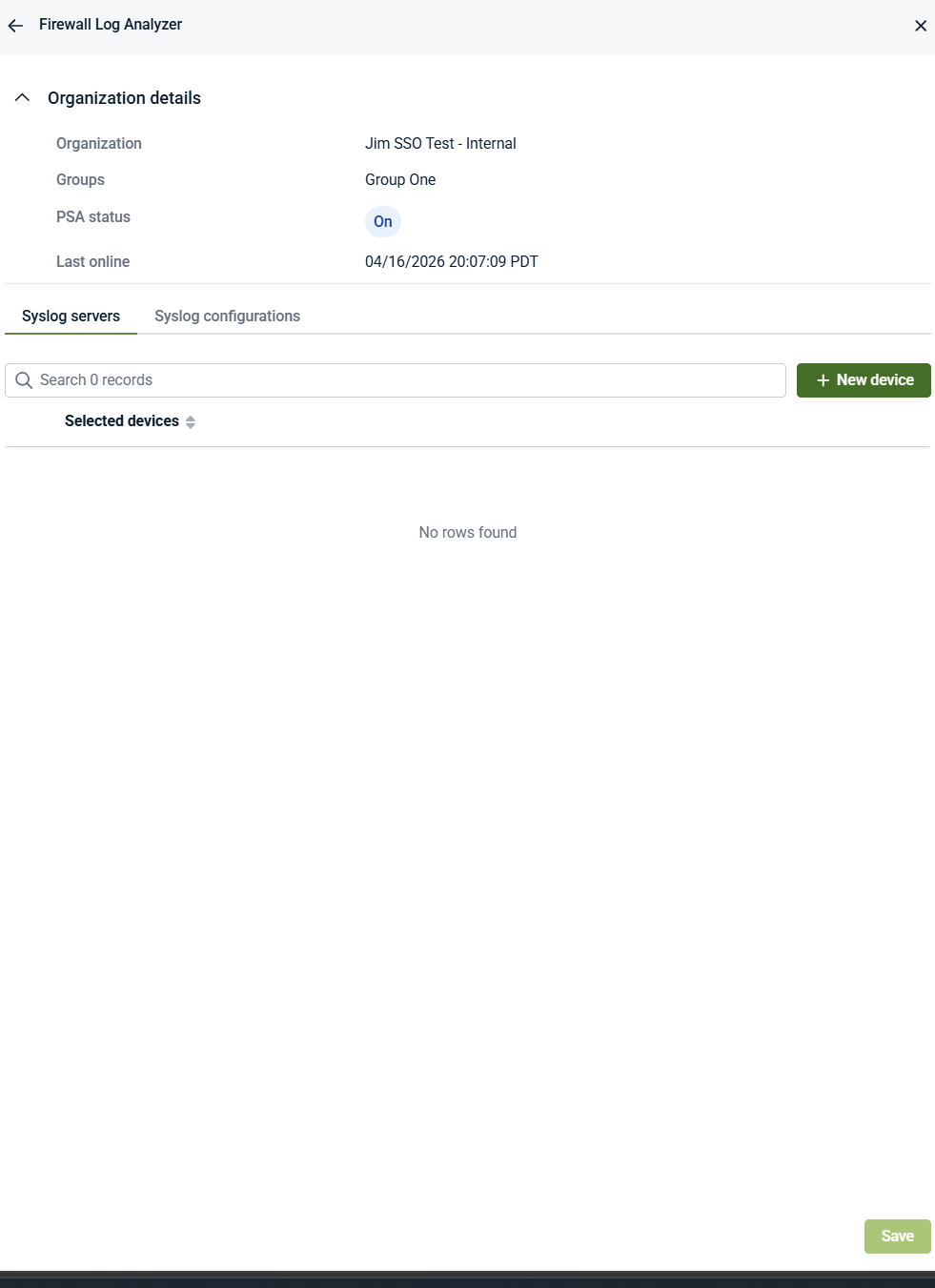
This ensures you are configuring firewall log ingestion for the correct organization.
Step 4: Select the syslog server device
-
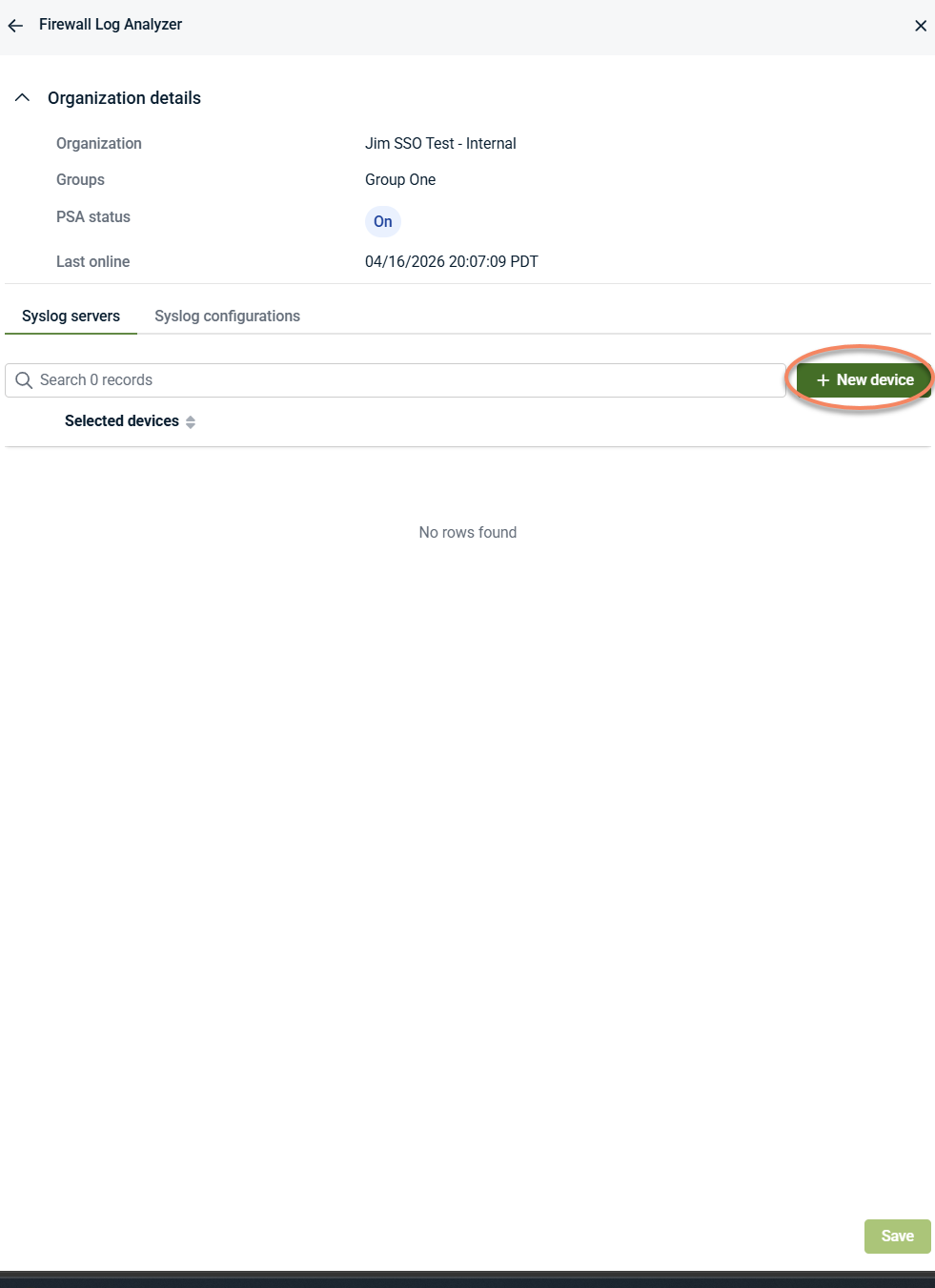
Open the Syslog servers tab.
-
Click + New device.
-
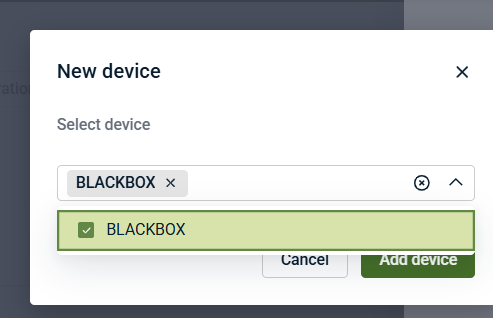
Select a Windows device that meets the syslog server requirements described above from the list of deployed agents.
-
Click Add device.
-
A confirmation message appears. The selected device becomes the syslog server and receives firewall log data.
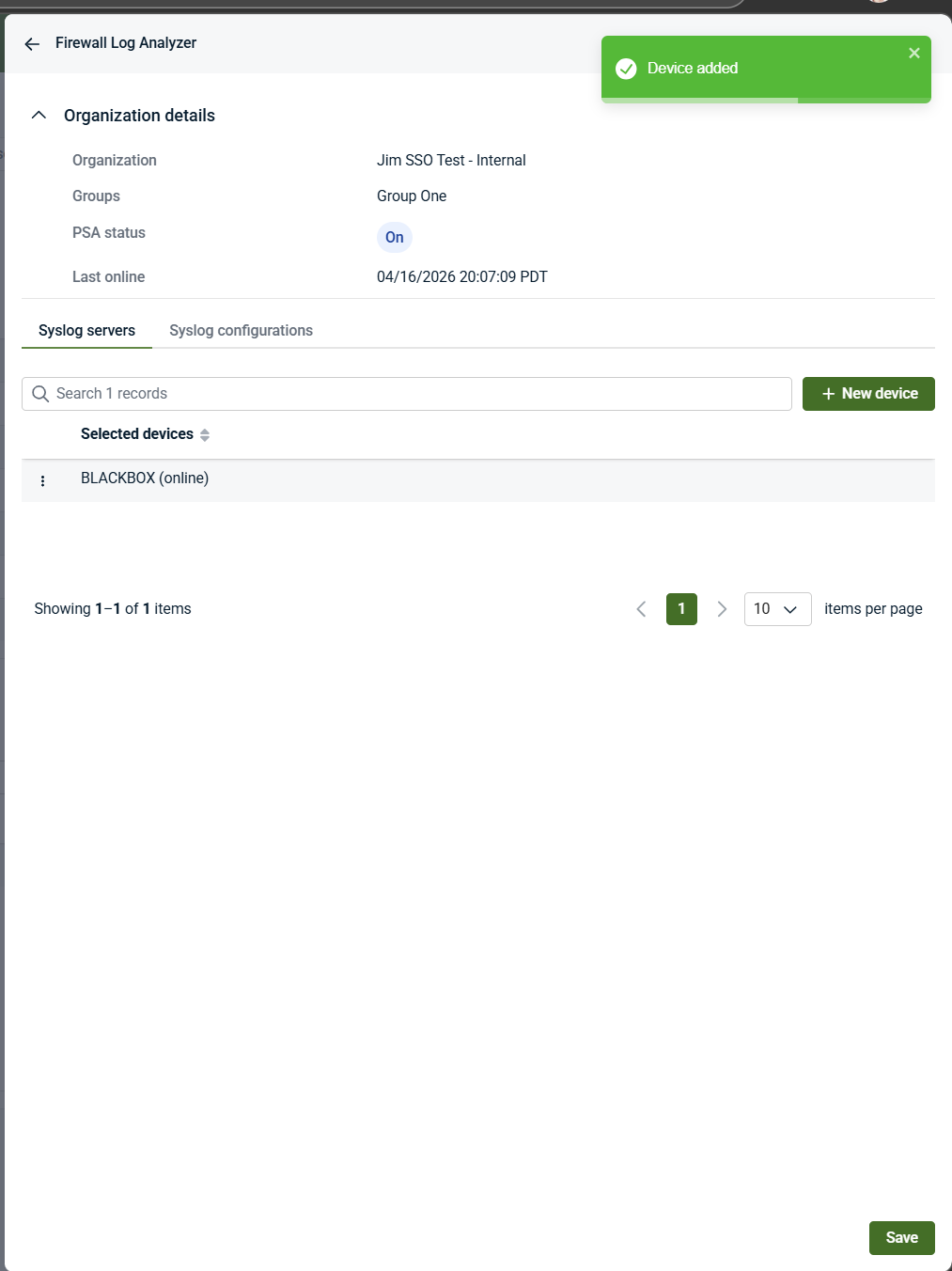
Important notes about the syslog server device
-
The device must already have the agent deployed
-
Devices are selected from existing endpoints with an agent installed
-
Firewall devices themselves do not appear in this list
-
This device acts only as a log receiver and processor, not as the firewall
Step 5: Configure syslog settings
-
Open the Syslog configurations tab.
-
Configure the required syslog settings, such as:
-
Syslog server IP
-
Syslog server port (for example, 514)
-
Syslog protocol
-
Log storage and retention options
-
Event filtering or exclusion options, if applicable
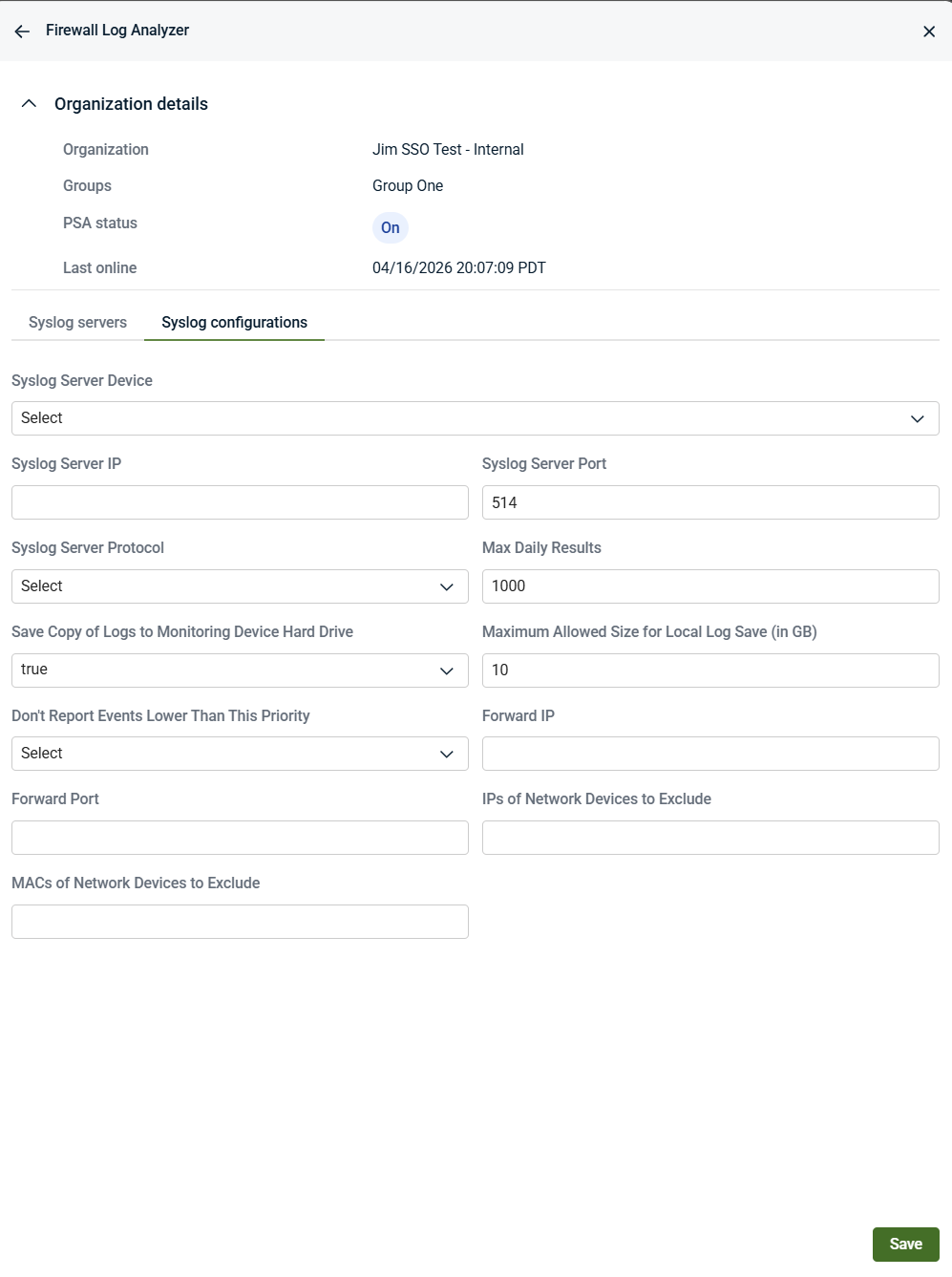
Syslog configuration fields
The Syslog configurations tab controls how firewall logs are received, filtered, and stored after they arrive at the log‑receiving device.
These settings control ingestion behavior only. They do not configure firewall devices themselves and do not define vendor‑specific logging rules.
-
Syslog Server Device: Selects the deployed agent that acts as the syslog server for firewall log ingestion. Only devices with an agent already installed appear in this list.
-
Syslog Server IP: The destination address that firewall devices send syslog data to
-
Syslog Server Port: The port used to receive syslog data (default is typically 514)
-
Syslog Server Protocol: The protocol used for syslog communication
-
Max Daily Results: Limits the number of syslog events processed per day
-
Save Copy of Logs to Monitoring Device Hard Drive: Controls whether logs are temporarily stored locally
-
Maximum Allowed Size for Local Log Save (in GB): Sets the disk limit for locally stored logs
-
Don’t Report Events Lower Than This Priority: Reduces noise by filtering lower‑priority events
-
Forward IP / Forward Port: Optional forwarding destination for received syslog data
-
IPs / MACs of Network Devices to Exclude: Excludes events from specific network devices
-
IMPORTANT These settings affect log ingestion and handling only. They do not modify SIEM detection logic, investigation workflows, or SOC response behavior.
-
Step 6: Configure the firewall to send syslog telemetry
After completing the syslog configuration in Firewall Log Analyzer, configure your firewall device to forward syslog events using the values displayed in the Syslog configurations tab.
NOTE Vendor-specific firewall configuration procedures are not documented in Kaseya SIEM. Configure syslog forwarding on the firewall according to the vendor's documentation, using the IP address, port, and protocol values configured in Firewall Log Analyzer.
On the firewall platform (for example, Cisco, Fortinet, Palo Alto):
-
Set the syslog destination IP to the Syslog Server IP shown in Firewall Log Analyzer
-
Set the syslog destination port to the Syslog Server Port shown in Firewall Log Analyzer
-
Set the syslog protocol to match the Syslog Server Protocol selected in Firewall Log Analyzer.
This configuration is performed on the firewall itself, using vendor‑specific management tools. Kaseya SIEM does not configure firewall devices directly.
Supported firewall platforms can be configured to send syslog telemetry using the IP address, port, and protocol values configured in Firewall Log Analyzer. Once syslog forwarding is configured correctly, firewall events can be ingested and displayed in Kaseya SIEM.
Firewall devices do not appear as applications in the SIEM UI and are not configured from the SIEM interface.
Step 7: Save the configuration
-
Click Save.
-
Confirm that the configuration is saved successfully.
Once saved, firewall log ingestion is enabled for the organization using the defined settings.
How Devices relate to firewall log ingestion
Devices > Firewalls is not used to configure firewall log ingestion.
It is used to:
-
Validate that a firewall has registered and is sending data
-
Confirm connectivity and visibility after configuration
-
Remove a firewall entry if needed
Devices > Firewalls is an inventory and management surface, not a configuration surface.
Supported firewall vendors
Firewall Log Analyzer supports log ingestion from the following firewall platforms:
-
Barracuda
-
Check Point
-
Cisco ASA
-
Cisco Firepower Device Manager (FDM)
-
Cisco Firewall Management Center (FMC)
-
Cisco IOS
-
Cisco Meraki
-
Cisco RV Series
-
Fortinet
-
Juniper
-
MikroTik
-
Palo Alto Networks
-
pfSense
-
SonicWall
-
Sophos
-
Ubiquiti
-
Untangle
-
WatchGuard
-
Zyxel
These platforms can send telemetry to Kaseya SIEM using standard syslog mechanisms.
Related articles
-
Deploying agents: Install agents on supported devices before selecting them as log‑receiving devices
-
Application Configurations: Understand how organization‑level overrides control application settings in Kaseya SIEM


