Integration: Kaseya SIEM and DNSFilter
 Security and navigation
Kaseya SIEM
NAVIGATION Organizations > Edit Organization > Applications > + New Application > DNSFilter
PERMISSIONS User must have permissions to access Organizations, edit organization settings, and manage integrations.
DNSFilter
NAVIGATION Account icon > Account Settings > Security
PERMISSIONS User must have permissions to access account settings and create API keys.
This integration connects DNSFilter with Kaseya SIEM to ingest DNS activity and filtering events for analysis and monitoring within SIEM.
Prerequisites
-
Access to Kaseya SIEM with permission to configure integrations
-
Access to DNSFilter with permission to generate API keys
-
A DNSFilter API key available for use during setup
How to...
Retrieve a DNSFilter API Key
To generate an API key, complete the following steps:
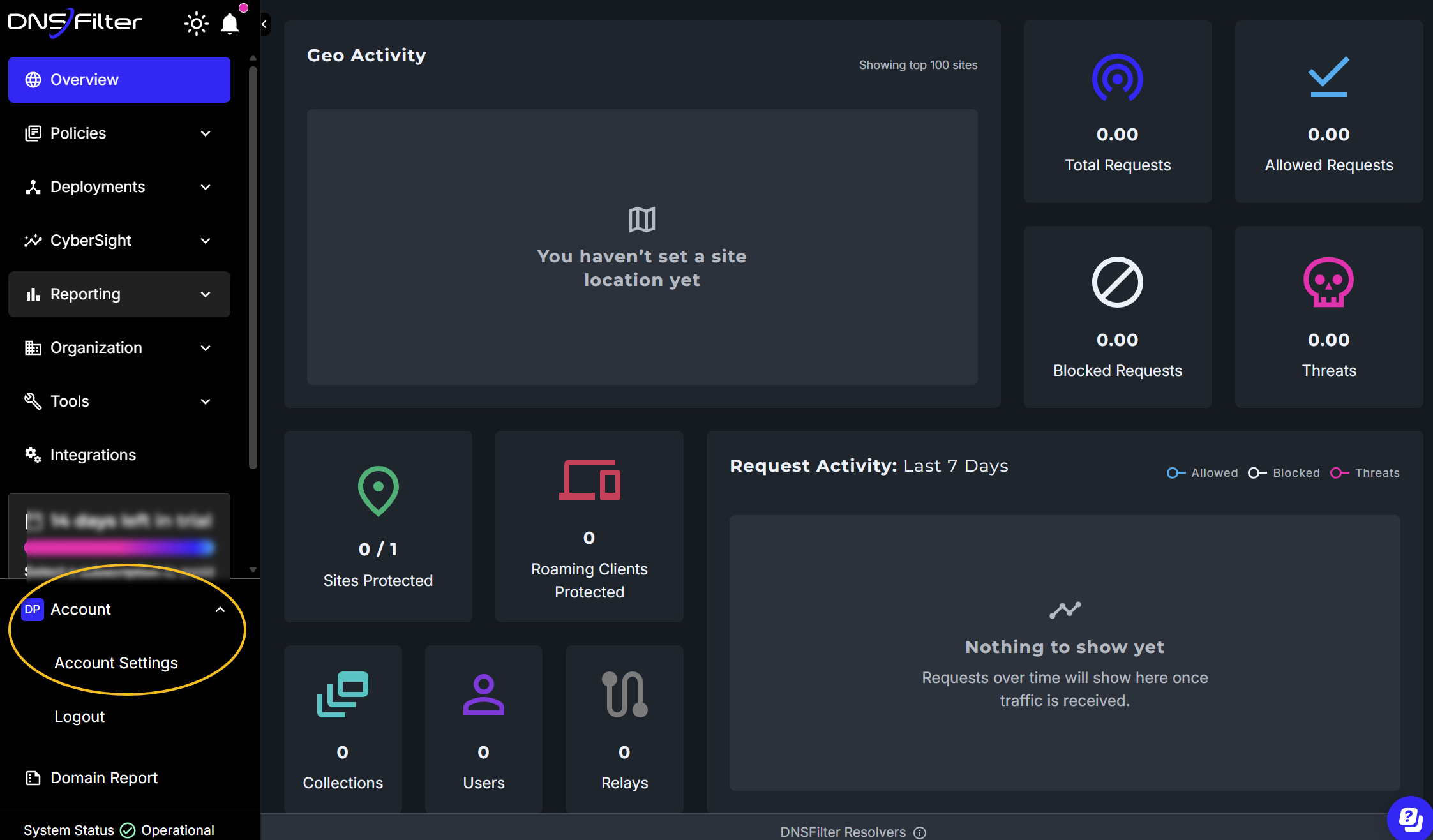
1. Log in to the DNSFilter dashboard and navigate to your account icon.
2. Click Account Settings.
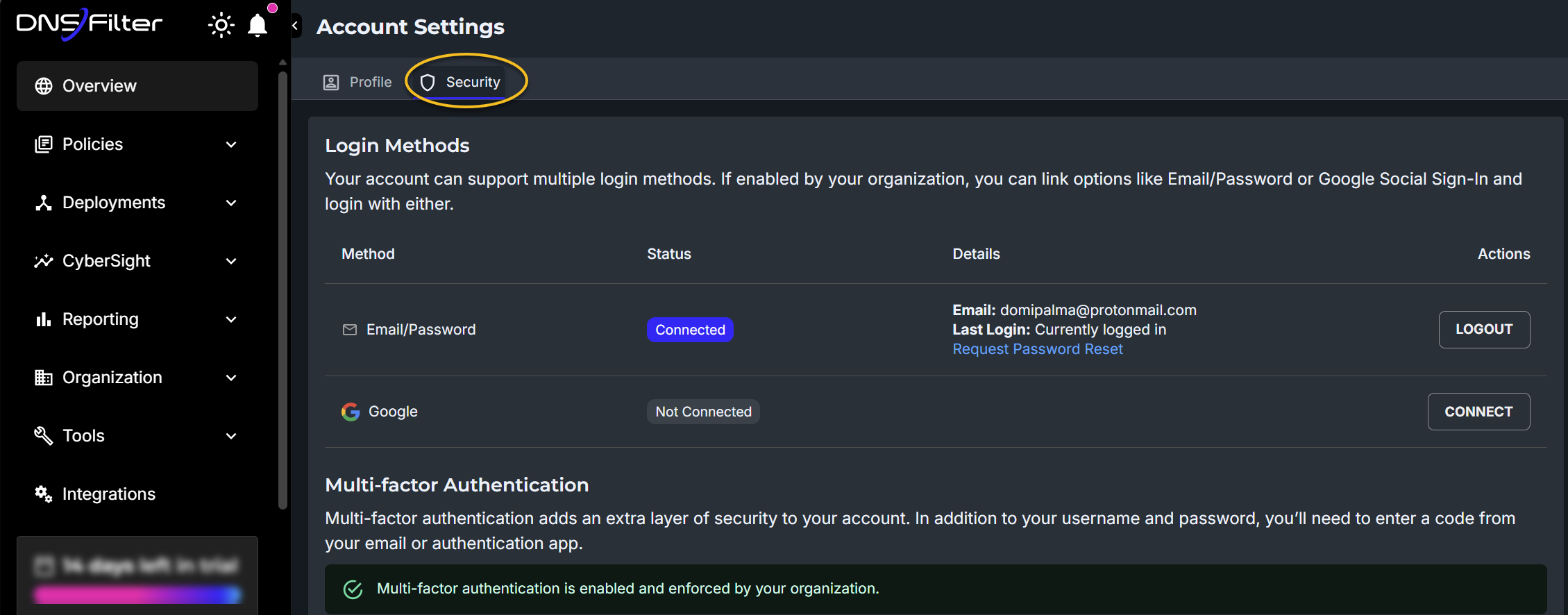
3. Click the Security tab.
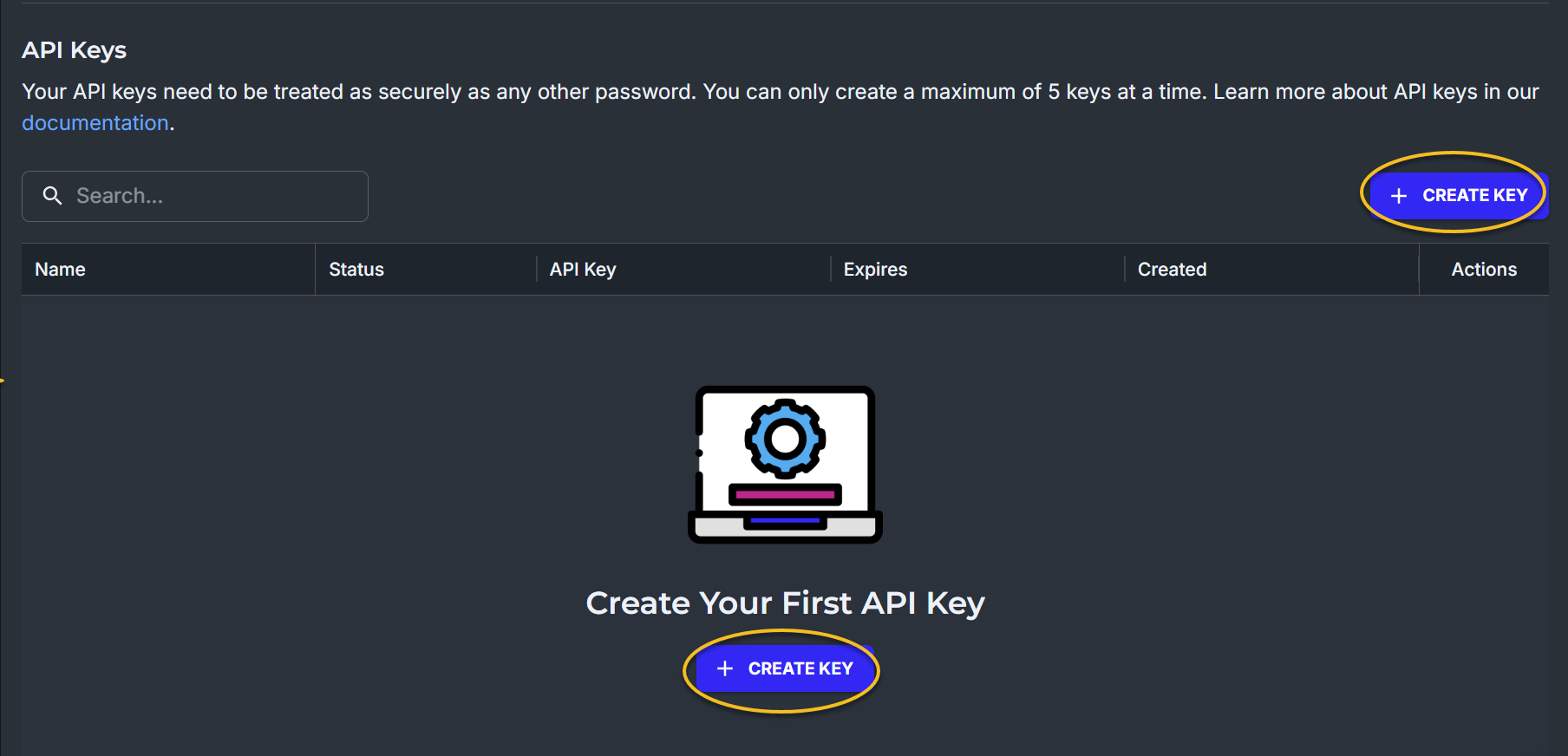
4. Scroll down to the API Keys section and click + Create Key.
5. Enter a name for your key. Note that this name cannot be changed once the key is created. Choose an expiration date from the drop-down menu.
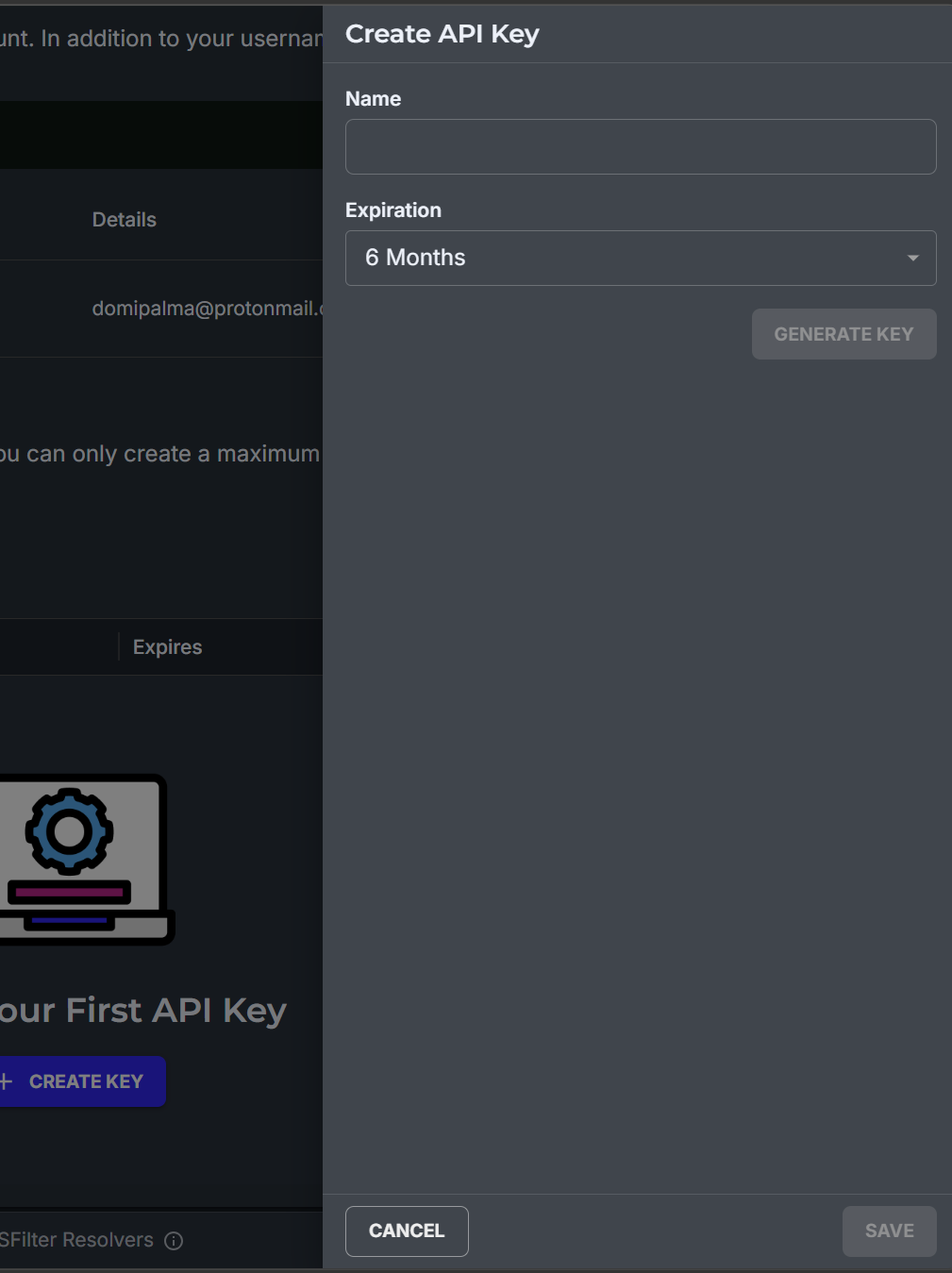
6. Click Generate Key.
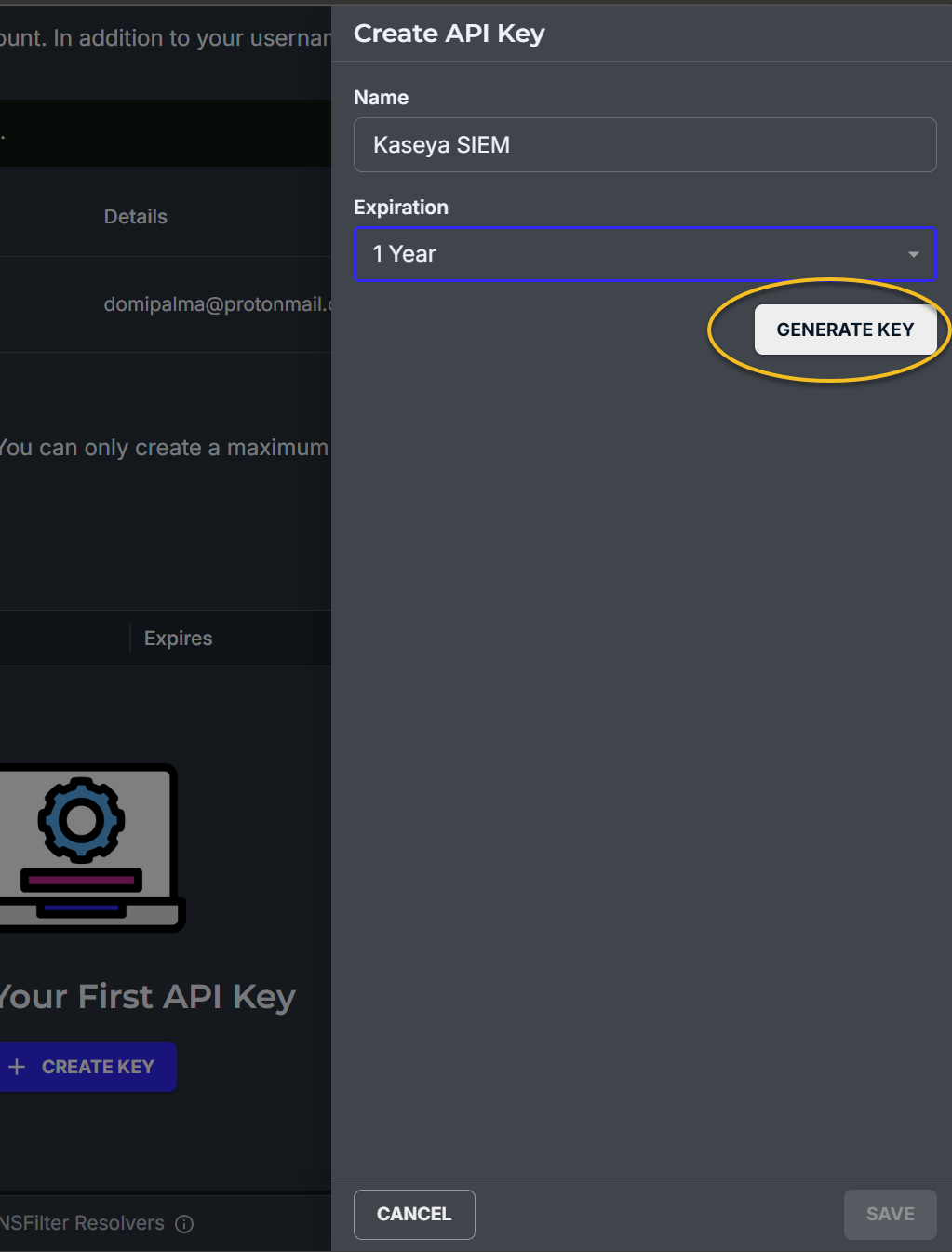
7. Copy the API key. This is the only time the key will be displayed, and the Save option will be inactive until the key is copied.
8. Click Save to return to the API key dashboard
9. The API key is now visible in the dashboard and available for use in Kaseya SIEM.
Set up the integration in Kaseya SIEMTo enable the integration, complete the following steps:
You can access the integration from either of the following locations:
-
Organizations > Edit Organization > Applications > + New Application > MSP Tools
-
Settings > Integrations > Network
Option 1: Add DNSFilter from an organization
-
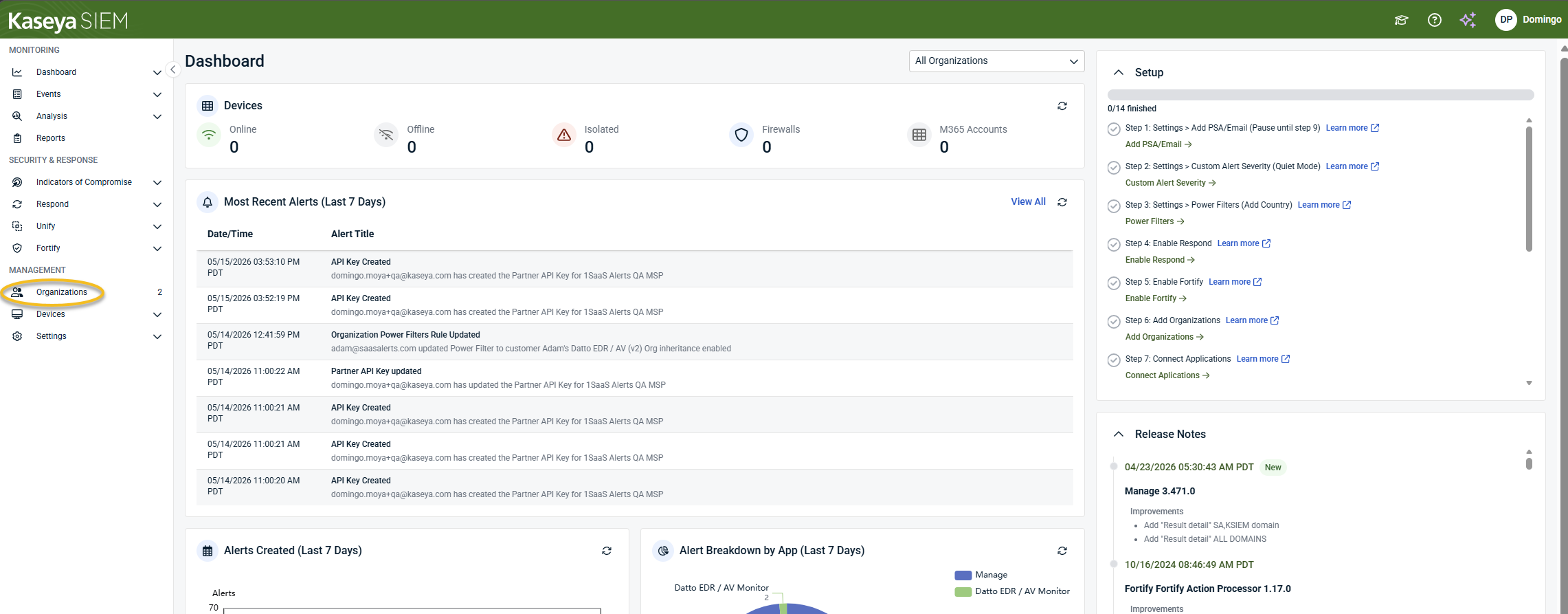
From the side navigation menu, click Organizations.
-
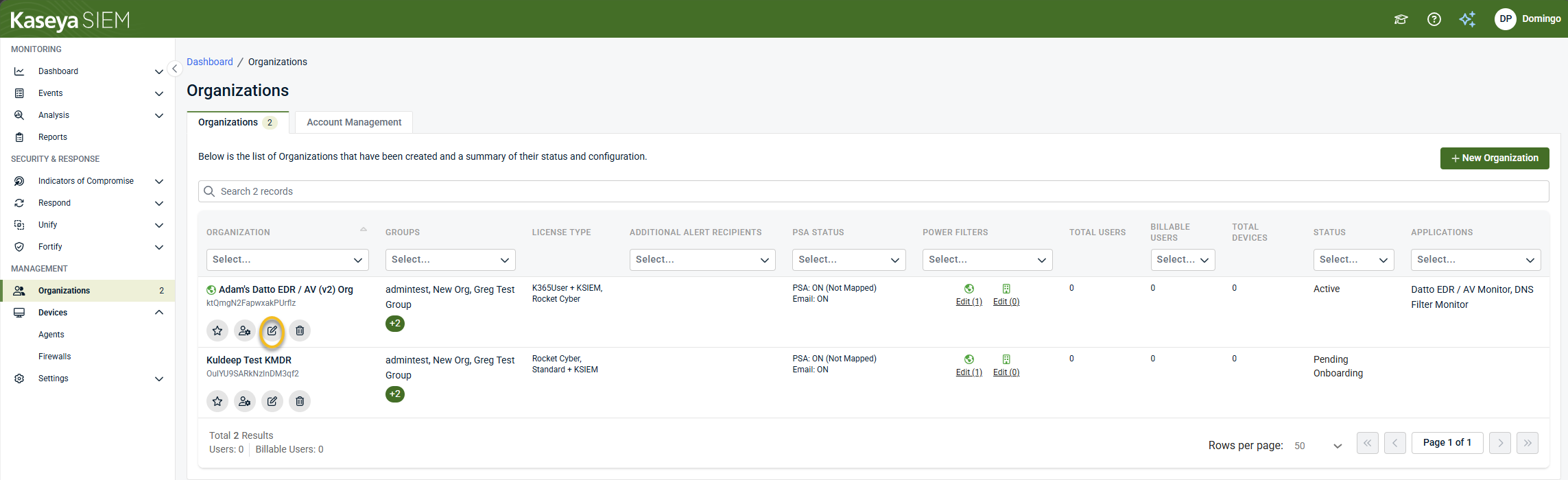
Click Edit Organization (pencil icon) for the selected organization.
-
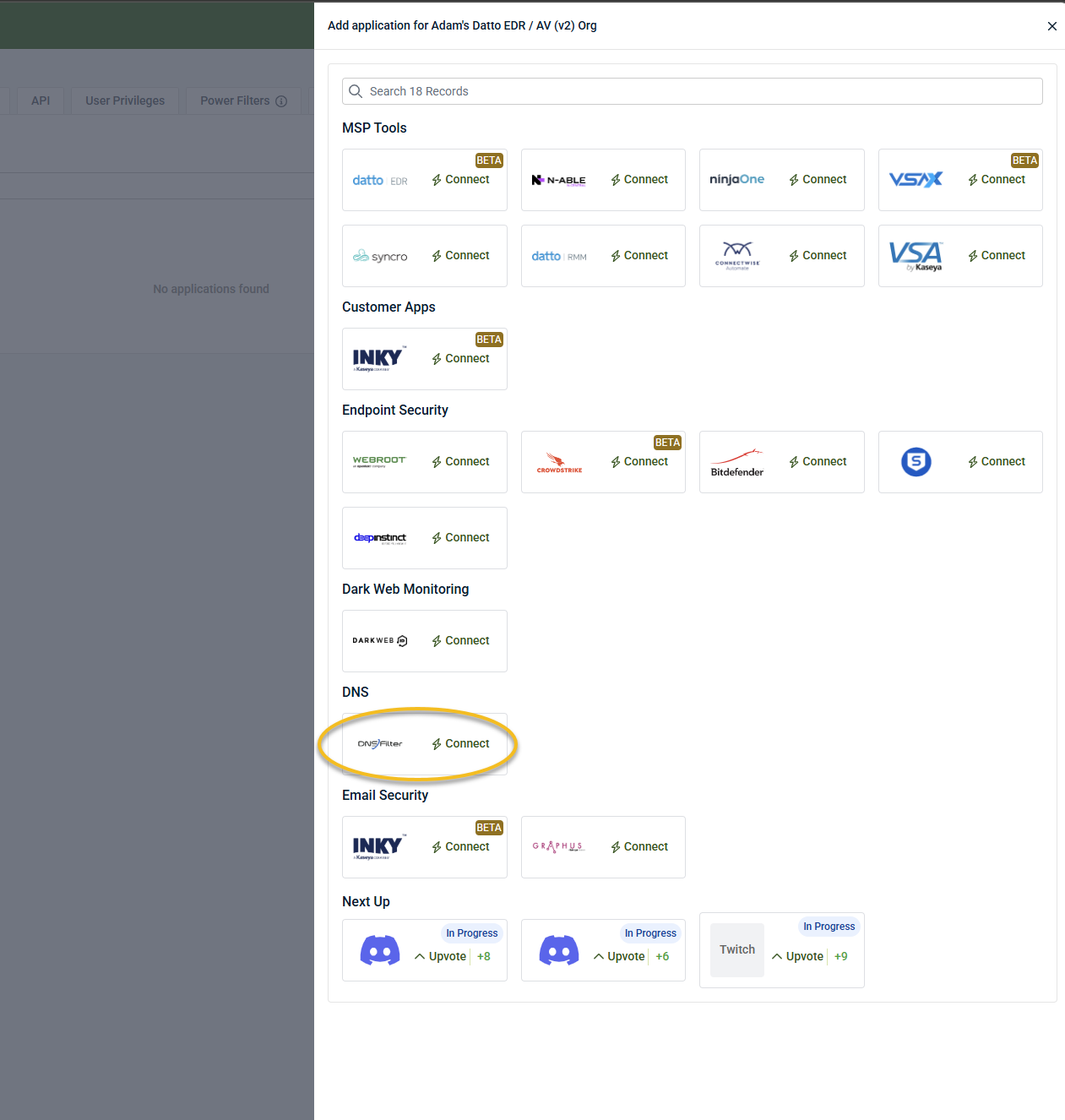
Click + New Application.

-
In the DNS section, click Connect on the DNSFilter tile.
-
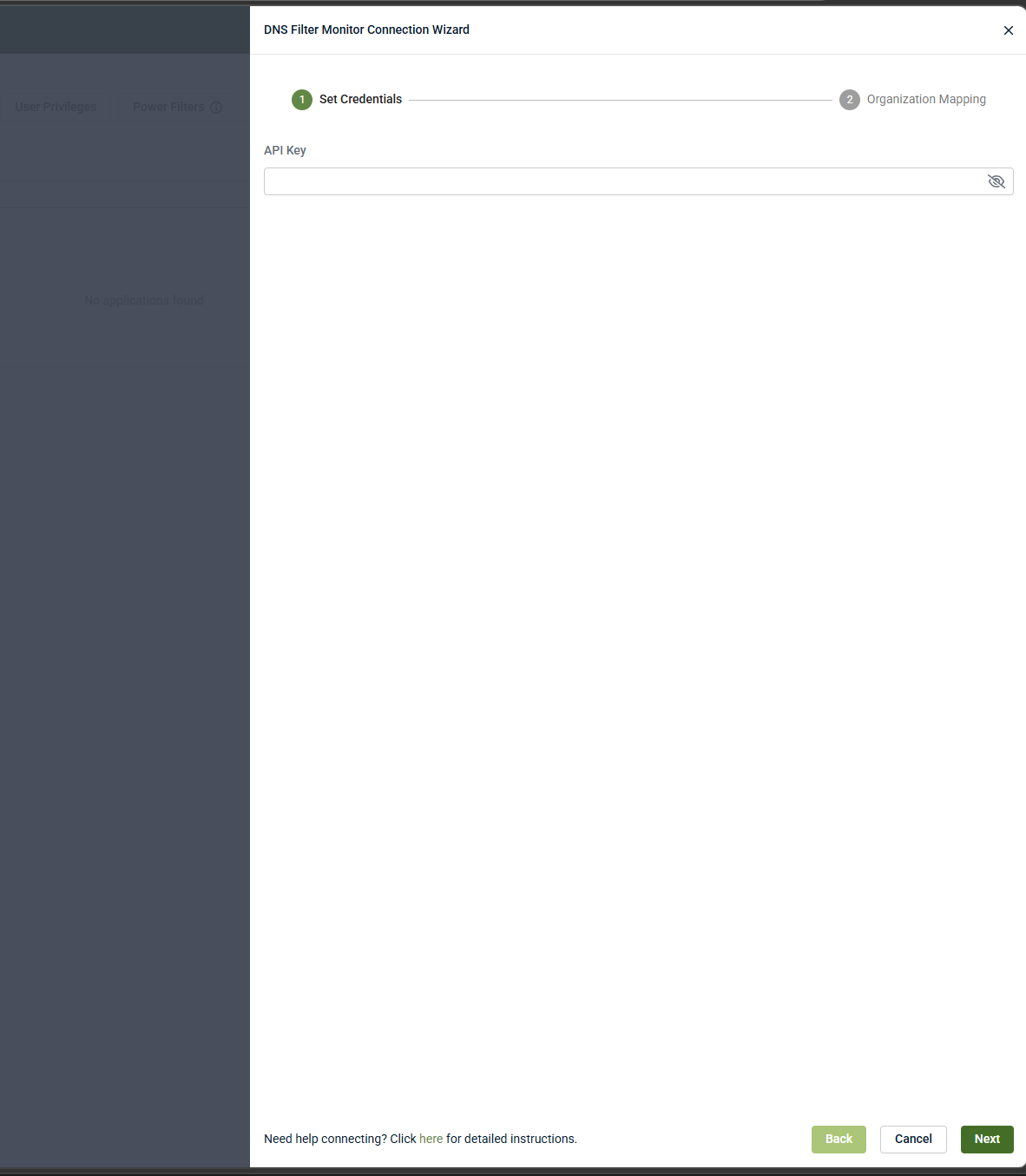
Enter the API key.
-
Click Next.
Continue with Organization Mapping.
Option 2: Add DNSFilter from Settings
To enable the integration from Settings, complete the following steps:
-
From the side navigation menu, click Settings.
-
Click Integrations.
-
Click + New Integration.
-
Select the organization that will receive the DNSFilter data, and then click Next.
-
To create a new organization and use it for the integration, click Create New Organization and use.
-
Each organization can have one connection per application type.
-
-
Under DNS, locate DNSFilter and click Connect.
-
Enter the API key.
-
Click Next.
Configure organization mapping
-
Select a User Activity Organization to associate user activity events
-
(Optional) Enable Automatically map organizations with 100% match to automatically match organizations with identical names (including case and spacing)
-
(Optional) Use Ignore from Automatic Mapping to exclude specific organizations from auto-matching
-
In the Device Organization Mapping section, map DNSFilter organizations to Kaseya SIEM organizations as needed
NOTE Organizations that are not mapped will not have associated device data discovered or ingested.
Confirm that a success message appears and click Finish.
Outcome: DNSFilter is connected and organizations are mapped, enabling ingestion of user activity and device-related events.
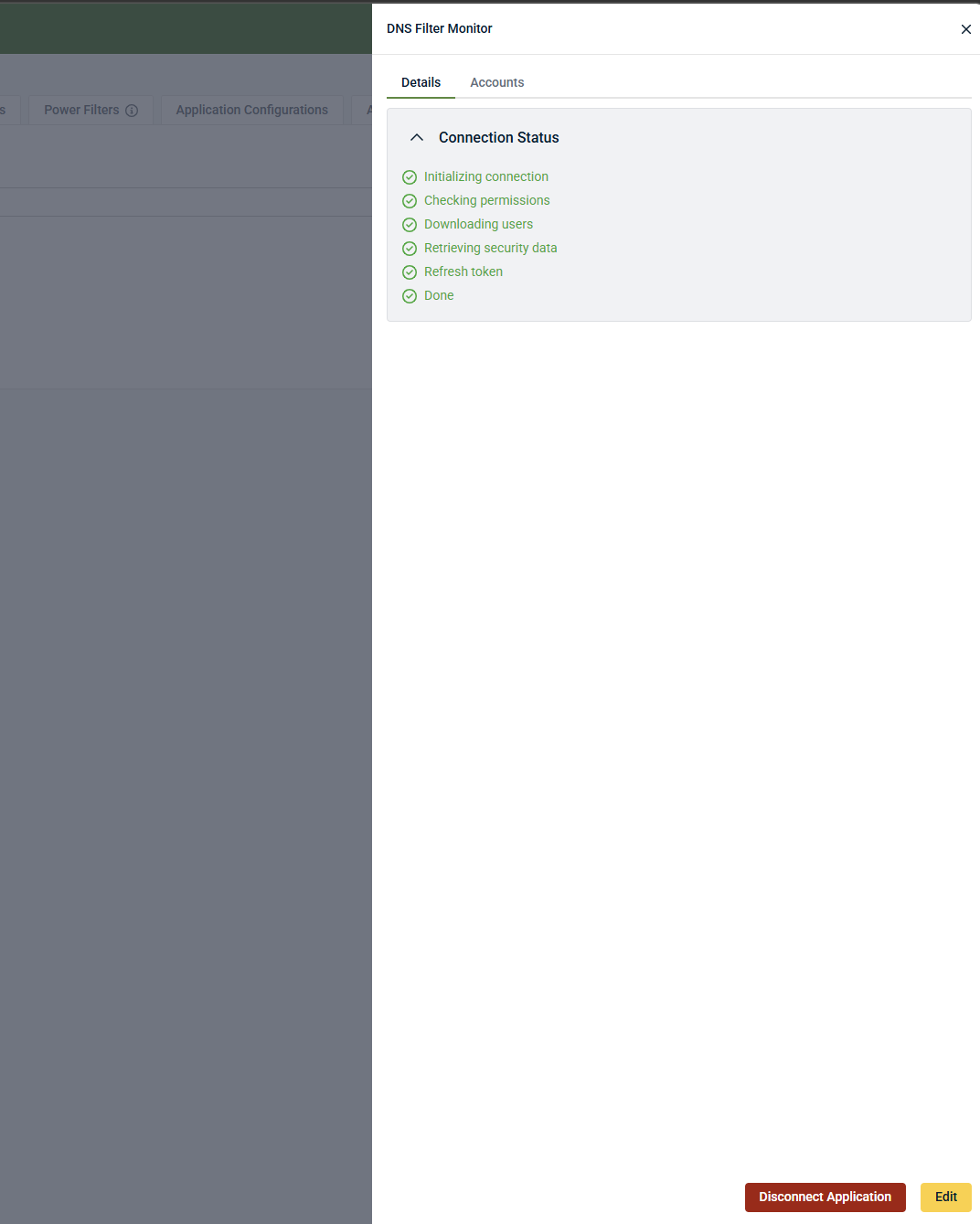
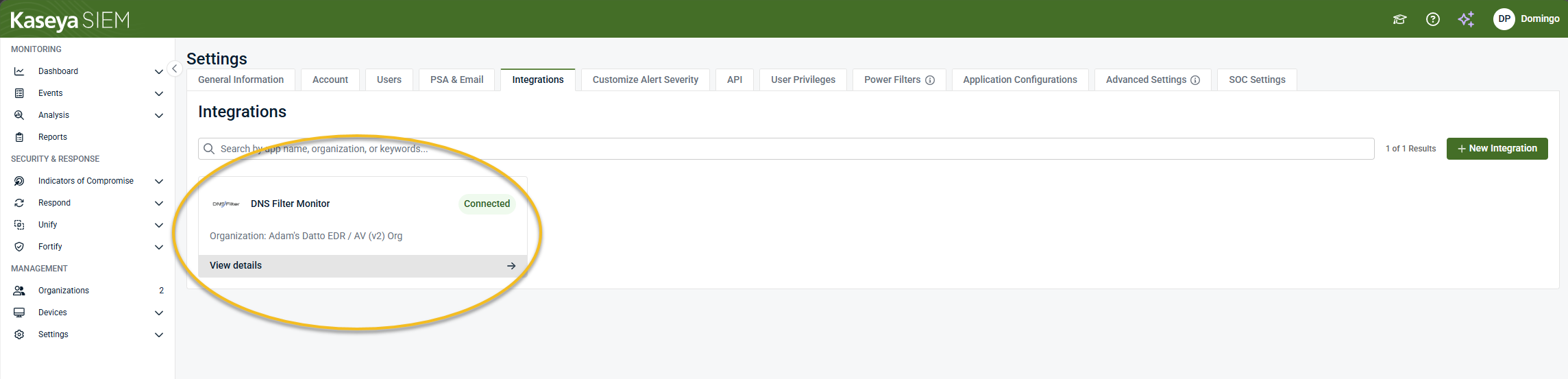
When the integration is completed successfully, DNSFilter appears as a connected application in the Applications tab for the selected organization.
Disable the integration in Kaseya SIEM
To disable the integration, complete the following steps:
-
From the side navigation menu, click Organizations.
-
Select the organization and click Edit Organization (pencil icon).
-
In the Applications tab, select DNSFilter Monitor under DNS.
-
Click Disconnect Application and confirm.