Unify in Kaseya SIEM
Unify is a correlation capability used by Kaseya SIEM to connect cloud activity with managed device data from MSP tools such as RMM and endpoint security platforms. Its purpose is to help determine whether activity observed in SaaS applications can be confidently associated with a known, managed device tied to a specific account.
You may encounter Unify context across multiple Kaseya products. Depending on your environment, device‑to‑account associations may originate from connected platforms that provide SaaS activity, identity data, or device telemetry, and then be surfaced within Kaseya SIEM to support investigation.
In Kaseya SIEM, Unify works by comparing metadata from multiple sources—including SaaS application events, identity platforms, and devices reported by RMM or endpoint security tools. By evaluating this data together, Unify assesses whether the cloud activity and the device activity are likely related. Rather than making binary decisions, Unify produces a confidence score that reflects how strongly the available signals support a device‑to‑account association.
When sufficient correlation data exists, Unify helps analysts answer investigative questions such as:
-
Did this activity occur on a known device managed in an RMM or endpoint platform?
-
Is the observed activity consistent with the expected user, device, and location?
-
Is there insufficient or ambiguous data, meaning the device should remain unmapped and be observed further?
Unify evaluates multiple signals, such as IP address, device identifiers, recent user activity, and Microsoft Entra Device ID (when available), to build confidence over time as more activity is observed. It does not rely on a single indicator.
Unify does not make enforcement decisions in Kaseya SIEM. Its role is to enrich events and alerts with device and identity context so analysts can better judge whether observed activity is normal or warrants deeper investigation. Other workflows may use this context as an input when determining how activity is prioritized or investigated.
How Unify works
Unify evaluates whether cloud activity and device activity are related by comparing information observed across connected platforms. As SaaS events, identity activity, and device telemetry from MSP tools such as RMM and endpoint security platforms are ingested, Unify continuously reassesses available data to determine whether an association between an account and a device can be established. Unify is particularly useful for investigating activity that appears normal in isolation but becomes notable when evaluated in the context of known device usage.
These evaluations occur over time rather than at a single point. As environments change and additional activity is observed, association outcomes may strengthen, weaken, or remain unresolved. This allows Unify to operate effectively in environments where identifiers may be shared or ambiguous, such as corporate networks, VPNs, or standardized device images.
To perform this evaluation, Unify considers multiple data points, which may include:
-
User identity attributes
-
Device identifiers and names
-
Network and access characteristics
-
Platform‑specific metadata from integrated systems
Based on the strength of matching signals, Unify calculates a confidence score that reflects how likely it is that observed activity is associated with a specific device and account. Confidence scores are probabilistic rather than definitive.
When sufficient data exists, Unify may present account suggestions representing likely device‑to‑account associations. Higher confidence scores indicate stronger correlation across multiple signals, while lower scores indicate partial or ambiguous matches that may require review.
When Unify does not have enough data to meet the confidence threshold for suggestions, it may display No Suggestions. This does not indicate an error or misconfiguration, only that insufficient matching data is currently available. As additional activity is observed and more correlation signals become available, suggestions may appear automatically without configuration changes.
NOTE Confidence scores reflect observed correlation based on available data. They are recalculated as new activity is observed and do not expire or decay automatically.
NOTE If you are using SaaS Alerts or Kaseya MDR alongside Kaseya SIEM, Unify‑derived context from those products may appear within SIEM investigations. Where Unify configuration and response actions are managed depends on how the organization is licensed. Regardless of the source, Unify contributes user and device context as input into SIEM investigation workflows.
When Unify becomes available
Before Unify can provide correlation context, required data sources must be connected.
In MSP environments, this typically includes connecting an RMM or endpoint security platform, which provides device inventory and device telemetry. Until an MSP tool is connected, Unify has limited or no device context to evaluate.
MSP tools are connected at a single, partner-level scope—commonly the MSP organization. Unify then uses organization mapping to determine how devices and activity should be associated across customer organizations.
Microsoft Entra Device ID (high‑confidence correlation signal)
In environments where devices share public IP addresses, use standardized images, or have non‑unique naming conventions, many traditional correlation signals may be insufficient to uniquely identify a device.
Microsoft Entra Device ID provides Unify with a globally unique, stable identifier that can significantly improve correlation confidence in these scenarios. When available, it is one of the strongest signals Unify can use to distinguish between devices that would otherwise appear identical.
Entra Device ID does not replace other correlation signals. Instead, it acts as a high‑confidence disambiguation signal, particularly in environments where multiple devices share similar attributes.
Example: Using Entra Device ID to disambiguate similar devices
In some environments, multiple devices may appear identical based on traditional correlation signals. For example, devices located behind a corporate firewall or VPN may share the same public IP address, use the same operating system image, and follow standardized naming conventions.
In these scenarios, Unify may observe SaaS activity that could plausibly belong to several devices, resulting in lower correlation confidence or an unmapped state.
When Microsoft Entra Device ID data is available, Unify can compare the device identifier reported by the identity platform with the identifier collected from managed devices. A matching Entra Device ID allows Unify to distinguish one device from others that otherwise appear identical, increasing confidence that the observed activity originated from a specific, known endpoint.
Where to access Unify in the UI
Once required data sources are connected, the Unify experience is available directly from the Kaseya SIEM interface:
-
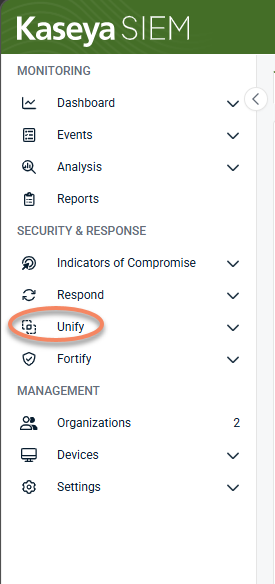
From the side navigation menu, click Unify.
-
Within the Unify module, you can access the following views:
-
Unify > Unmapped Devices: Review devices that are not yet confidently associated with an account.
-
Unify > Mapped Devices: Review devices that have been confidently associated with one or more accounts.
-
Unify > Ignored Devices: Review devices that have been explicitly excluded from correlation
-
Unify > Automation: Configure optional mapping and unmapping automation.
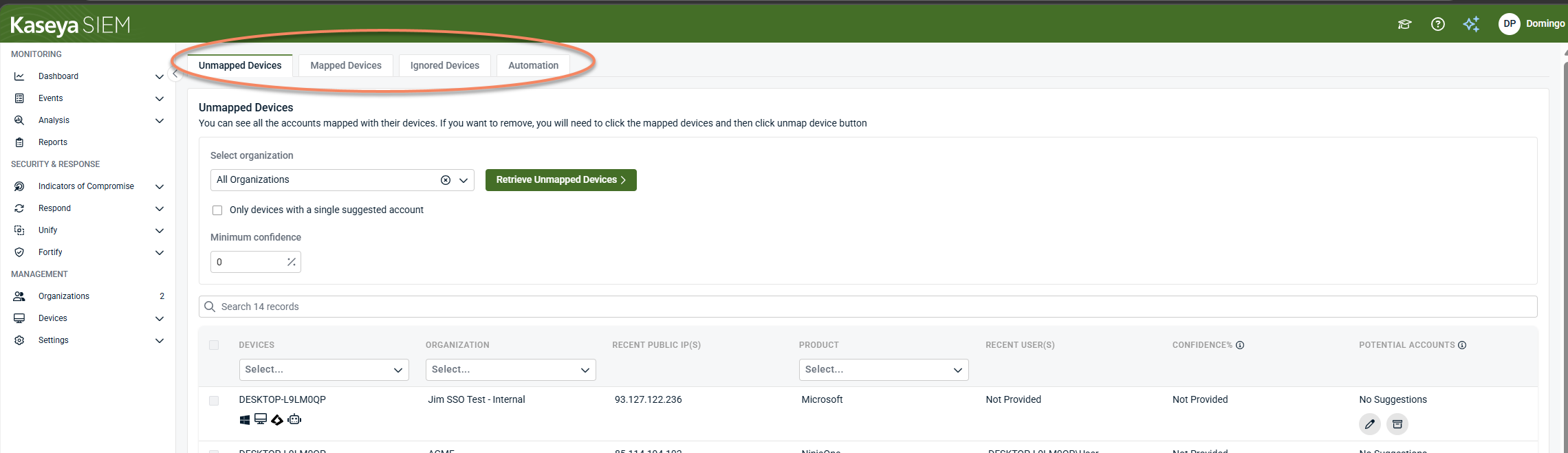
These views are read‑only until relevant data sources are connected. No separate Unify activation step is required.
Unify association lifecycle
Unify association behavior follows a consistent lifecycle:
Observation and evaluation
Unify observes device, identity, and activity metadata from connected platforms. Using available signals, Unify evaluates whether a device can be confidently associated with an account:
-
If confidence meets the configured threshold, the device becomes eligible for mapping.
-
If confidence is insufficient or ambiguous, the device remains unmapped.
Mapping
When mapping conditions are met, either through automation or manual action, Unify creates a device‑to‑account association:
-
Mapped status reflects current correlation confidence.
-
Mappings provide investigation context only and may change as new data is observed.
Device correlation (propagation layer)
Device correlation evaluates whether multiple devices are logically equivalent based on shared metadata.
When enabled:
-
A mapping applied to one device can propagate to all correlated devices.
-
An unmapping action applied to one device can propagate to all correlated devices.
Device Correlation does not create mappings by itself; it synchronizes outcomes produced by mapping and unmapping rules.
Unmapping
Unify may remove mappings automatically when configured unmapping conditions are met, such as:
-
Confidence for the mapped account drops below the defined threshold
-
The device has not checked in within the defined time window
-
A correlated device triggers a propagated unmapping action
Unmapping returns the device to an unmapped state unless the device is explicitly ignored.
Ignored state (explicit exclusion)
If a device is ignored, it is removed from the association lifecycle entirely.
-
No correlation is performed
-
No mapping or unmapping occurs
-
Device Correlation does not apply
Ignoring a device is an administrative decision and can be reversed.
Together, these components ensure Unify maintains accurate, consistent investigation context as environments and data change.
Unify views and device states
Unify presents device association status through dedicated views. These views are designed to support review and judgment, not to indicate errors.
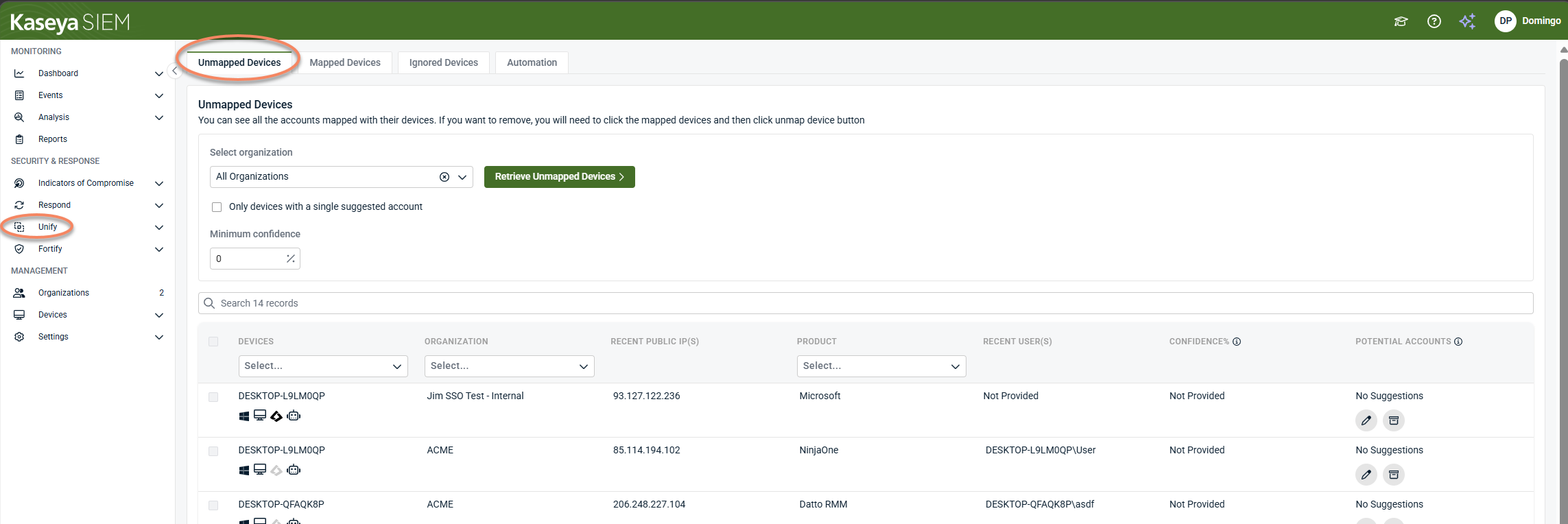
 Unmapped Devices tab
The Unmapped Devices tab lists devices for which Unify does not currently have enough correlation data to associate the device with a specific account.
Devices appear here when Unify has observed activity, but the available signals do not meet the configured confidence threshold required to create an association.
Unmapped devices are not errors and do not indicate misconfiguration by default. They reflect the current state of observed data and correlation confidence.
What it means when a device is unmapped
A device may appear as unmapped for several reasons, including:
-
Insufficient identity or device metadata
-
New or recently observed devices
-
Shared or ambiguous environments (for example, VPNs, shared IPs, or standardized images)
-
Correlation signals that do not exceed the required confidence threshold
-
Device data that exists but cannot yet be reliably matched to a single account
As additional activity is observed and more correlation signals become available, unmapped devices may become eligible for association automatically.
Reviewing unmapped devices
To view unmapped devices:
-
Navigate to Unify from the side navigation.
-
Select the Unmapped Devices tab.
-
Select the organization scope if applicable.
-
Select Retrieve Unmapped Devices.
The table displays devices that currently do not have an accepted device‑to‑account association.
Columns in the Unmapped Devices view
Each row provides correlation context to help understand why the device is unmapped.
-
Device: The device identifier as reported by connected platforms. This may be a hostname, device name, or platform‑specific identifier.
-
Organization: The organization the device is associated with based on available integration data.
-
Recent Public IP(s): The most recently observed public IP address associated with the device, if available.
-
Product: The source platform providing device data (for example, endpoint, RMM, or security product).
-
Recent User(s): The most recently observed user associated with activity on the device, if available. If no consistent user has been observed, this field may display Not Provided.
-
Confidence: Displays the current confidence level assigned to potential associations. Not Provided indicates that Unify does not yet have sufficient correlation signals to calculate a meaningful confidence score.
-
Potential Accounts: Displays whether Unify has identified candidate accounts for association. No Suggestions indicates that available correlation data does not meet the confidence threshold required to propose an account. This does not indicate an error or missing configuration.
Filtering and sorting unmapped devices
The Unmapped Devices view supports filtering and sorting to help prioritize review.
-
Available filters may include:
-
Organization
-
Product
-
Recent user
-
Confidence score
You can also sort by confidence to review devices with the strongest (or weakest) potential correlation first.
Understanding “No Suggestions”
When No Suggestions appears in the Potential Accounts column, it means:
-
Unify evaluated available correlation signals
-
No account met the confidence threshold required to be proposed
-
The device remains unmapped until stronger signals exist
This state is normal in environments with limited recent activity, newly onboarded devices, and shared or non‑unique infrastructure pattern. Suggestions may appear automatically as additional activity is observed.
Manually reviewing account associations
From the Unmapped Devices table, you can open the Account Mapping panel for a device by clicking the pencil icon in the Potential Accounts column.
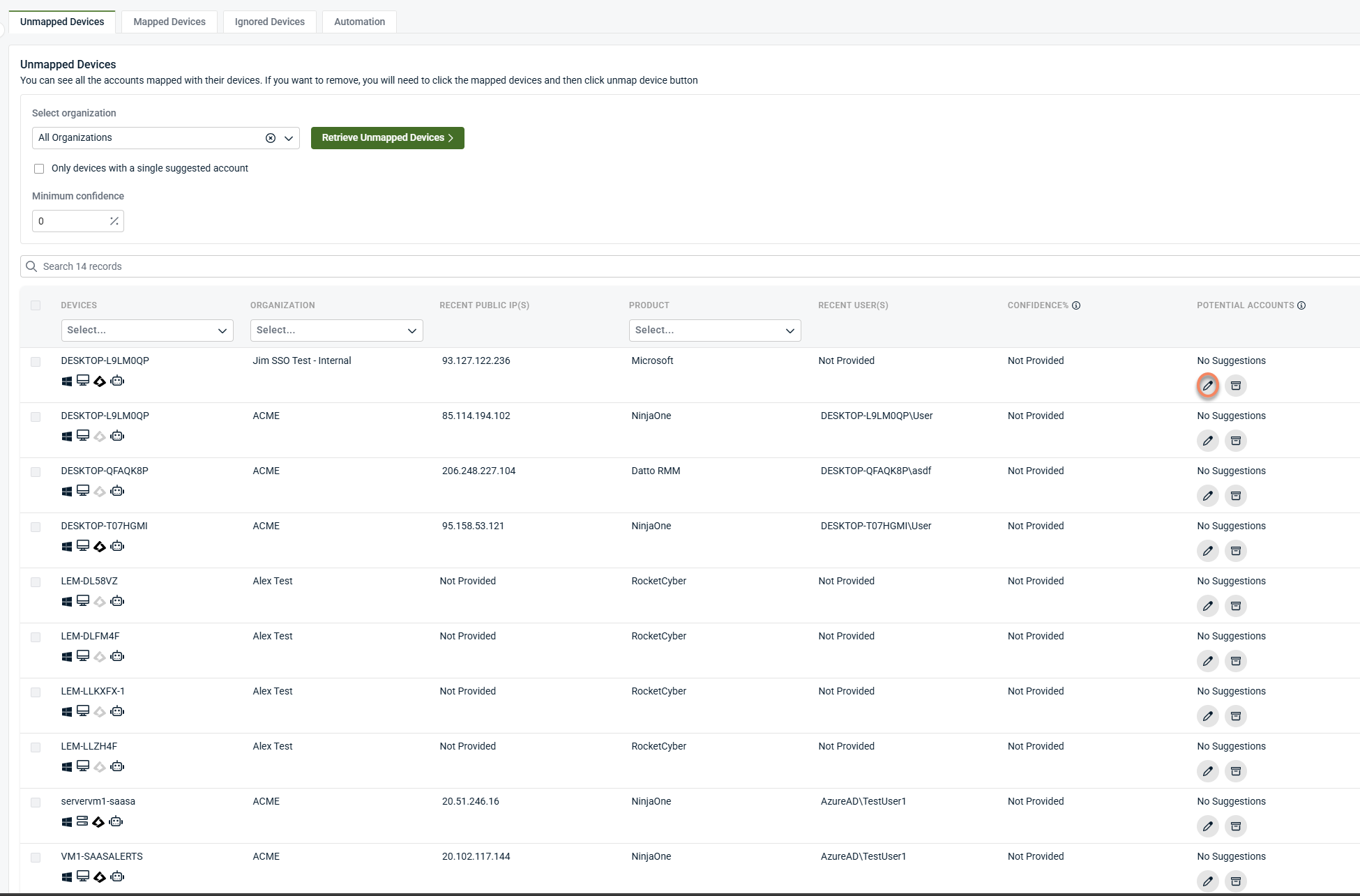
The Account Mapping panel displays:
-
Device details
-
Source product
-
Recent user activity
-
Available potential accounts and associated confidence values
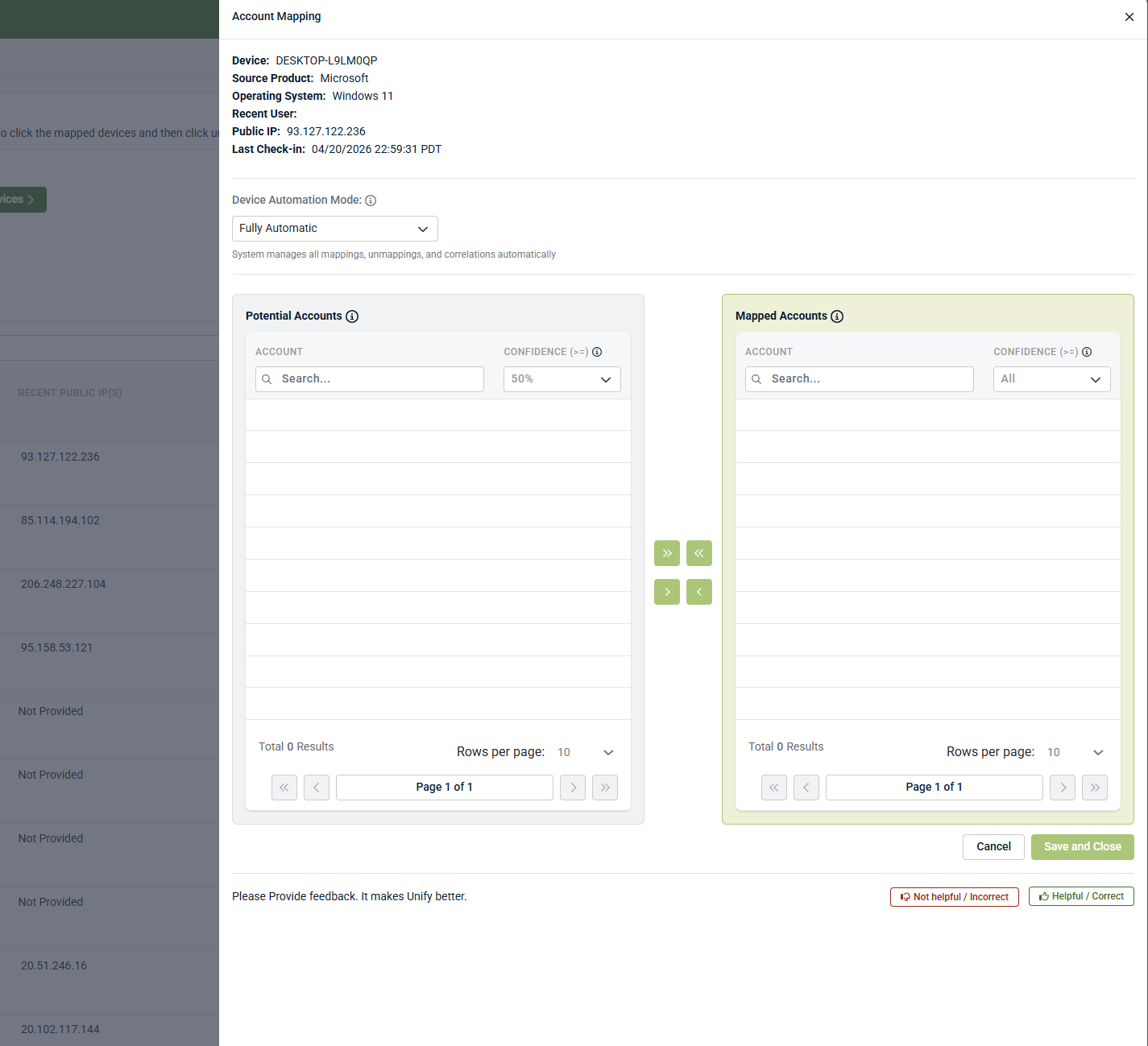
This view allows you to review correlation results, but actual association behavior depends on the device’s automation mode and global automation settings.
Device automation modes
Each device operates under a defined automation mode, which determines how associations are handled.
Available modes include:
-
Fully Automatic: Unify automatically manages mapping, unmapping, and correlation updates based on confidence scoring
-
Append Only: Unify can add new associations but does not remove existing ones automatically
-
Lock Mappings: Existing associations are preserved and not modified automatically
-
Manual Only: Unify does not change mappings automatically for this device.
The automation mode affects association behavior only and does not influence detection or response.
Ignoring a device
From the Unmapped Devices view, you can choose to ignore a device.
Ignored devices are excluded from automated and manual association workflows. They do not contribute to Unify correlations and do not appear in mapped or unmapped association processing.
Ignoring a device is useful for test systems, non‑managed endpoints, and devices that should never participate in correlation.
Ignored devices can be reviewed later from the Ignored Devices tab.
When to take action vs. wait
In most cases, no immediate action is required for unmapped devices.
Recommended approach:
-
Monitor unmapped devices over time
-
Review devices with repeated activity but no correlation
-
Adjust confidence thresholds only after observing trends
-
Use automation and What If to preview changes before applying them
Unmapped devices often resolve automatically as Unify observes additional activity.
Device Correlation and Unmapped Devices
Unmapped devices may be affected by Device Correlation settings. When device correlation is enabled, Unify evaluates whether an unmapped device is equivalent to another device that already has an accepted association. If sufficient correlation confidence exists, mapping behavior may propagate automatically subject to global automation rules.
For more information on how Unify identifies similar devices and synchronizes association behavior, see Device Correlation.
Key takeaway
The Unmapped Devices tab provides visibility into devices that Unify cannot yet confidently associate with an account. This view exists to support transparency and review—not to indicate failure or misconfiguration.
Unmapped status reflects current correlation confidence and typically improves as more data becomes available.
Mapped Devices tab
The Mapped Devices tab lists devices that Unify has successfully associated with one or more accounts based on correlation signals and confidence scoring.
Devices appear in this view once Unify determines that available identity, device, and activity data meets the configured confidence threshold for association.
Mapped status indicates a current, accepted association, not permanent ownership.
What it means when a device is mapped
When a device is mapped:
-
Unify has correlated observed activity to a specific account with sufficient confidence
-
The association is available as contextual information during investigation
-
The association may be maintained or updated automatically, depending on automation settings
A mapped device does not imply:
-
That the association is immutable
-
That the device cannot later become unmapped
-
That detection or response behavior has changed
Unify associations remain informational and adaptive.
Viewing mapped devices
To view mapped devices:
-
Navigate to Unify from the side navigation.
-
Select Mapped Devices.
-
Select an organization from the drop‑down list.
-
Select Retrieve Mapped Devices.
Until an organization is selected, the table remains empty.
What you see in the Mapped Devices view
The Mapped Devices view focuses on confirmed associations, which is why fewer corrective actions are exposed compared to Unmapped Devices.
Each row represents:
-
A device
-
An associated account (or accounts, where supported)
-
A confidence‑based correlation outcome
This view is primarily used for verification and review, rather than remediation.
Relationship to confidence scoring
Mapped devices meet or exceed the minimum confidence threshold defined in Unify automation settings.
Confidence scores:
-
Reflect the strength of correlation signals at the time of evaluation
-
Are recalculated as new activity is observed
-
May increase or decrease over time as additional data becomes available
If confidence drops below the required threshold, a device may transition back to an unmapped state automatically.
Automation impact on mapped devices
How mapped devices are maintained depends on automation settings and device automation mode:
-
In Fully Automatic mode, Unify can update or remove mappings as correlation confidence changes
-
In Append Only or Lock Mappings modes, existing mappings are preserved according to the selected behavior
-
In Manual Only mode, mappings are not changed automatically.
Changes to global automation settings affect how mapped devices are evaluated going forward.
When to review mapped devices
Review mapped devices when you want to:
-
Validate that Unify is correlating devices as expected
-
Confirm account associations in high‑risk investigations
-
Spot unexpected associations early
-
Monitor environments with shared or changing infrastructure
Routine review helps ensure that Unify associations continue to reflect real usage patterns.
How Mapped Devices differs from Unmapped Devices
| Mapped devices | Unmapped devices |
|---|---|
| Association accepted | No association yet |
| Confidence threshold met | Confidence threshold not met |
| Used mainly for verification | Used for analysis and decision‑making |
| Fewer corrective actions | Review, ignore, or manual mapping options |
For details on why devices remain unmapped and how to act on them, see Unmapped Devices.
Device Correlation and Mapped Devices
Mapped devices may be influenced by Device Correlation settings. When device correlation is enabled, Unify can propagate mapping and unmapping outcomes across devices it considers logically equivalent based on shared metadata. This helps maintain consistent associations when the same endpoint appears in multiple platforms.
For details on how device similarity is determined and how mapping outcomes propagate, see Device Correlation.
Key takeaway
The Mapped Devices tab provides visibility into device‑to‑account associations that Unify considers reliable based on observed data. These associations support investigation context and may evolve over time as environments change.
Mapped status reflects current confidence, not permanence.
Ignored Devices tab
The Ignored Devices tab lists devices that have been explicitly excluded from Unify association processing.
When a device is ignored, Unify no longer evaluates it for device‑to‑account correlation and does not attempt to map, unmap, or suggest associations for that device.
Ignoring a device is an intentional administrative action, not an automatic state.
What it means when a device is ignored
When a device is ignored:
-
Unify stops correlation and association processing for the device
-
The device does not appear in Mapped Devices or Unmapped Devices
-
No confidence scores or account suggestions are calculated
-
The device is excluded from automated and manual mapping workflows
Ignoring a device does not:
-
Remove the device from data ingestion
-
Suppress alerts
-
Change detection logic
-
Affect SOC response behavior
Ignore applies only to Unify context and association behavior.
Common reasons to ignore a device
Devices are typically ignored when they should not participate in identity correlation, such as:
-
Test or lab systems
-
Non‑managed endpoints
-
Jump boxes or shared infrastructure
-
Devices with intentionally ambiguous ownership
-
Systems that generate noise without meaningful user association
Ignoring these devices helps reduce unnecessary review and keeps Unify focused on relevant endpoints.
Viewing ignored devices
To view ignored devices:
-
Navigate to Unify from the side navigation.
-
Select Ignored Devices.
-
Select the organization scope if applicable.
-
Select Retrieve Ignored Devices.
The table displays all devices currently excluded from Unify association processing.
What you see in the Ignored Devices view
Each row represents a device that has been manually ignored.
Typical columns include:
-
Device: The device identifier as reported by connected platforms
-
Organization: The organization the device belongs to
-
Reason: If provided, the context or note associated with the ignore action
-
Last Action Time: When the device was ignored
This view is used primarily for audit and review, not ongoing analysis.
Removing a device from Ignored Devices
A device can be restored to normal Unify processing.
When you choose Remove from ignored:
-
The device becomes eligible for correlation again
-
It may reappear in Unmapped Devices initially
-
It may later transition to Mapped Devices, depending on confidence scoring and automation settings
Removing a device from ignored status does not guarantee immediate mapping.
Relationship to confidence scoring and automation
Ignored devices are excluded regardless of:
-
Confidence score thresholds
-
Automation settings
-
Device automation mode
Automation settings have no effect on ignored devices until they are restored.
Once restored, the device is evaluated according to current automation and confidence configuration.
Ignored Devices vs. Unmapped Devices
| Ignored Devices | Unmapped Devices |
|---|---|
| Explicitly excluded by admin | Not excluded |
| No correlation performed | Correlation attempted |
| No confidence score calculated | Confidence score may be calculated |
| No account suggestions | Suggestions may appear |
| Hidden from mapping workflows | Actively visible for review |
Ignoring a device is a final exclusion, whereas unmapped status is typically temporary and data‑driven.
When to use Ignore vs. Automation exclusions
Use Ignore device when a specific device should never participate in correlation. Use organization exclusions or automation rules when you want broader, reversible control.
Ignored Devices is the most restrictive Unify state.
Key takeaway
The Ignored Devices tab provides administrators with a way to permanently exclude devices from Unify association processing. This is useful for managing noise, special‑purpose systems, and non‑relevant endpoints.
Ignored status affects only Unify context behavior and does not impact detection, alerting, or response workflows.
How this now fits cleanly with the other tabs
-
Mapped Devices: Accepted association
-
Unmapped Devices: Association under evaluation
-
Ignored Devices: Explicit exclusion
Together, these three tabs describe the complete lifecycle of Unify device association.
Automation tab
The Automation tab controls how Unify automatically maps, maintains, and removes device‑to‑account associations over time. These settings determine when Unify creates associations, when it removes them, and how correlation confidence is enforced.
Automation settings are global by default, but individual devices can override these behaviors using device‑specific automation modes.
Unify > Automation
The Automation tab is divided into three sections:
-
Mapping
-
Unmapping
-
Device Correlation
Mapping
The Mapping tab controls when and how Unify creates new device‑to‑account associations automatically.
-
Automatically Map Devices: When enabled, Unify automatically creates device‑to‑account mappings once correlation confidence meets the defined threshold.
-
Applies to devices operating in Fully Automatic mode
-
Uses correlation signals and confidence scoring
-
Does not affect manual or locked devices
Disabling this option prevents new automated mappings from being created but does not remove existing mappings.
Using What If before committing to automation
You can enable mapping logic and use What If to preview how many devices would be mapped at your selected confidence threshold. This allows you to validate impact (and map in bulk) without committing to ongoing auto‑mapping.
Automation does not take effect until you select Save settings. Until settings are saved, Unify does not automatically create or change device‑to‑account mappings based on the selected threshold.
-
-
Map devices for all organizations: Controls the scope of automated mapping.
-
When enabled, Unify attempts to apply mapping automation across all organizations
-
When disabled, mapping is limited to manually selected organizations
-
-
Exclude these organization(s): Allows specific organizations to be excluded from automated mapping behavior.
Excluded organizations:
-
Do not receive automated mappings
-
Continue to appear in Unmapped Devices if correlation data exists
-
Can still be reviewed manually
-
This is commonly used for test tenants, environments with incomplete integrations, or organizations with atypical infrastructure.
-
Account Mapping Settings: Controls how accounts are selected once confidence thresholds are met.
Available options include:
-
Single devices
-
Map the highest account over confidence score: Maps the account with the strongest correlation
-
Map account if it is the only account over confidence score: Prevents mapping when multiple accounts exceed the threshold.
-
-
Shared devices
-
Map all accounts over confidence score: Where supported, this allows multiple accounts to be associated with a single device for environments where devices are intentionally shared.
-
-
Availability of shared-device behavior may depend on product version, tenant configuration, and connected data sources.
These settings affect association logic only, not alerting or response.
-
Minimum confidence score: Defines the minimum correlation confidence required before Unify creates a mapping.
-
Higher values reduce incorrect associations
-
Lower values increase coverage but may require review
Confidence scores are evaluated dynamically and recalculated as new activity is observed.
Alerts for automated mappings
These settings control informational alerts generated when automated mappings occur.
-
Alert priority for automated mappings: Low or Medium
-
Medium can generate a ticket in a PSA
-
Low logs the alert without escalation
-
-
Create alert against:
-
The MSP, or
-
The corresponding organization
-
-
Send one alert per:
-
Organization, or
-
Device
-
These alerts are not security incidents and exist to provide visibility into automation behavior.
Map RMM(s) Organizations
Controls how organizations discovered through connected RMM platforms are mapped.
When enabled:
-
Existing and new RMM organizations are automatically mapped if the organization name matches exactly (including case, punctuation, and spacing)
-
Reduces the need for manual organization mapping
-
Allows Unify device suggestions to begin populating immediately
This setting affects organization alignment, not device ownership or movement.
Unmapping
The Unmapping section controls when Unify removes existing device‑to‑account associations automatically.
Recommendation for Kaseya SIEM: Keep automatic unmapping OFF: In Kaseya SIEM, it is recommended to keep Automatically Unmap Devices turned OFF.
Why: In some MSP environments, Unify may not have enough data to raise confidence above an automation threshold even when an MSP has manually confirmed the correct device‑to‑account relationship. If automatic unmapping is enabled, Unify could later remove that manual mapping when confidence remains low or fluctuates due to incomplete telemetry. This can undo valid manual work and cause confusion—especially if investigations or alerts rely on mapped device context.
Keeping automatic unmapping OFF preserves intentional manual mappings while allowing confidence signals to continue building over time.
-
Automatically Unmap Devices: When enabled, Unify evaluates existing mappings and removes them when configured conditions are met. This applies only to devices operating in Fully Automatic mode.
-
Unmap Manually Mapped Accounts: When enabled, Unify can remove mappings that were created manually if later correlation data no longer supports the association. This helps keep mappings accurate over time as environments change.
-
Unmap if device has not checked in within: Specifies how long a device can remain inactive before its mapping is removed. Available intervals include:
-
30 days
-
60 days
-
90 days
-
120 days
-
180 days
-
1 year
This is commonly used to clean up mappings for dormant or retired devices.
-
-
Add device to Ignore List when unmapping due to check‑in date
When enabled:
-
Devices that are unmapped due to inactivity are automatically added to Ignored Devices
-
Prevents repeated mapping/unmapping cycles
-
Reduces noise in Unmapped Devices
This setting is useful in environments with frequent device churn.
-
-
Unmap if confidence score for mapped account drops below:
-
Defines the confidence threshold below which an existing mapping is removed.
-
Ensures that mappings remain supported by current data
-
Helps prevent outdated or incorrect associations from persisting
-
Unmapping due to confidence drop does not imply malicious activity.
-
Alerts for automated unmappings
-
Controls alerts generated when Unify removes mappings automatically
-
Options mirror mapping alerts:
-
Priority (Low / Medium)
-
Alert target (MSP or organization)
-
Grouping per organization or device
These alerts provide change visibility, not incident notification.
-
Device Correlation
The Device Correlation section controls how Unify identifies and treats multiple devices as logically equivalent based on shared metadata. Device correlation allows Unify to synchronize association behavior across devices that are likely the same physical endpoint observed through different platforms or data sources.
Device correlation affects association consistency, not detection, alerting, or response behavior.
NOTE These are global settings. Devices in Manual Only mode are not affected by device correlation rules.
What device correlation does
Device correlation determines whether two or more devices are considered equivalent.
Device‑to‑account mapping determines which account those devices are associated with.
When device correlation is enabled, Unify can propagate mapping and unmapping outcomes across all devices it considers equivalent.
Device correlation:
-
Synchronizes association outcomes across similar devices
-
Reduces duplicated mapping effort
-
Improves consistency when the same endpoint appears in multiple systems
Device correlation does not:
-
Merge devices into a single record
-
Move devices between organizations
-
Change detection logic or alert severity
-
Trigger response actions
How device similarity is determined
Unify evaluates available device metadata to identify devices that are likely the same endpoint. This may include matching attributes such as:
-
MAC address
-
Serial number
-
Internal IP address
When sufficient matching metadata exists and confidence meets the defined threshold, Unify considers the devices correlated.
-
Map similar devices to the same account(s): When enabled, Unify synchronizes mappings across correlated devices.
If a device is mapped to an account, the same account mapping can be applied to all correlated devices. Mapping behavior still respects global automation rules and confidence thresholds.
This setting helps maintain consistent identity context when a single endpoint is observed across multiple platforms. This option affects mapping propagation only and does not create associations independently of confidence scoring.
-
Unmap Device Correlated Mapped Accounts: When enabled, unmapping actions propagate across correlated devices. f an account mapping is removed for one device, the same mapping is removed from all correlated devices.This ensures that outdated or incorrect associations do not persist across equivalent endpoints.
This setting is especially useful in environments where device ownership or usage changes over time.
-
Minimum device detection confidence: The minimum device detection confidence defines how strongly Unify must correlate metadata before treating devices as equivalent.
-
Higher values require stronger similarity signals and reduce incorrect correlation.
-
Lower values increase correlation coverage but may introduce ambiguity.
This threshold applies only to device correlation, not to device‑to‑account mapping confidence. Correlation confidence is recalculated as new device metadata is observed.
-
Relationship to mapping and unmapping automation
Device correlation does not replace mapping or unmapping rules. Instead, it extends their impact.
When correlation is enabled:
-
Mapping outcomes can propagate across correlated devices.
-
Unmapping outcomes can propagate across correlated devices.
If correlation is disabled:
-
Devices are evaluated independently.
-
Mapping and unmapping apply only to the individual device.
Relationship to alert settings
Alert settings shown alongside Device Correlation apply to automated mapping and unmapping behavior overall. They are not specific to correlation logic.
These settings determine:
-
Alert priority (Low or Medium)
-
Whether alerts are created against the MSP or the corresponding organization
-
Whether alerts are grouped per organization or per device
Alerts generated due to device correlation propagation are informational only and do not indicate security incidents.
When to enable device correlation
Device correlation is recommended when:
-
The same endpoint is represented in multiple tools.
-
RMM, endpoint, and security platforms observe the same device independently.
-
Manual mapping effort needs to be reduced.
-
Consistent identity context across systems is required.
It may be less appropriate in environments with:
-
Highly shared infrastructure
-
Non‑unique or unreliable device identifiers
-
Intentionally separate representations of similar systems
Key takeaway
The Device Correlation tab controls how Unify recognizes and treats equivalent devices across platforms. By synchronizing mapping and unmapping behavior, device correlation improves consistency and reduces administrative overhead while preserving Unify’s role as a context‑only feature.
Device correlation impacts how associations propagate, not whether activity is detected or acted upon.
-
Related articles
Use the following articles to understand where Unify correlation data comes from, how it is used during investigation, and how Unify relates to other workflows in Kaseya SIEM:
-
Integrations and data sources: Understand how security telemetry from SaaS applications, MSP tools, endpoint platforms, and other sources enters Kaseya SIEM and becomes available for correlation and investigation. Unify relies on these connected sources for device and identity context.
-
Connecting data sources and integrations: Learn how data sources such as RMM and endpoint security platforms are connected to organizations and how those connections determine where activity appears in SIEM.
-
Integrating Datto RMM with Kaseya SIEM: Learn how Datto RMM is connected and mapped so device inventory and telemetry can be used by Unify for correlation.
-
Working with alerts: Learn how Unify‑derived device and identity context appears during alert review to support triage and investigation decisions.
-
Investigating activity using the Analysis page: Perform deeper, correlated investigation when alert context alone is not sufficient. Unify context is commonly evaluated here.


