Setting up automatic user creation
Automatic user creation allows Kaseya SIEM to provision user accounts automatically when users sign in using KaseyaOne (Unified Login). This feature simplifies onboarding by removing the need to manually create user accounts. It controls how user accounts are provisioned, not what access those users receive.
This article explains where automatic user creation is configured, how it behaves, and what administrators must still do after accounts are created.
Common questions this article answers include:
-
What does automatic user creation do in Kaseya SIEM?
-
When are user accounts created automatically?
-
Does automatic user creation assign roles or access?
-
What must administrators do after a user account is created?
What automatic user creation does
When automatic user creation is enabled:
-
User accounts are created automatically when a user successfully authenticates through KaseyaOne.
-
Newly created users appear under Settings > Users.
-
Account creation is based on the user’s authenticated identity (for example, email address).
Automatic user creation affects account provisioning only.
Automatic user creation does not:
-
Assign roles or permissions
-
Assign Group Access or organization visibility
-
Grant MSP Admin status
-
Change alerting, investigation, or response behavior
After a user account is created, administrators must explicitly assign roles, Group Access, and organization visibility.
Where automatic user creation is configured
Automatic user creation is configured from Settings > Users. All controls related to user accounts, authentication, Unified Login, and provisioning behavior are managed from this page.
Prerequisites
Before enabling automatic user creation, ensure the following:
-
You are logged in as an MSP Admin in Kaseya SIEM.
-
Unified Login with KaseyaOne is enabled.
-
Users who require access already exist in KaseyaOne.
Automatic user creation relies on authentication through KaseyaOne. If a user cannot authenticate through KaseyaOne, an account will not be created automatically. For details, see Unified Login with KaseyaOne.
Enabling automatic user creation
To enable automatic user creation, follow these steps:
-
From the side navigation menu, select Settings > Users. All controls related to user provisioning and Unified Login are located in this area.
-
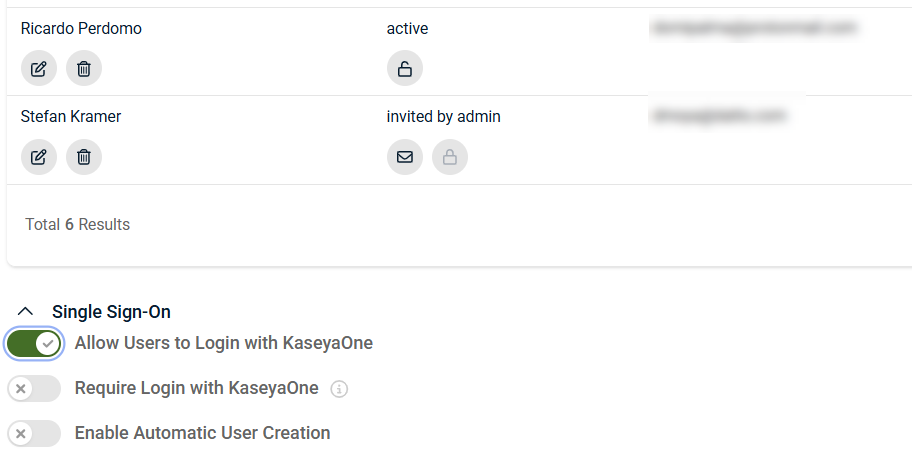
Scroll down to the Single Sign‑On section and confirm Allow Users to Log in with KaseyaOne is enabled.
-
If this option is not enabled, turn it on and complete authentication through KaseyaOne when prompted.
-
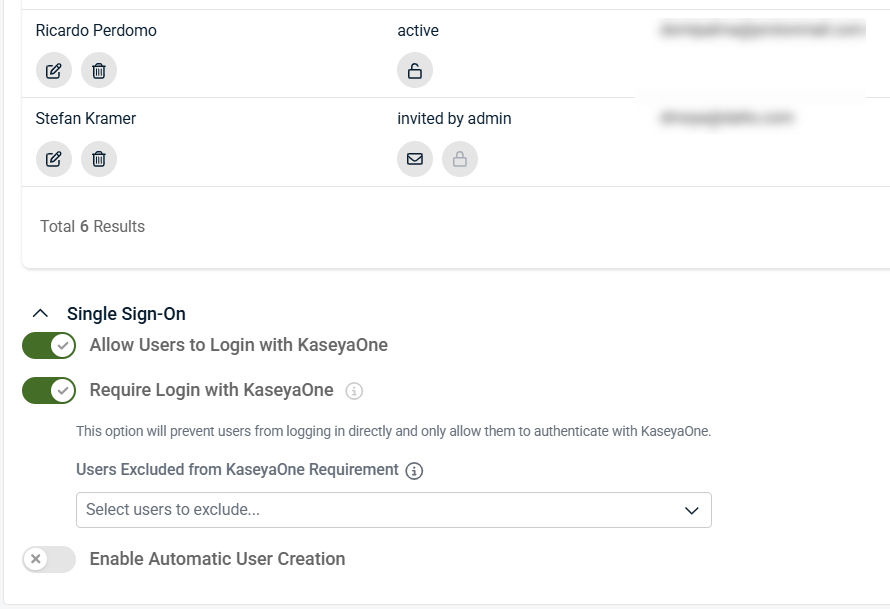
If Require Login with KaseyaOne is enabled, additional options appear to allow specific users to continue using local login.
-
-
Turn on the Enable Automatic User Creation toggle.
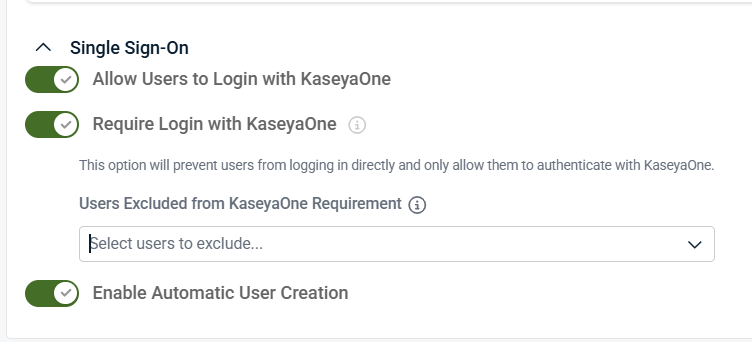
Once enabled, Kaseya SIEM automatically creates a user account the first time a user successfully signs in through KaseyaOne.
Automatic user creation behavior in practice
When automatic user creation is enabled:
-
User provisioning is triggered by successful authentication.
-
User accounts are created only once, on first sign‑in.
-
Automatically created users appear in Settings > Users.
IMPORTANT Automatic user creation affects account provisioning only. It does not assign roles, group membership, privileges, or organization access.
Access and permissions after account creation
After an account is created automatically:
-
The user has no implicit access to organizations or features.
-
Roles, Group Access membership, and privileges must be reviewed and assigned deliberately.
-
Organization visibility and administrative capabilities remain unchanged until explicitly configured.
This separation ensures that authentication and access governance remain intentional and auditable.
For details on assigning access, see User roles and permission boundaries.
Disabling automatic user creation
If you no longer want users to be provisioned automatically:
-
Go to Settings > Users.
-
In the Single Sign‑On section, turn off Enable Automatic User Creation.
Disabling this setting stops new accounts from being created automatically and does not remove or alter existing user accounts
Troubleshooting
A user signs in but no account is created
Verify the following:
-
The user authenticated using KaseyaOne.
-
Allow Users to Login with KaseyaOne is turned on.
-
Enable Automatic User Creation is turned on.
-
The user exists in KaseyaOne.
-
The user completed authentication successfully.
A user can log in but does not appear under Users
-
Refresh the Users page.
-
Confirm you are viewing all users.
-
Verify that the sign‑in completed successfully and was not expired or satisfied by cached credentials from a previous session.
Governance considerations
When using automatic user creation:
-
Treat it as a provisioning convenience, not an access control.
-
Review newly created users regularly.
-
Assign roles and organization visibility deliberately.
-
Disable the feature if manual approval is required before accounts are created.
This approach keeps authentication streamlined while preserving strict access governance.
Related articles
-
User roles and permission boundaries: Defines how organization visibility, roles, and delegated capabilities are assigned after a user account is created
-
Managing organizations: Explains how organizations define the boundaries that user access is ultimately applied against
-
Global defaults and organization‑level behavior: Describes how configuration scope and inheritance affect behavior once users have access


