API access and webhooks
Kaseya SIEM provides API and webhook capabilities that allow integration with external systems.
API functionality enables authenticated access to platform services, while webhooks provide a mechanism for delivering event data automatically to approved external endpoints.
Use this article to understand:
-
How API access is enabled
-
How API credentials are generated and managed
-
How approved webhook domains are configured
-
How webhook subscriptions are created
-
How webhook data is delivered to external systems
-
Recommended security practices for API and webhook integrations
API and webhooks overview
APIs and webhooks support different integration models:
-
APIs are typically used to retrieve information from the platform on demand.
-
Webhooks are used to automatically send information when events occur.
Webhook subscriptions allow approved external systems to receive a stream of event data generated by Kaseya SIEM.
This information is delivered programmatically to a receiving application, which can then store, correlate, analyze, or act on the data as needed.
Creating webhook endpoints and custom applications that receive and process webhook data requires software development expertise. Kaseya does not provide development assistance for creating custom applications that consume webhook data feeds.
Accessing API settings
API and webhook settings are managed from the Settings experience in Kaseya SIEM. Access these controls from Settings > API.
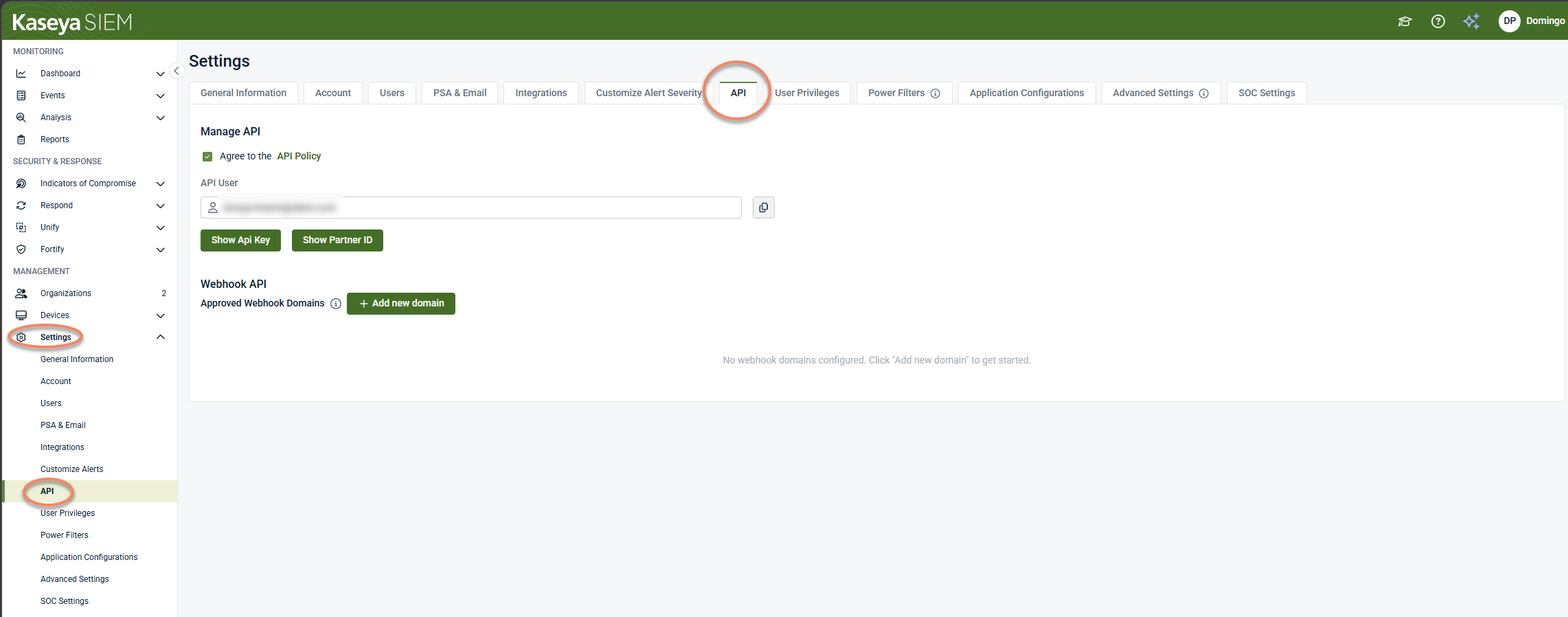
This page contains configuration settings for:
-
API policy acceptance
-
API credentials
-
Partner identification
-
Webhook configuration
-
Approved webhook domains
Enabling API access
Before using API or webhook functionality, you must accept the API Policy.
-
Open Settings > API.
-
Locate the Manage API section.
-
Select the Agree to the API Policy checkbox.
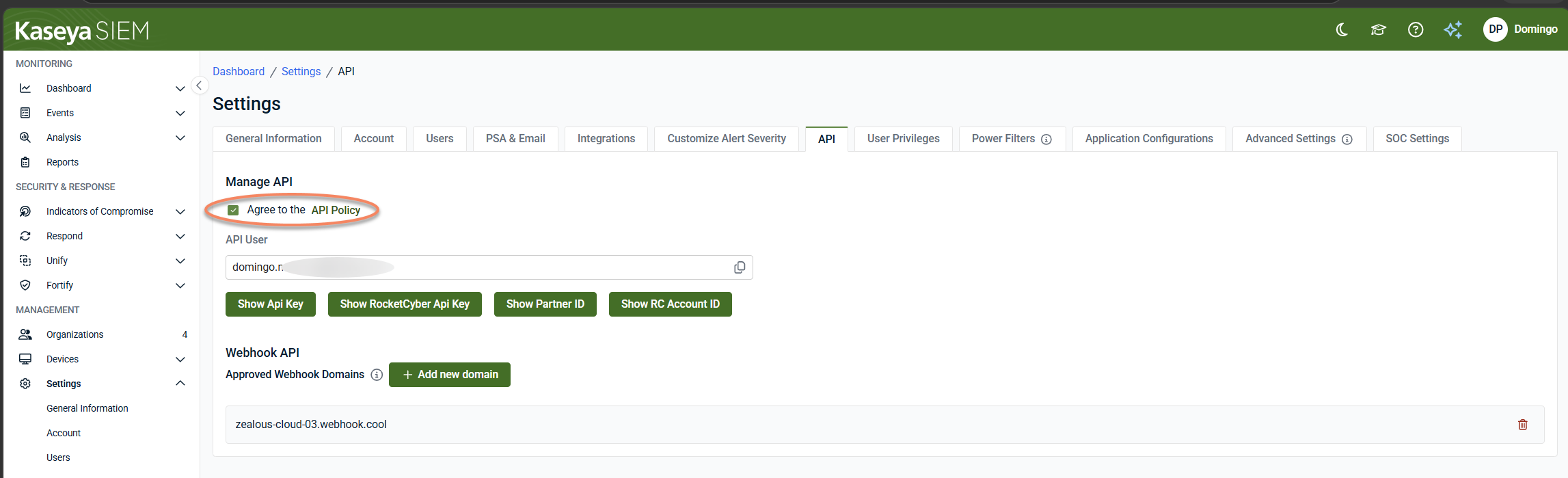
When the API Policy is accepted:
-
An API user identity is created for the account.
-
API credentials become available.
-
Webhook configuration settings become available.
API user and credentials
Once API access is enabled, Kaseya SIEM provides a system‑generated API user that represents your account when interacting with API‑based features.
From the Manage API section, administrators can:
-
View the API user identity
-
Generate and display the API key
-
Display the Partner ID associated with the account
-
Display the RocketCyber Account ID associated with the account
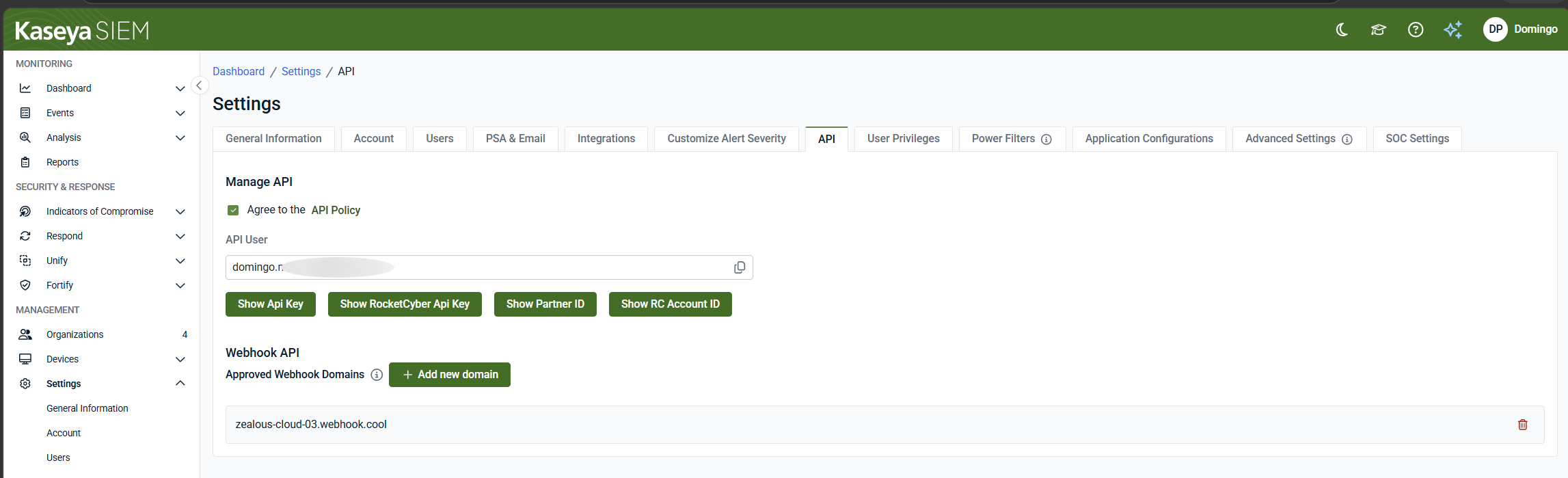
These values provide identification and authentication information used by API-related features where applicable.
API key management
Selecting Show API Key generates an API key and displays it once in the user interface.
Important:
-
The API key is displayed only when generated.
-
After navigating away or refreshing the page, the key is no longer displayed.
-
The key may take up to 30 seconds to appear.
-
Copy and securely store the key immediately.
-
Previously generated keys are not redisplayed.
-
Store the key securely according to your organization’s credential‑management practices.
-
If a key is lost, generate a new key.
API keys are self-managed and can be reset at any time.
When an API key is reset, any webhook subscriptions or integrations using the previous key must be updated with the new value.
Partner ID visibility
Select Show Partner ID to display the Partner ID associated with the account.
The Partner ID:
-
Uniquely identifies your partner account in API‑related interactions
-
May be required by external systems to associate API activity with the correct tenant
-
Is used for identification purposes rather than authentication
Unlike the API key, the Partner ID is not considered confidential and does not require rotation.
Selecting Hide Partner ID removes the Partner ID value from view in the user interface. This action affects visibility only and does not change or invalidate the Partner ID.
The Partner ID can be viewed again at any time from Settings > API.
Additional documentation
For complete documentation on subscription options, refer to the API documentation.
Approved webhook domains
Before webhook subscriptions can be configured, a destination domain must be approved.
Only webhook endpoints hosted on domains included in the Approved Webhook Domains list are allowed to receive outbound webhook communication from the platform.
This mechanism defines where webhook data can be sent, acts as a security boundary for outbound communication, and applies regardless of user role or organization‑level configuration.
Add an approved domain
-
Open Settings > API.
-
Locate the Webhook API section.
-
Select + Add new domain.
-
Enter the domain that will host the webhook endpoint.
EXAMPLE
partnerdomain.com
partnerdomain.com/path
webhooks.partnerdomain.com -
Click Add to save the domain and add it to the approved allowlist.
Once added, webhook endpoints hosted on that domain are permitted as destinations for outbound webhook communication.
NOTE Approving a domain allows it as a destination only. It does not create webhook subscriptions, define payload structures, or initiate data delivery.
Domain validation
When a domain is submitted, validation is performed automatically.
Validation requires the domain to return a successful HTTP response (typically a 2xx response code) when queried.
The host may return:
-
A blank page
-
A website
-
An API endpoint
The specified domain must match the location of the webhook endpoint.
Domain validation succeeded
When validation succeeds:
-
The domain is added to the approved domains list.
-
Webhook subscriptions can be configured.
-
Event data can be delivered to approved endpoints hosted on the domain.
Domain validation failed
If validation fails:
-
Verify the domain is publicly accessible.
-
Verify the host returns a valid HTTP response.
-
Verify the submitted domain matches the webhook endpoint location.
NOTE When creating a subscription, the endpoint URL must use an approved domain. Also, ensure GET and PUT methods are enabled for the endpoint.
Multiple domains can be approved when event data must be delivered to different platforms.
Creating webhook subscriptions
After a domain has been approved, webhook subscriptions can be configured to deliver event data to approved external endpoints.
HTTPS and TLS are required for all webhook endpoints.
Endpoints that do not support HTTPS and TLS cannot receive webhook deliveries.
Optional validation token
The token field is optional.
When configured, the token value is returned with each webhook delivery.
This token can be used by the receiving application to verify that incoming data originated from the webhook service.
Subscription duration
Webhook subscriptions remain active indefinitely unless:
-
An expiration date is configured.
-
The destination endpoint becomes unavailable.
If an endpoint repeatedly fails to respond, delivery attempts continue for a limited period before the subscription is disabled.
Set expiration date and time
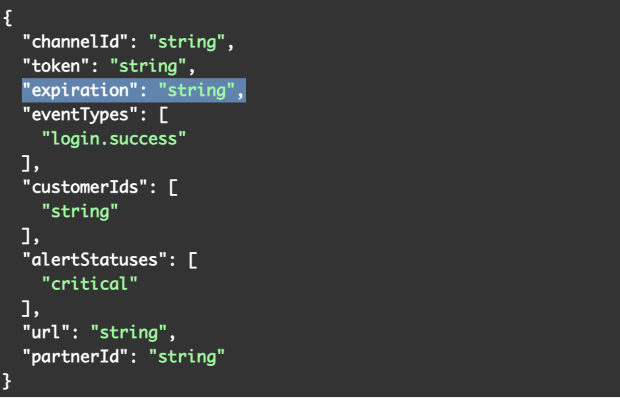
Webhook subscriptions can optionally include an expiration value.
By default, subscriptions remain active indefinitely unless an expiration date is configured or the destination endpoint becomes unavailable.
When an expiration value is specified, the subscription remains active until the configured expiration date and time is reached.
Webhook data example
Webhook deliveries are provided in JSON format. The following example shows a webhook payload.
{
  "partner": {
    "id": "coThCxxb3wqZ6gnqYL57",
    "name": "new partner"
  },
  "customer": {
    "id": "oEqEYEmJOGUgwjXXzF9X",
    "name": "cms_1911"
  },
  "product": {
    "id": "1cjkEYV8DbfUgqhJ7pL3",
   "name": "Microsoft"
  },
  "events": [
    {
      "time": "2021-06-04 13:00:02",
      "user": {
        "id": "2c17e55c-b189-4b21-a32a-04d071d1d9a2",
        "name": "lorraine@somedomain.com"
      },
      "ip": "184.90.129.41",
      "location": {
        "range": [
          3092938752,
          3092942847
        ],
        "country": "US",
        "region": "FL",
        "eu": "0",
        "timezone": "America/New_York",
        "city": "Sanford",
        "ll": [
          28.7935,
          -81.2868
        ],
        "metro": 534,
        "area": 10
      },
      "alertStatus": "low",
      "jointType": "login.failure",
      "jointDesc": "IAM Event - Authentication Failure",
      "jointDescAdditional": "Agent - Edge / Method - Unknown / Activity - OAuth2:Authorize",
      "eventId": "eafd522e-00e9-45aa-99bc-d142c8f78203"
    }
  ]
}
Security recommendations
When managing API and webhook integrations:
-
Treat API keys as sensitive credentials.
-
Store credentials securely.
-
Rotate API keys according to your organization's security requirements.
-
Approve only trusted domains.
-
Review approved domains periodically.
-
Validate incoming webhook requests before processing them.
-
Use HTTPS and TLS for all webhook endpoints.
Summary
Kaseya SIEM API and webhook functionality allows approved external systems to exchange data through secure, authenticated integrations. Administrators can enable API access, manage credentials, approve webhook destinations, and configure webhook subscriptions that deliver event data to approved endpoints.
Related articles
-
Notifications, PSA, and external communications: Describes how Kaseya SIEM routes alerts to PSAs and email recipients after alerts are generated
-
Configuring SOC settings: Describes how SOC communication preferences, organization‑specific context, maintenance windows, and authorization boundaries are defined
-
Data retention and governance: Explains how Kaseya SIEM retains and manages data from a governance and compliance perspective, including retention periods and searchable data availability


