Configuring SOC settings
SOC settings define how the Security Operations Center (SOC) interacts with your organization in Kaseya SIEM. These settings control SOC communication preferences, organization‑specific instructions visible to SOC analysts, maintenance windows, and the types of response actions the SOC is authorized to perform.
SOC settings establish communication and authorization boundaries. They do not initiate actions on their own and do not guarantee that a response action will be taken in every situation.
Only users with the MSP Admin role can configure SOC settings. Other users may observe the results of SOC activity but cannot modify SOC communication preferences, authorization settings, or organization overrides.
During initial onboarding, administrators should review SOC settings before beginning active investigations or enabling response features. This ensures communication paths, authorization boundaries, and organization‑specific context are defined upfront.
Accessing SOC settings
SOC settings can be accessed at two levels: globally (partner‑level defaults) and at the organization level (organization‑specific overrides). Both views expose the same configuration options; the difference is scope, not functionality.
Accessing global SOC settings
Global SOC settings define the default authorization and communication behavior that applies to all organizations unless an organization explicitly overrides those defaults.
To access global SOC settings, select Settings > SOC Settings.
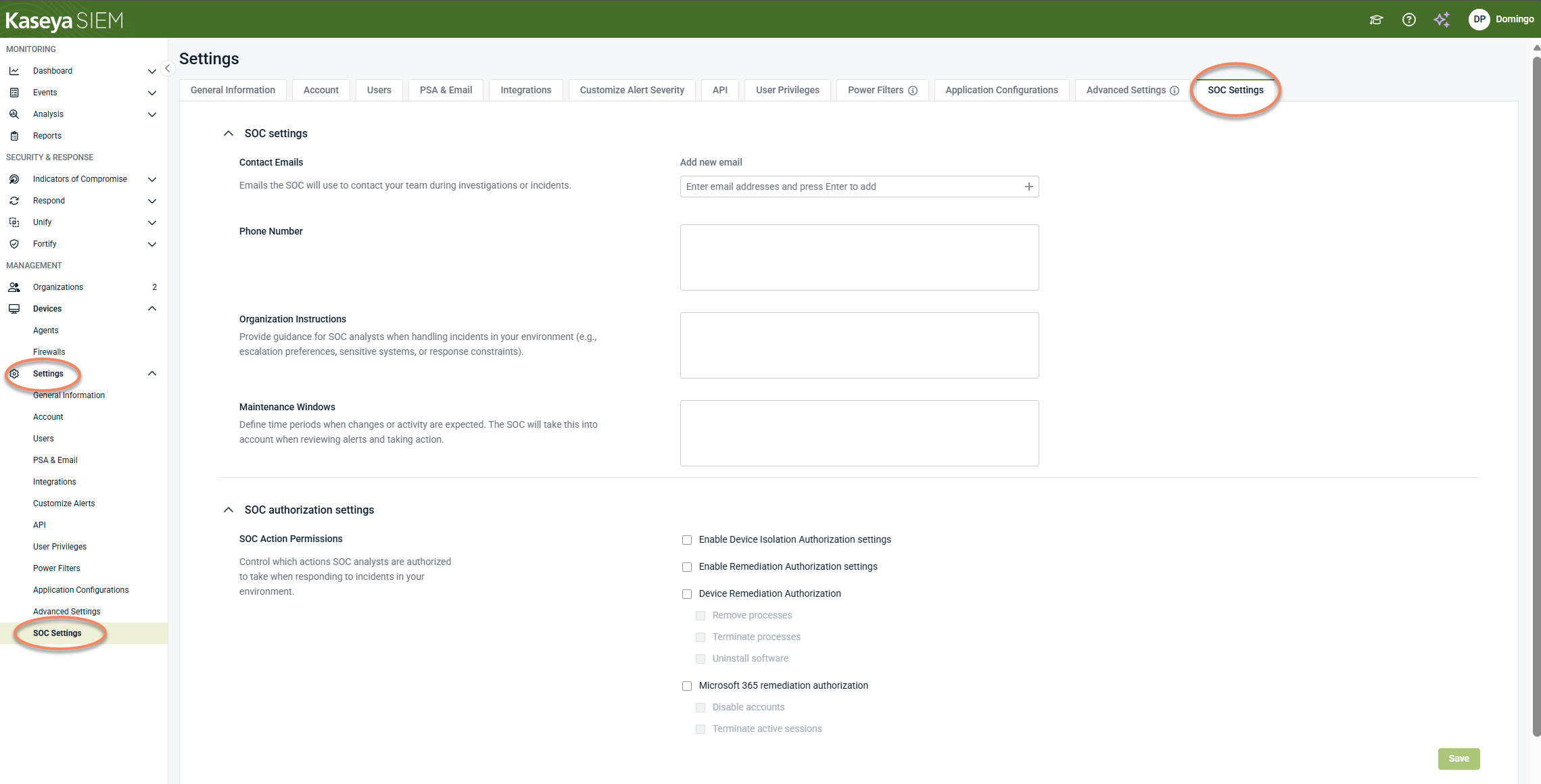
Changes made here establish the default SOC behavior for all organizations that do not have organization‑specific overrides.
NOTE Global SOC settings use the same authorization controls as organization‑level SOC settings. The difference is scope: global settings define partner‑level defaults, while organization‑level settings override those defaults for a specific organization.
Accessing SOC settings at the organization level
SOC settings can also be accessed and configured directly for a specific organization, where partner‑level defaults can be overridden.
To access organization‑level SOC settings:
-
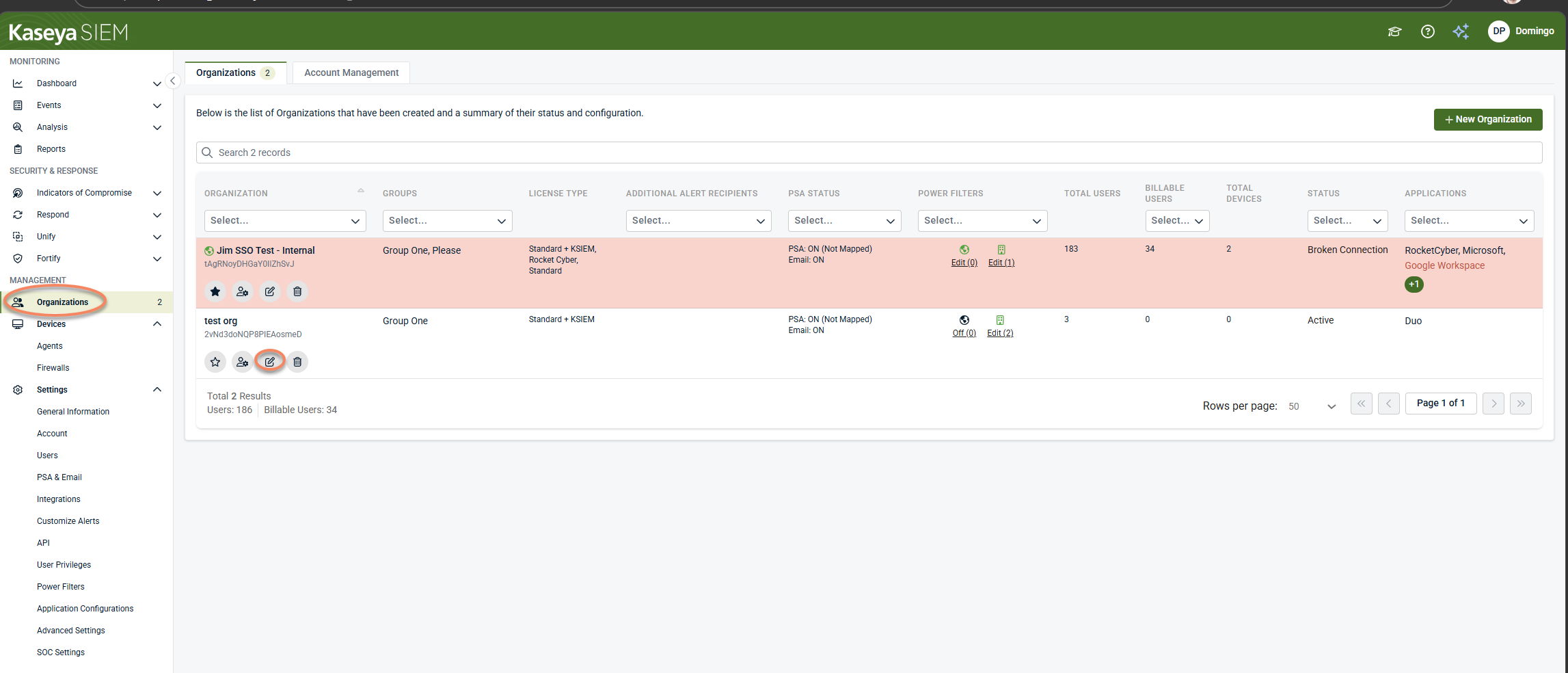
Navigate to Organizations.
-
Select an organization and click the Edit Organization icon (pencil icon).
-
Open the SOC Settings tab.
When accessed at the organization level, SOC settings apply only to the selected organization. If no organization‑specific overrides are defined, the organization inherits the global SOC settings.
Enabling Override global settings allows organization‑specific authorization options to be configured
Most SOC authorization decisions—such as permitting device isolation or remediation actions—are reviewed and adjusted at the organization level, where partner‑level defaults can be overridden to reflect specific organizational requirements.
NOTE SOC settings can be accessed from multiple locations, but only users with the MSP Admin role can make configuration changes in either view.
Configuring SOC communication preferences
Contact emails
Use Contact emails to define how the SOC should contact your organization for SOC‑related correspondence.
-
In Add new email, enter one or more email addresses that should receive SOC notifications. Press Enter or click the + sign.
-
Ensure the listed addresses are actively monitored.
Organization instructions
Use Organization instructions to provide custom handling instructions that will be visible to SOC analysts.
-
Select the Enable organization specific instructions checkbox.
-
Enter the organization’s instructions in the text field.
Include only information that helps the SOC handle incidents appropriately, such as escalation preferences, organizational constraints, or environmental context that may help analysts interpret observed activity.
Maintenance windows
Maintenance windows provide context for expected activity during scheduled changes or updates. This information helps reduce unnecessary investigation during known maintenance activity.
To configure maintenance windows:
-
Select the Maintenance windows checkbox.
-
Enter recurring or one‑time maintenance window details.
Maintenance windows provide context only. They do not disable detection, suppress alerts, or prevent investigations.
Configuring SOC authorization settings
SOC authorization settings define which response action types the SOC is permitted to perform as part of investigation and response workflows. These settings establish authorization boundaries; they do not initiate actions automatically.
IMPORTANT Only enable options that align with your organization’s security policies and approval requirements.
Step 1: Enable organization-level authorization controls (Override global settings)
At the top of SOC authorization settings, use Override global settings to override partner-level defaults for the organization. When this toggle is enabled, organization-specific authorization options become available to configure.
IMPORTANT If Override global settings is not enabled, the organization continues using the partner-level defaults and the organization-specific authorization options may be unavailable.
Step 2: Configure authorization categories and actions
After enabling Override global settings, select the authorization categories and actions that align with your organization’s policies and operational readiness.
Device isolation
-
Enable Device Isolation Authorization settings: Allows the SOC to perform device isolation actions where applicable
Remediation (endpoint)
-
Enable Remediation Authorization settings: Enables remediation authorization controls
-
Device Remediation Authorization: Controls authorization for endpoint remediation actions. Available actions include:
-
Remove processes
-
Terminate processes
-
Uninstall software
-
The availability of specific remediation actions may vary depending on detection source and context.
Microsoft 365 remediation
-
Microsoft 365 remediation authorization: Controls authorization for Microsoft 365 account/session remediation actions. Available actions include:
-
Disable accounts
-
Terminate active sessions
-
IMPORTANT Enabling authorization allows the SOC to perform the selected action types when appropriate. Only enable options that align with your organization’s security policies and approval requirements.
Where actions are authorized vs. where they execute
The following table clarifies how authorization, detection behavior, and execution logic are separated across the platform.
| Layer | Purpose | What it does |
|---|---|---|
| SOC settings | Authorization boundaries | Defines which response actions the SOC is permitted to perform. Does not trigger actions |
| Application Configurations | Detection‑specific behavior | Defines how specific detections behave, including limited scenarios where actions may occur automatically (for example, ransomware detection) |
| Respond rules | Execution logic | Defines when response actions execute and whether they are manual or automated |
NOTE Automatic isolation may occur only in limited, detection‑specific scenarios configured outside SOC settings (for example, Datto Ransomware Detection, defined in Application Configurations).
Managing organization overrides
The Organization overrides section displays organization-specific SOC overrides.
To create a new override:
-
Click + New override.
-
In Select an Organization, choose the organization from the list.
-
Click Confirm.
After creating an override, configure the organization’s SOC settings as needed, then select Save to apply your changes.
If no overrides are configured, the organization continues using global SOC settings.
Relationship to response automation
SOC settings define authorization boundaries for response actions that may be taken during investigation. These settings control what types of actions the SOC is permitted to perform, not when actions occur or how they are triggered.
Response execution—whether alert‑only, manual approval, or automatic—is defined through Respond rules and connections.
For details on configuring when and how response actions execute, see Using the Respond Module.
Best practices
-
Review SOC settings during initial onboarding.
-
Keep global SOC settings aligned with your default security posture.
-
Use organization‑specific instructions to provide meaningful context to SOC analysts.
-
Use organization overrides only when a clear operational need exists.
-
Document why overrides are created and review them periodically.
-
Coordinate changes to SOC authorization settings with relevant stakeholders.
Related articles
-
Managing organizations: Explains how organizations define the boundaries that user access is ultimately applied against
-
Using the Respond Module: Introduces the Respond module and explains how Respond rules, templates, connections, and actions fit together before rules are created or automated
-
Working with alerts: Learn how to review alerts and decide what requires investigation


