Integration: Kaseya SIEM and Slack
 Security and navigation
Kaseya SIEM
NAVIGATION Organizations > Edit Organization (pencil icon) > + New Application > Slack (under Customer Apps)
PERMISSIONS Administrator permissions
Slack
NAVIGATION Slack sign-in page
PERMISSIONS Permissions to authorize applications in the Slack workspace
The Kaseya SIEM and Slack integration enables organizations to connect a Slack workspace to Kaseya SIEM through Slack's authentication workflow. Once connected, Slack becomes available as an application within the organization and can be used for security monitoring and analysis.
Prerequisites
Before configuring the integration, make sure the following requirements are met:
-
A Slack workspace
-
A paid Slack plan (Pro, Business+, or Enterprise Grid)
-
A Slack account with Workspace Owner or Workspace Admin permissions
-
Administrative access to Kaseya SIEM
NOTE If your organization has specific Slack permission requirements, consult your Slack administrator before connecting the integration.
How to...
Connect Kaseya SIEM to Slack-
In Kaseya SIEM, from the side navigation menu, go to Organizations.
-
Click Edit Organization represented by the pencil icon for the organization you want to configure.
-
Click + New Application.
-
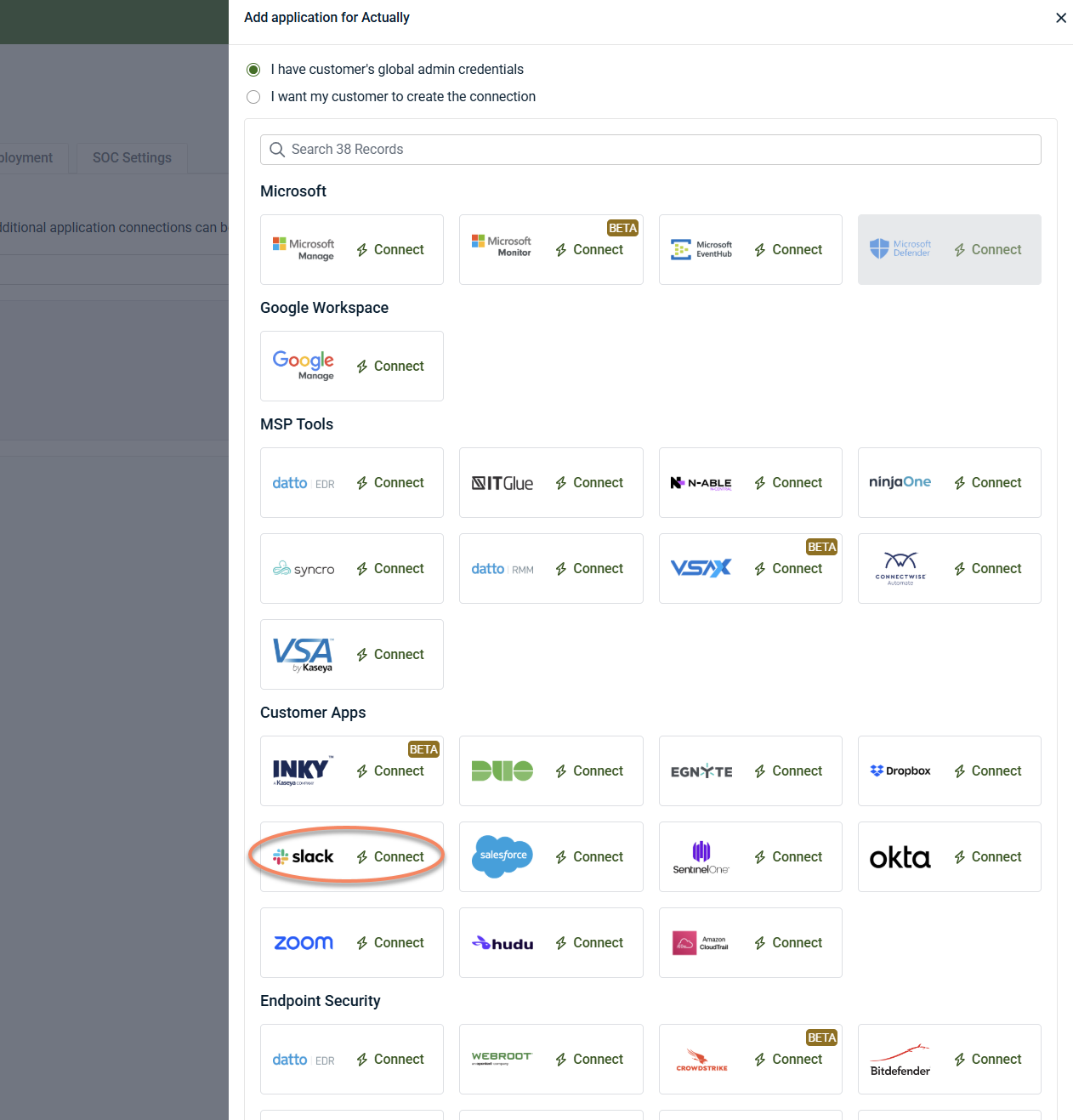
Under Customer Apps, locate Slack and click Connect.
-
In the Slack sign-in window, enter your Slack workspace URL.
-
Click Continue.
-
Complete the Slack sign-in and authorization process.
When the connection is successful, Slack appears under the organization's Applications tab.
Disable the integration in Kaseya SIEM
To disable the integration, complete the following steps:
-
From the side navigation menu, go to Organizations.
-
Click Edit Organization (pencil icon).
-
On the Applications tab, select the Slack tile.
-
Select Disconnect Application.
-
Confirm the action.
Kaseya SIEM stops collecting data from the connected Slack workspace.
Monitored events
The Slack integration supports six alert types. Default severities are assigned by Kaseya SIEM and can be used to help prioritize investigation and response activities.
| Alert type | Alert description | Default severity |
| app.connection.failed | An Application API connection has failed | Critical |
| application.event.saas.integration | Application Event - SaaS Integration | Critical |
| login.success | IAM Event - Authentication Success | Low |
| multiple.login.diff.ip | IAM Event - Multiple Login Connections From Different IP Addresses | Low |
| new.device | Device Event - New Device | Medium |
| outside.own.location | IAM Event - User Location - Outside approved location | Critical |
FAQ
What information is required to connect Slack?
The integration uses Slack's authentication workflow. Users are prompted to enter their Slack workspace and complete the authorization process.
Do I need API keys?
No. The connection is established through Slack's sign-in and authorization flow.
What Slack plans are supported?
The Slack integration requires a paid Slack plan, such as Pro, Business+, or Enterprise Grid.
What permissions are required to connect Slack?
The account used to authorize the connection must have Workspace Owner or Workspace Admin permissions.


