Integrating Microsoft 365 with Kaseya SIEM
This article explains how to connect a customer’s Microsoft 365 tenant to Kaseya SIEM so Microsoft identity and activity telemetry can be associated with the correct organization and made available for alerting and investigation.
Use this article to
-
Connect Microsoft 365 for a specific organization
-
Understand what the connection establishes (telemetry association and visibility)
-
Validate that the connection is working
This article does not define which alerts will fire, which specific event types are guaranteed. Event availability depends on Microsoft tenant configuration, licensing, data retention policies, and Microsoft API availability.
How the Microsoft 365 connection works in Kaseya SIEM
Microsoft 365 is typically connected per customer organization (per tenant). Once connected, the resulting telemetry is associated with that organization and can contribute context to SIEM alerts and investigations.
Microsoft 365 integrations are customer‑owned connections, unlike MSP‑level integrations such as certain endpoint security tools. Each Microsoft tenant is authorized and managed independently at the organization level.
Requirements
Before starting, ensure you have the following:
-
Tenant administrative access: You need an account with sufficient administrative privileges in the customer’s Microsoft tenant to grant the requested permissions during the consent flow.
-
Browser access: The connection flow uses a Microsoft sign‑in/consent window (pop‑ups must be allowed).
-
Licensing note: Core Microsoft identity and activity telemetry can be collected without Microsoft Entra ID P2. Risk‑based signals and certain Microsoft identity protection reports require appropriate Microsoft licensing.
-
Global Administrator credentials: Use a Global Administrator account in the customer tenant to complete the consent process.
-
Note on CSP accounts: Do not use a master CSP (Cloud Solution Provider) partner account to establish the connection, as this can lead to permission issues.
-
Recommended licensing: Microsoft Entra ID P1 (formerly Azure AD P1) is recommended to unlock additional MFA and self‑service password reset (SSPR) reporting visibility.
Connecting Microsoft 365 to an organization
Unlike MSP‑level integrations that rely on a master bridge, Microsoft 365 is typically added directly to each customer organization.
-
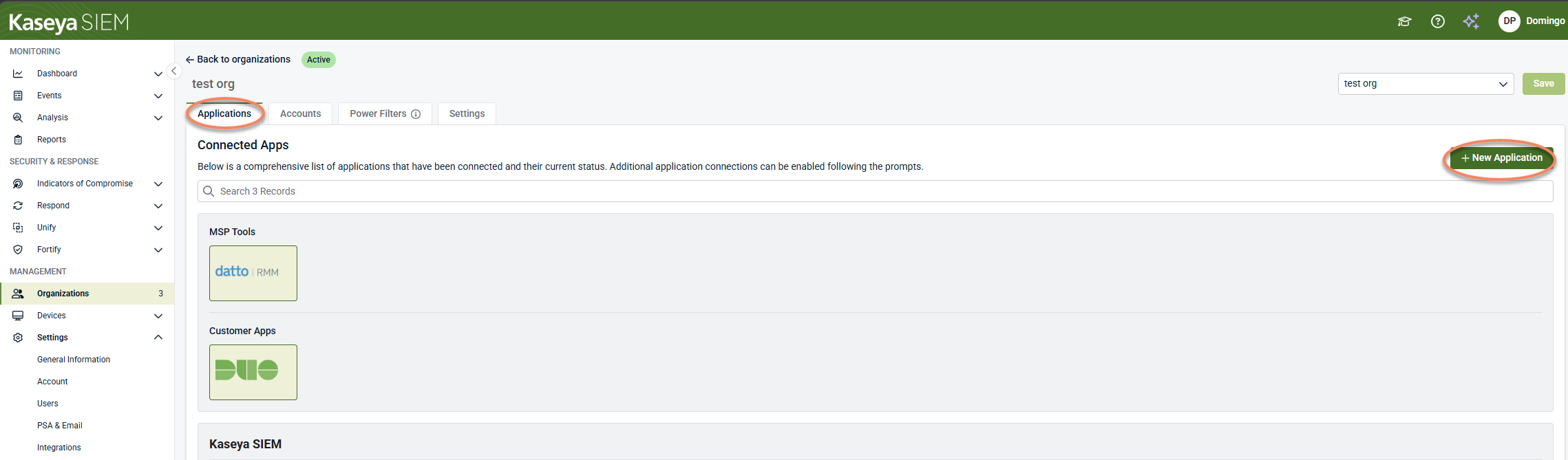
From the side navigation menu in Kaseya SIEM, click Organizations.
-
Click the Edit Organization (pencil) icon of the organization you want to configure.
-
Go to the Applications tab and click + New Application.
-
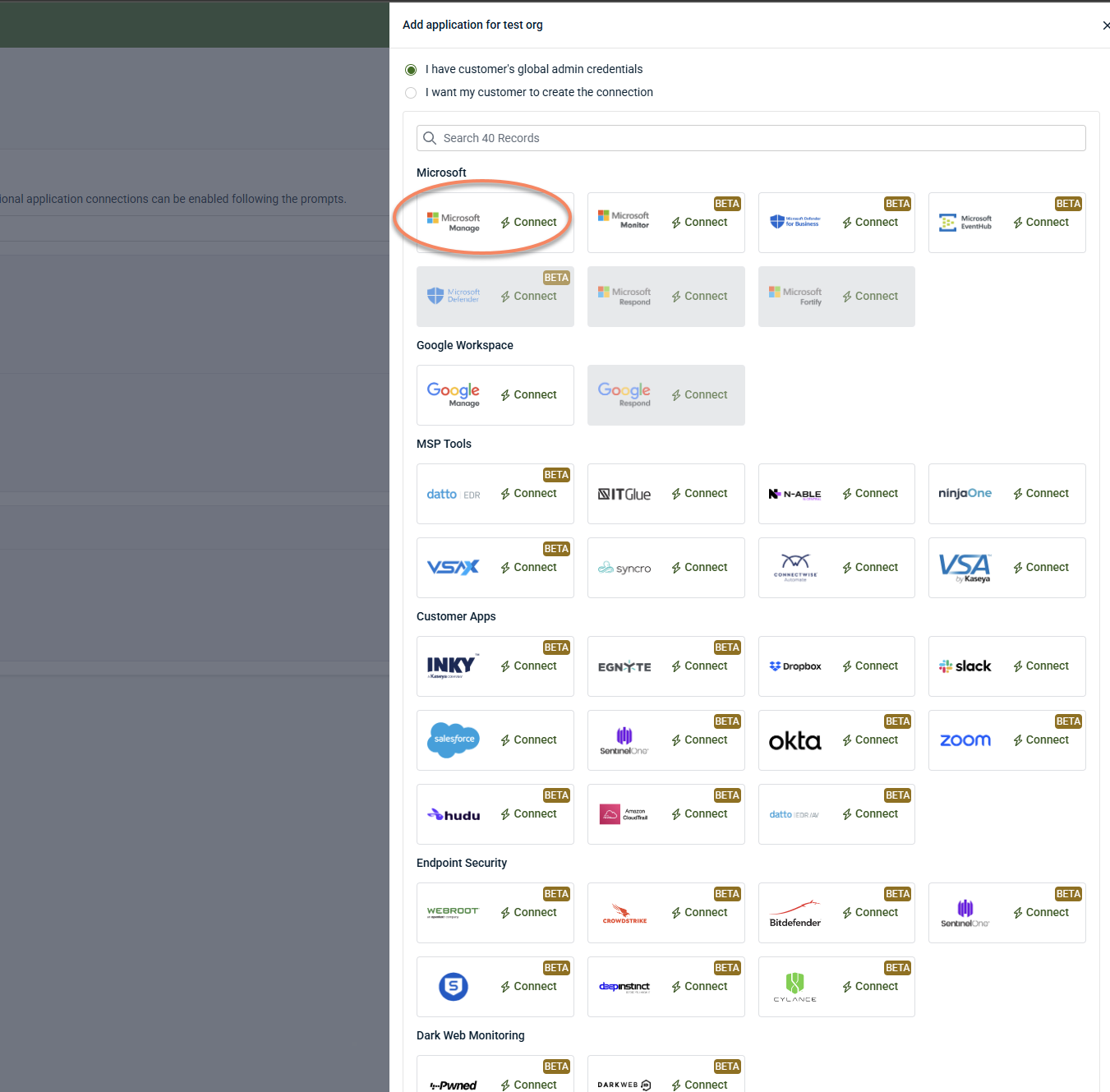
Select the Microsoft Manage tile.
-
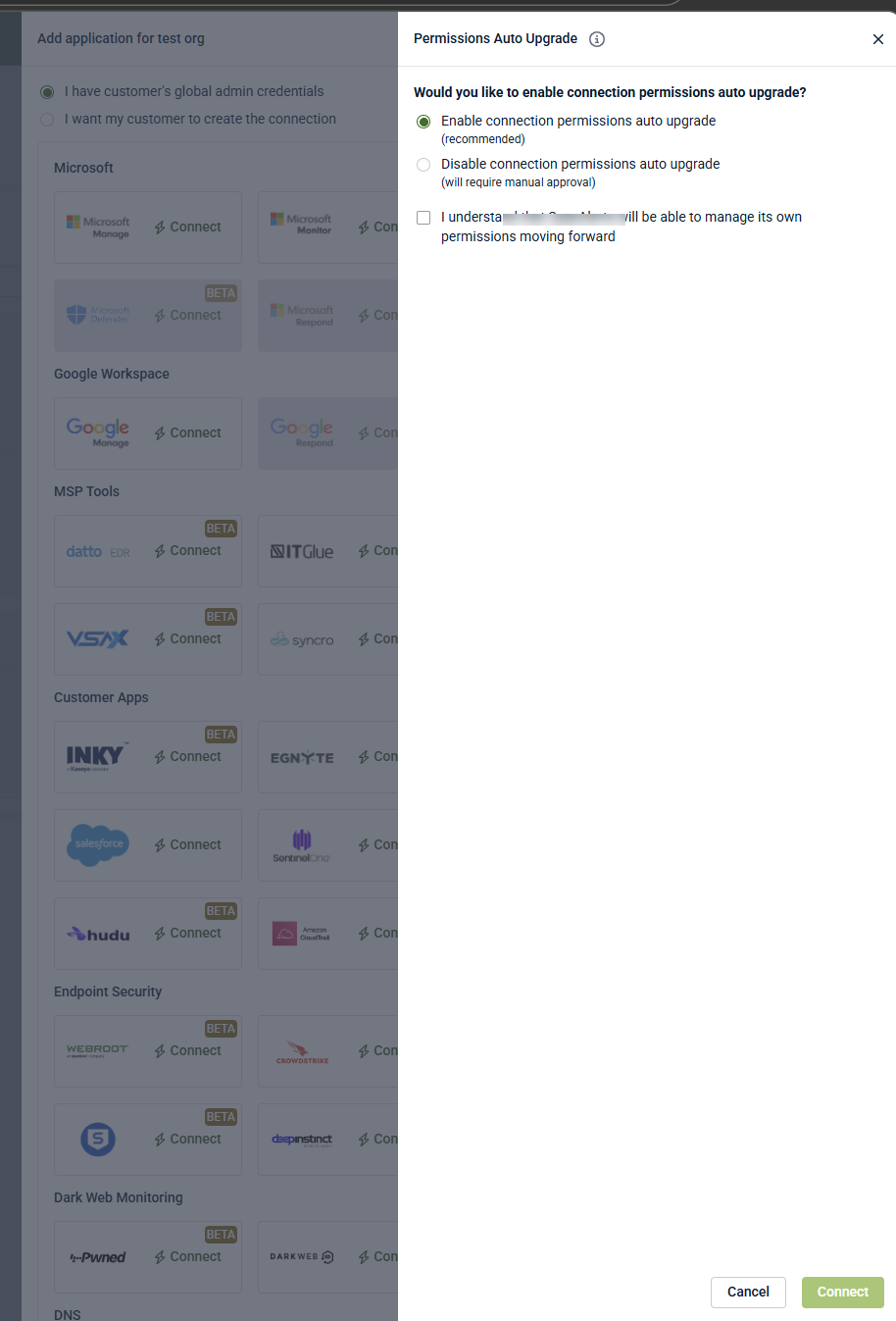
Enable Auto-Upgrade (Recommended): Select the option to allow Kaseya SIEM to automatically manage and upgrade required API permissions in the future.
-
Click Connect to start the Microsoft sign‑in/consent flow.
-
When prompted, sign in using a Global Administrator account from the customer’s Microsoft tenant.
-
Review the requested permissions and select Accept to complete the connection.
Connection permissions auto‑upgrade
During the Microsoft 365 connection flow, you are prompted to choose whether to enable connection permissions auto upgrade.
-
Enable connection permissions auto‑upgrade (recommended): Allows the integration to automatically update required permissions in the future without requiring separate manual approval.
-
Disable connection permissions auto‑upgrade: Requires manual approval if additional permissions are needed in the future.
This setting can be changed later after the connection is created.
Important: This setting controls permission management only. It does not determine which alerts are generated, which activity is collected, or which response actions are available.
Managing Microsoft permissions after connection
After the Microsoft 365 connection is established, administrators can review or change how Microsoft API permission upgrades are handled for the organization.
This setting controls authorization management only. It does not determine which alerts are generated, which Microsoft activity is collected, or which response actions are available in Kaseya SIEM.
Changing permission auto‑upgrade settings
You can modify permission upgrade behavior at any time after the connection is created.
To change the setting:
-
Navigate to Organizations.
-
Select the organization.
-
Click Edit Organization and open the Applications tab.
-
Select Microsoft Manage.
-
Expand Permissions Auto‑Upgrade.
Available options:
-
Enable Permissions Auto‑Upgrade (recommended): Allows Kaseya SIEM to automatically apply required Microsoft API permission changes in the future as Microsoft requirements evolve.
-
Disable Permissions Auto‑Upgrade: Requires administrators to manually review and approve any future Microsoft permission updates.
Changes take effect when saved and apply only to Microsoft authorization handling.
Managing manual permission upgrades
When Permissions Auto‑Upgrade is disabled:
-
Required Microsoft permission updates appear under Applications.
-
Administrators must explicitly approve pending upgrades.
-
Until approved, some Microsoft‑sourced data may be unavailable or incomplete.
Manual approval affects authorization status only. It does not modify detection logic, alert behavior, investigation workflows, or response actions.
What managing Microsoft permissions does (and does not do)
Managing Microsoft permissions does:
-
Control whether Microsoft API permission changes are applied automatically
-
Allow manual approval of required permission updates
-
Maintain Microsoft authorization required for SIEM visibility
Managing Microsoft permissions does not:
-
Enable or disable monitoring behavior
-
Configure detections or alerts
-
Control response or automation logic
Verifying the connection
After the connection is established, use the following checks to confirm it is working as expected:
-
Application status: The Microsoft Manage application should show a green Active status in the organization’s application list.
-
Event synchronization: Initial connectivity is typically established within 30–60 seconds. User and activity data may take up to 30 minutes to fully populate.
-
Activity validation: Open the Analysis area and confirm that Microsoft‑sourced events, such as sign‑in and file activity, are appearing for the intended organization.
Synchronization timing can vary by tenant and environment.
Troubleshooting
-
No sign‑in window appears: Check whether the browser blocked the Microsoft consent pop‑up. Allow pop‑ups for the SIEM site and retry the connection.
-
Connection shows as broken or needs attention: This often occurs if the account used during the initial setup had its password changed or was deleted. Use the Repair option to re‑authenticate the Microsoft connection.
-
Expected data is missing: Confirm the correct organization was selected and verify that permissions were successfully accepted in the customer tenant. If specific reports are empty, verify the appropriate Entra ID licenses are assigned.
Respond (SIEM context)
Kaseya SIEM includes Respond capabilities that can be configured to support automated actions after investigation patterns are understood. Availability of actions and workflows depends on SIEM configuration and enabled capabilities.
Once Microsoft 365 is connected, Microsoft‑sourced telemetry can be used as input to investigations and Respond workflows, subject to SIEM configuration and enabled capabilities.


