Integration: Kaseya SIEM and Graphus
 Security and navigation
Kaseya SIEM
NAVIGATION At the partner level: Settings > Integrations > + New Integration > choose organization > Next > Graphus
NAVIGATION At the organization level: Organizations > Edit Organization (pencil icon) > + New Application > Graphus
PERMISSIONS Permission to manage integrations or organization applications in Kaseya SIEM
Graphus
NAVIGATION MSP Administration > MSP Information
The Kaseya SIEM and Graphus integration imports Graphus phishing and email threat detections into Kaseya SIEM, allowing suspicious and malicious email activity identified by Graphus to be correlated with other security telemetry.
IMPORTANT: Graphus end-of-life notice
Kaseya is transitioning from Graphus to INKY, a next-generation AI-powered email security platform. Key dates:
-
January 1, 2026: INKY becomes the default email security platform for new Kaseya 365 User sales; existing Graphus customers may begin migrating.
-
December 31, 2026: Support for Graphus ends; no further updates or patches.
-
June 30, 2027: Graphus is fully decommissioned.
For migration steps and full details, see the Graphus to INKY migration guide.
Prerequisites
Before configuring the integration:
-
Administrative access to Graphus with permission to manage MSP-level integrations
-
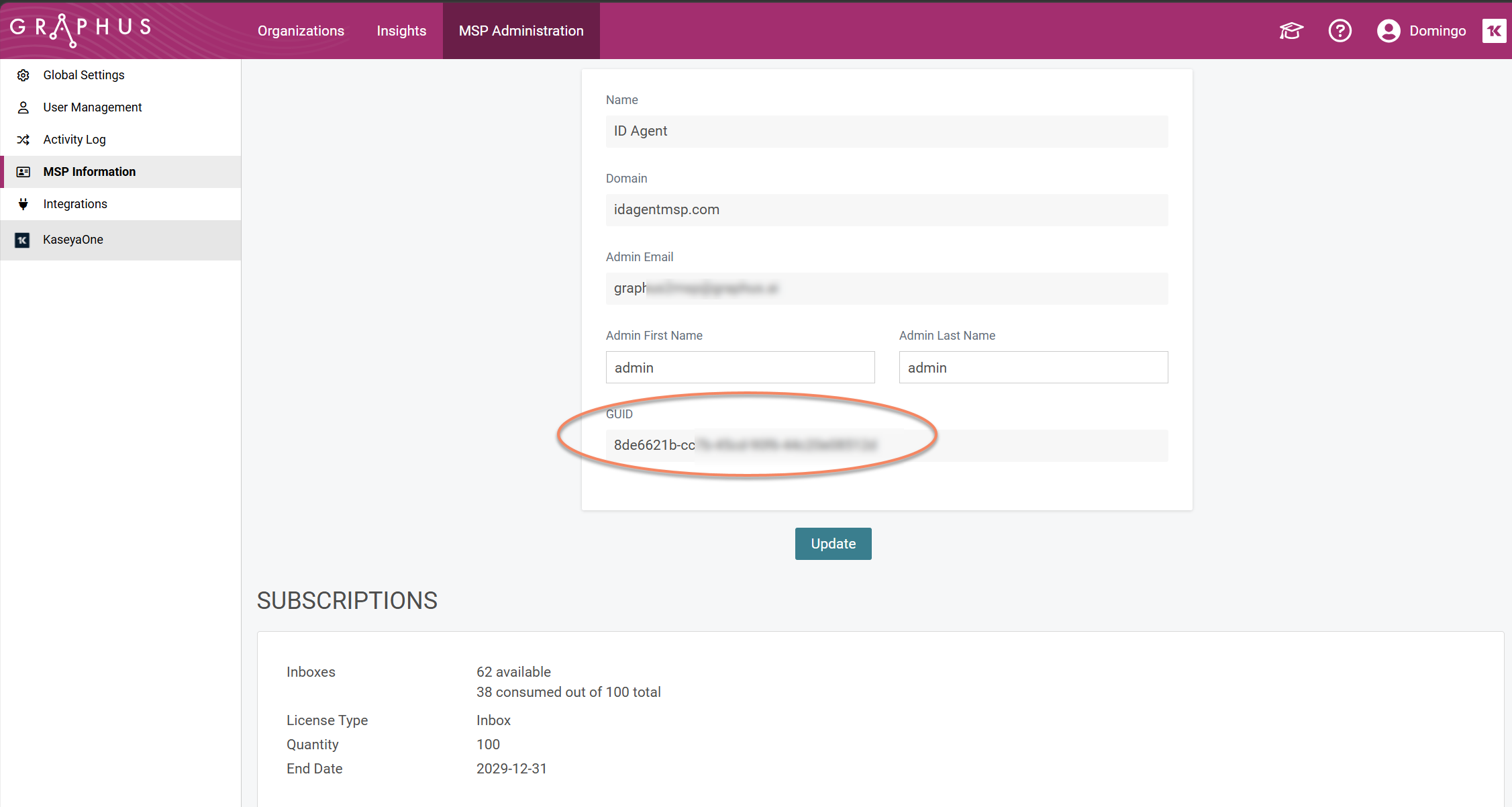
Your Graphus MSP GUID, available under MSP Administration > MSP Information
How to...
Enable the integration and retrieve credentials in Graphus
Before connecting Kaseya SIEM to Graphus, you must retrieve your MSP GUID from within Graphus.
-
Log in to Graphus.
-
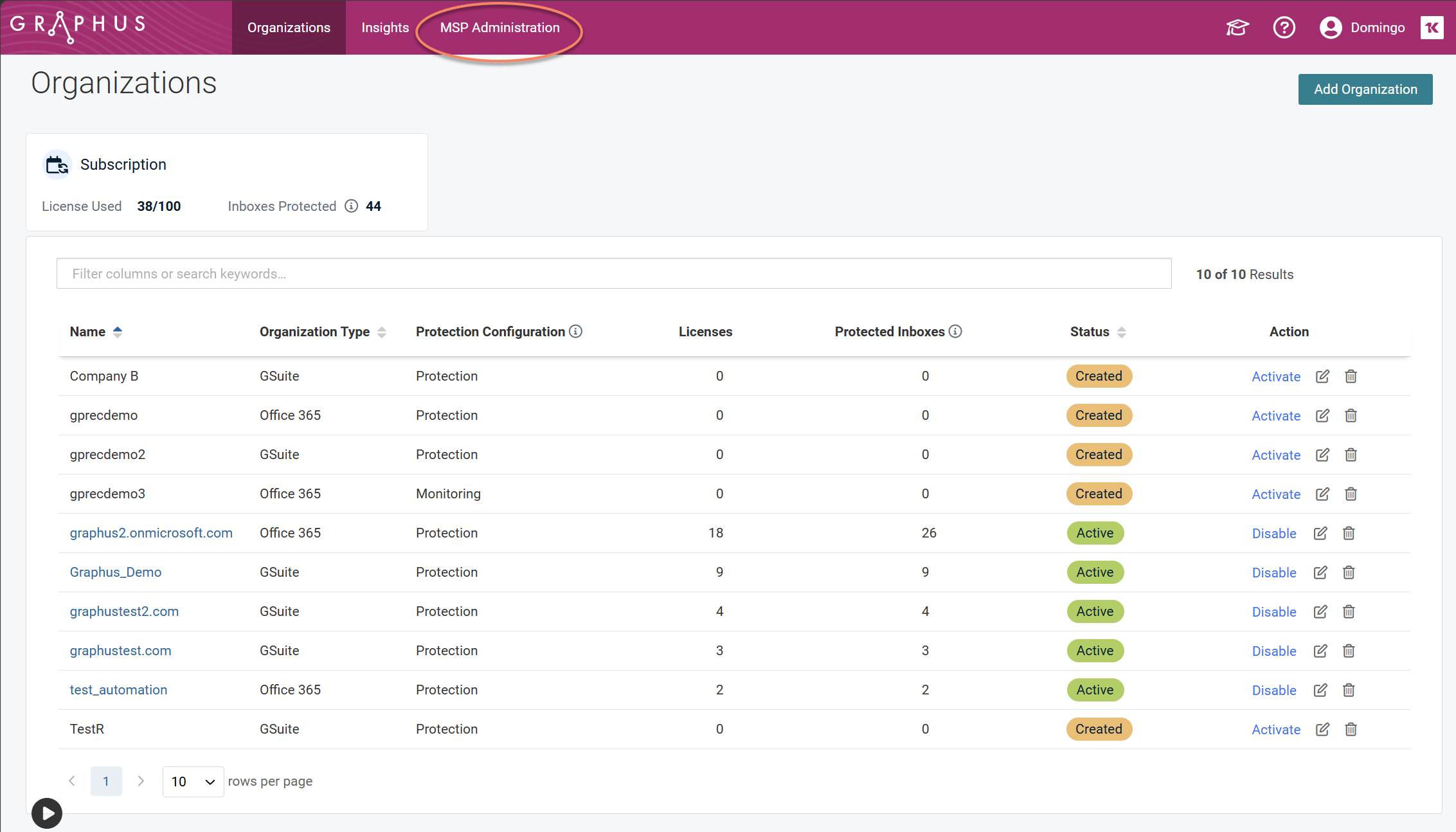
Click MSP Administration.
-
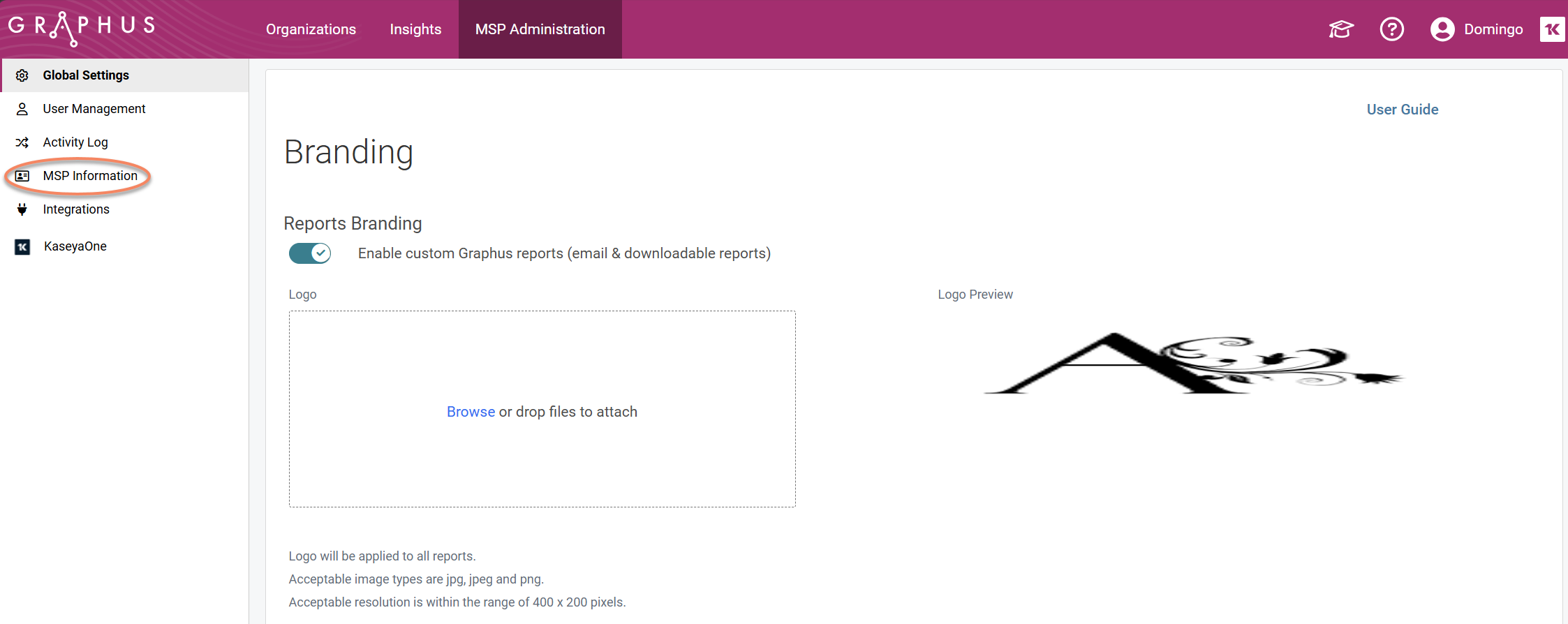
From the side navigation menu, click MSP Information.
-
Copy your MSP GUID for use when connecting the integration in Kaseya SIEM.
Connect Kaseya SIEM to Graphus at the partner level
-
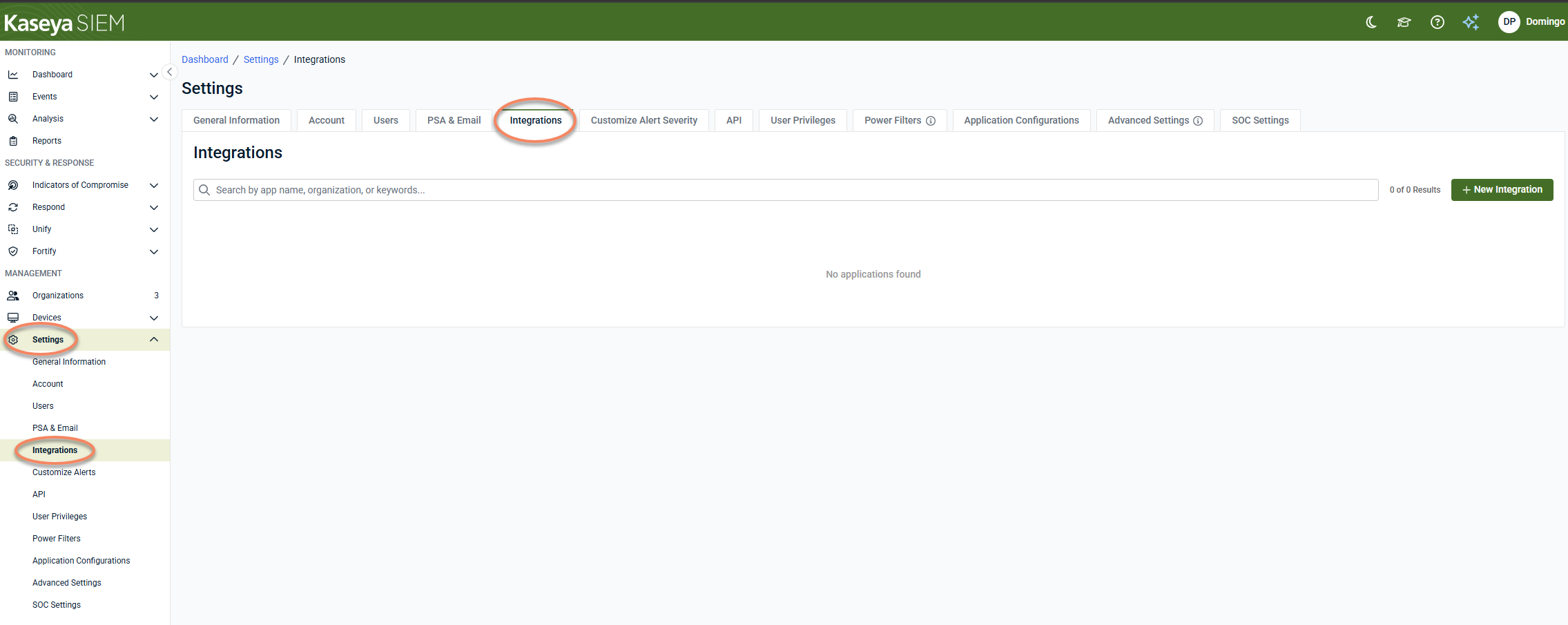
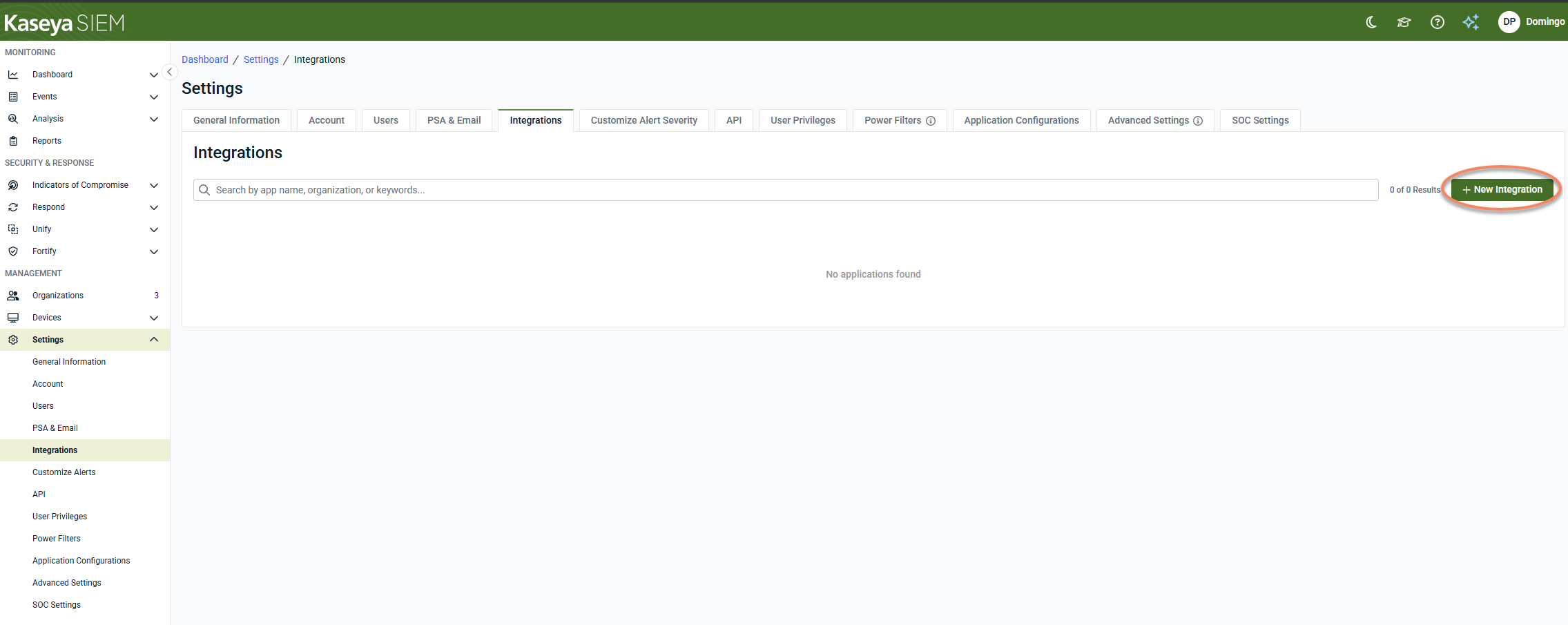
In Kaseya SIEM, navigate to Settings > Integrations.
-
Click + New Integration.
-
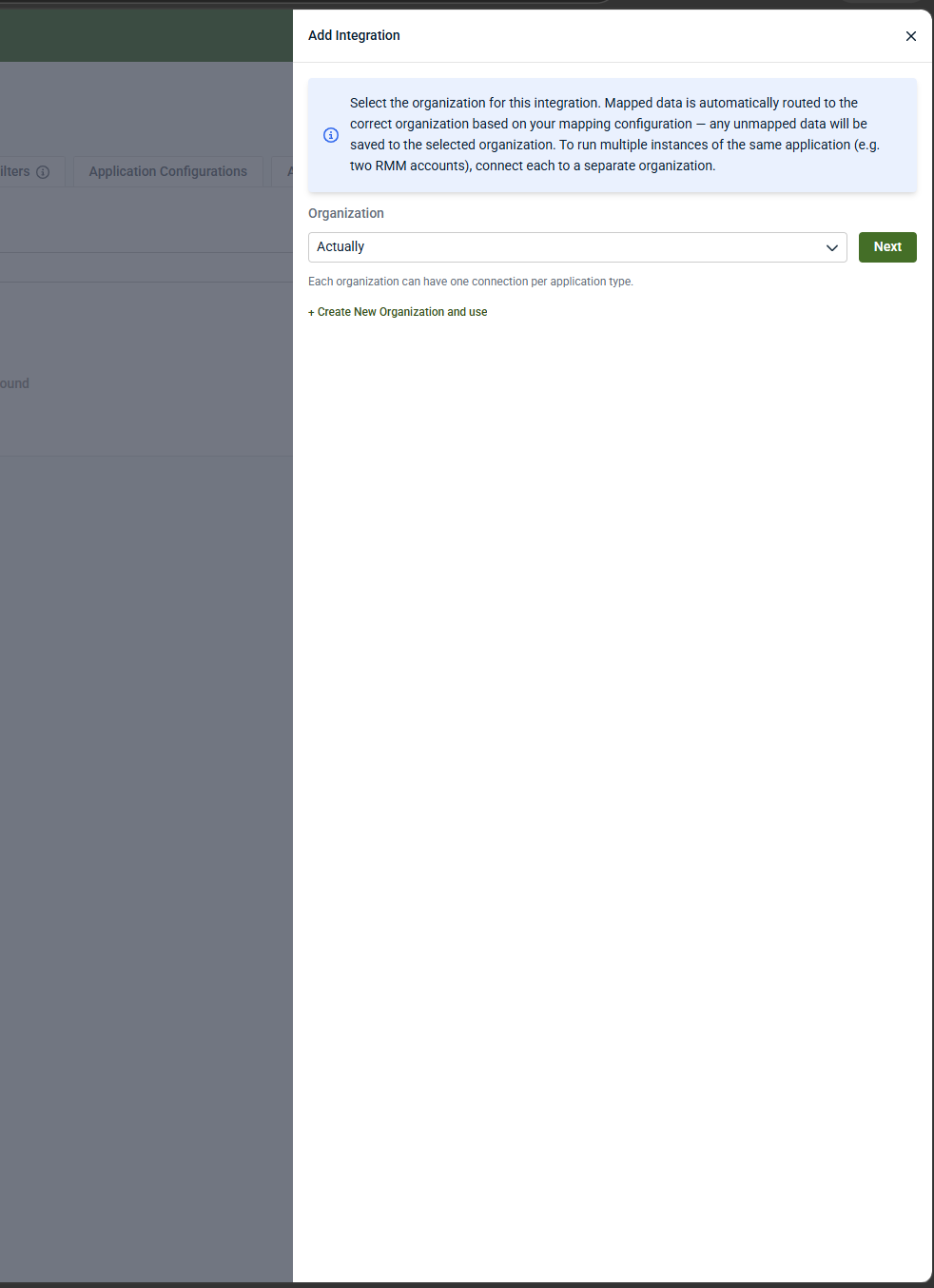
Select the organization that will receive the Graphus data, and then click Next.
-
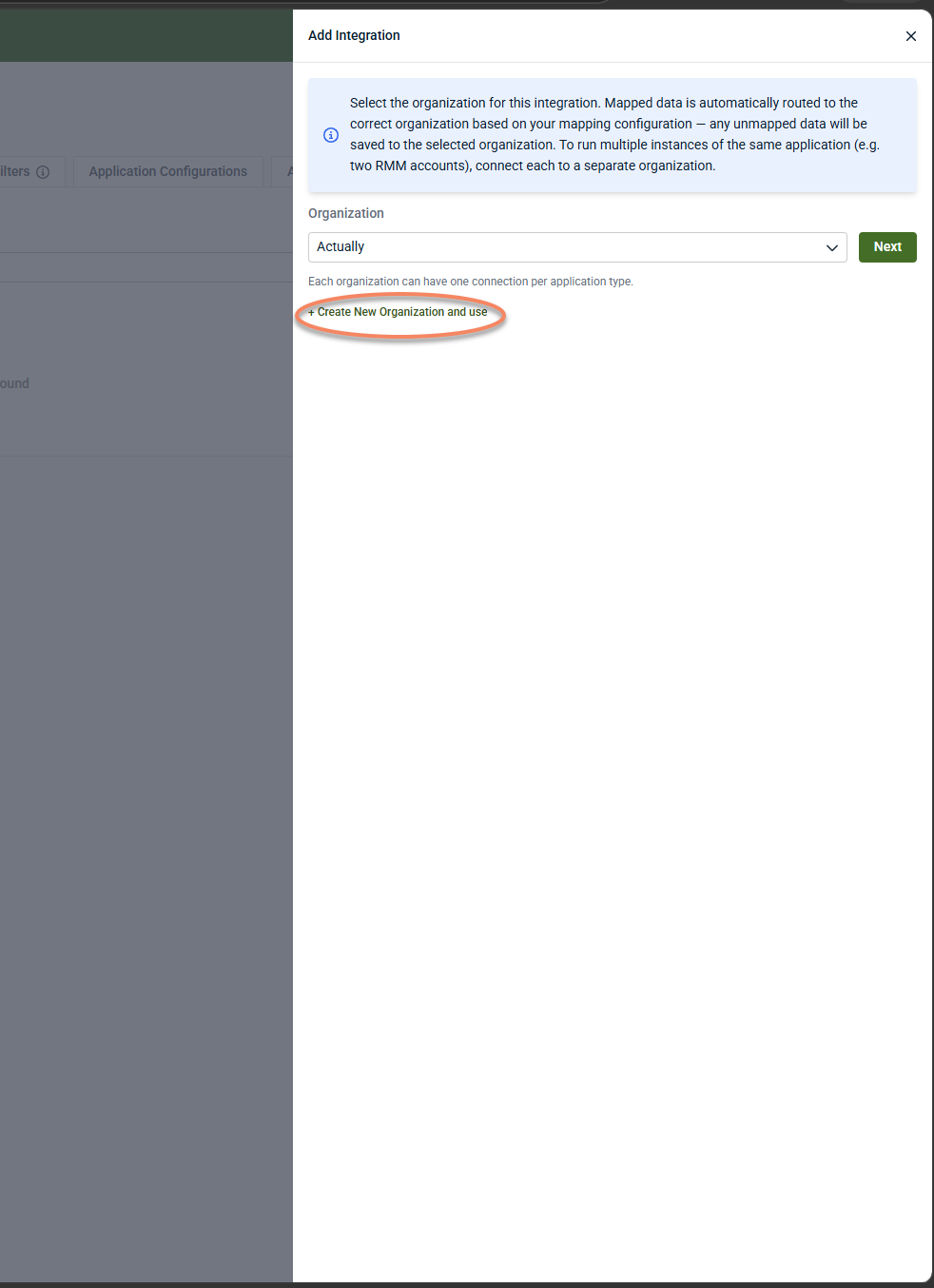
To create a new organization and use it for the integration, click Create New Organization and use.
-
Each organization can have one connection per application type.
-
-
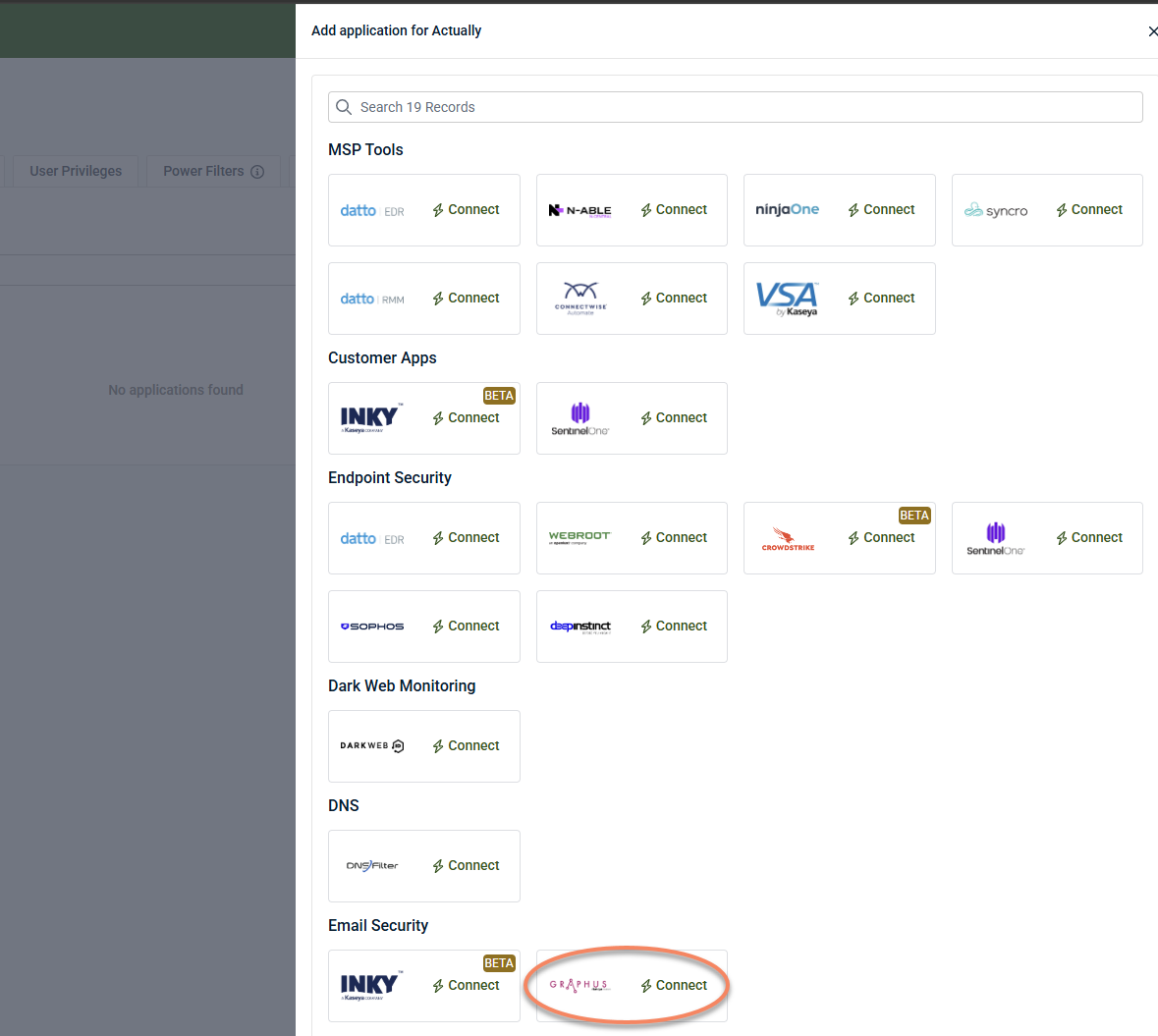
Under Email Security, locate Graphus and click Connect.
-
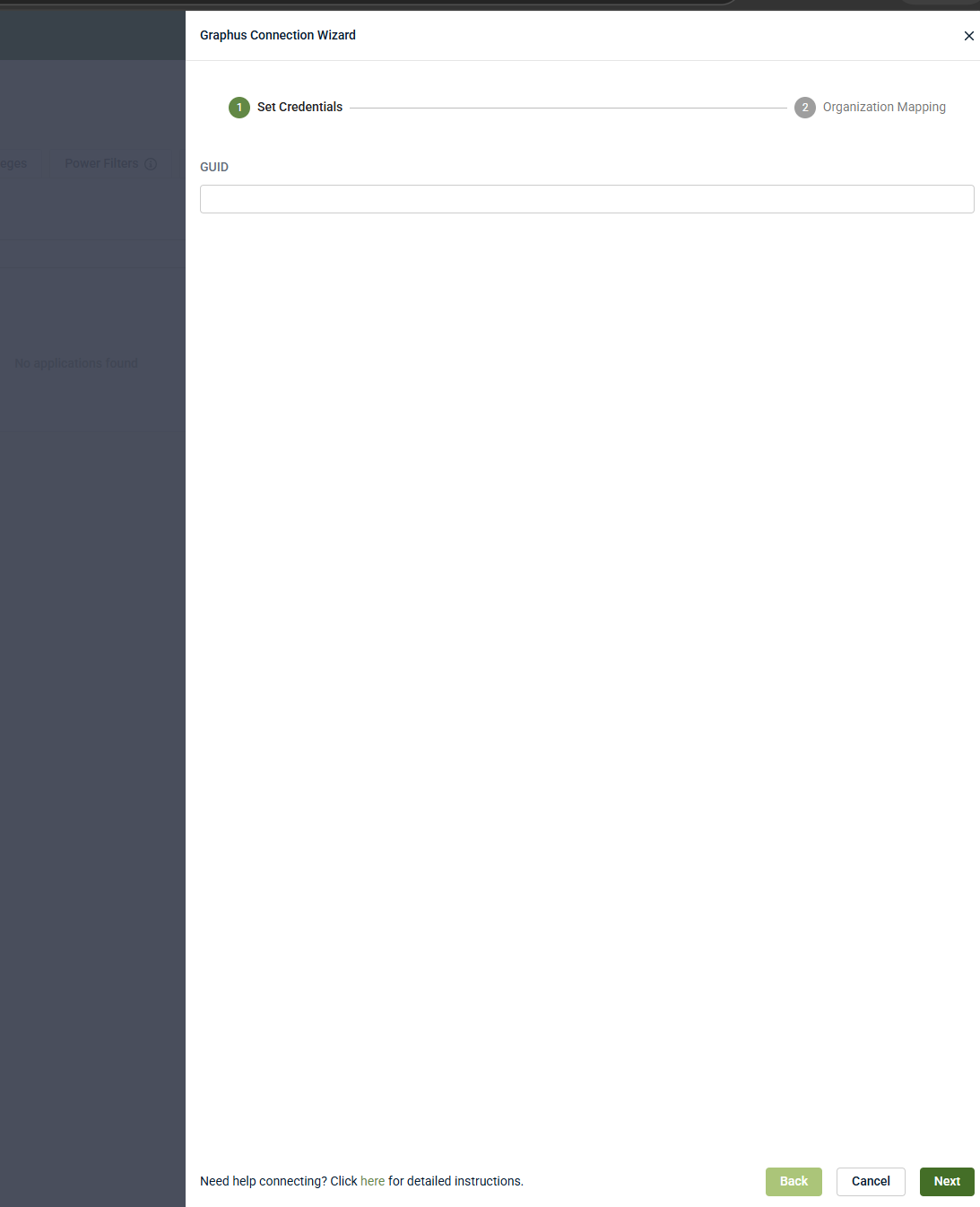
Enter your Graphus MSP GUID.
-
Click Next.
-
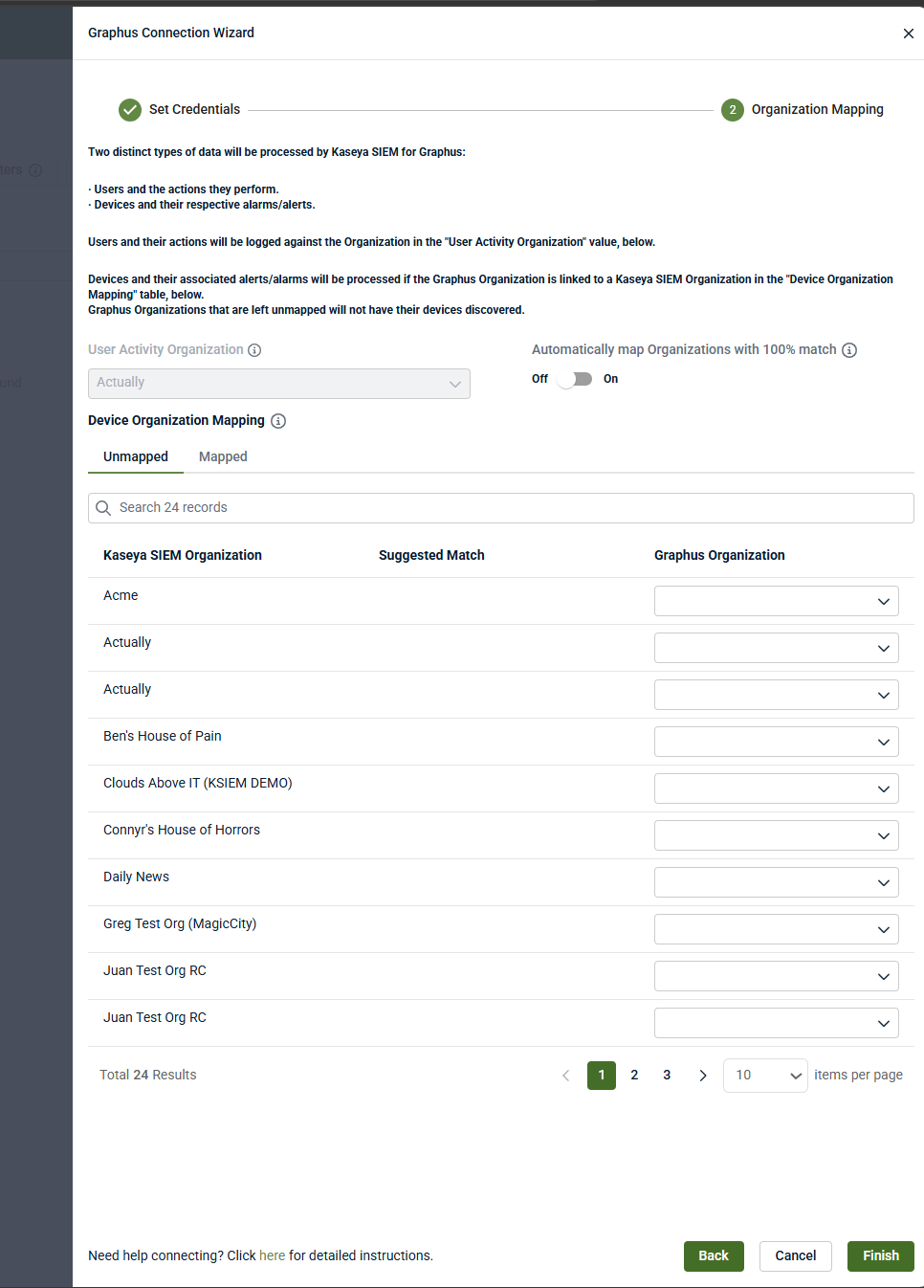
Complete the Organization Mapping step (see below).
-
Click Finish to save the mapping.
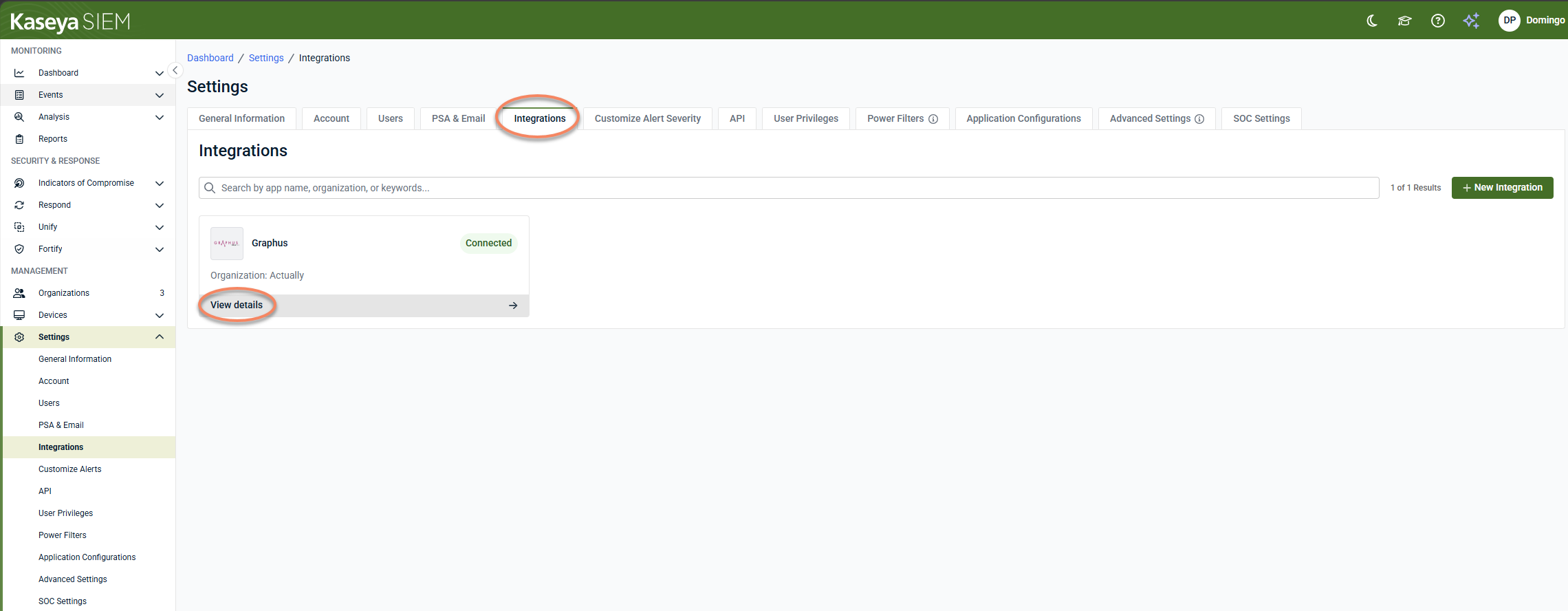
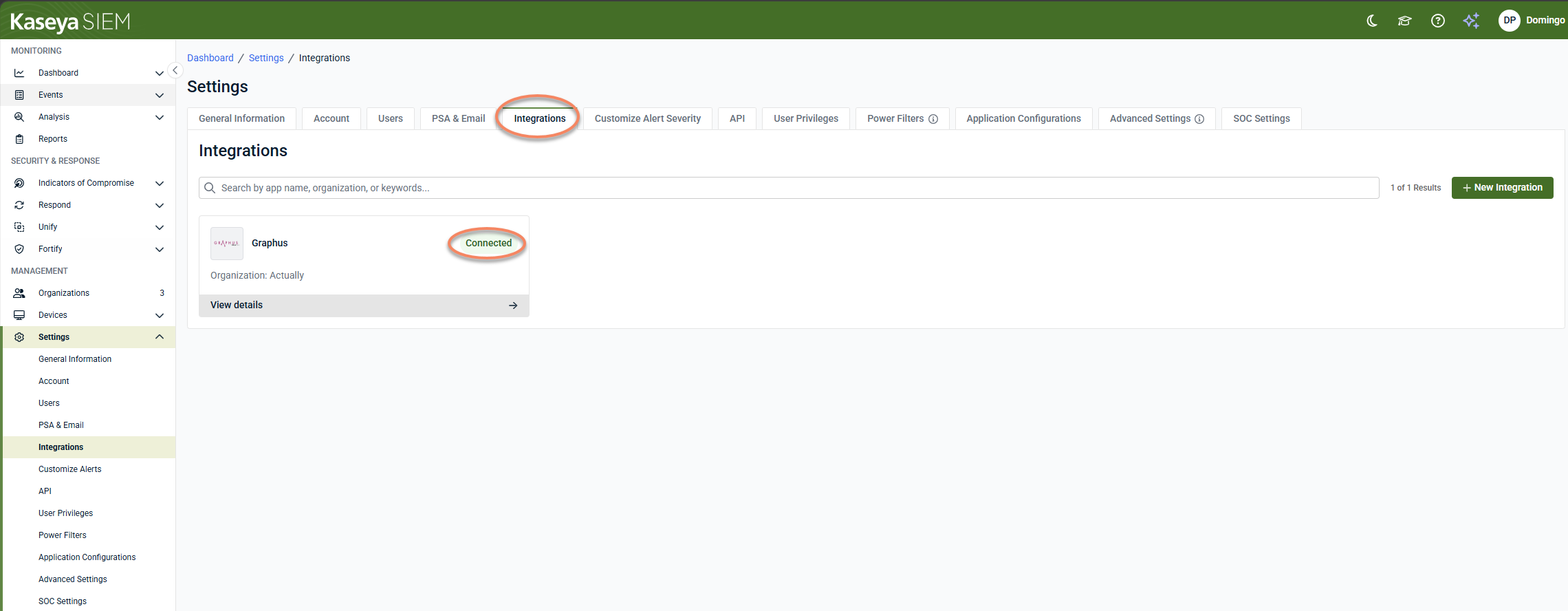
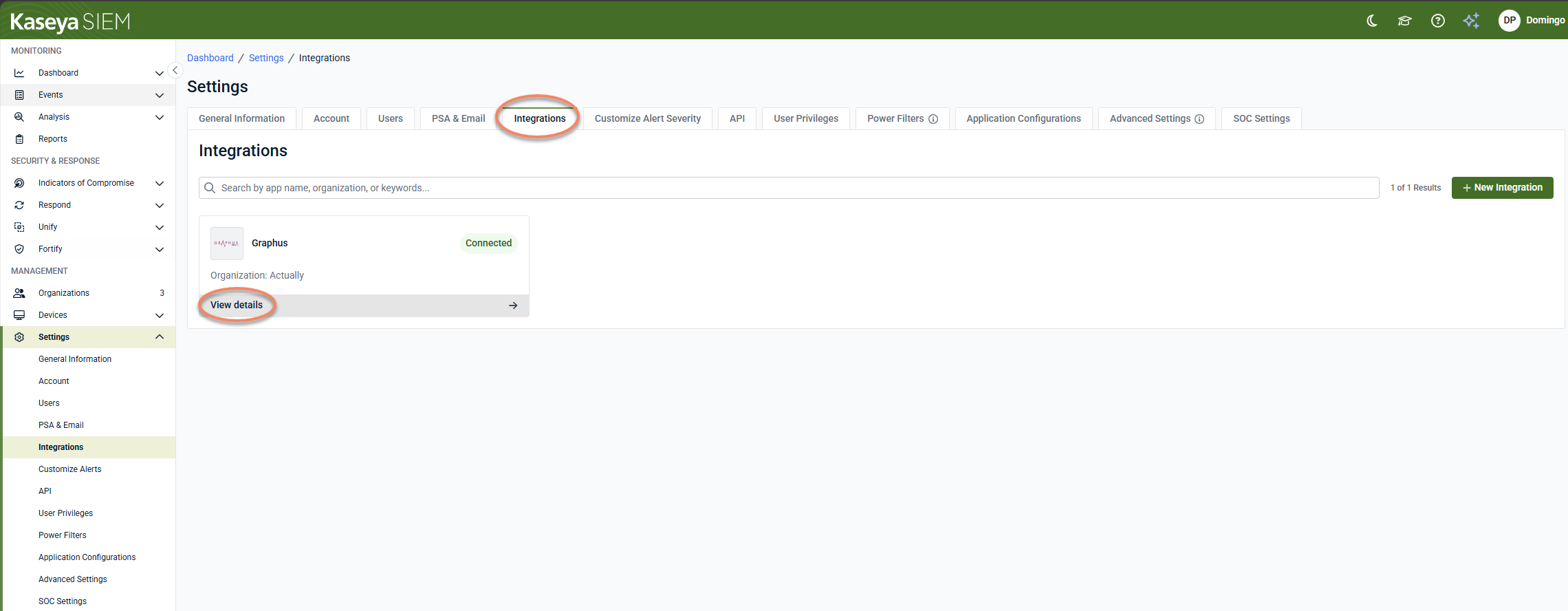
When configured at the partner level, Graphus appears in Settings > Integrations and displays the associated organization.
Connect Kaseya SIEM to Graphus at the organization level
-
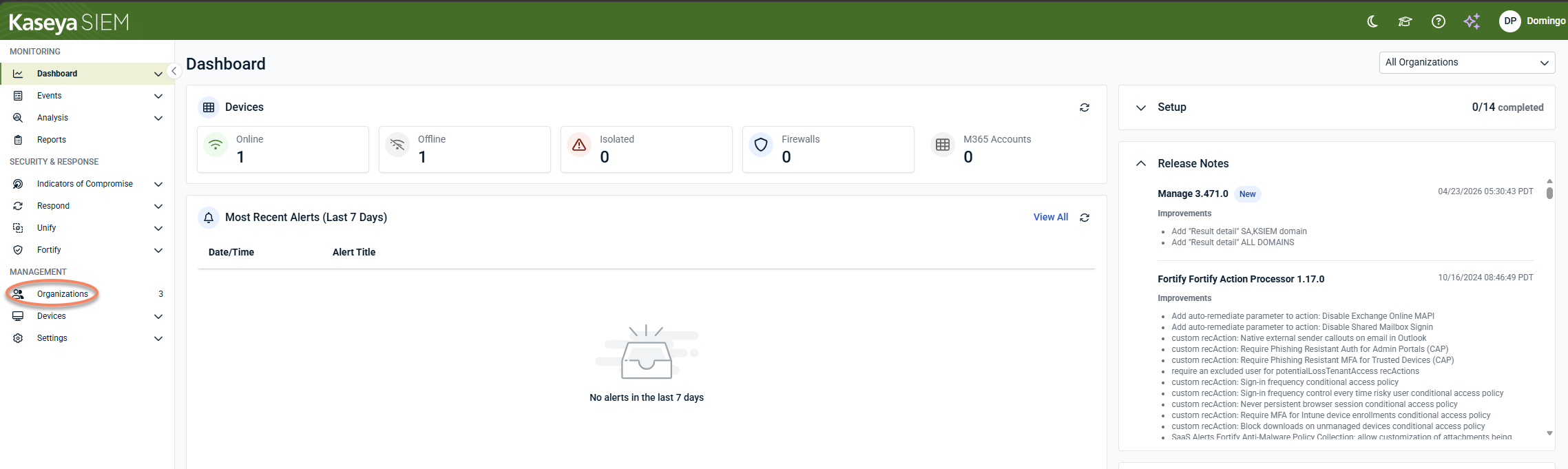
In Kaseya SIEM, from the side navigation menu, go to Organizations.
-
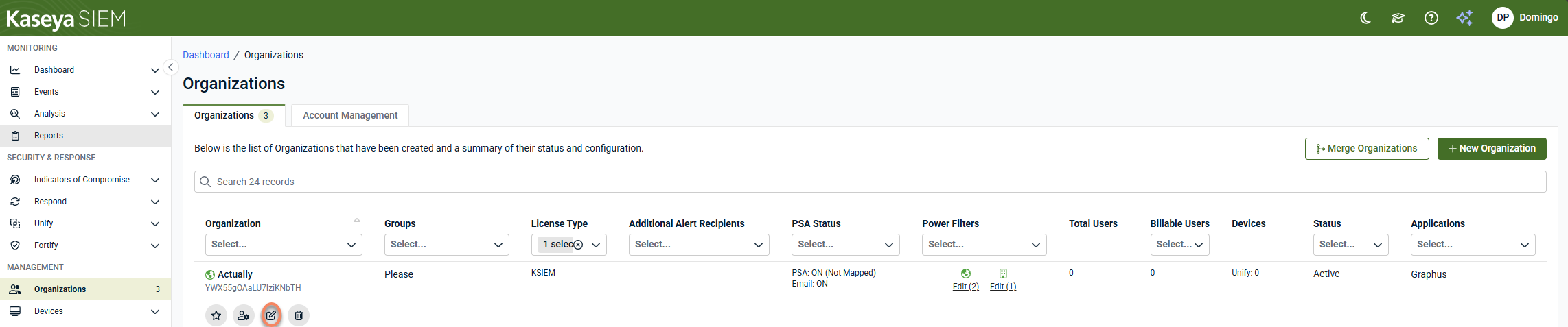
Click Edit Organization (pencil icon) for the organization you want to connect Graphus to.
-
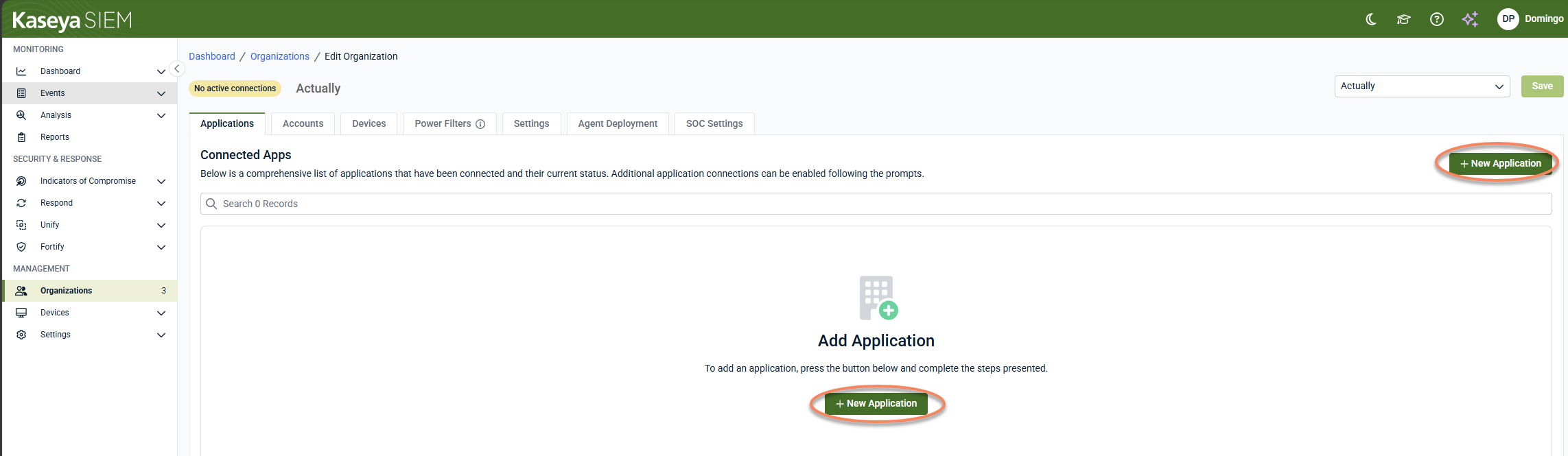
Click + New Application.
-
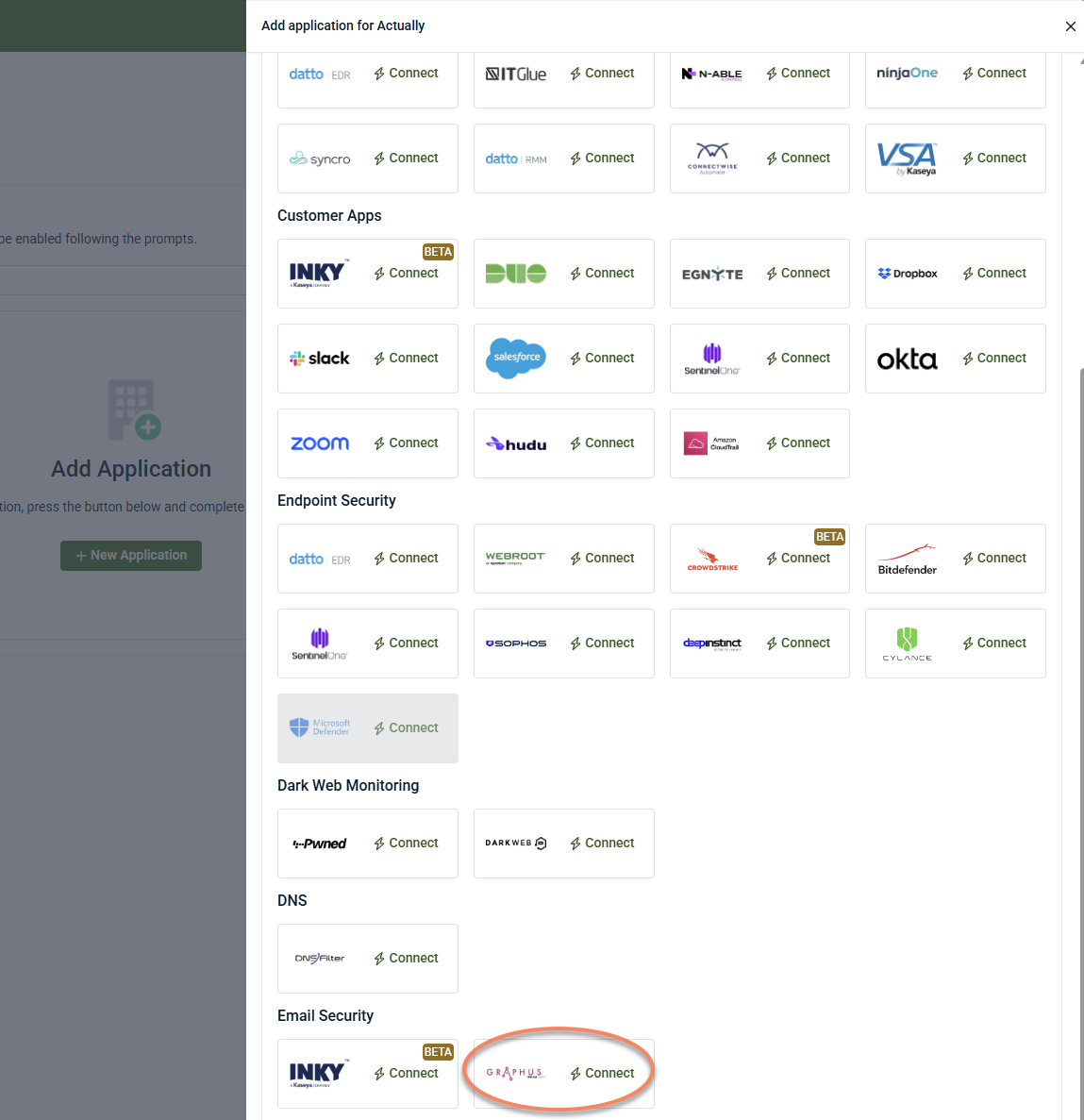
Under Email Security, locate Graphus and click Connect.
-
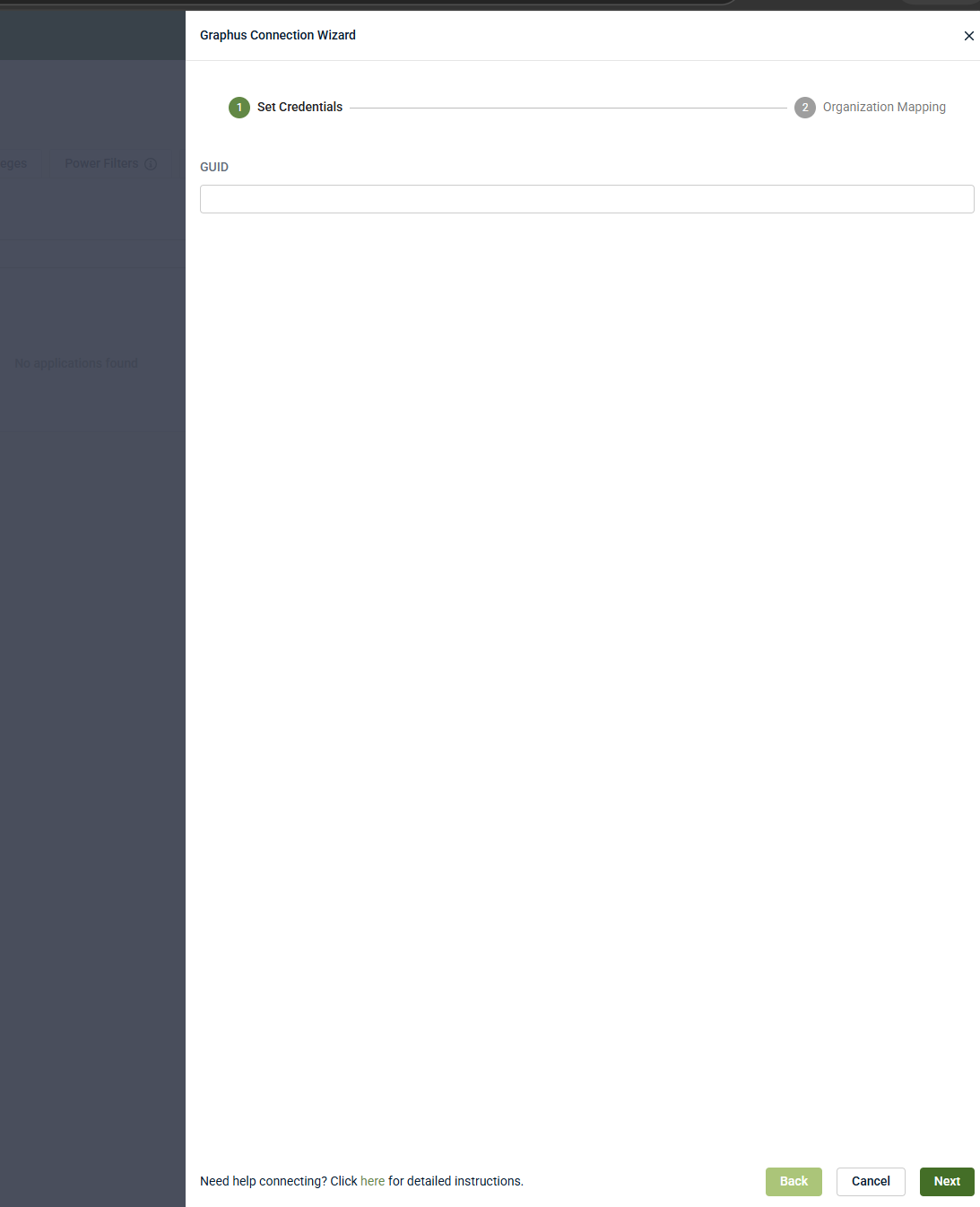
Enter your Graphus MSP GUID.
-
Click Next.
-
Complete the Organization Mapping step (see below).
-
Click Finish to save the mapping.
When configured at the organization level, the Graphus application appears under the organization's Applications tab.
Complete Organization Mapping
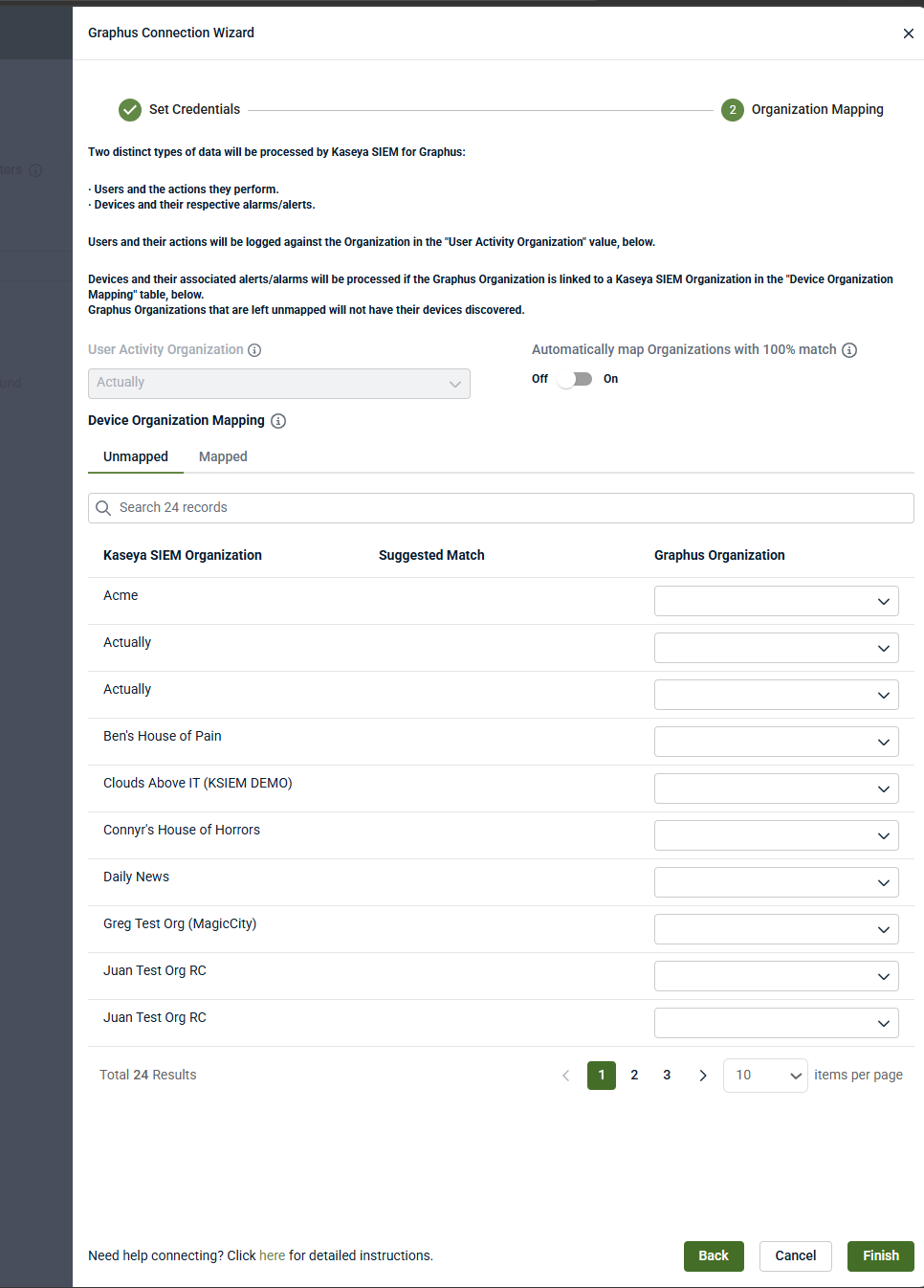
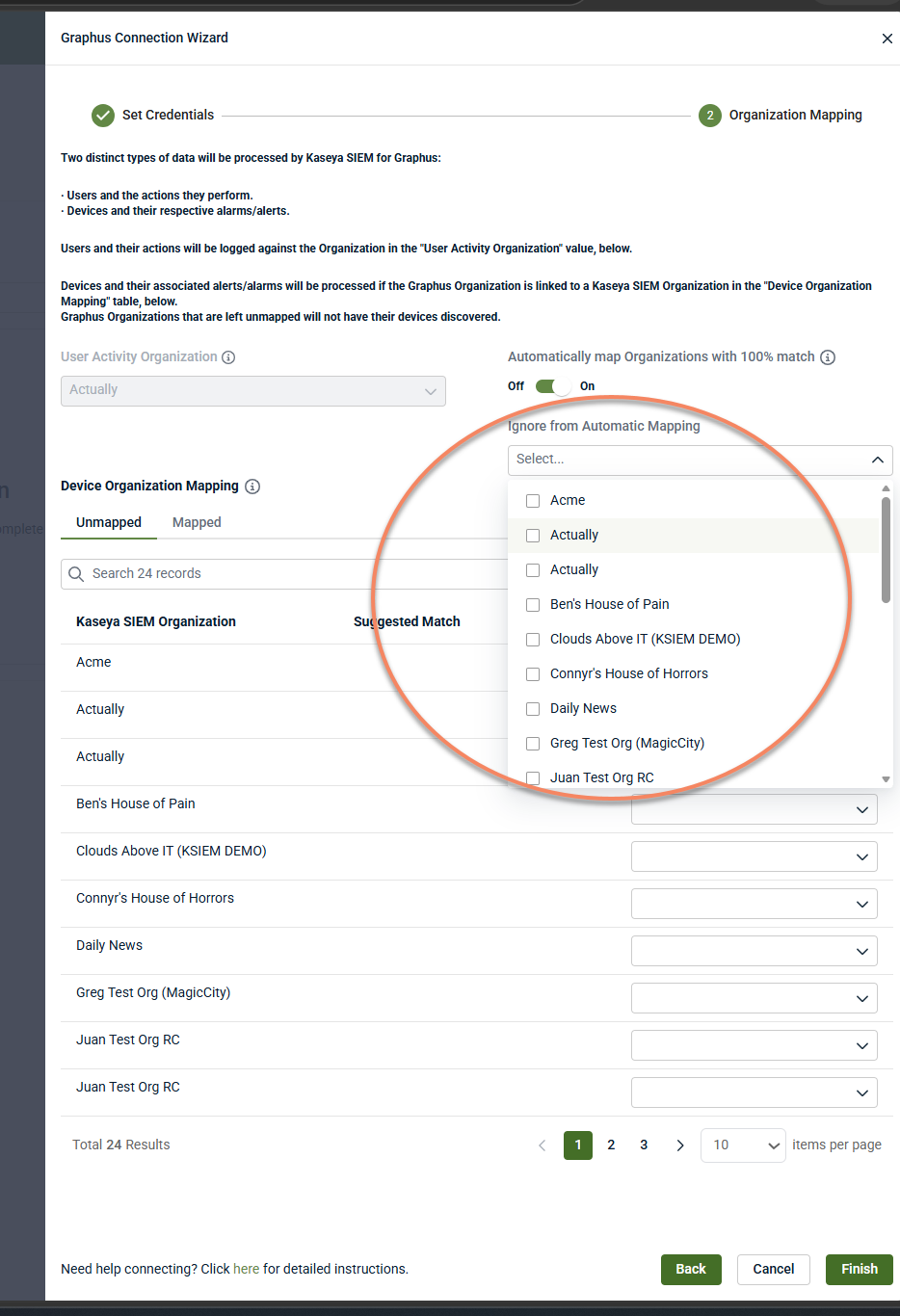
Two distinct types of data are processed by Kaseya SIEM for Graphus:
-
Users and the actions they perform
-
Devices and their respective alarms/alerts
User Activity Organization
Users and their actions are logged against the organization set as the User Activity Organization. This field is locked to the organization the integration is linked to and cannot be changed; this is the organization the product itself is connected to, and it will be used for all user activity inside the application.
Device Organization Mapping
Devices and their associated alerts/alarms are processed only if the Graphus organization is linked to a Kaseya SIEM organization in the Device Organization Mapping table. When a Graphus organization is mapped to a Kaseya SIEM organization, devices in that organization are imported and alerts/alarms for that organization are processed. Graphus organizations left unmapped will not have their devices discovered.
To complete mapping:
-
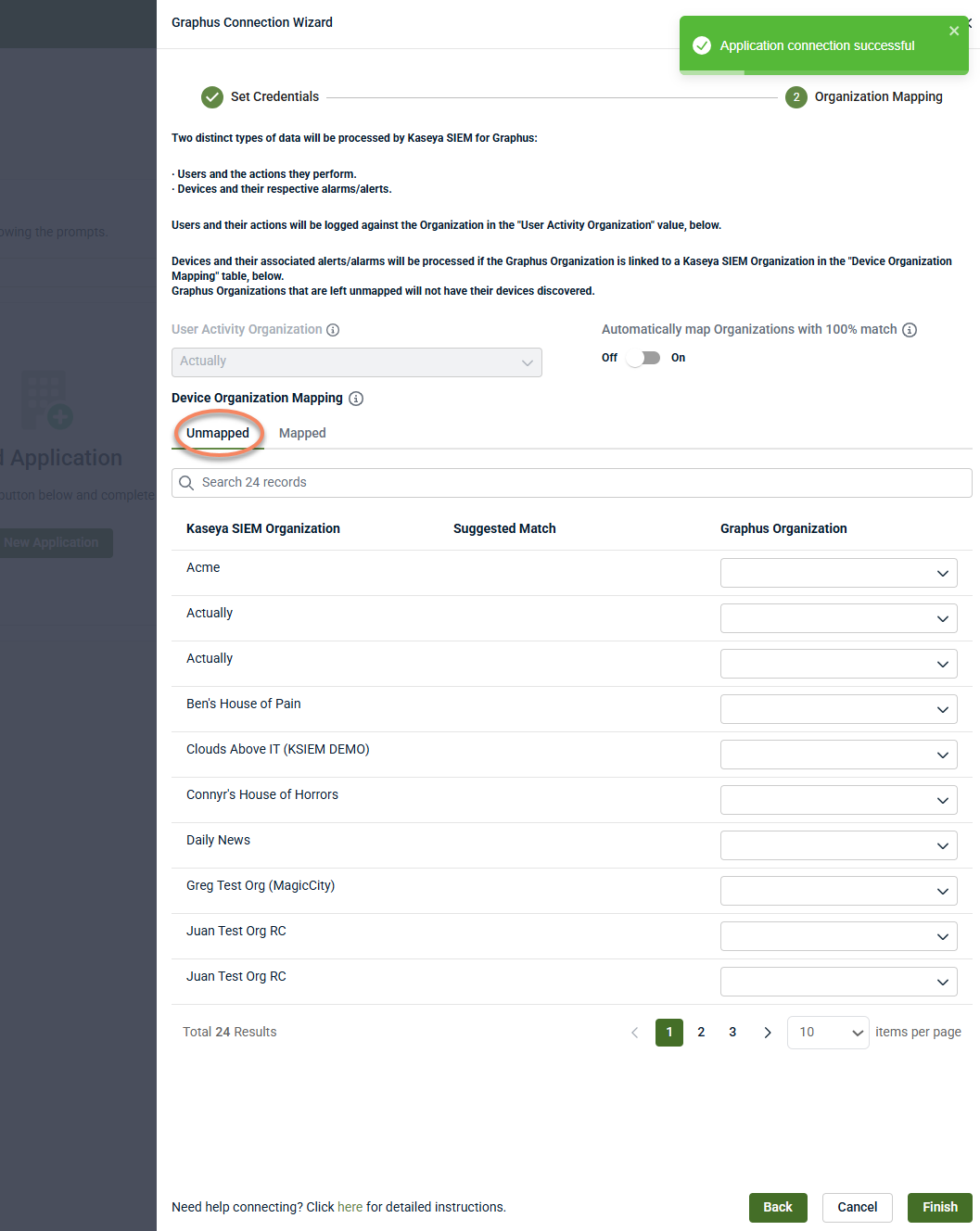
Review the Unmapped tab, which lists Kaseya SIEM organizations alongside a Graphus Organization drop-down menu and any Suggested Match.
-
For each row, either accept the suggested match or manually select the corresponding Graphus organization from the drop-down menu.
-
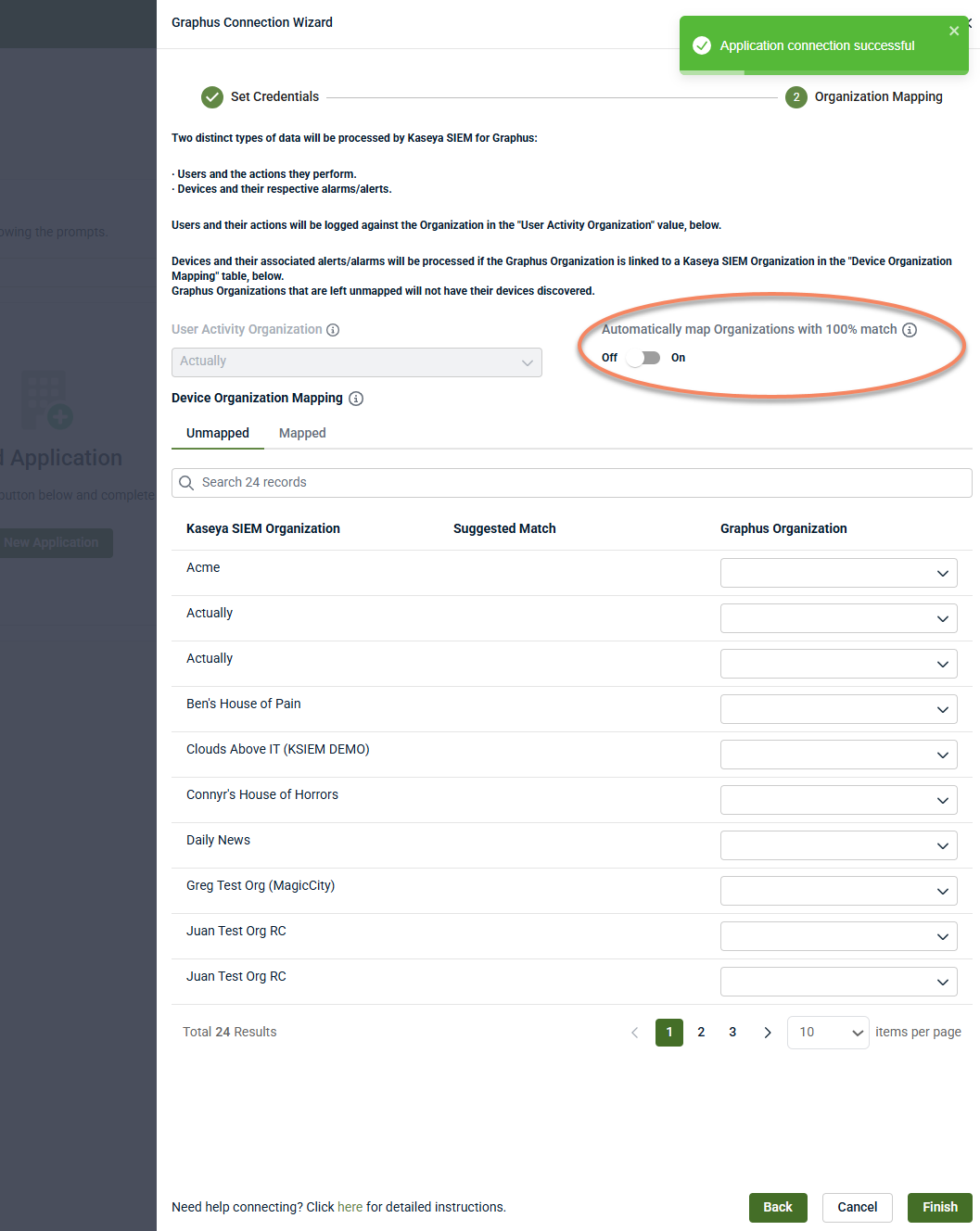
Optionally, enable Automatically map Organizations with 100% match. Turning this on automatically maps existing and new organizations when the name in the RMM matches the Graphus organization exactly, including letter case, punctuation, and spaces. This removes the need to manually map organizations for Unify device suggestions to begin populating.
-
When this toggle is On, an Ignore from Automatic Mapping drop-down menu appears. Use this to select specific Kaseya SIEM organizations that should be excluded from automatic mapping, even if their names match a Graphus organization exactly. This is useful when an exact name match exists but the organizations should not be linked.
-
-
Use the Mapped tab to review organizations that have already been linked.
-
Once mapping is complete, click Finish to save.
NOTE Only mapped organizations will have their devices discovered and alerts processed. If a Kaseya SIEM organization doesn't appear as expected, or a Graphus organization is missing from the drop-down menu, verify that the organization exists correctly on the Graphus side and that data has synced.
Disable the integration in Kaseya SIEM
To disable the integration:
-
Navigate to the Graphus integration.
-
If configured at the partner level, go to Settings > Integrations, locate Graphus, and select View details.
-
If configured at the organization level, go to Organizations, click Edit Organization (pencil icon), and the Applications tab will be displayed. Click the Graphus tile.
-
-
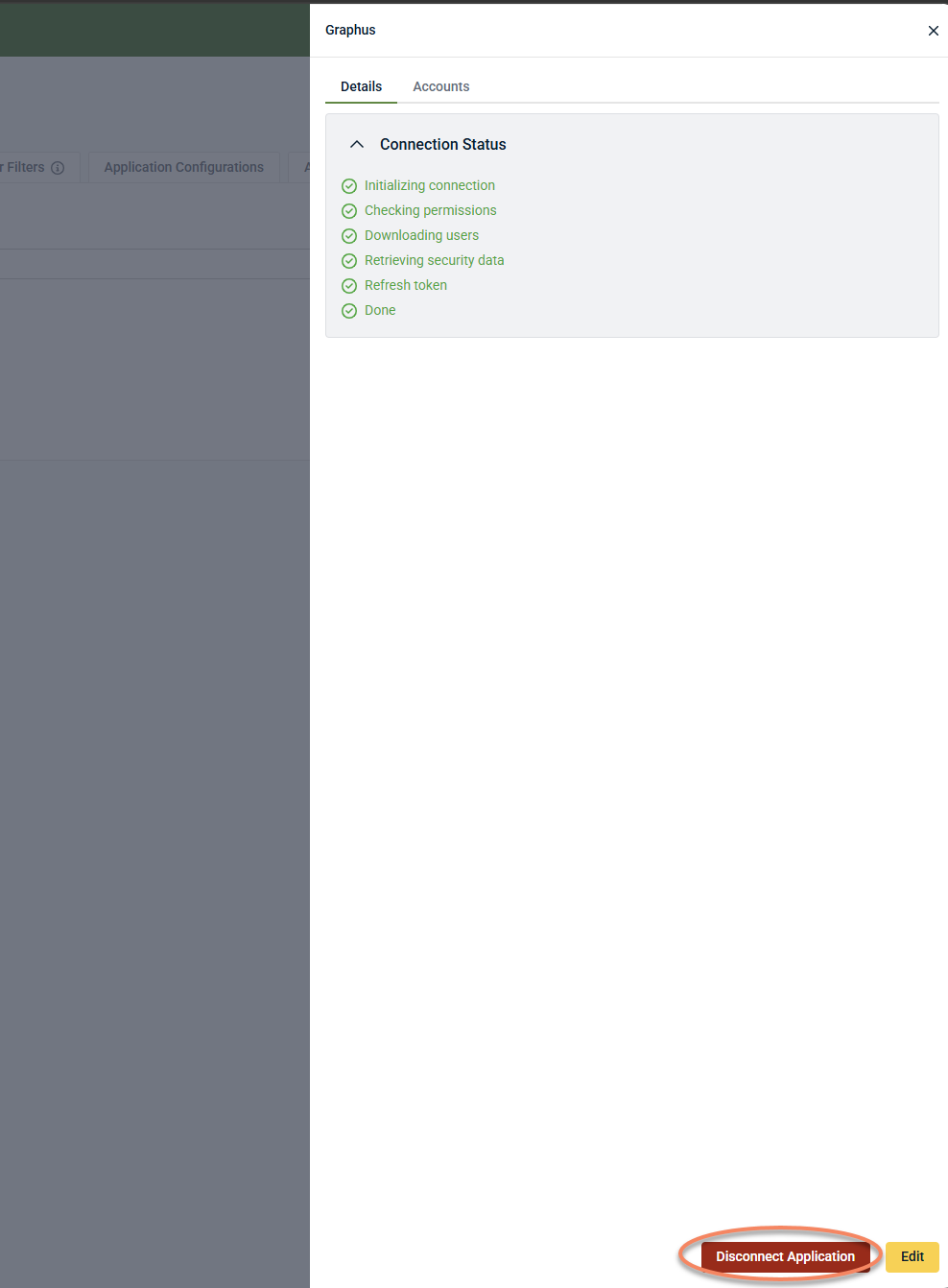
Select Disconnect Application.
-
Confirm the action.
Results
-
Graphus data is no longer ingested into Kaseya SIEM.
-
Existing Graphus email security monitoring remains unchanged.
-
The integration can be reconnected later.
FAQ
What credentials are required for the integration?
Only your Graphus MSP GUID, found in Graphus under MSP Administration > MSP Information. No separate URL is required in Kaseya SIEM.
What happens if a Graphus organization is left unmapped?
Devices in that organization will not be discovered by Kaseya SIEM, and alerts/alarms for that organization will not be processed. User activity is still logged against the selected User Activity Organization regardless of device mapping.
Can I change the User Activity Organization after setup?
No. It is locked to the organization the integration is linked to and cannot be changed from the wizard.
What does "Automatically map Organizations with 100% match" do?
When enabled, it automatically maps existing and new organizations whenever the name in the RMM matches the Graphus organization exactly (including letter case, punctuation, and spaces), removing the need for manual mapping.
Does disabling the integration affect Graphus?
No. Disabling the integration stops data ingestion into Kaseya SIEM but does not change monitoring or configuration in Graphus.


