Integration: Kaseya SIEM and Duo
This article explains how to configure the Duo Admin API and connect Duo to Kaseya SIEM so that Duo authentication and access activity can be associated with organizations and become available for investigation and correlation.
Use this article to understand how Duo is connected, scoped, and associated with organizations in Kaseya SIEM. This article does not describe detection logic, response actions, SOC workflows, or Duo administration beyond API configuration.
How the Duo integration works in Kaseya SIEM
Duo is a customer‑owned SaaS application that provides identity and authentication telemetry. When connected to Kaseya SIEM, Duo activity is retrieved using the Duo Admin API and associated with a specific organization so relevant activity can appear within SIEM alerts and investigations.
Kaseya SIEM observes Duo‑generated activity. It does not manage Duo users, policies, devices, or enforcement settings.
Requirements
Before connecting Duo to Kaseya SIEM, ensure that:
-
You have administrative access to the Duo Admin Panel
-
You can create an Admin API application in Duo
-
You have permission to manage applications or integrations in Kaseya SIEM
-
Users and applications already exist in Duo for the activity you want to observe
Creating the Admin API application in Duo
Kaseya SIEM connects to Duo using the Duo Admin API. This API is configured as an application in the Duo Admin Panel.
To create the Admin API application, follow these steps:
-
Log in to the Duo Admin Panel.
-
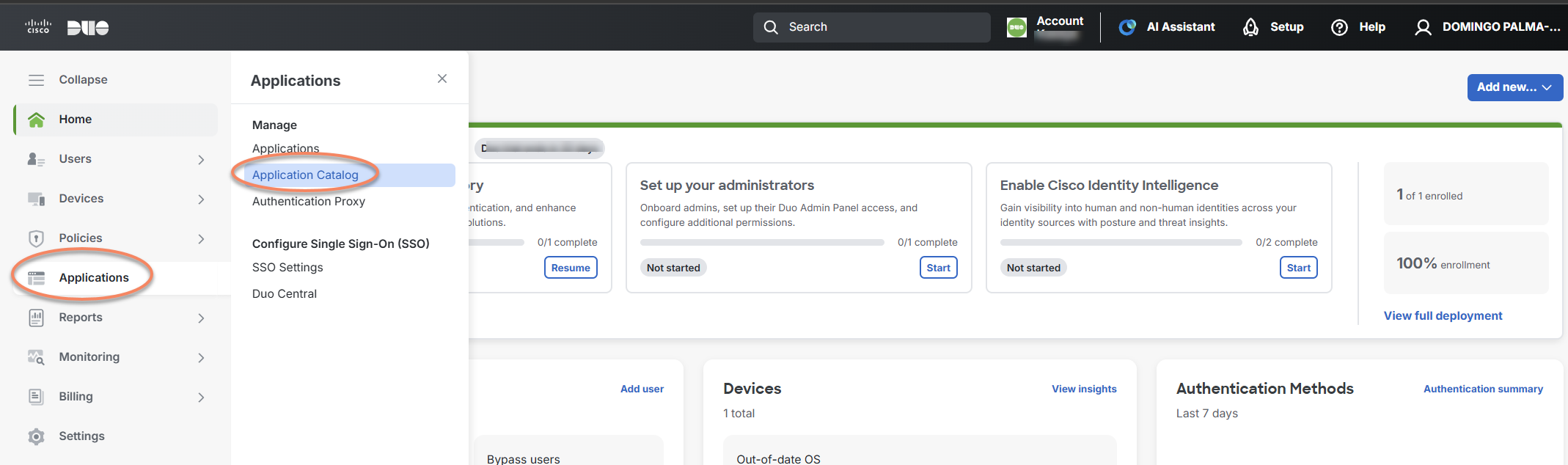
Navigate to Applications > Application Catalog.
-
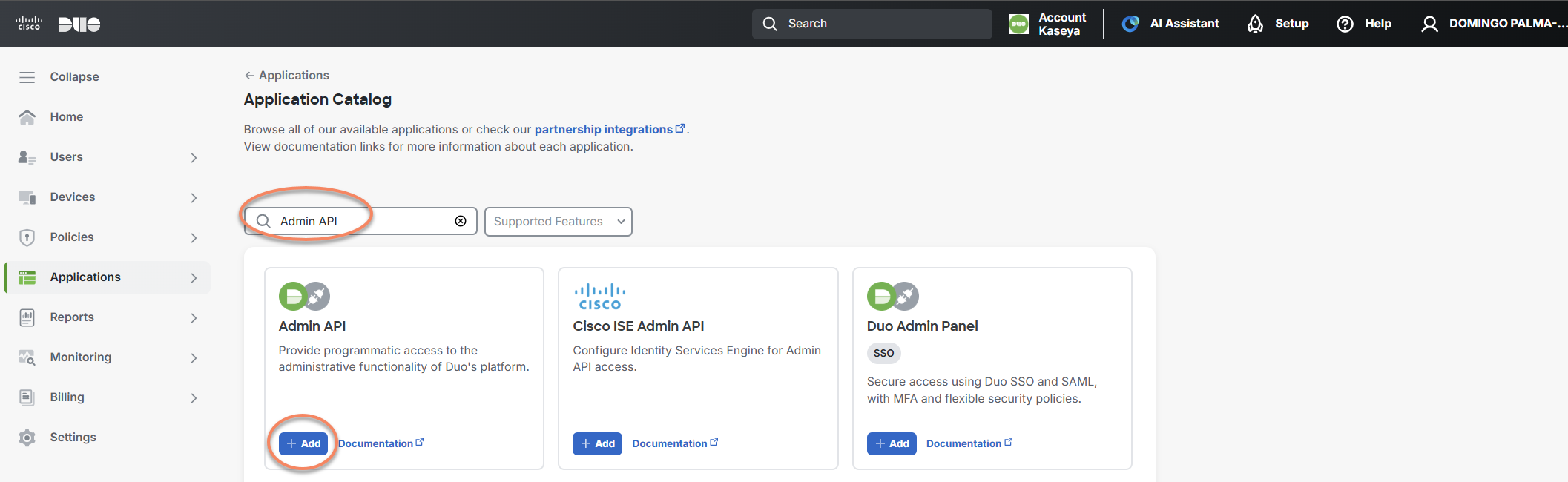
Locate Admin API in the catalog and click + Add to create the application.
-
Open the newly created Admin API application.
You will see the following values:
-
Integration key
-
Secret key
-
API hostname
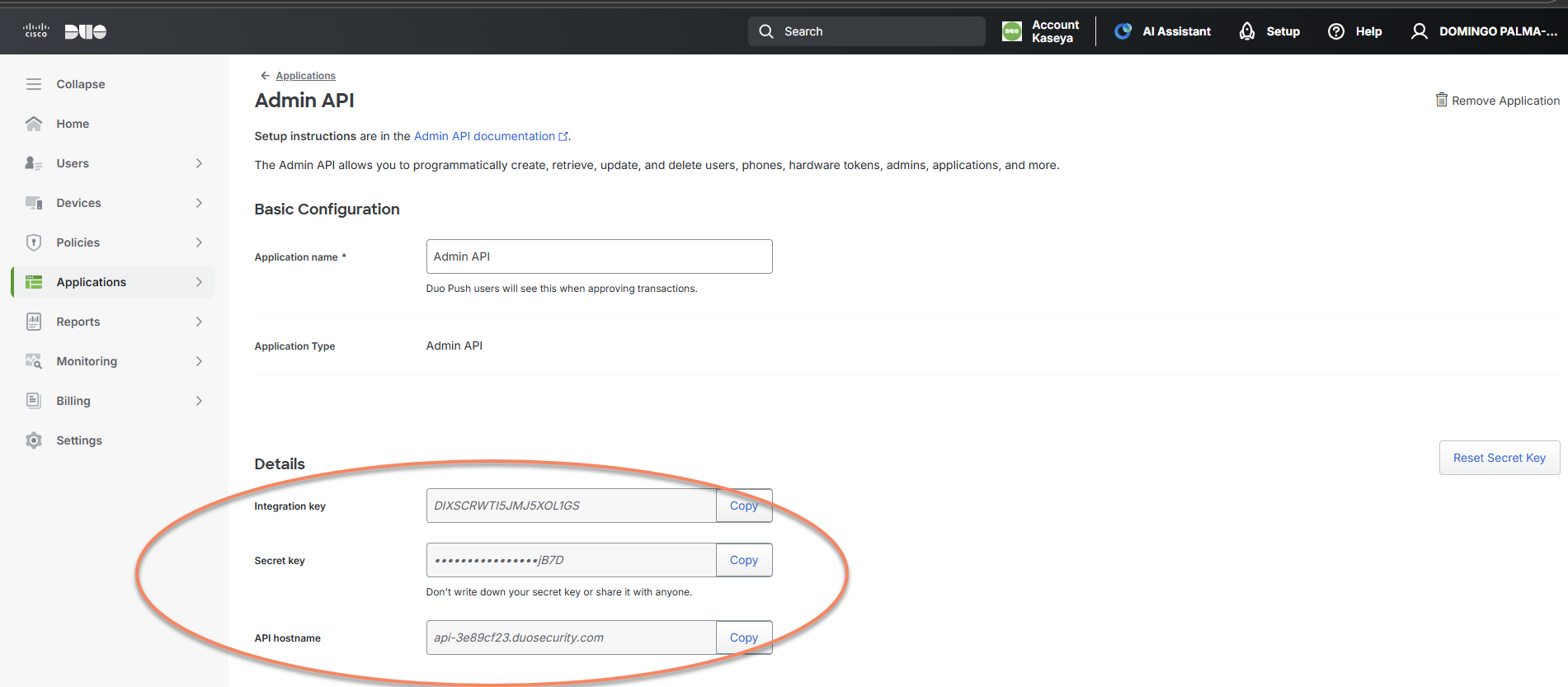
These values are required when completing the connection in Kaseya SIEM.
IMPORTANT Treat the secret key like a password. Protect it as sensitive credential material. If the secret key is exposed, regenerate it immediately in the Duo Admin Panel.
Configuring Admin API permissions
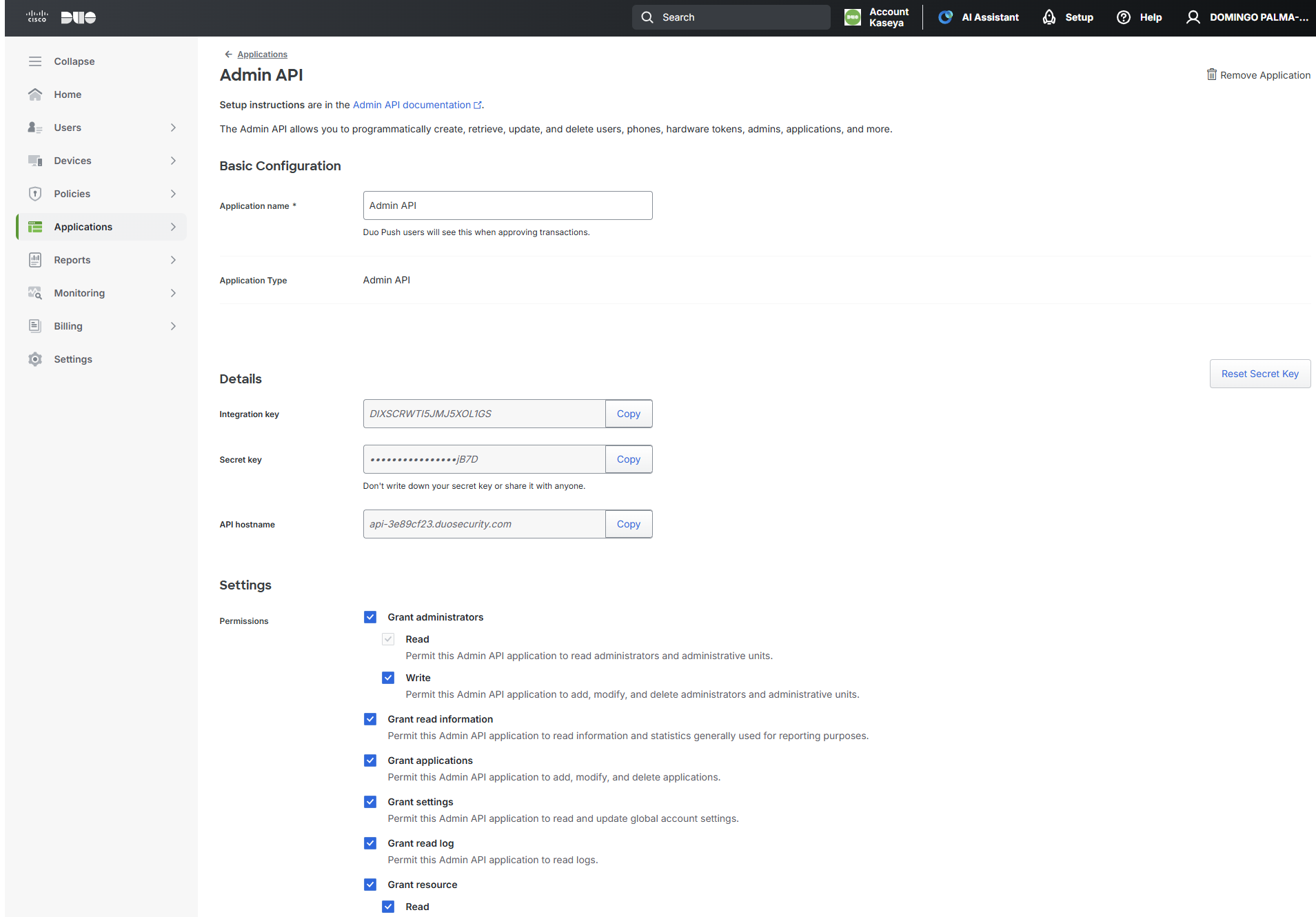
After creating the Admin API application, configure the permissions required to retrieve authentication and access activity.
-
Review the available Admin API permissions on the application settings page.
-
Enable the permissions required to read user, authentication, and application activity.
-
Refer to Duo’s Admin API documentation to understand which permissions correspond to specific API endpoints.
(Optional) Restricting API access by network
You can optionally restrict which networks are allowed to access the Admin API.
-
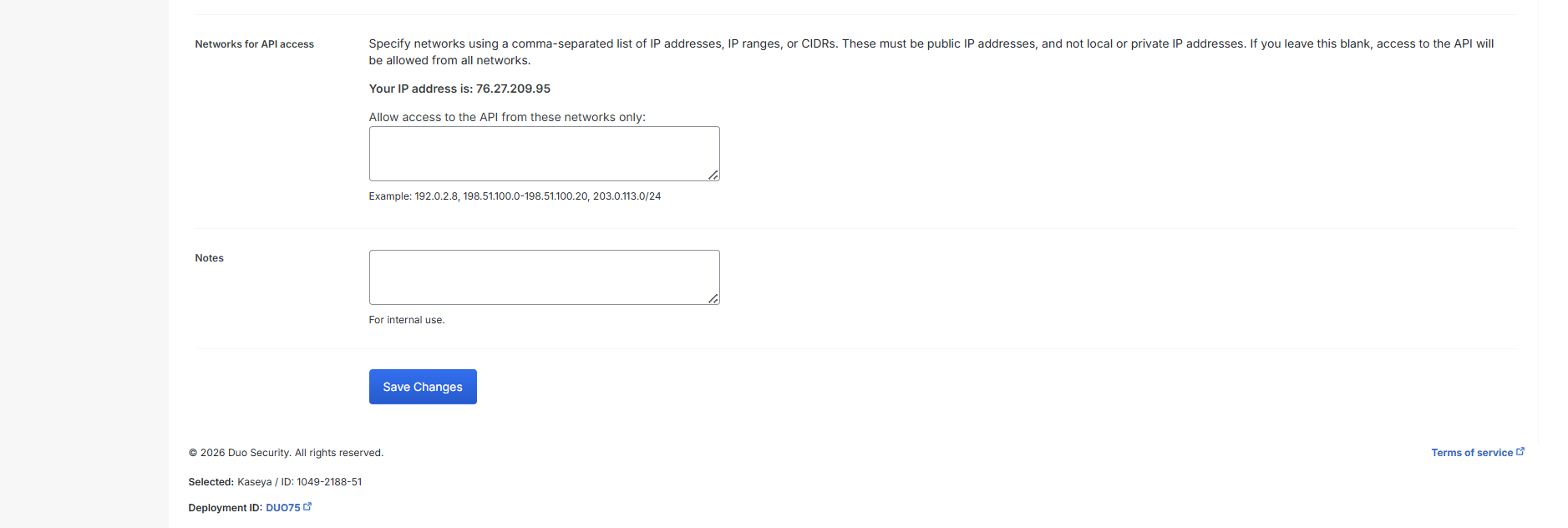
In the Admin API application settings, locate Networks for API Access.
-
Specify the allowed IP addresses or CIDR ranges.
If no networks are specified, the Admin API application can be accessed from any IP address.
NOTE Duo performs IP restrictions after validating the authentication signature. If you see blocked Admin API requests from unexpected IP addresses, this may indicate that the secret key has been compromised.
-
Save the application after completing your configuration.
Creating administrative users in Duo
Before Duo activity can be associated with SIEM organizations, ensure that administrative users exist for ongoing Duo management.
To create or manage administrators:
-
Sign in to the Duo Admin Panel with an account that has the Owner role.
-
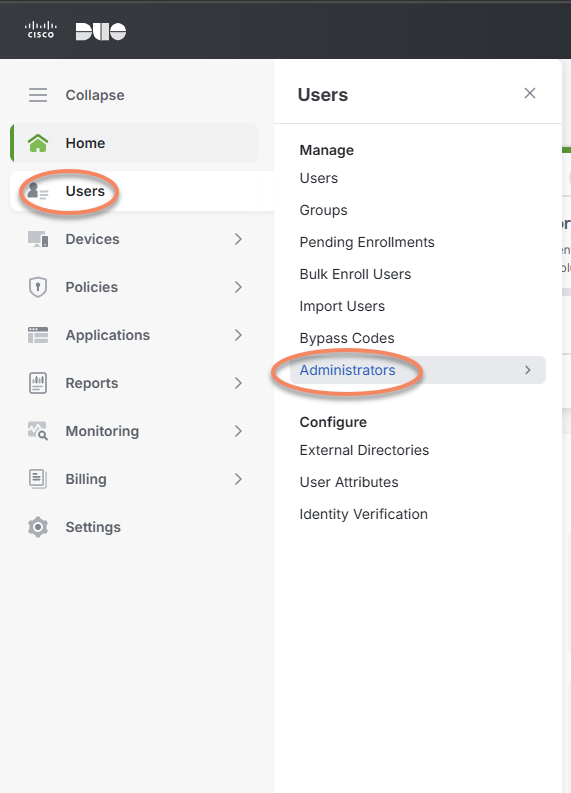
Navigate to Users > Administrators > Administrators.
-
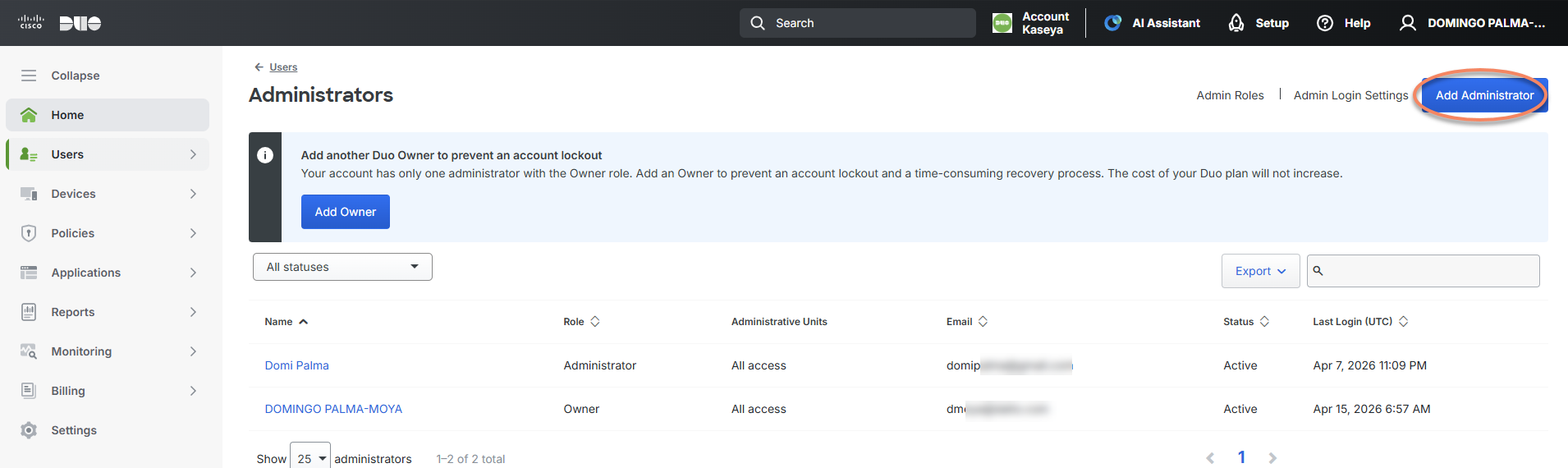
Select Add Administrator.
-
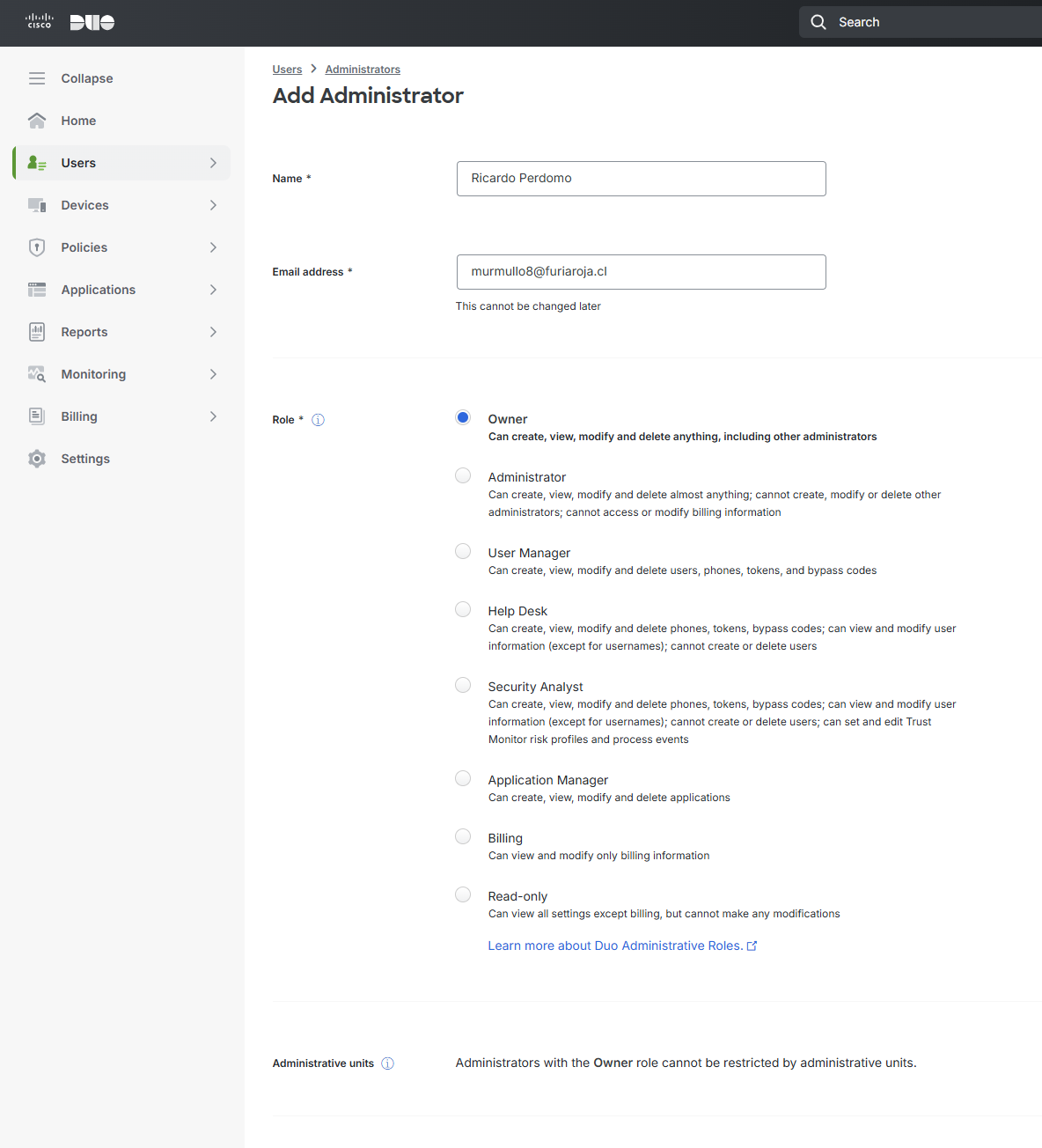
Enter the administrator’s name and email address.
-
Assign the appropriate role.
-
Optionally:
-
Add a phone number for secondary authentication
-
Assign hardware tokens (passkeys can be added later)
-
Leave Automatically send an account setup link via email enabled, or send the link manually later
-
-
Click Add Administrator to complete the setup.
The new administrator will receive an activation email. Their status remains Pending Activation until setup is completed, after which it becomes Active.
Connecting Duo to Kaseya SIEM
Once the Duo Admin API application is configured, you can connect Duo in Kaseya SIEM.
You can initiate the connection from either:
-
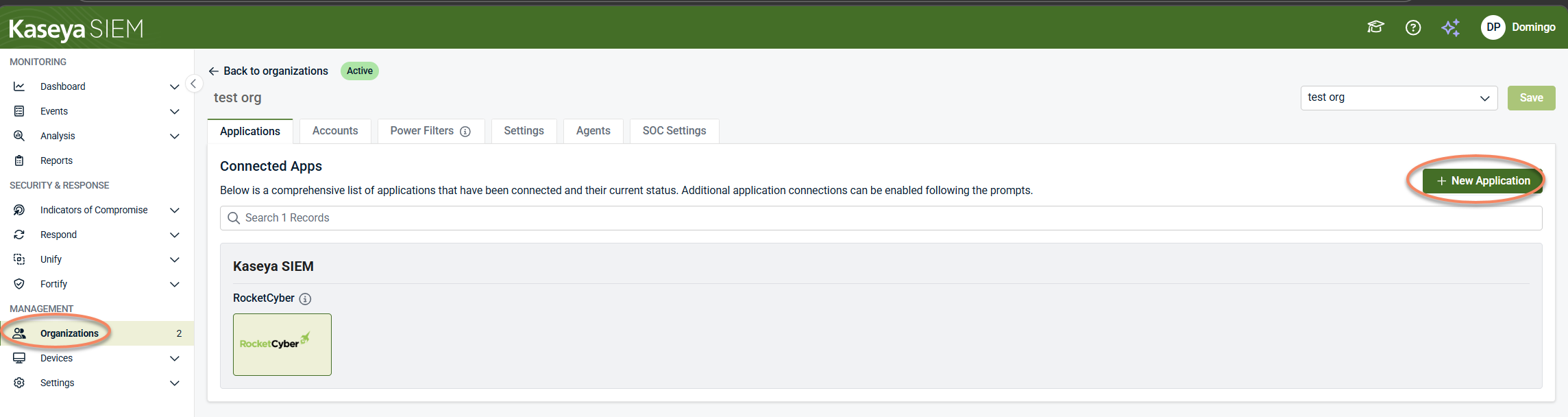
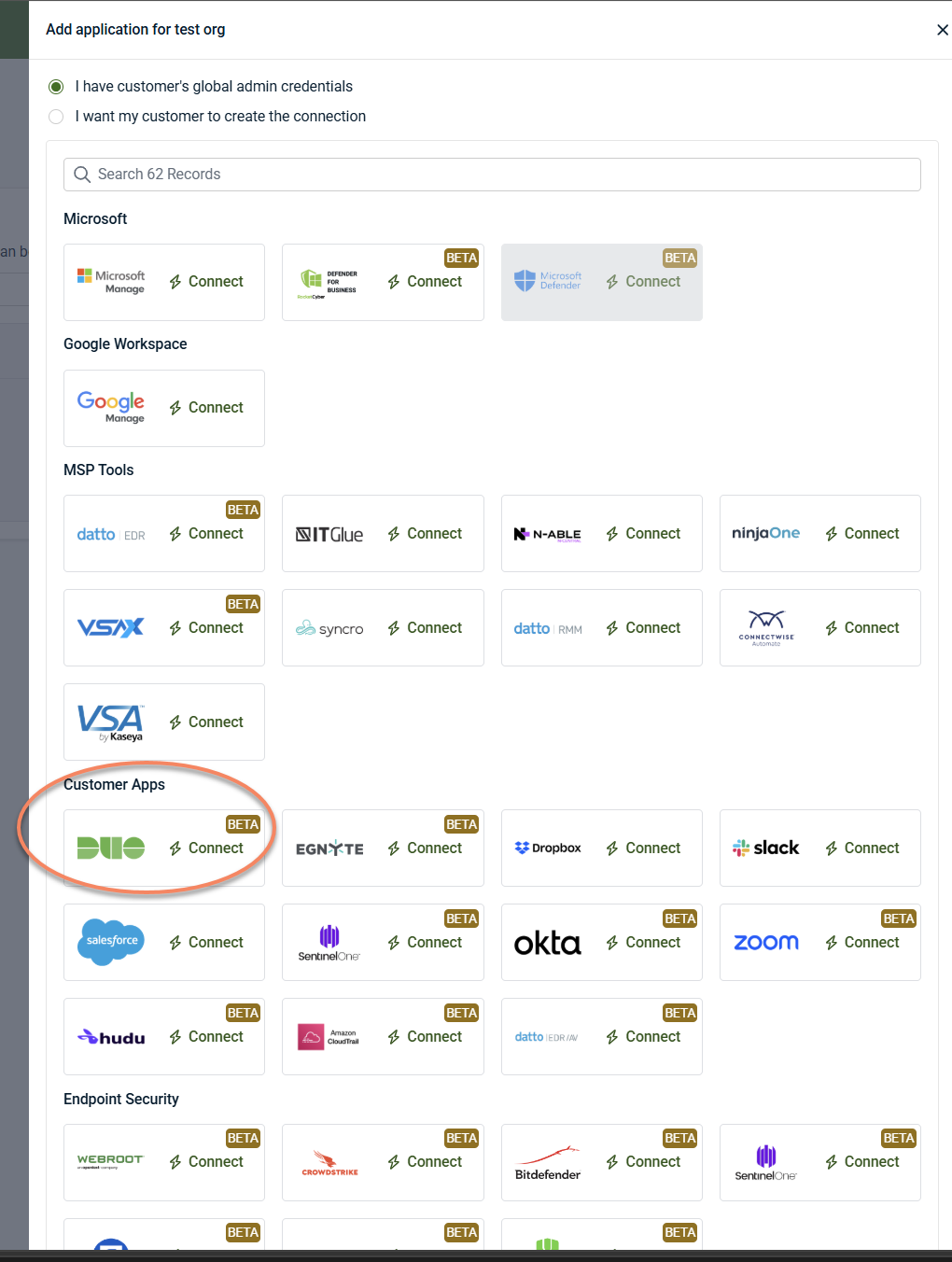
Organizations > Edit organization > Applications > + New application > click Connect in the Duo tile
-
Settings > Integrations > + New Integration > choose organization from the drop-down menu > click Connect in the Duo tile
Both entry points launch the same Duo connection workflow. The difference is whether you are starting from an organization‑focused or platform‑level context.
To connect Duo:
-
Open the Duo connection workflow.
-
Enter the required values from the Duo Admin API application
-
Client Domain: The Duo API hostname prefixed with https://
Example: https://api-3e89cf23.duosecurity.com
-
Integration Key: Paste your Duo Integration Key.
-
Secret Key: Paste Your Duo Secret Key.
-
-
Click Finish to complete the workflow and save the configuration.
Organization association
When Duo is connected, its activity is associated with the organization selected during setup. This association determines where Duo‑related authentication and access activity appears in Kaseya SIEM.
Only activity associated with mapped organizations is visible for investigation.
Where Duo activity appears in Kaseya SIEM
After the connection is established and synchronization begins:
-
Duo activity may appear as context within alerts and investigations
-
Activity is scoped according to the organization association you configured
-
Kaseya SIEM does not provide a Duo administration or policy management interface
For Duo configuration, enforcement, and administrative tasks, continue to use the Duo Admin Panel.
Disconnecting Duo from Kaseya SIEM
You can disconnect Duo from Kaseya SIEM at any time by removing the application or integration.
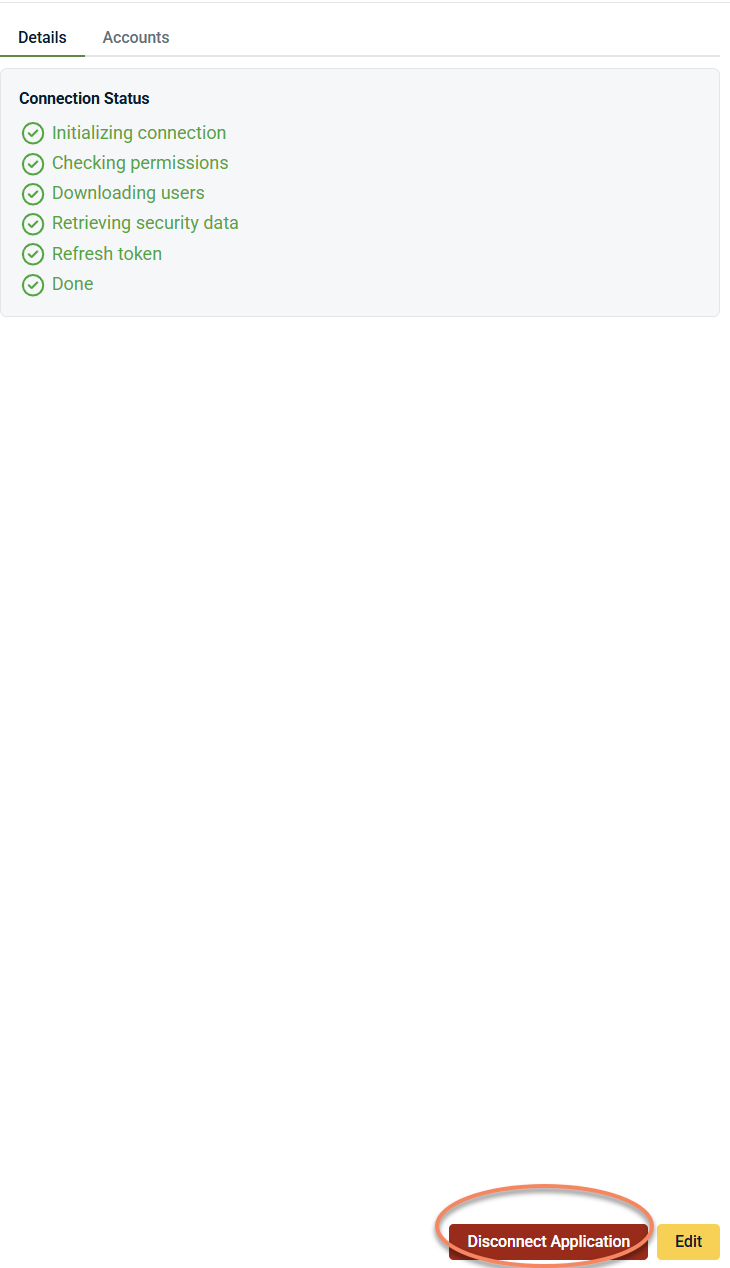
Disconnecting Duo:
-
Stops new Duo activity from being associated with the organization
-
Does not remove or modify Duo configuration
-
Does not affect Duo users, policies, or enforcement
-
Affects only the connection between Duo and Kaseya SIEM
The integration can be reconnected later using the same workflow if needed.


