Integration: Kaseya SIEM and Dropbox
 Security and navigation
Kaseya SIEM
NAVIGATION Organizations > Edit Organization (pencil icon) > + New Application > Dropbox (under Customer Apps)
PERMISSIONS Administrator permissions
Dropbox
NAVIGATION Dropbox authentication window
PERMISSIONS Workspace Admin or Workspace Owner permissions
The Kaseya SIEM and Dropbox integration enables Kaseya SIEM to connect to a Dropbox workspace through Dropbox's authentication workflow. Once connected, Dropbox becomes available as an application within the organization and can be managed from the organization's Applications tab.
Prerequisites
Before configuring the integration, make sure the following requirements are met:
-
A Dropbox workspace
-
A Dropbox account with Workspace Admin or Workspace Owner permissions
-
Administrative access to Kaseya SIEM
NOTE If you experience issues during authentication, try completing the connection using Google Chrome in an Incognito window.
How to...
Connect Kaseya SIEM to Dropbox-
In Kaseya SIEM, from the side navigation menu, go to Organizations.
-
Click Edit Organization (pencil icon) for the organization you want to configure.
-
Click + New Application.
-
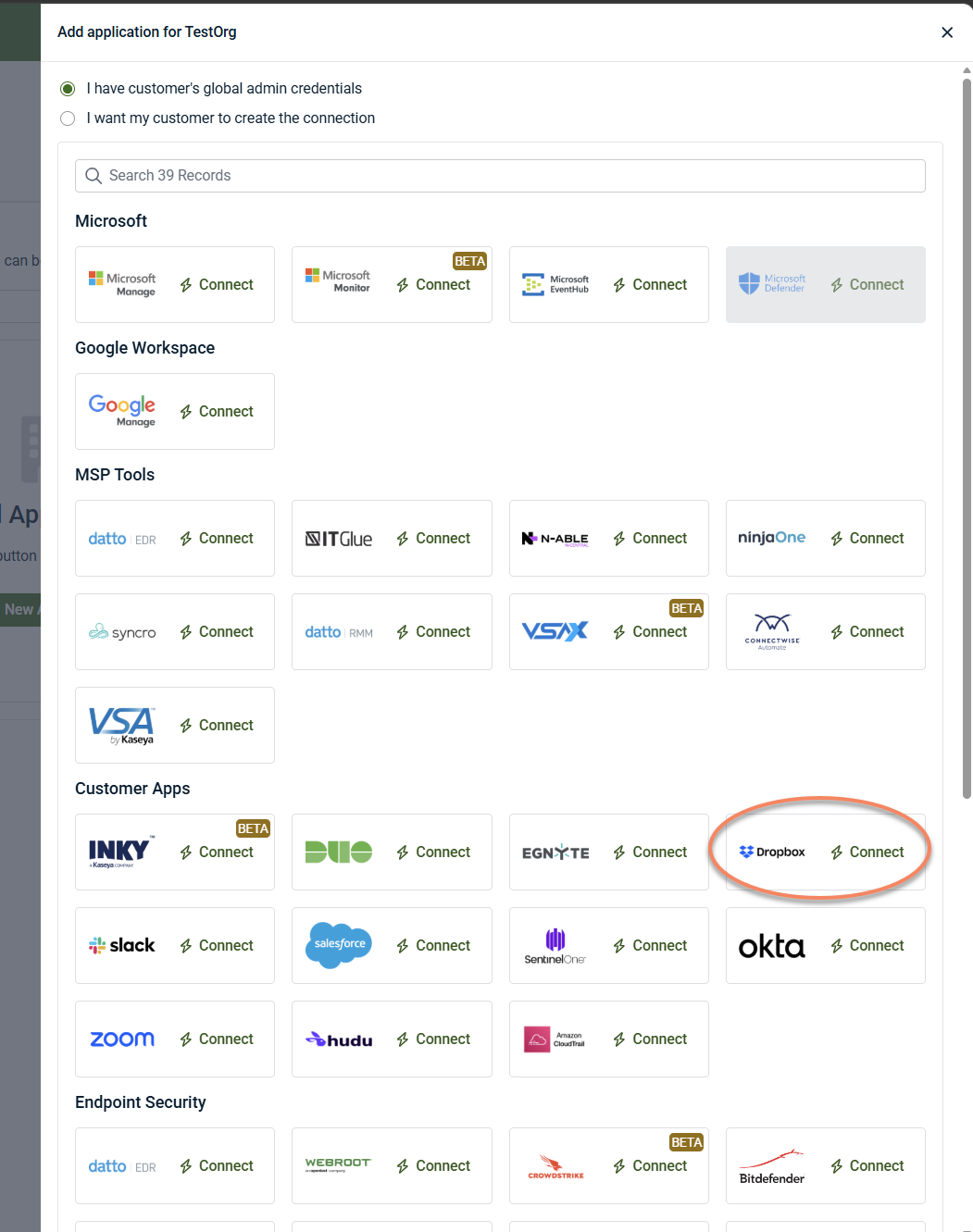
Under Customer Apps, locate Dropbox and click Connect.
-
In the Dropbox sign-in window, sign in to the Dropbox workspace using one of the available sign-in methods.
-
Click Continue.
-
Complete the Dropbox sign-in process.
-
Review the requested permissions and authorize the connection.
Disable the integration in Kaseya SIEM
To disable the integration, complete the following steps:
-
From the side navigation menu, go to Organizations.
-
Click Edit Organization (pencil icon).
-
On the Applications tab, select the Dropbox tile.
-
Select Disconnect Application.
-
Confirm the action.
Kaseya SIEM stops collecting data from the connected Dropbox environment.
FAQ
What permissions are required to connect Dropbox?
The account used to authorize the connection should have Workspace Admin or Workspace Owner permissions. How is Dropbox connected to Kaseya SIEM? The integration uses Dropbox's authentication and authorization workflow rather than manual credential entry.
What should I do if the Dropbox sign-in window does not load correctly?
If you encounter issues during authentication, try using Google Chrome in an Incognito window and repeat the connection process.


