Integration: Kaseya SIEM and Dark Web ID
 Security and navigation
Kaseya SIEM
NAVIGATION At the partner level: Settings > Integrations > + New Integration > choose organization > Next > Dark Web ID
NAVIGATION At the organization level: Organizations > Edit Organization (pencil icon) > + New Application > Dark Web ID
PERMISSIONS Permission to manage integrations or organization applications in Kaseya SIEM
Dark Web ID
NAVIGATION My Settings > Web Services
NAVIGATION Profile menu > Organization Settings > KaseyaOne
PERMISSIONS Dark Web ID partner user account (administrator or agent) with API Access enabled
The Kaseya SIEM and Dark Web ID integration imports Dark Web ID monitoring data into Kaseya SIEM, allowing security events and compromised credential activity to be correlated with other security telemetry.
Prerequisites
Before configuring the integration:
-
A Dark Web ID partner user account (administrator or agent): API access is available only to partner users; SMB users cannot be granted API access, and access must be granted by a partner administrator.
-
API Access enabled for the Dark Web ID user account
-
Dark Web ID credentials
-
If Require Log In with KaseyaOne is enabled in your Dark Web ID environment, the integration user must be added to the KaseyaOne User Overrides list before API authentication will succeed. This is independent of any Kaseya 365 subscription.
How to...
Enable API Access in Dark Web ID
The Dark Web ID user account used for the integration must have API Access enabled. API access is available only to partner users. Partner administrators can grant API access to themselves and to other partner administrators or partner agents.
To enable API Access:
-
Log in to Dark Web ID.
-
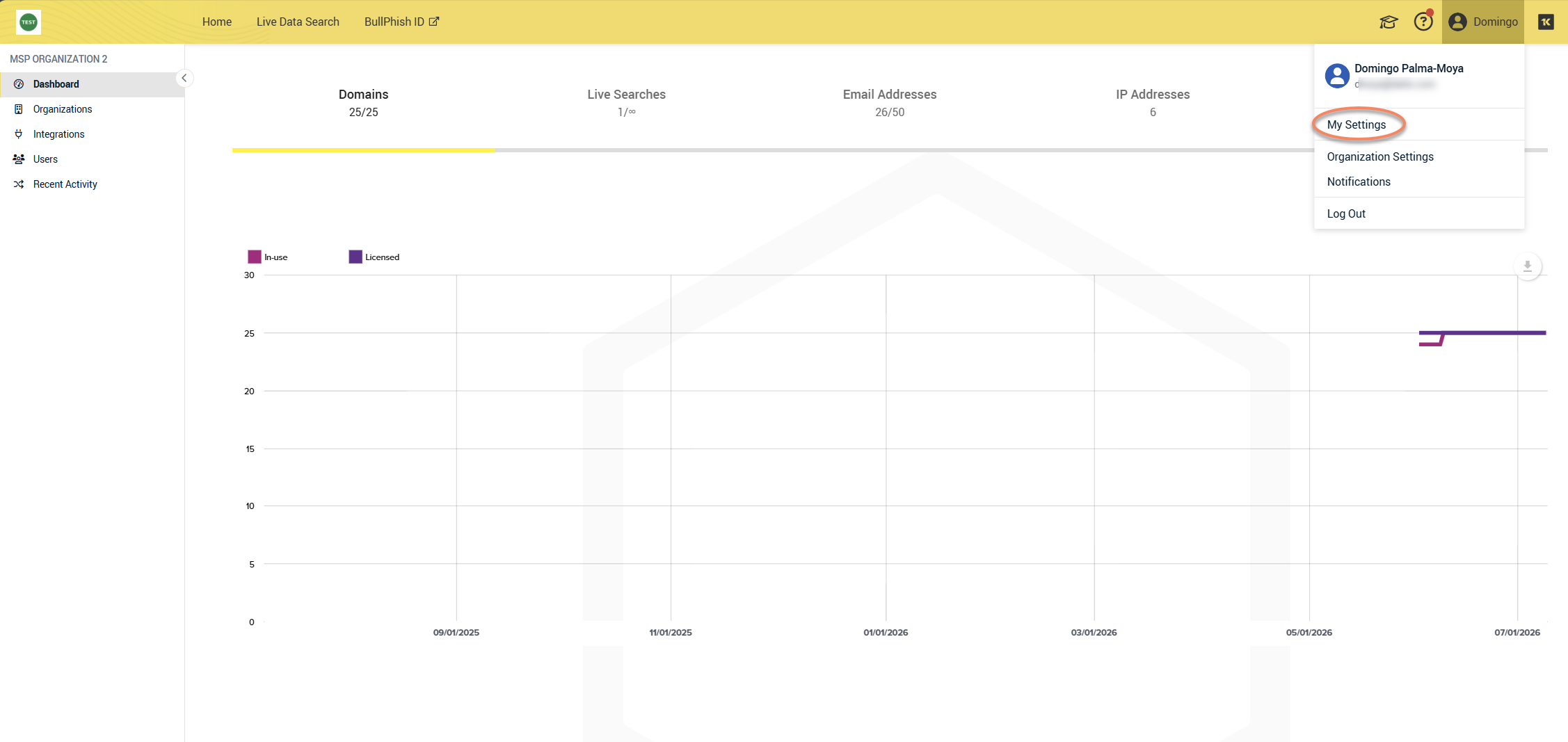
Click your profile icon and select My Settings.
-
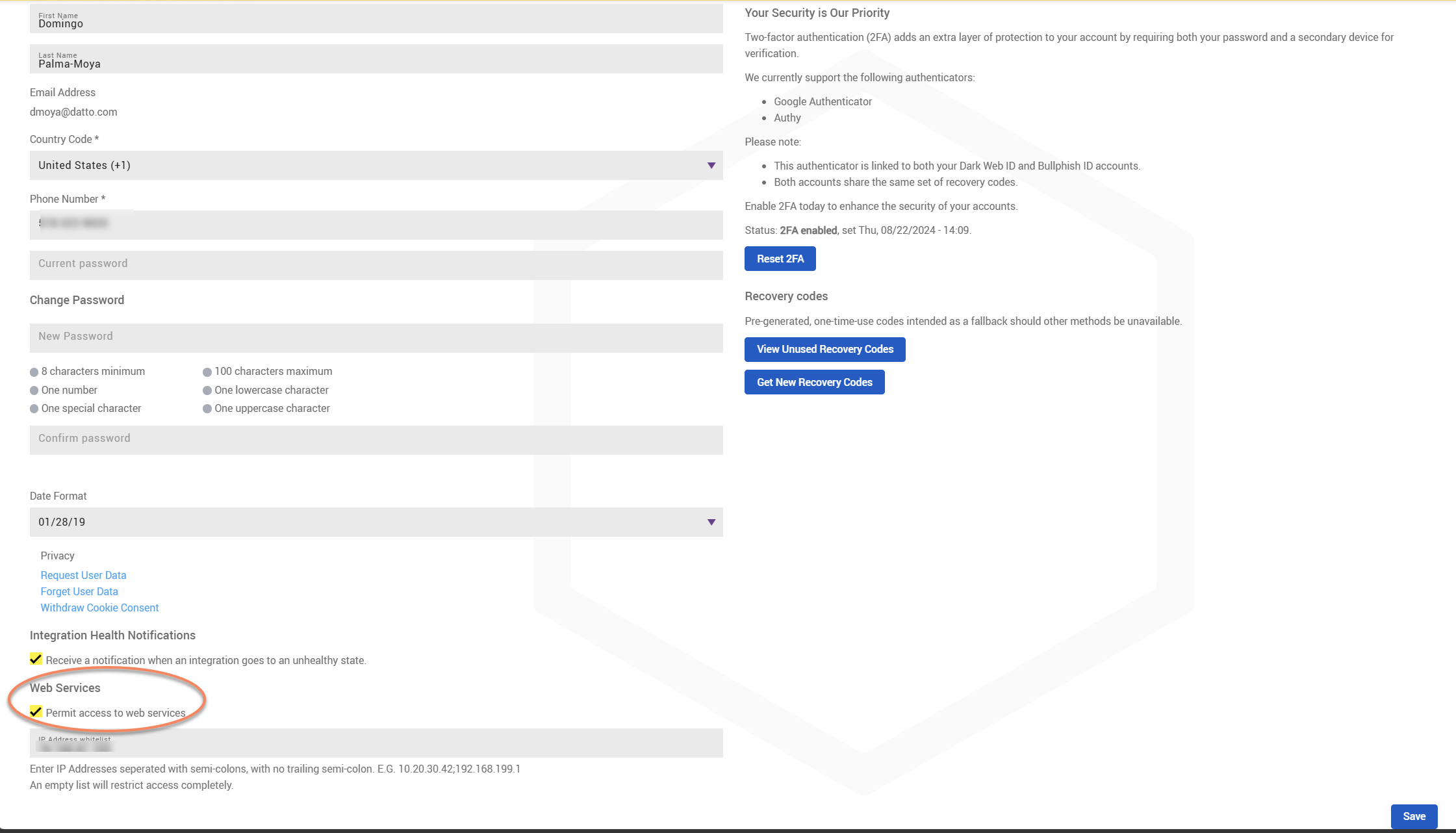
Under Web Services, select Permit access to web services.
-
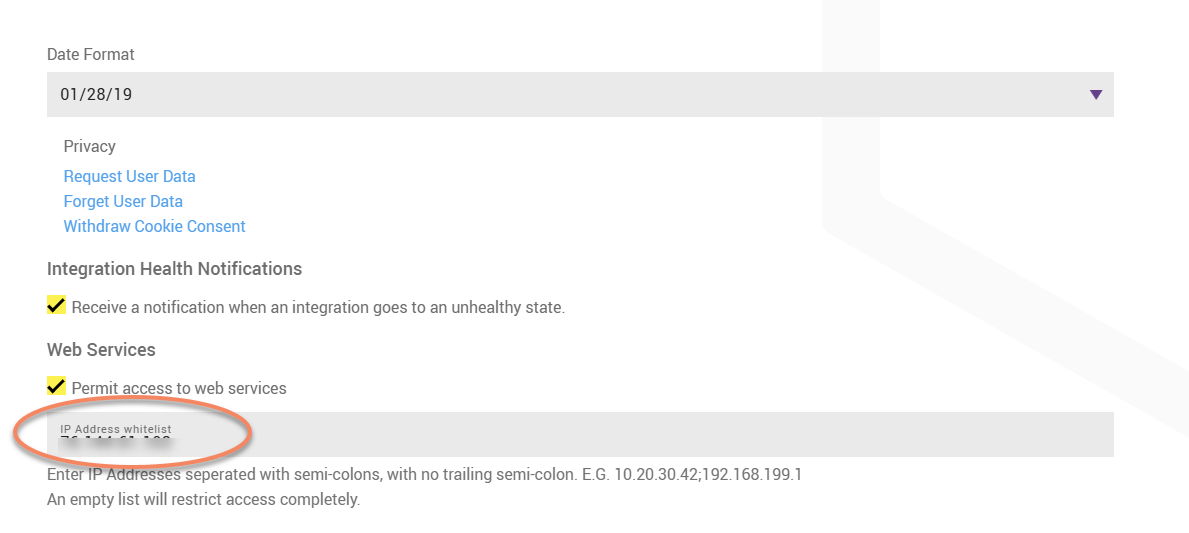
Enter the public IPv4 address from which API requests will originate in the IP Address whitelist field.
-
Save the changes.
KaseyaOne login considerations
If Require Log In with KaseyaOne is enabled, additional configuration may be required before the Dark Web ID account can authenticate through the API.
To allow a user to authenticate:
-
Log in to Dark Web ID.
-
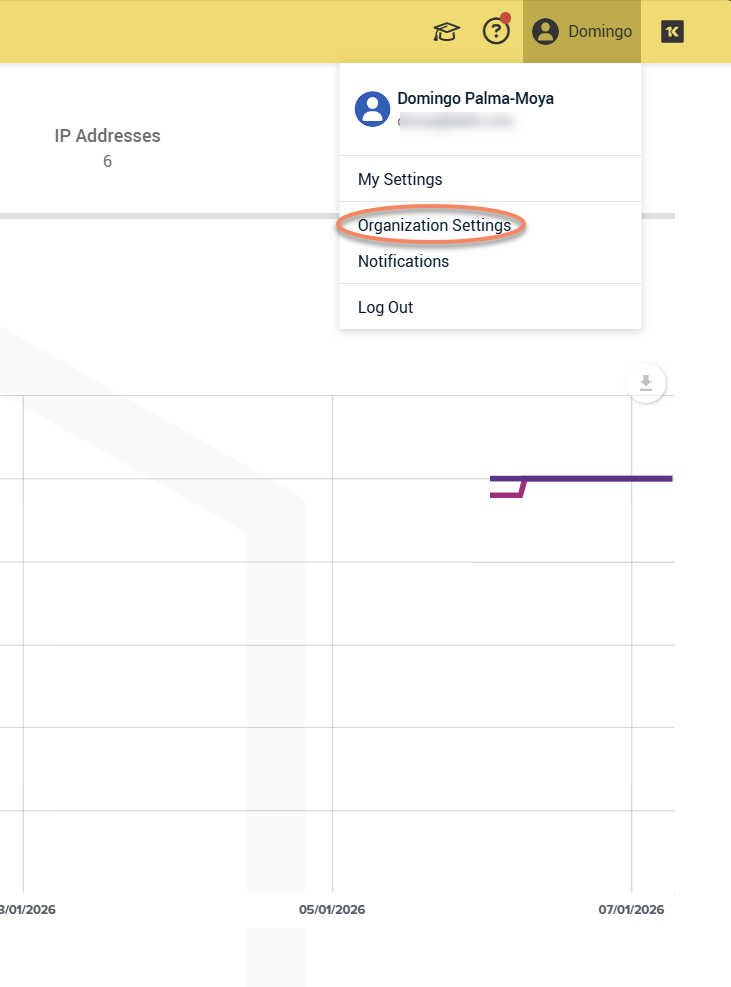
Click your profile icon and select Organization Settings.
-
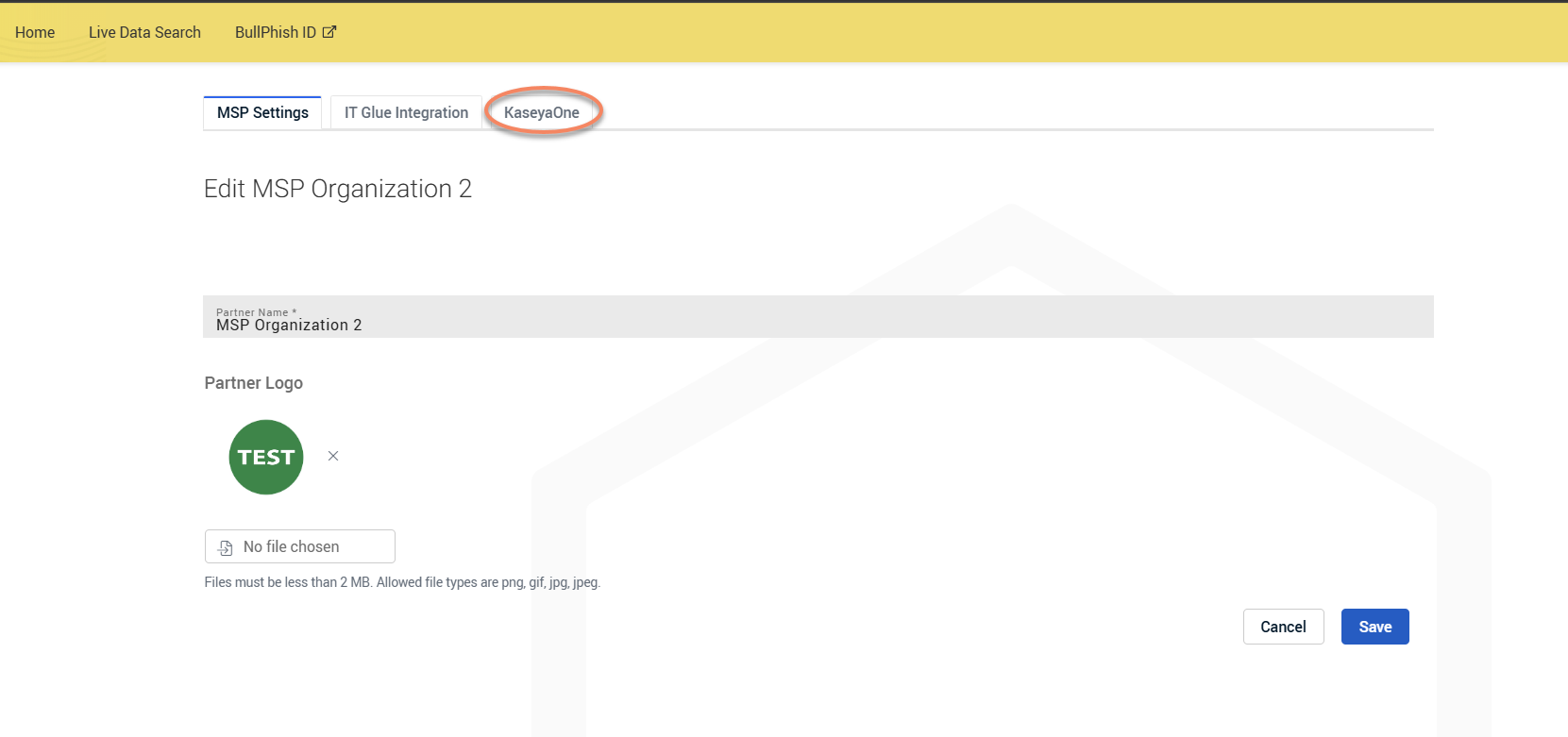
Select the KaseyaOne tab.
-
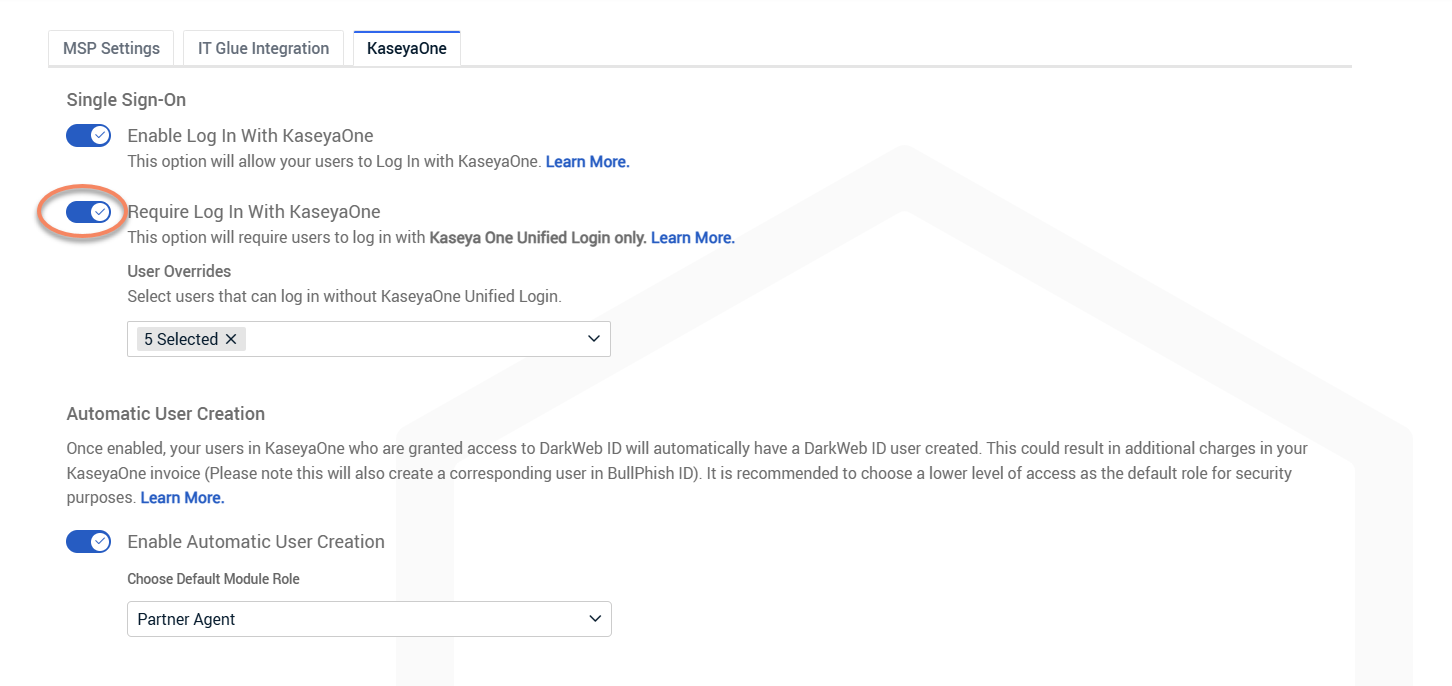
Verify that Require Log In with KaseyaOne is enabled.
-
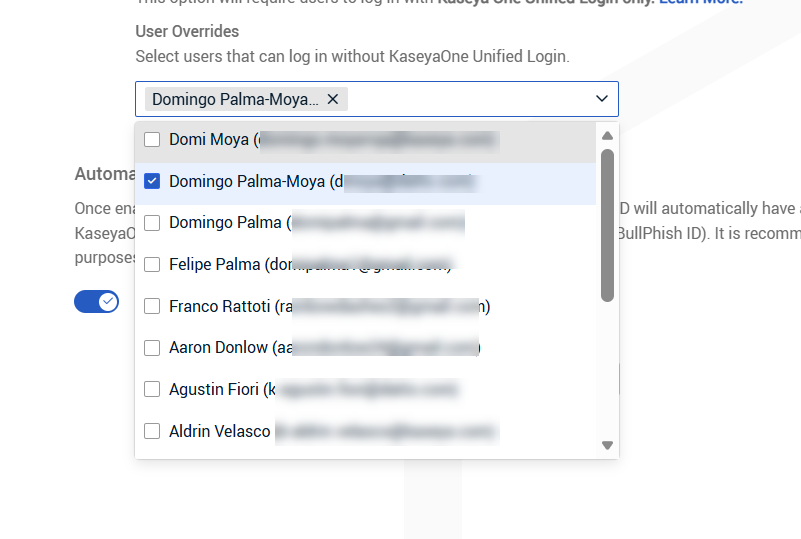
In the User Overrides section, select the integration user.
-
Save the changes.
After the user is added to User Overrides:
-
Use the Forgot Password option on the Dark Web ID login page.
-
Create a Dark Web ID-specific password.
-
Use that password when configuring the integration.
Optional: once the Dark Web ID-specific password is set, the user can be removed from User Overrides if the organization requires exclusive KaseyaOne login going forward. The Dark Web ID password will continue to work for API access; interactive login will still redirect to KaseyaOne.
In some environments, KaseyaOne login may be enabled but not required for all users. In this case, a user may still fail to authenticate to the API even after completing the steps above. If this occurs, consider creating a dedicated user for API access: use an email address not associated with KaseyaOne authentication, enable Permit access to web services for that user, set a Dark Web ID-specific password, and add the required IP address to the allowlist. This isolates API authentication from KaseyaOne login behavior.
Connect Kaseya SIEM to Dark Web ID at the partner level
-
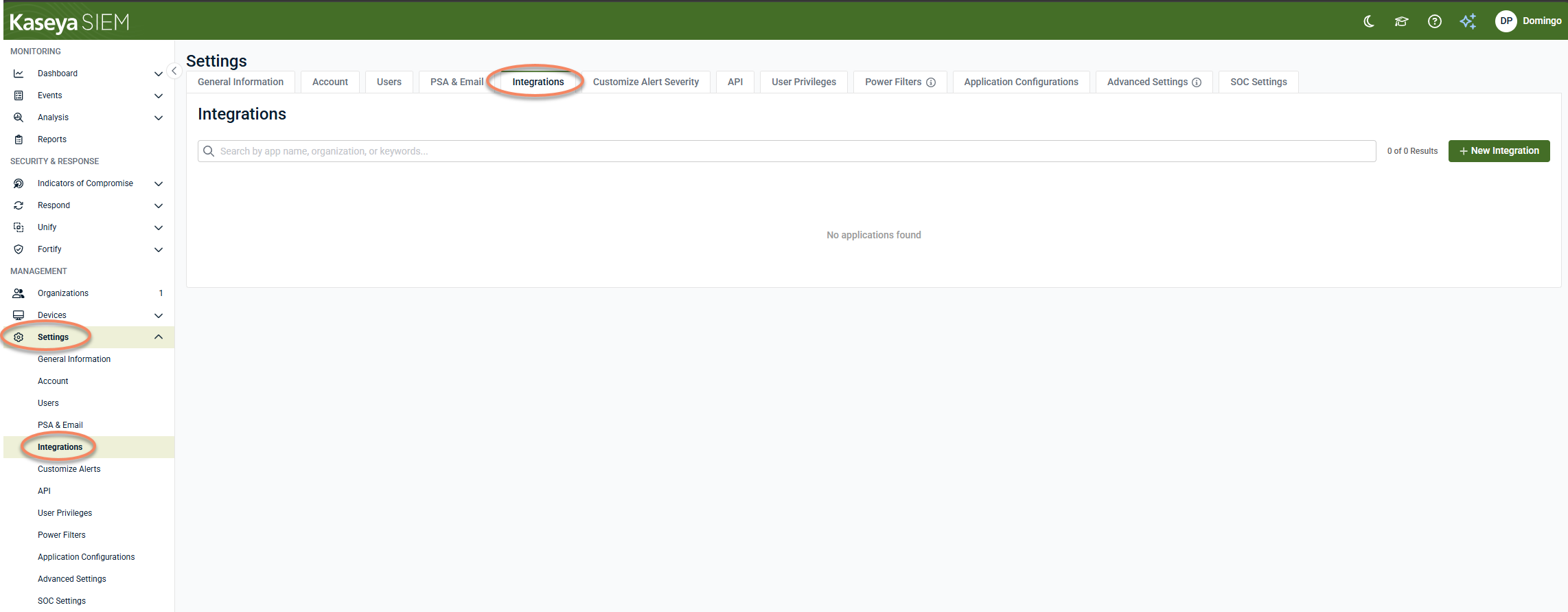
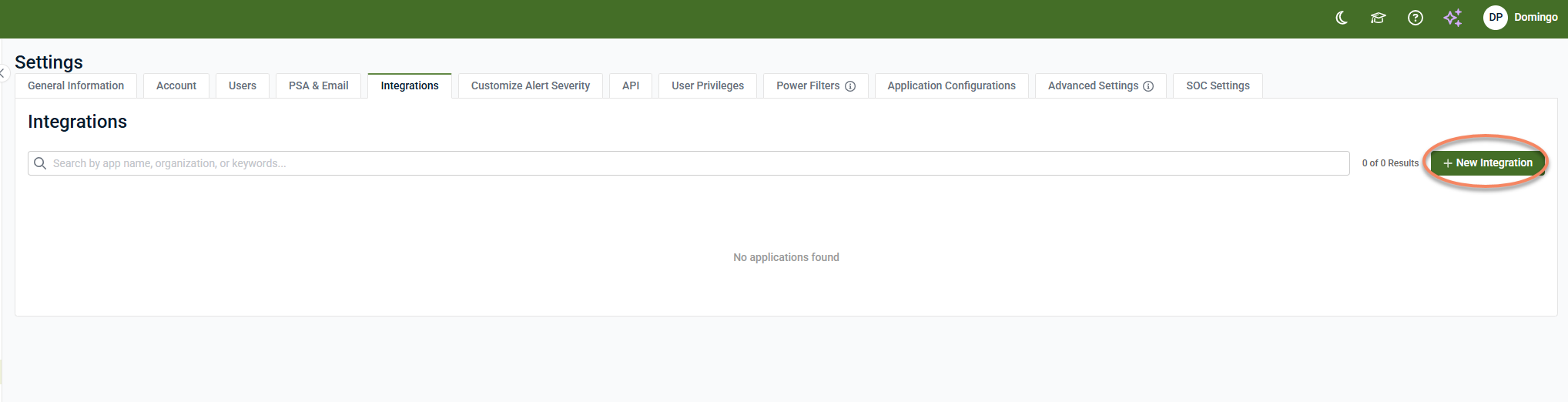
In Kaseya SIEM, navigate to Settings > Integrations.
-
Click + New Integration.
-
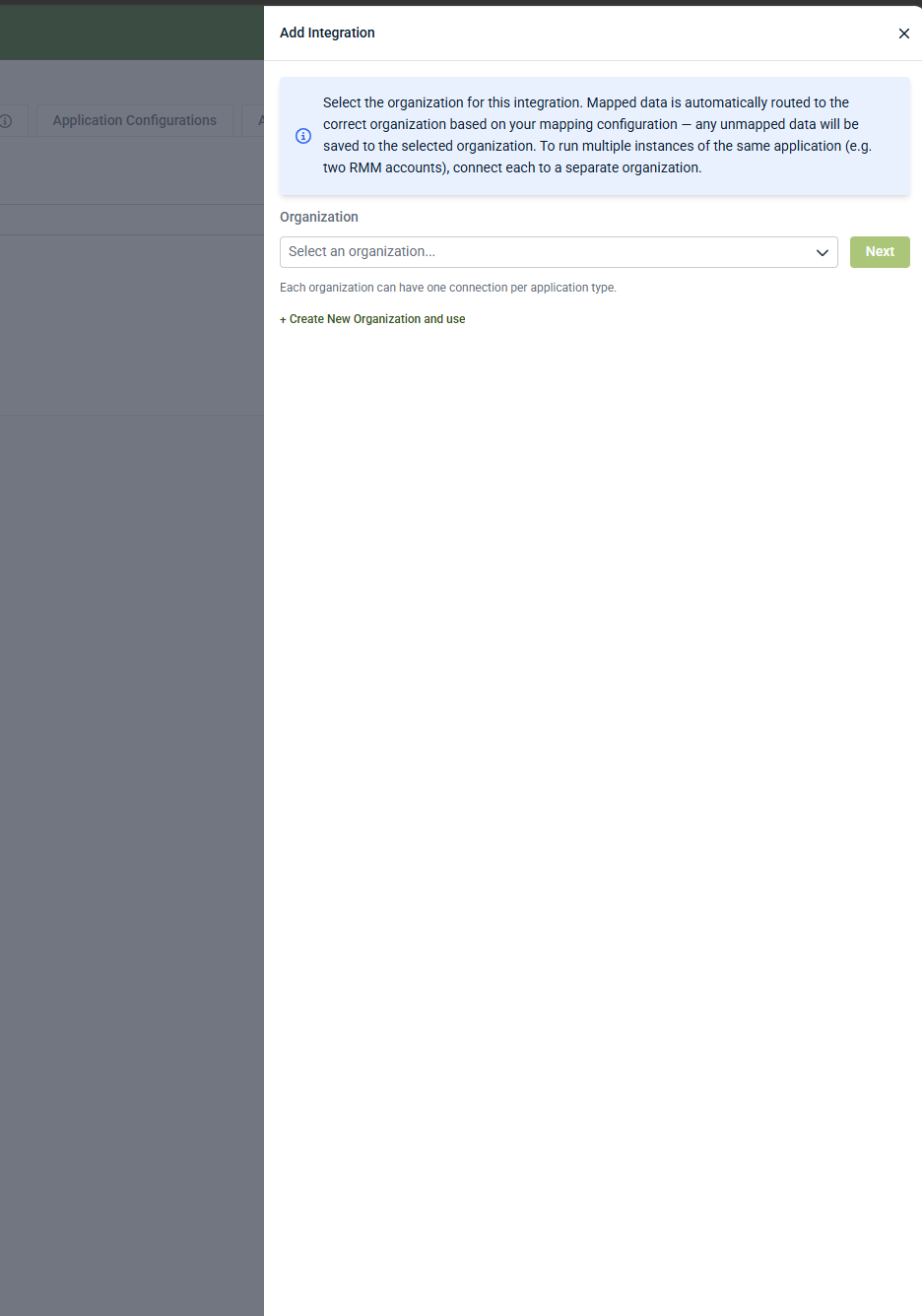
Select the organization that will receive the Dark Web ID data, and then click Next.
-
To create a new organization and use it for the integration, click Create New Organization and use.
-
Each organization can have one connection per application type.
-
-
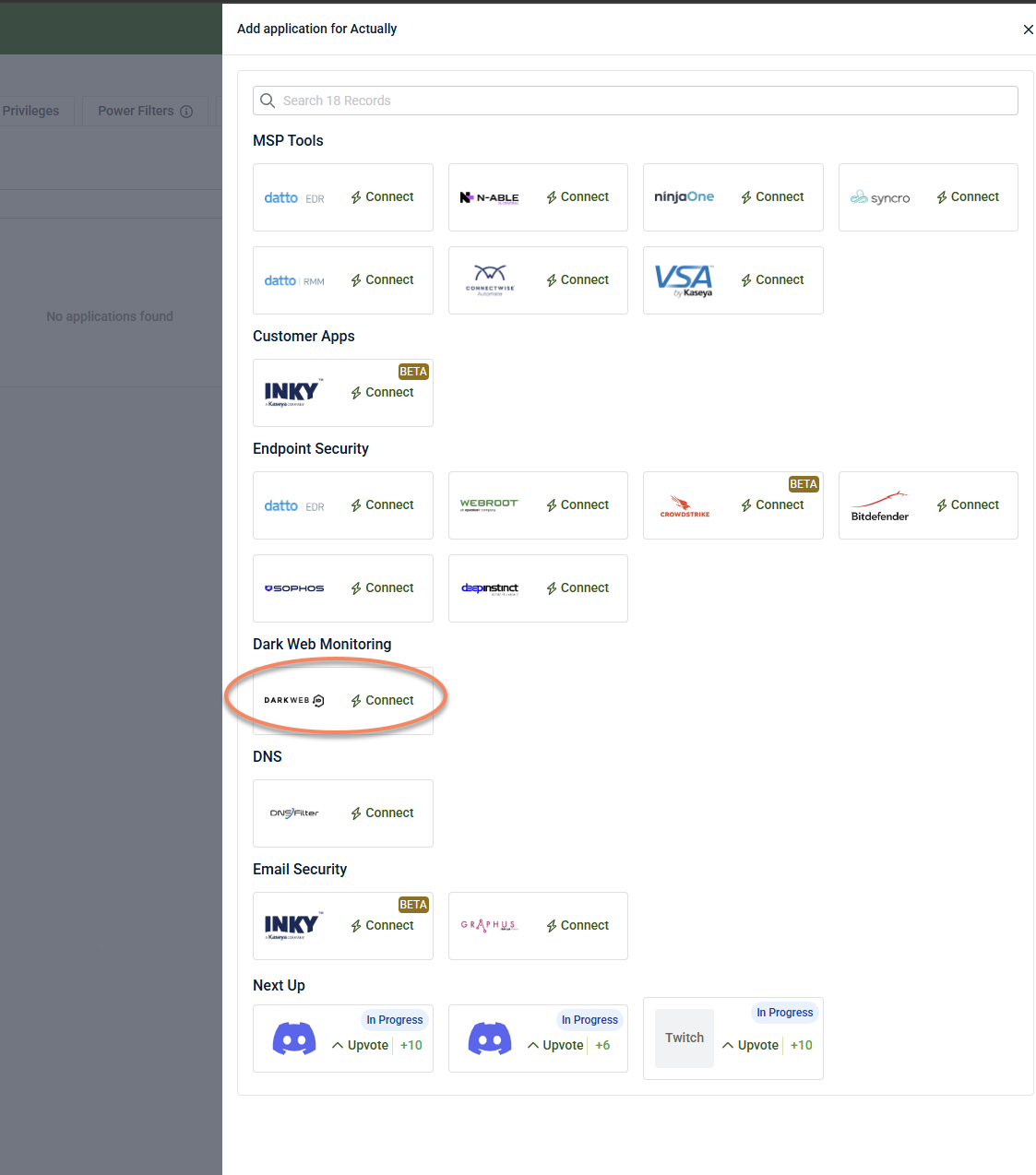
Under Dark Web Monitoring, locate Dark Web ID and click Connect.
-
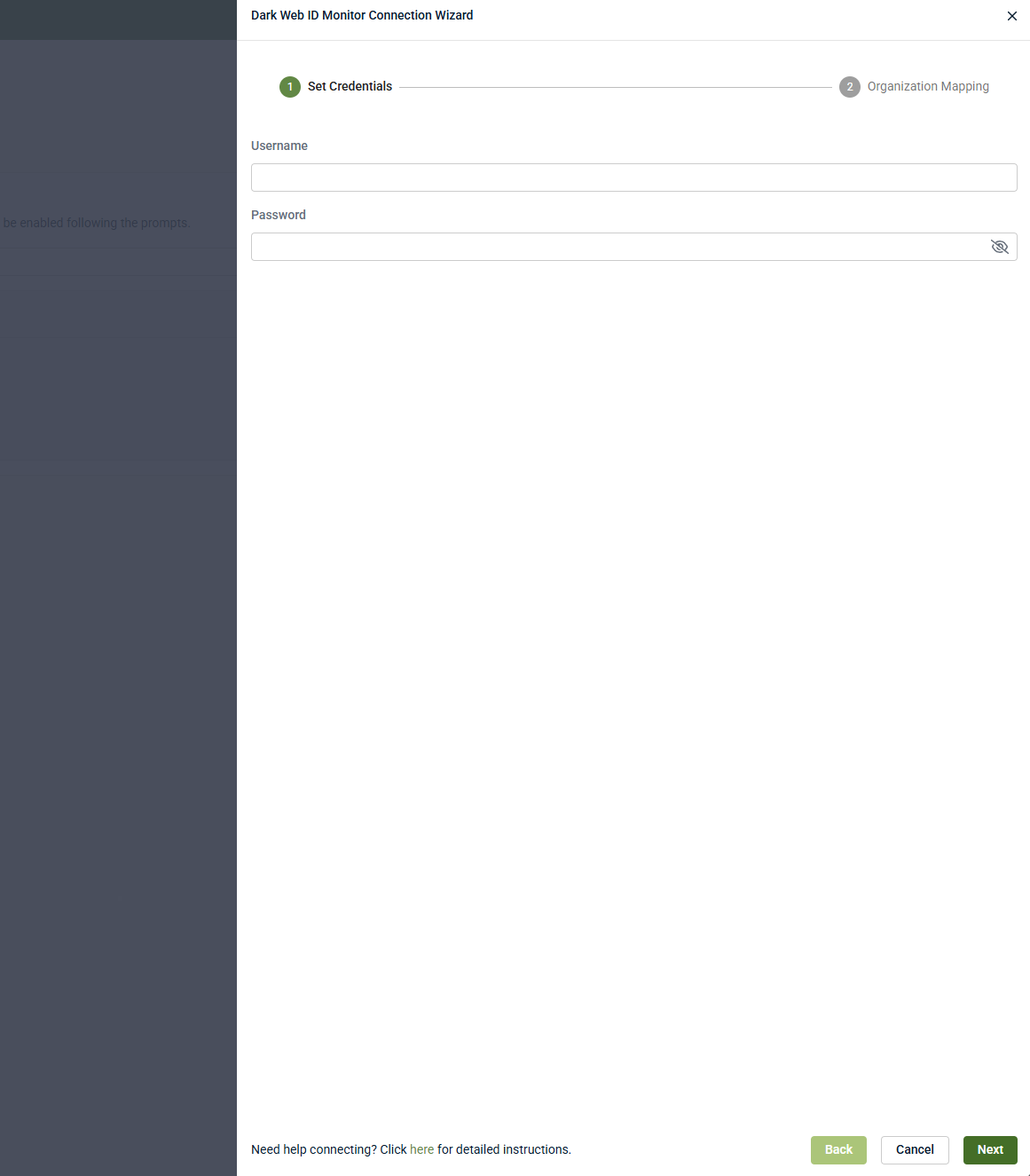
Enter the Dark Web ID credentials.
-
Click Next.
-
Complete the Organization Mapping step and save the integration.
When configured at the partner level, Dark Web ID appears in Settings > Integrations and displays the associated organization.
Connect Kaseya SIEM to Dark Web ID at the organization level
-
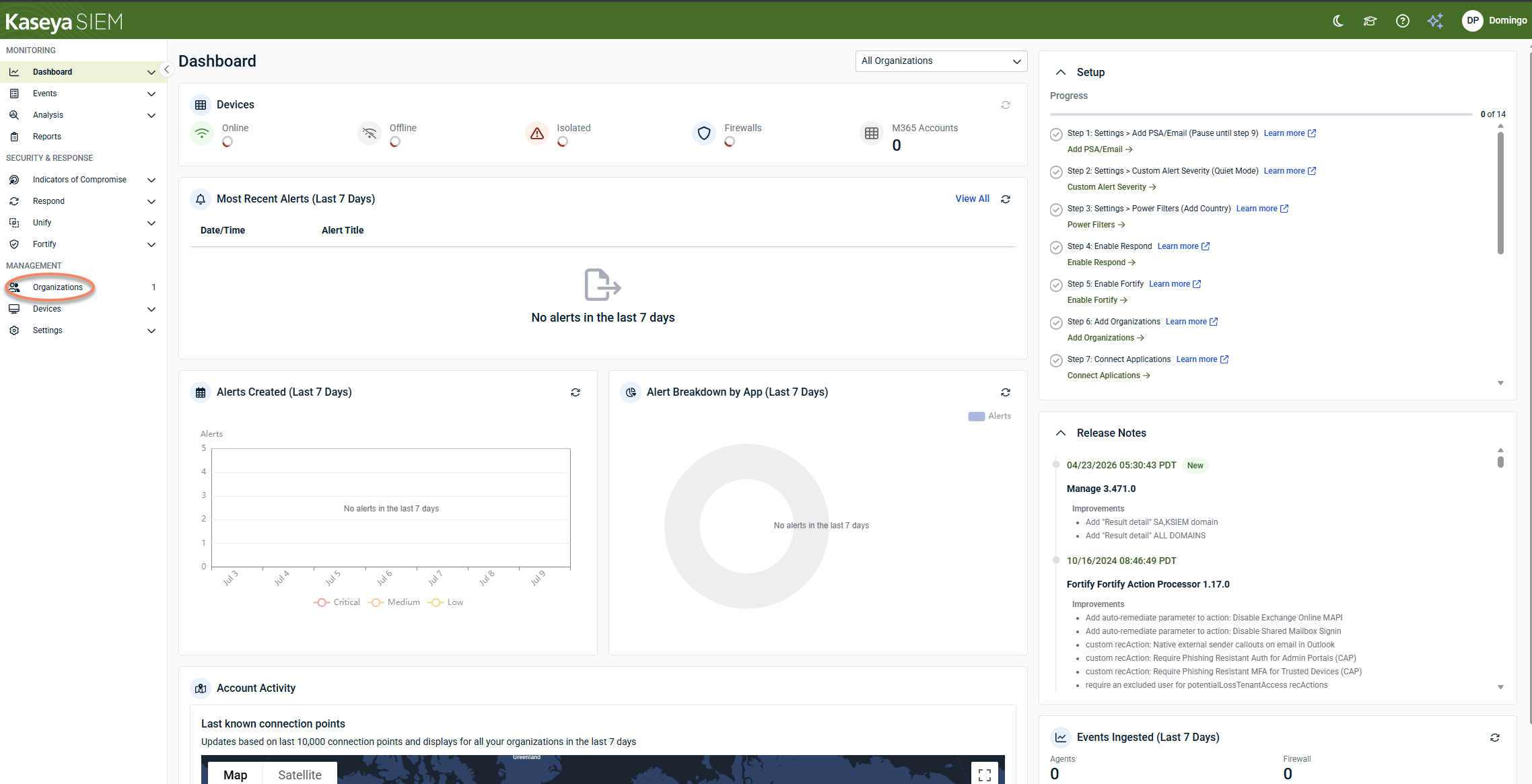
In Kaseya SIEM, from the side navigation menu, go to Organizations.
-
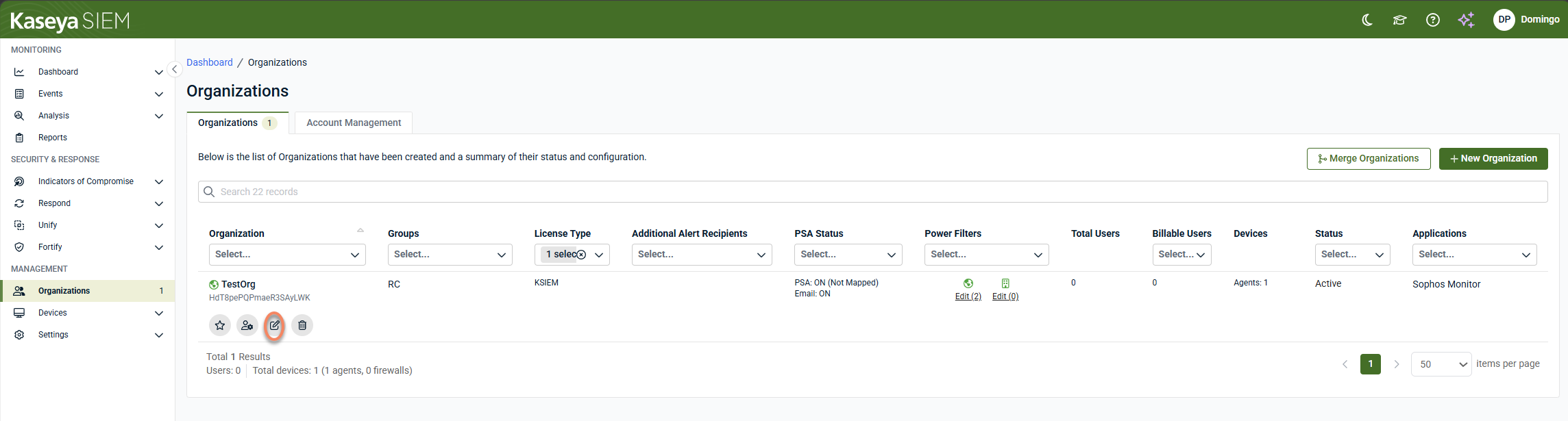
Click Edit Organization (pencil icon) for the organization you want to connect Dark Web ID to.
-
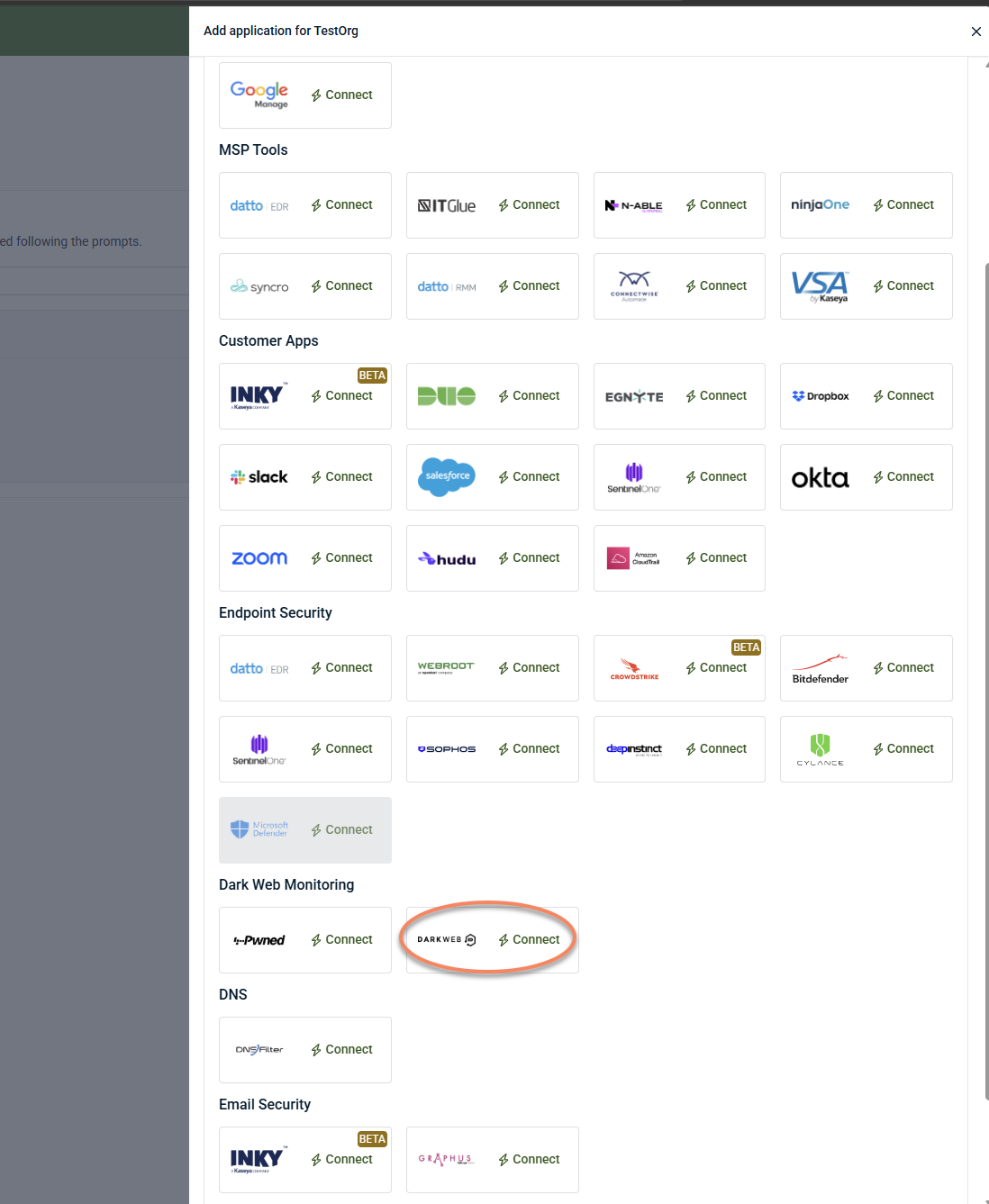
Click +New Application.

-
Under Dark Web Monitoring, locate Dark Web ID and click Connect.
-
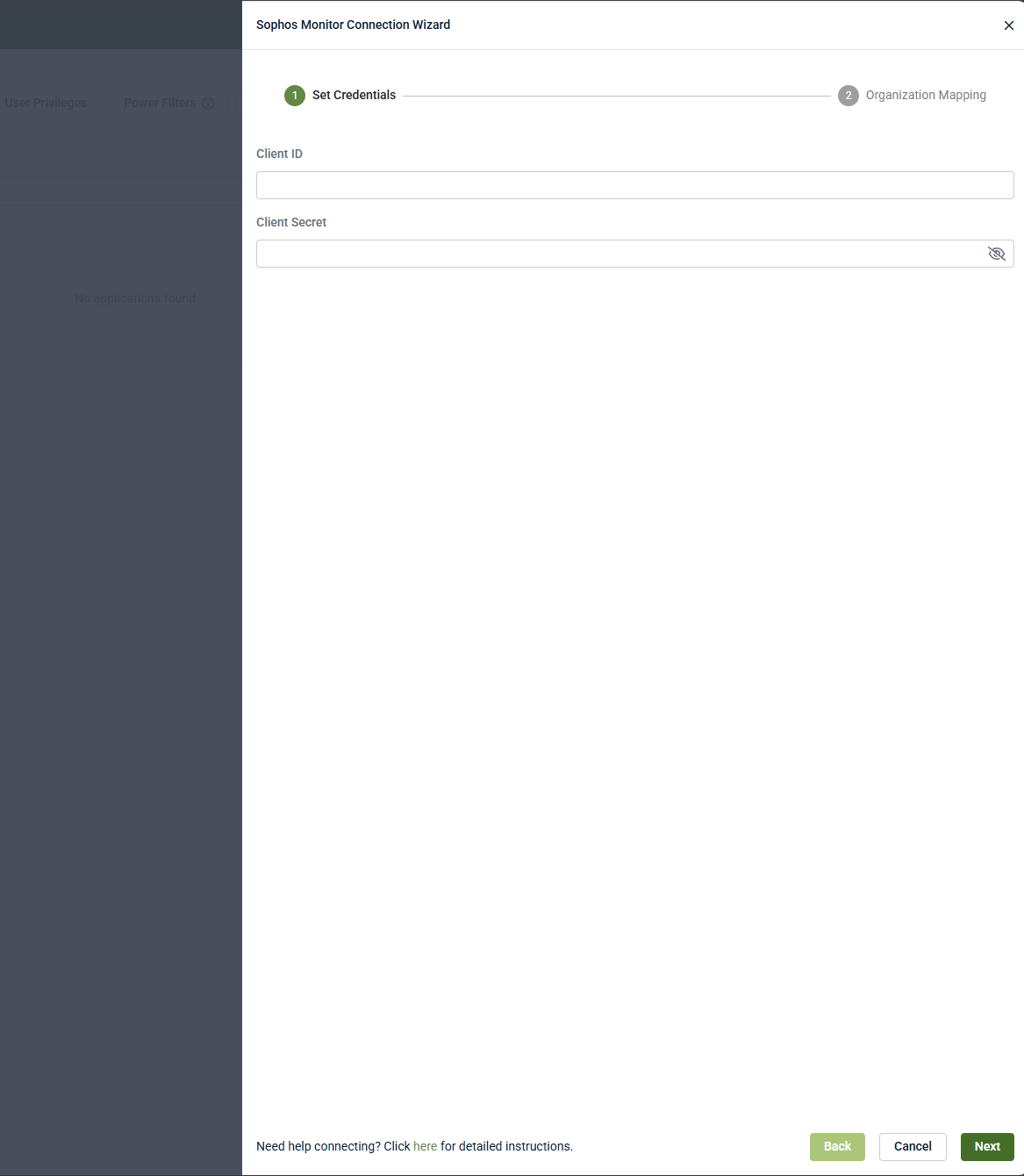
Enter the Dark Web ID credentials.
-
Click Next.
-
Complete the Organization Mapping step and save the integration.
When configured at the organization level, the Dark Web ID application appears under the organization's Applications tab.
Disable the integration in Kaseya SIEM
To disable the integration:
-
Navigate to the Dark Web ID integration.
-
If configured at the partner level, go to Settings > Integrations, locate Dark Web ID, and select View details.
-
If configured at the organization level, go to Organizations, select the organization, and then open the Applications tab.
-
-
Select Disconnect Application.
-
Confirm the action.
Results
-
Dark Web ID data is no longer ingested into Kaseya SIEM.
-
Existing Dark Web ID monitoring remains unchanged.
-
The integration can be reconnected later.
FAQ
What credentials are required for the integration?
Use the credentials for a Dark Web ID user account with API Access enabled. If KaseyaOne login is required in your environment, the account must also be configured appropriately for Dark Web ID API authentication.
Do I need to configure a KaseyaOne User Override?
If KaseyaOne login is required in your Dark Web ID environment, the integration user must be added to the User Overrides list before authentication can succeed.
Does disabling the integration affect Dark Web ID monitoring?
No. Disabling the integration stops data ingestion into Kaseya SIEM but does not change monitoring or configuration settings in Dark Web ID.


