Integration: Kaseya SIEM and Amazon CloudTrail
 Security and navigation
Kaseya SIEM
NAVIGATION Organizations > Edit Organization (pencil icon) > + New Application > Amazon CloudTrail (under Customer Apps)
PERMISSIONS Administrator permissions
Amazon CloudTrail
NAVIGATION AWS Management Console > Navigation menu (☰) > All services > Security, Identity, & Compliance > IAM > IAM Users
PERMISSIONS AWS account permissions to create and manage access keys
The Kaseya SIEM and Amazon CloudTrail integration enables Kaseya SIEM to collect and analyze AWS CloudTrail activity. CloudTrail records user, service, and API activity across AWS environments, including activity performed by IAM identities and AWS services. By connecting Amazon CloudTrail to Kaseya SIEM, organizations can centralize AWS security telemetry within their security monitoring workflows and improve visibility into cloud activity and potential security events.
Prerequisites
Before configuring the integration, make sure the following requirements are met:
-
An AWS account with permissions to manage IAM users and access keys.
-
An AWS IAM user that can generate and use access keys for the integration.
-
Administrative access to Kaseya SIEM.
How to...
Create AWS IAM access keys
To generate the AWS credentials required for the integration, complete the following steps:
-
Sign in to the AWS Management Console.
-
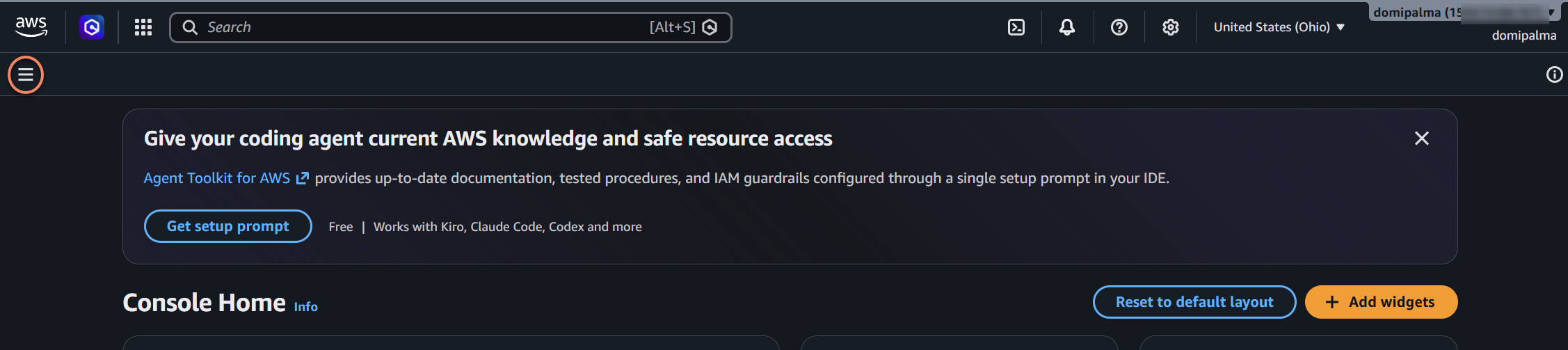
Click the Navigation menu (☰) in the upper-left corner.
-
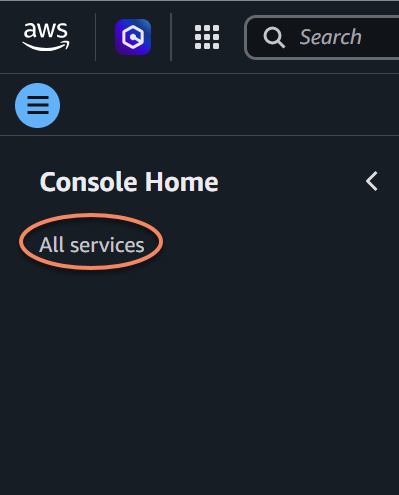
Select All services.
-
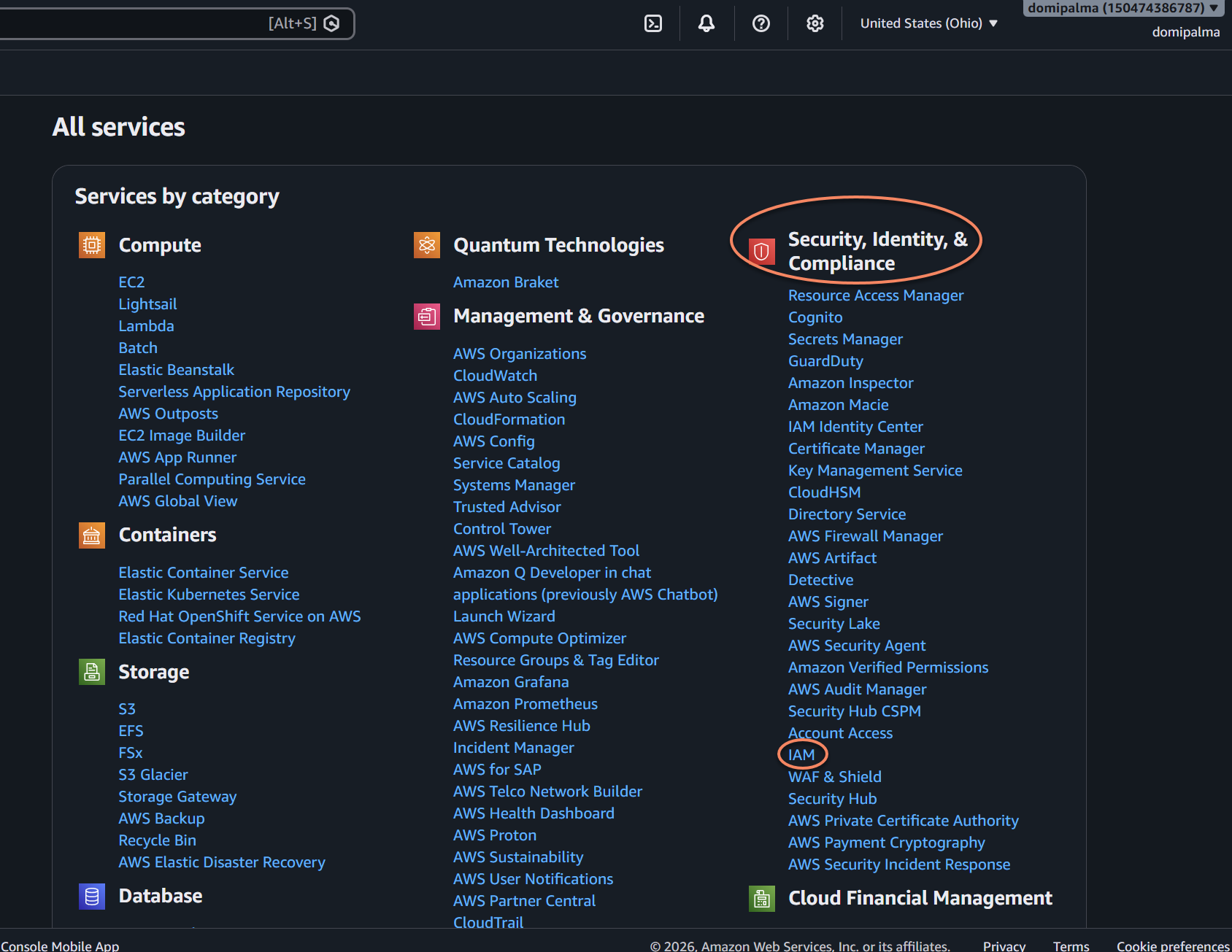
Under Security, Identity, & Compliance, click IAM.
-
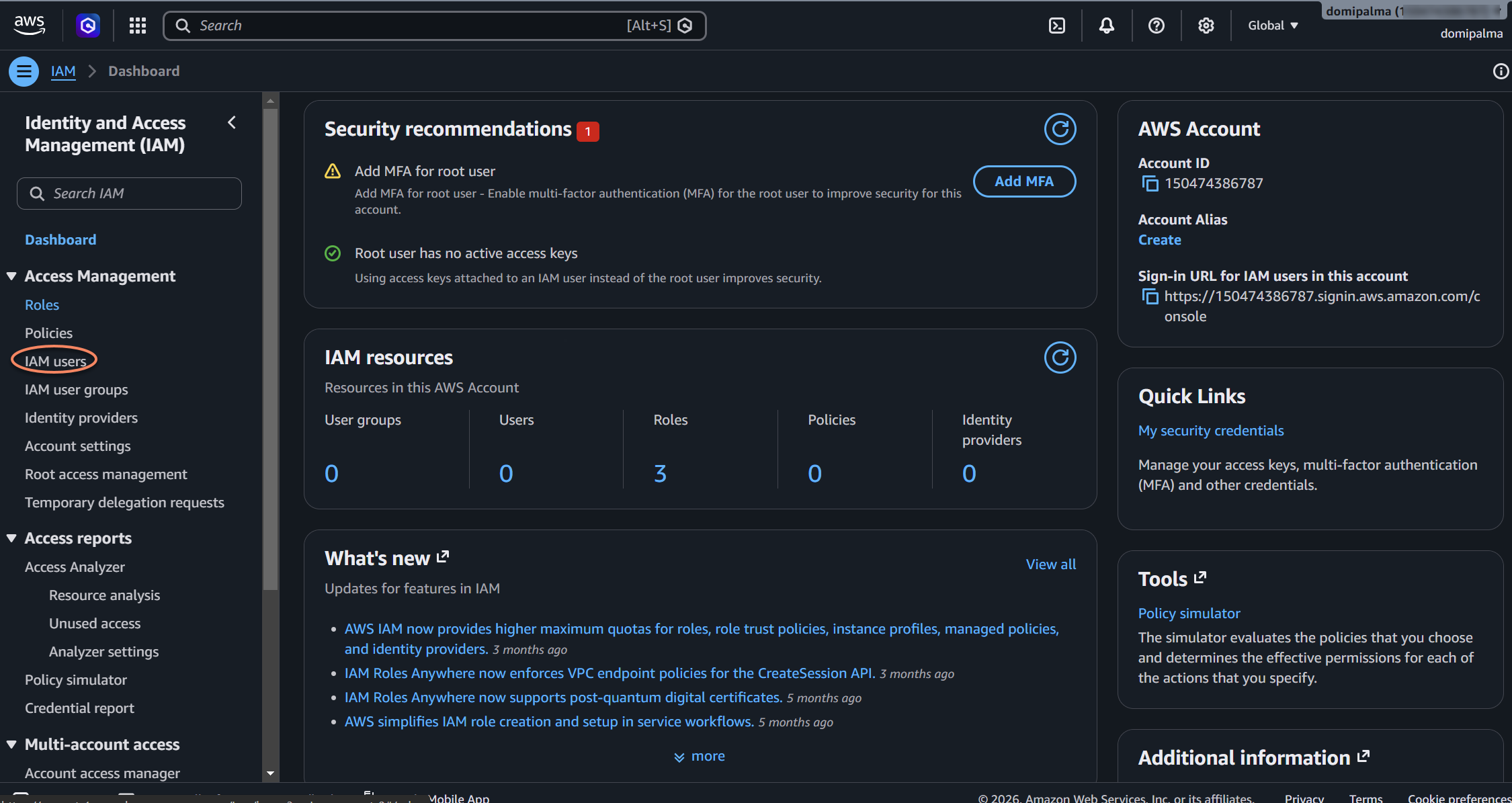
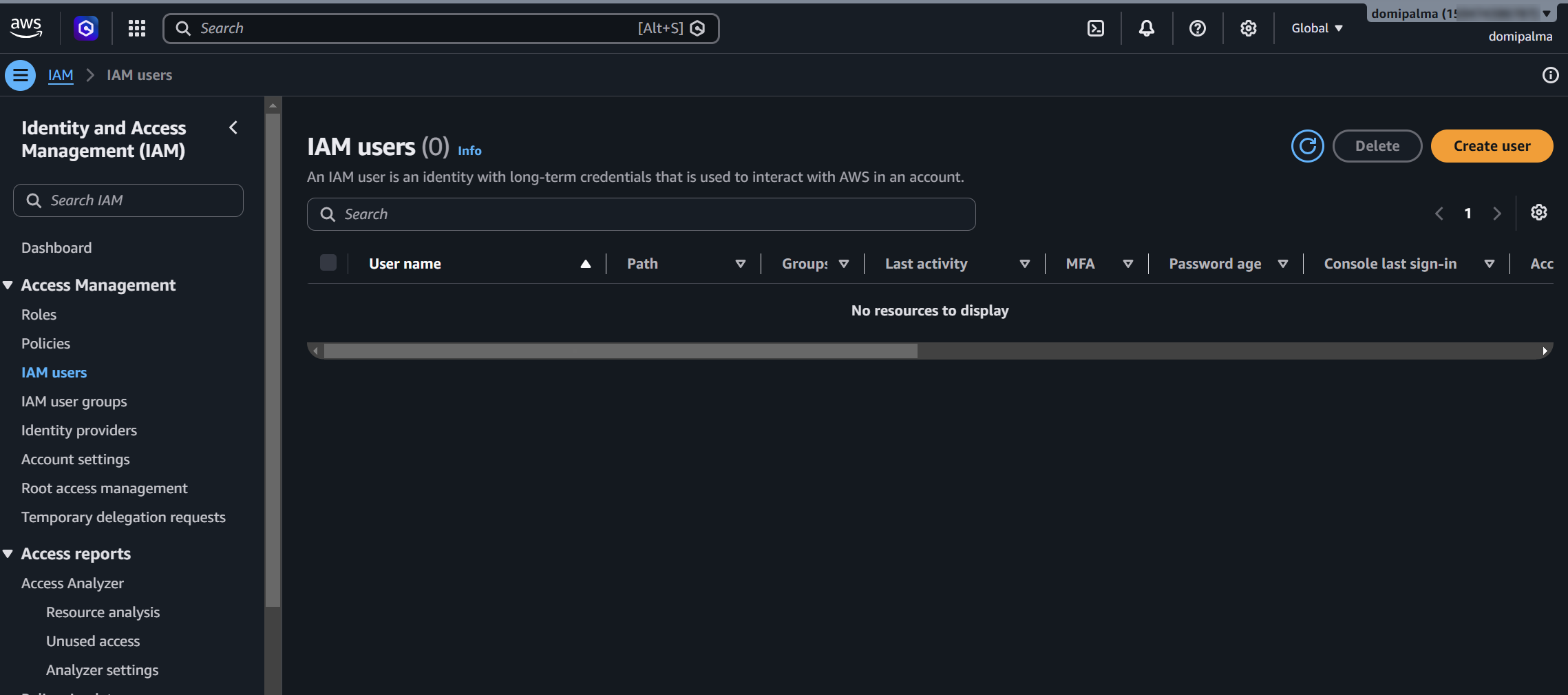
In the IAM side navigation pane, click IAM users.
-
Create a new IAM user, or select an existing IAM user that will be used for the integration.
-
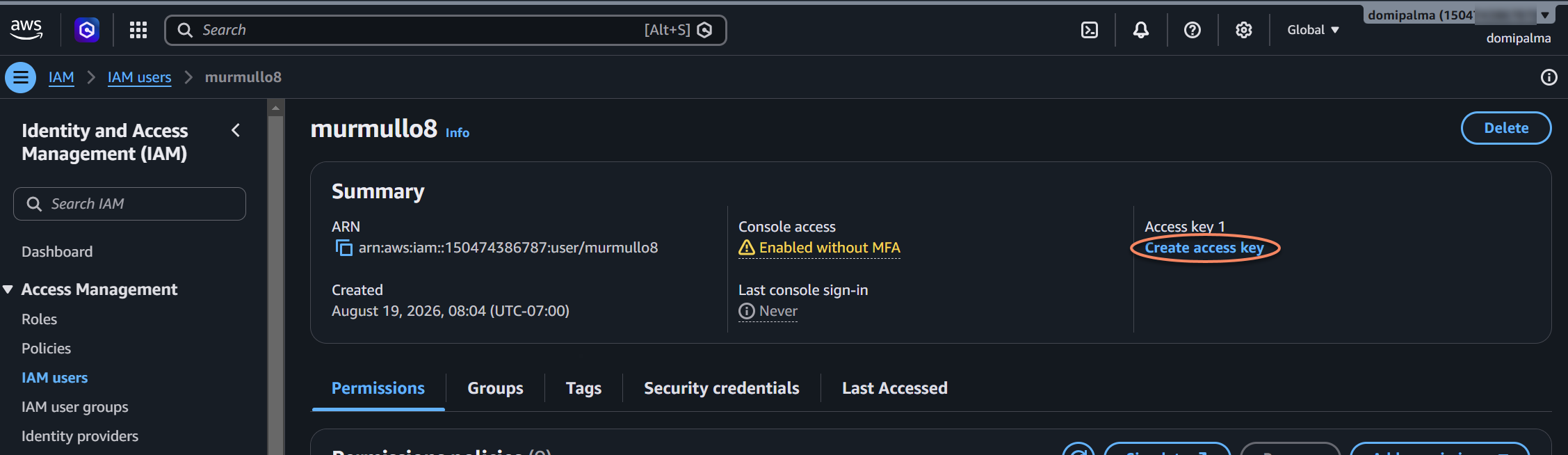
Select Create access key.
-
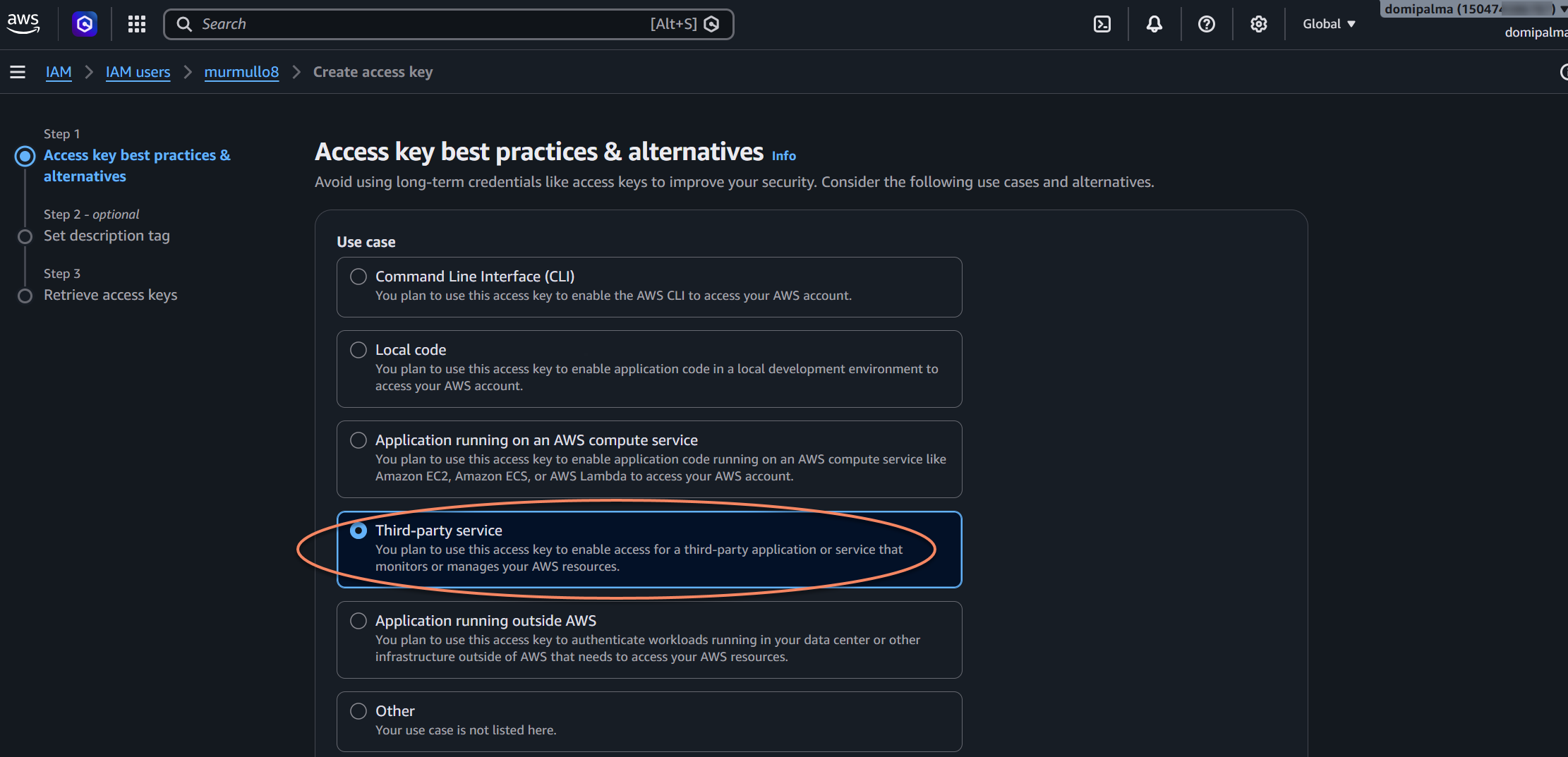
Select Third-party service.
-
Complete the access key creation process.
-
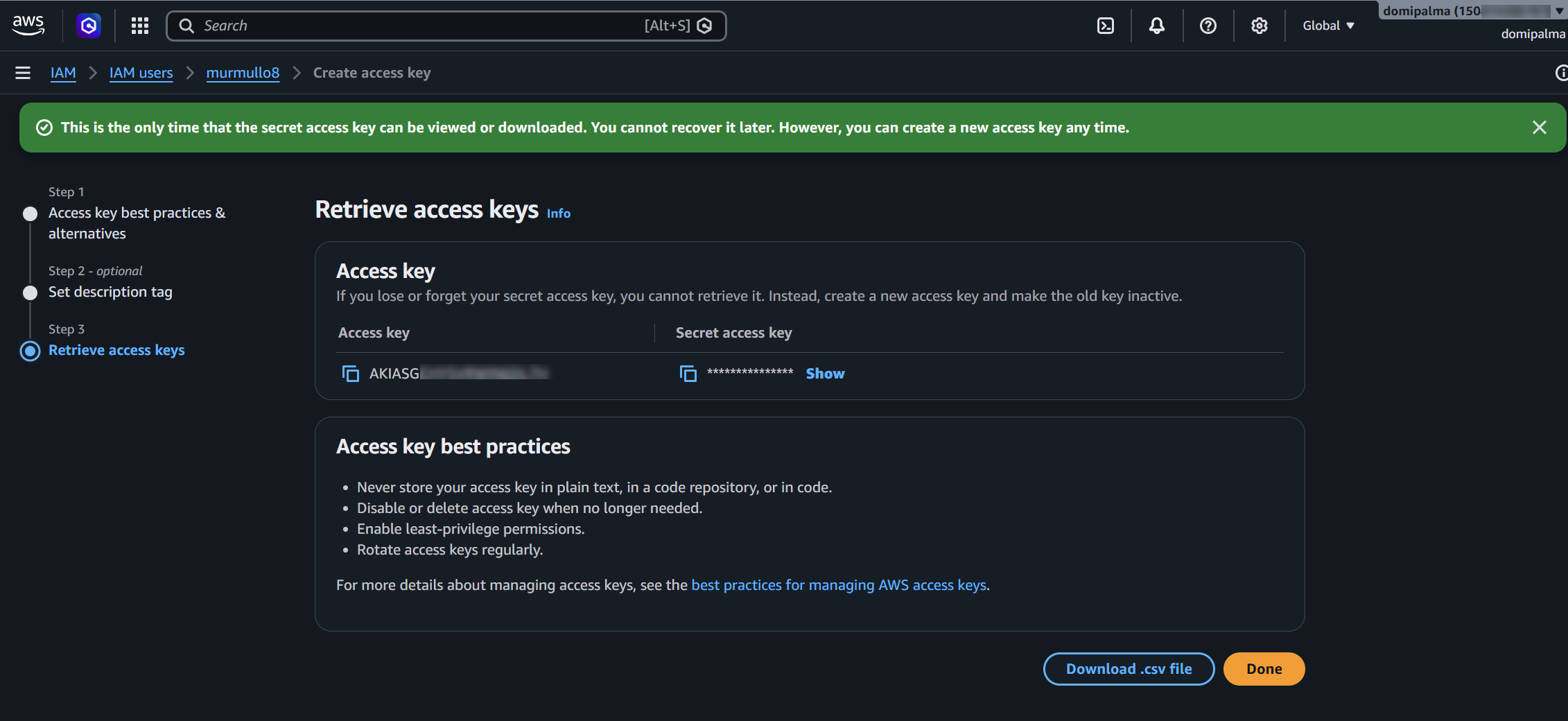
On the Retrieve access keys page, copy or download the Access Key ID and the Secret Access Key.
-
Click Done.
IMPORTANT AWS displays the secret access key only once. If you do not save it before leaving the page, you must create a new access key.
The Access key and Secret access key are now ready to be entered into the CloudTrail Connection Wizard in Kaseya SIEM.
Connect Kaseya SIEM to Amazon CloudTrail-
In Kaseya SIEM, from the side navigation menu, go to Organizations.
-
Click Edit Organization represented by the pencil icon for the organization you want to connect to Amazon CloudTrail.
-
Click + New Application.
-
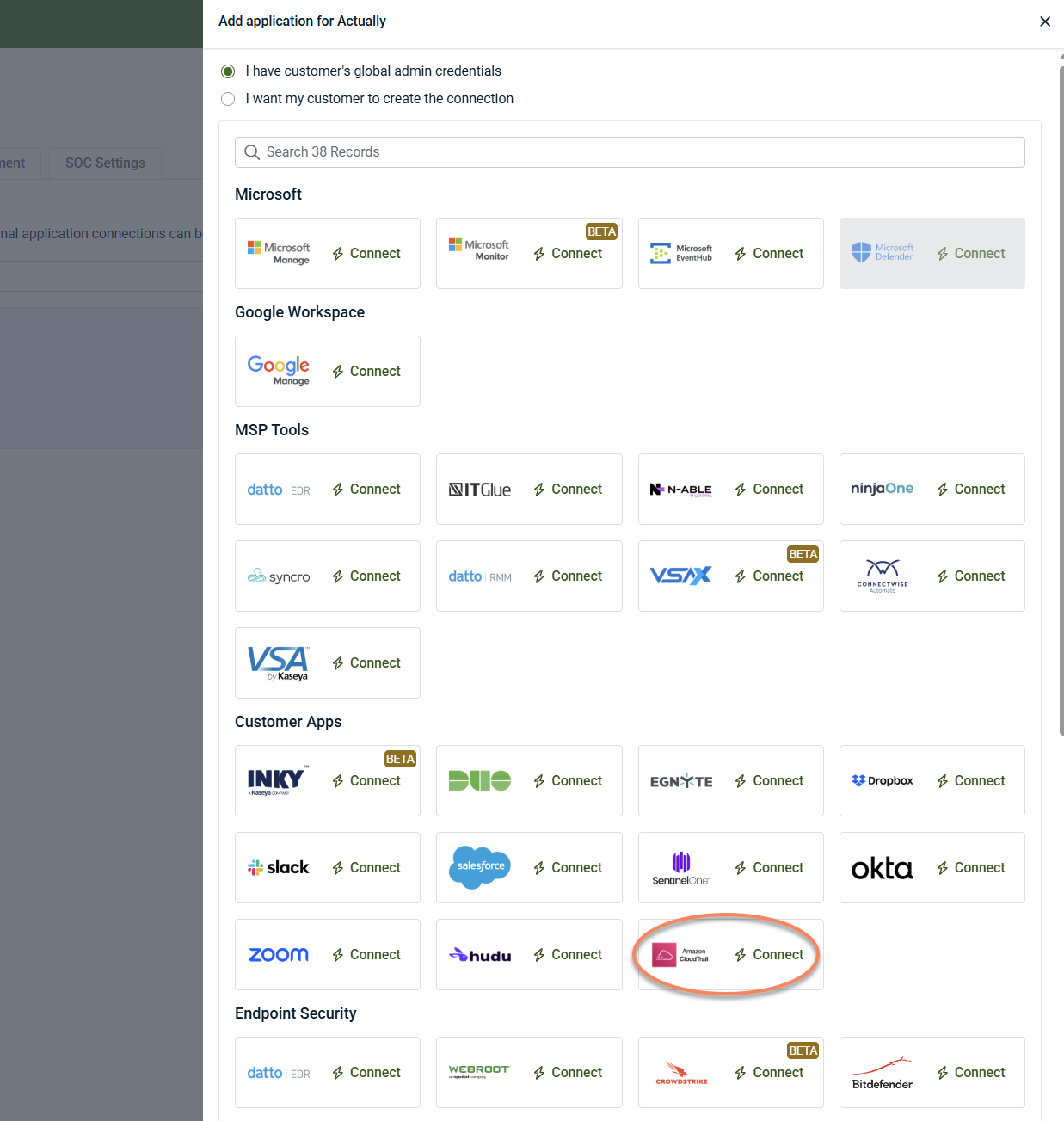
Under Customer Apps, locate Amazon CloudTrail and click Connect.
-
In the CloudTrail Connection Wizard, enter the Access Key ID and the Secret Access Key.
-
Click Finish.
When configured, the Amazon CloudTrail application appears under the organization's Applications tab.
Monitored events
The initial release supports monitoring the following CloudTrail events:
-
IAM Event – Authentication Success
-
IAM Event – Authentication Failure
Disable the integration in Kaseya SIEM
To disable the integration, complete the following steps:
-
From the side navigation menu, go to Organizations.
-
Click Edit Organization (pencil icon).
-
On the Applications tab, select the Amazon CloudTrail tile.
-
Select Disconnect Application.
-
Confirm the action.
Kaseya SIEM stops collecting CloudTrail events from the connected AWS environment. CloudTrail logging in AWS is not disabled.
FAQ
What data does Amazon CloudTrail provide to Kaseya SIEM?
CloudTrail records activity within an AWS environment, including user activity, service activity, API activity, and actions taken by IAM identities. Kaseya SIEM uses this data as part of its cloud security monitoring capabilities.
Do I need a dedicated IAM user?
A dedicated IAM user is recommended to simplify credential management and restrict permissions to only those required for the integration.
Does disabling the integration affect CloudTrail logging in AWS?
No. Disabling the integration only stops Kaseya SIEM from collecting CloudTrail data. CloudTrail continues logging activity in AWS according to the customer’s CloudTrail configuration.


