Integration: Kaseya SIEM and NinjaOne
 Security and navigation
Kaseya SIEM
NAVIGATION Organizations > Edit Organization (pencil icon) > + New Application > NinjaOne (under MSP Tools)
PERMISSIONS Administrator permissions
NinjaOne
NAVIGATION Configuration > Integration > Client App IDs
PERMISSIONS System Administrator permissions
The Kaseya SIEM and NinjaOne integration enables organizations to connect a NinjaOne instance to Kaseya SIEM using NinjaOne API credentials. Once connected, NinjaOne becomes available as an application within the organization and can be managed from the organization's Applications tab.
Prerequisites
Before configuring the integration, make sure the following requirements are met:
-
A NinjaOne user account with System Administrator permissions
-
A NinjaOne Client ID and Client Secret
-
Administrative access to Kaseya SIEM
NOTE Using a dedicated NinjaOne user account for this integration is recommended because it can simplify troubleshooting and maintenance.
How to...
Create NinjaOne API credentials
To generate the credentials required for the integration, complete the following steps:
-
Sign in to NinjaOne using an account with System Administrator permissions.
-
Navigate to Configuration > Integration > Client App IDs.
-
Click Add.
-
In Application platform, select Web.
-
In Name, enter a name for the application.
-
In Redirect URIs, enter https://manage.kaseyasiem.com/products/oauth2/redirect
-
In Scopes, select Monitoring and Management.
-
In Allowed Grant Types, select:
-
Authorization Code
-
Client Credentials
-
Refresh Token
-
-
Click Save .
-
Complete MFA verification if prompted.
-
Copy and securely store the Client Secret.
-
Copy the Client ID.
IMPORTANT The Client Secret may not be available again after it is generated. Store it securely before leaving the page.
The NinjaOne credentials are now ready to be used when connecting NinjaOne to Kaseya SIEM.
Connect Kaseya SIEM to NinjaOne-
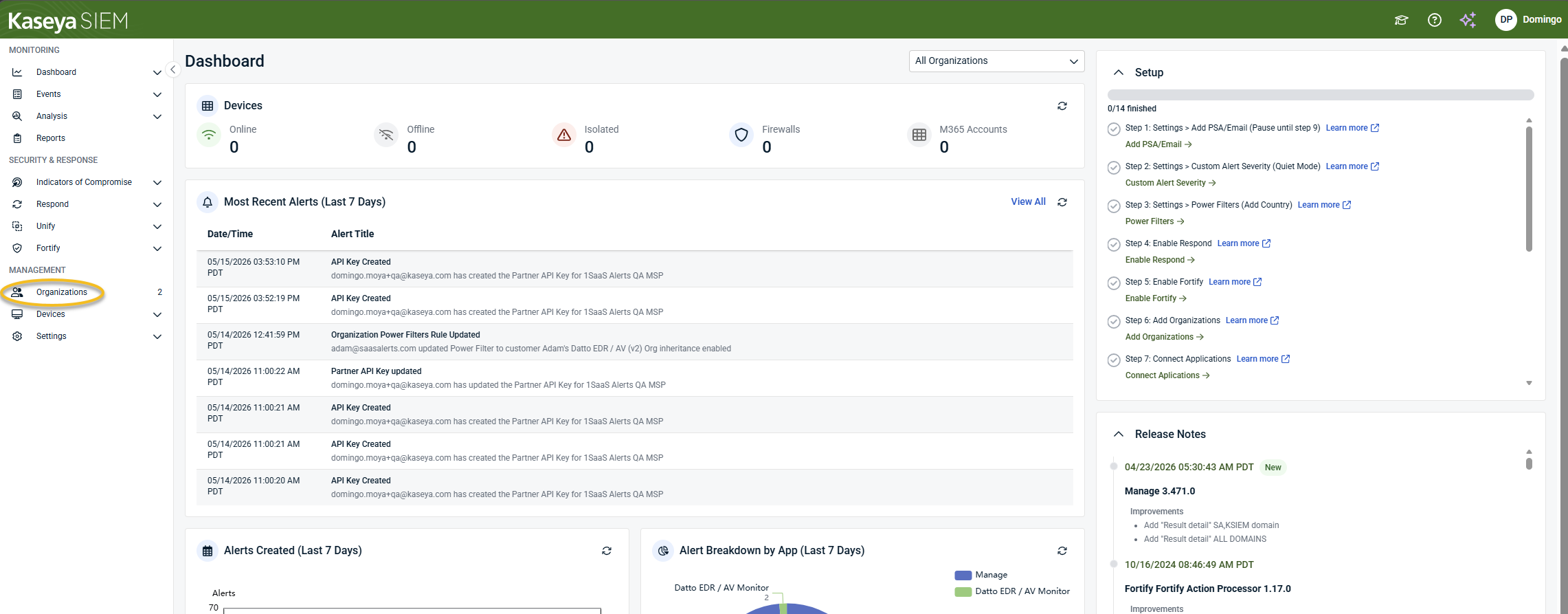
In Kaseya SIEM, from the side navigation menu, go to Organizations.
-
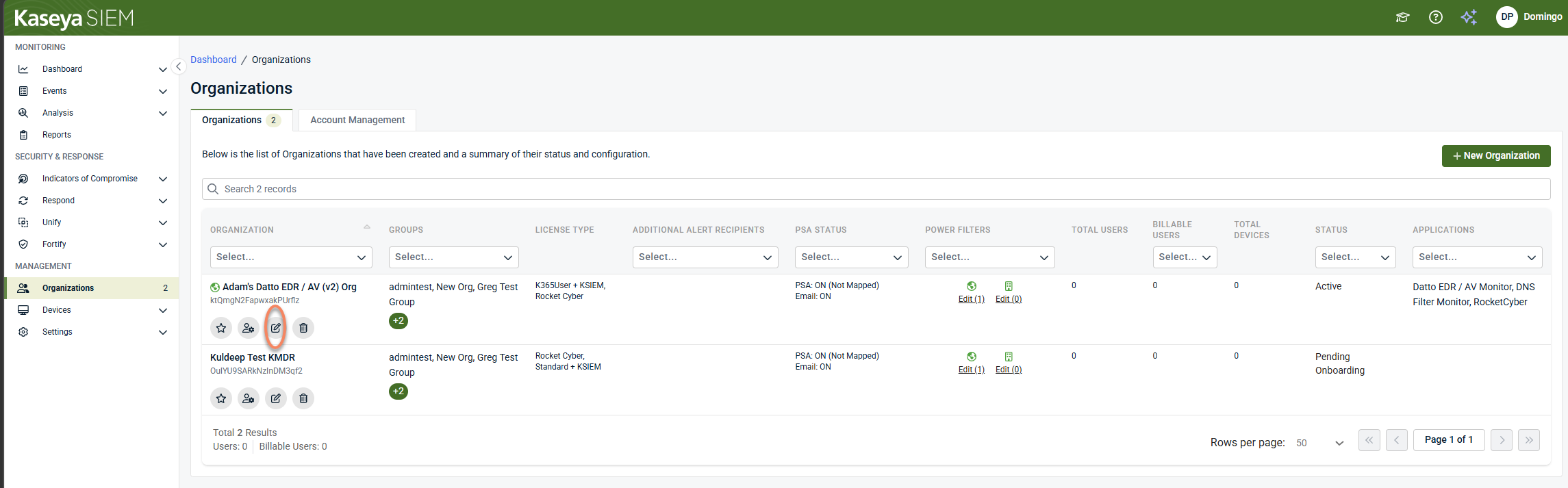
Click Edit Organization represented by the pencil icon for the organization you want to configure.
-
Click + New Application.

-
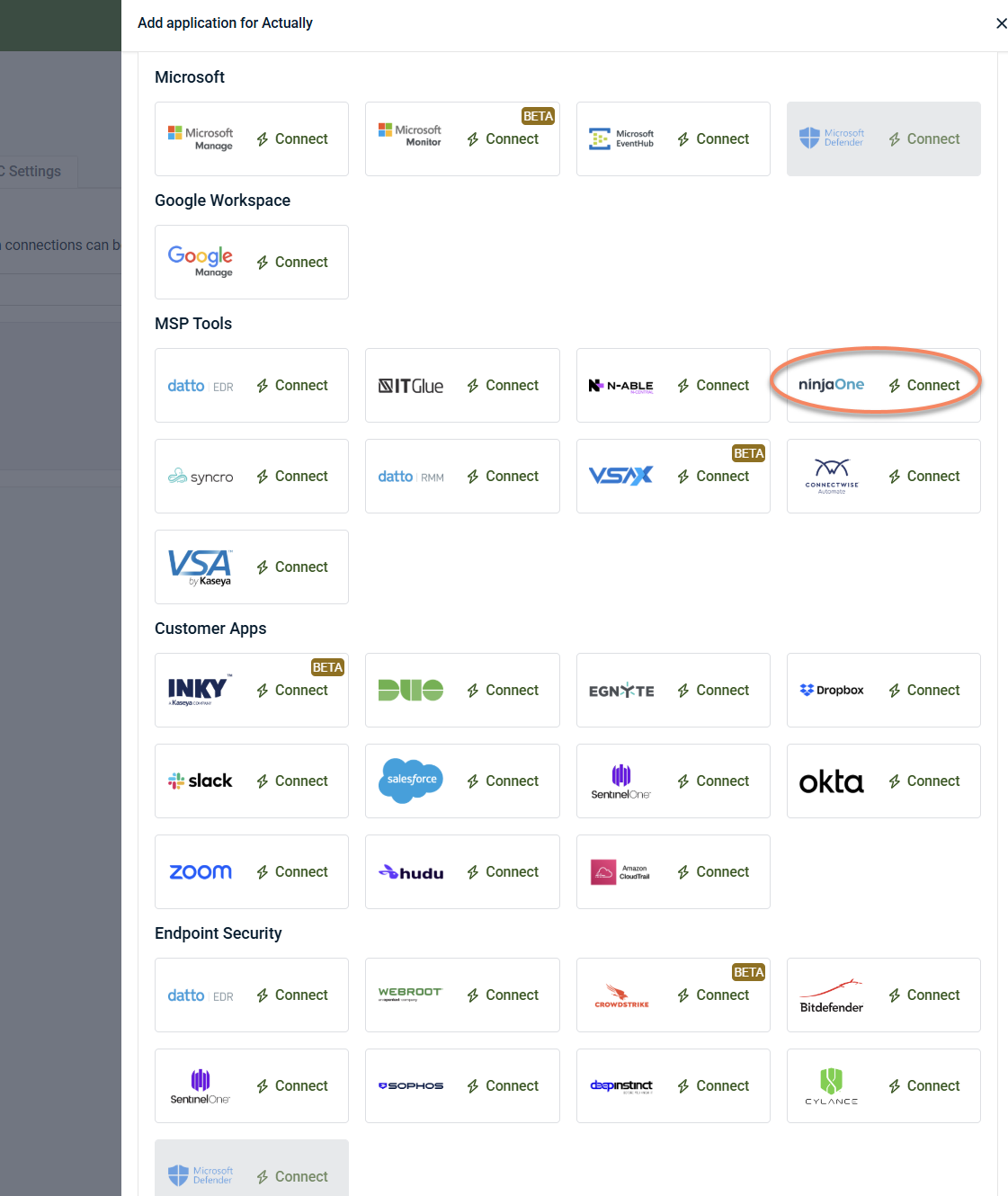
Under MSP Tools, locate NinjaOne and click Connect.
-
In the NinjaOne Connection Wizard, select the appropriate NinjaOne region.
-
Enter the Client ID.
-
Enter the Client Secret.
-
Click Next.
-
Complete the Organization Mapping step.
-
Finish the wizard.
IMPORTANT If the same NinjaOne instance is connected to multiple organizations, duplicate events and alerts may be generated.
When the connection is successful, NinjaOne appears under the organization's Applications tab.
Disable the integration in Kaseya SIEM
To disable the integration, complete the following steps:
-
From the side navigation menu, go to Organizations.
-
Click Edit Organization (pencil icon).
-
On the Applications tab, select the NinjaOne tile.
-
Select Disconnect Application.
-
Confirm the action.
Kaseya SIEM stops collecting data from the connected NinjaOne instance.
Troubleshooting
Unable to connect NinjaOne
Verify that:
-
The correct Client ID was entered.
-
The correct Client Secret was entered.
-
The appropriate NinjaOne region was selected.
-
The NinjaOne account has System Administrator permissions.
Unable to create Client App IDs
Verify that the NinjaOne account has System Administrator permissions.
Client Secret is unavailable
If the Client Secret was not saved when it was generated, create a new Client App ID and generate a new Client Secret.
FAQ
Do I need a dedicated NinjaOne account for the integration?
No. A dedicated account is not required, but it is recommended to simplify troubleshooting and maintenance.
What permissions are required to connect NinjaOne?
The account used to create the Client App ID must have System Administrator permissions.
What credentials are required to connect NinjaOne?
The integration requires a Client ID and Client Secret generated in NinjaOne.


