Integration: Kaseya SIEM and N-able N-Central
 Security and navigation
Kaseya SIEM
NAVIGATION Organizations > Edit Organization (pencil icon) > + New Application > N-able N-Central (under MSP Tools)
PERMISSIONS Administrator permissions
N-able N-Central
NAVIGATION Administration > User Management > Roles and Administration > User Management > Users
PERMISSIONS Permissions to create roles, users, API-only users, web tokens, custom properties, and scheduled automation policies
The Kaseya SIEM and N-able N-Central integration enables organizations to connect an N-Central instance to Kaseya SIEM using N-Central API credentials. Once connected, N-Central becomes available as an application within the organization and can be used with supported Kaseya SIEM workflows. If Unify functionality is configured, N-Central device data can also support Unify-related correlation workflows.
Prerequisites
Before configuring the integration, make sure the following requirements are met:
-
A role created in N-Central for the integration
-
An API-only N-Central user
-
A generated User-API Token (JWT)
-
Administrative access to Kaseya SIEM
If Unify functionality is being used, also configure a scheduled automation policy to populate the IPV4_PUB custom property.
If IP restrictions are configured in your firewall or in N-Central, allow the following IP addresses:
-
35.192.223.4
-
35.224.156.102
How to...
Create a role in N-Central
To create a role for the integration, complete the following steps:
-
In N-Central, navigate to Administration > User Management > Roles.
-
Click Create Role.
-
Enter a name for the role. For example, Kaseya SIEM.
-
Under Custom Properties > View/Set, select Read Only.
-
Under Administration > User Management, select Read Only for:
-
Access Groups
-
Roles
-
Users
-
-
Scroll to Devices.
-
From the Action menu, select Read Only to apply Read Only permissions to all device subitems.
-
Click Save.
The role is now ready to be assigned to the API-only user.
Create an API-only user in N-Central
To create the API-only user required for the integration, complete the following steps:
-
In N-Central, navigate to Administration > User Management > Users.
-
Click Create User.
-
Enter the required user information and password.
-
Click the Role tab.
-
Click Assign Roles.
-
Select the role created for the integration.
-
Click Assign.
-
Click the Access Groups tab.
-
Click Assign Access Groups.
-
Select All.
-
Click Assign.
-
Click the User Details tab.
-
Click the User Information subtab.
-
Ensure that MFA Not Required is selected.
-
Click the API Access tab.
-
Ensure that API-Only User is selected.
-
Click Save.
-
Click OK, and then click Save/Cancel.
The API-only user is now ready for token generation.
Generate a JSON Web Token
-
To generate the token required for the integration, complete the following steps:
-
In N-Central, navigate to Administration > User Management > Users.
-
Select the API-only user created for the integration.
-
Click the API Access tab.
-
Click Generate JSON Web Token.
-
Copy and securely store the token.
-
Click Save.
The JSON Web Token is now ready to be used when connecting N-Central to Kaseya SIEM.
IMPORTANT Store the token securely. You will need it when configuring the N-Central connection in Kaseya SIEM.
Configure the IPV4_PUB custom property
To support Unify functionality, configure N-Central to store device public IP addresses in the IPV4_PUB custom property.
-
In N-Central, navigate to Administration > Custom Properties.
-
Click Add.
-
Select By Devices > Text Type.
-
In Property Name, enter IPV4_PUB.
-
In Default Text, enter Public IPv4 Address.
-
Ensure that all operating systems and all device classes are selected.
-
Save the custom property.
NOTE As new operating systems are added to N-Central, edit this property and ensure that the new operating systems are included in the selected operating systems list.
Create and schedule the public IP address automation policy
To populate the IPV4_PUB custom property automatically, create and schedule the public IP address automation policy.
-
Navigate to Configuration > Scheduled Tasks > Script/Software Repository.
-
In the search bar, enter public.
-
Locate Get Public IP Address and click Clone.
-
In the Clone Repository Item screen, enter the following information:
-
Name: Get Public IP Address and Save to IPV4_PUB
-
Description: Retrieve the device public IP address and store it in the IPV4_PUB custom property.
-
-
Navigate to Actions > Run an Automation Policy.
-
On the Automation Policy Task > Details tab, enter the following information:
-
Task Name: Get Public IPv4 Address and store in IPV4_PUB
-
Repository Name: Get Public IP Address and Save to IPV4_PUB
-
Output Parameter (IP): IPV4_PUB
-
-
On the Automation Policy Task > Targets tab, ensure that Windows Agents is in the Selected Filters section.
-
On the Automation Policy Task > Schedule tab, set the task to Recurring.
-
Set the schedule to repeat every 5 minutes.
-
Click Save.
NOTE You can select a 10-minute or 15-minute interval, but Unify functionality may be more accurate with a 5-minute interval.
Verify the public IP address custom property
To verify that the automation policy is working, complete the following steps:
-
Wait for the scheduled automation policy to run.
-
In N-Central, open a Windows device.
-
Navigate to Settings > Custom Properties.
-
Verify that the IPV4_PUB custom property is populated with the correct public IP address for the device.
Connect Kaseya SIEM to N-able N-Central-
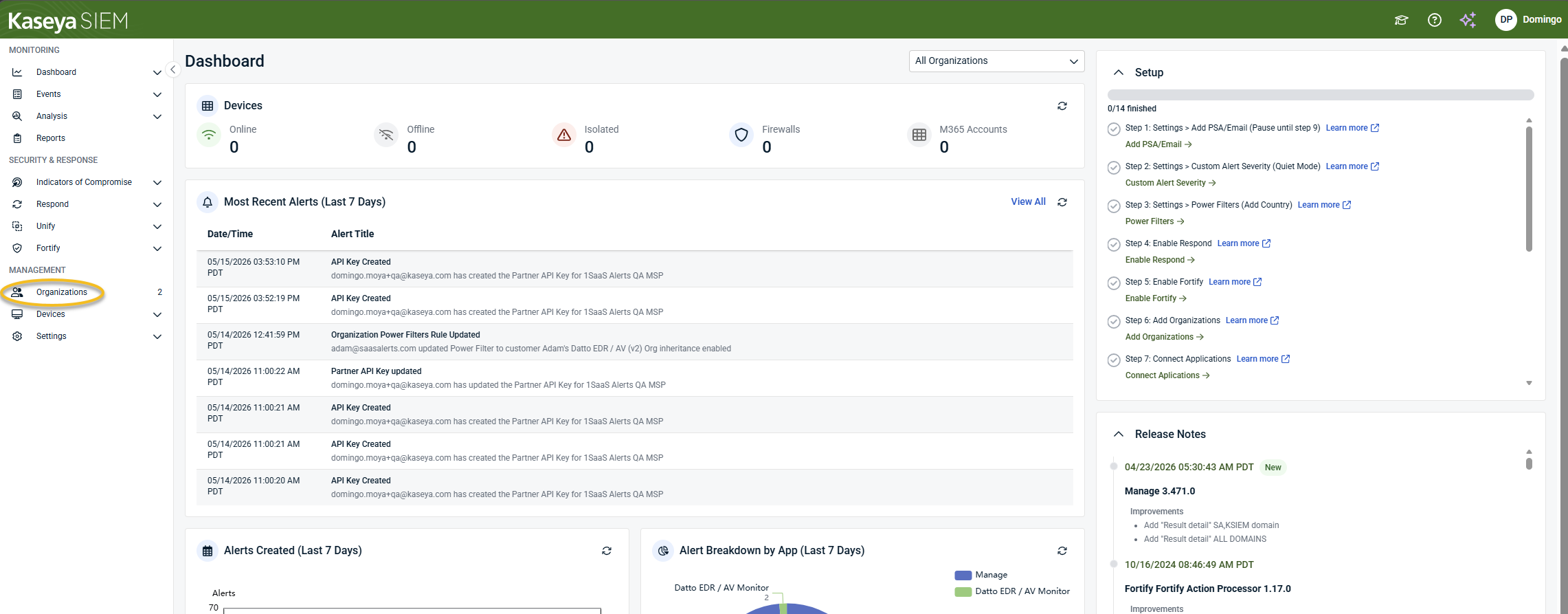
In Kaseya SIEM, from the side navigation menu, go to Organizations.
-
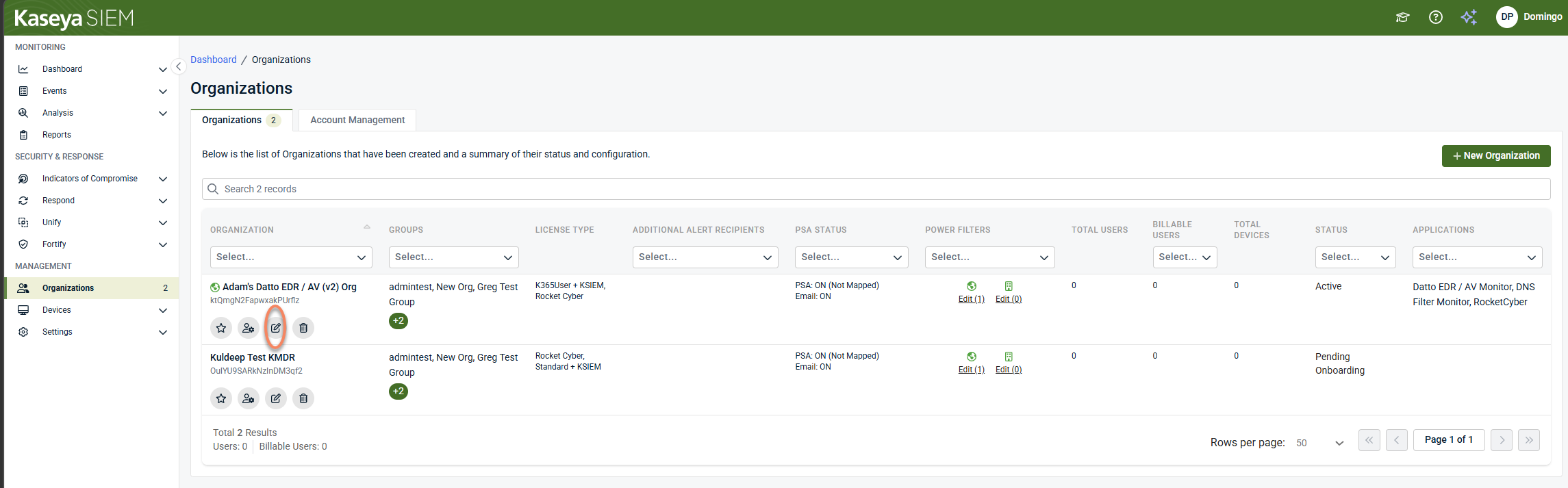
Click Edit Organization represented by the pencil icon for the organization you want to configure.
-
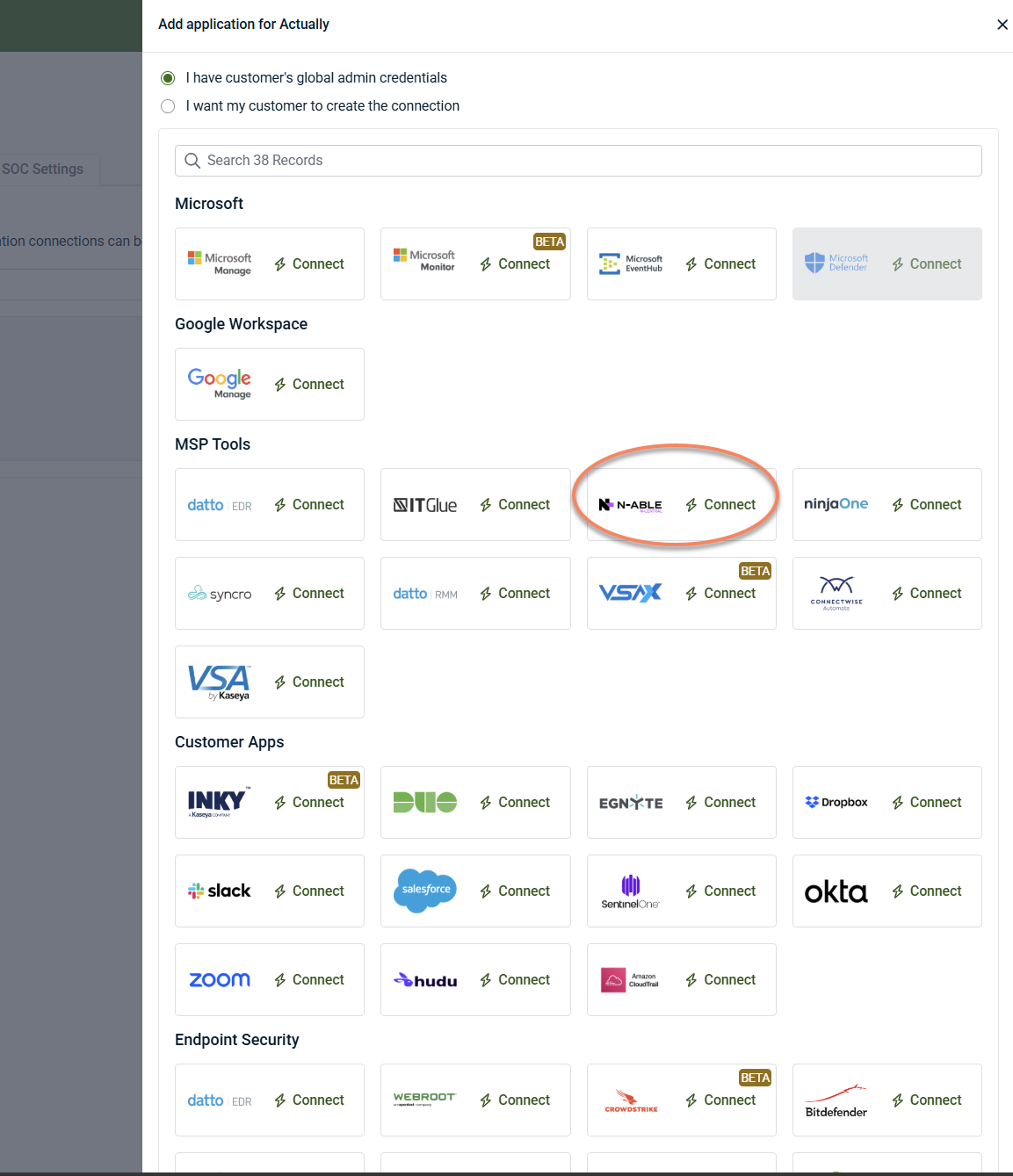
Click + New Application.

-
Under MSP Tools, locate N-able N-Central and click Connect.
-
In the N-Able N-Central Connection Wizard, enter the Client Domain.
-
The Client Domain is the URL used to access N-Central. Example: https://yourmsp.n-able.com
-
-
Enter the User-API Token (JWT) generated earlier.
-
Click Next.
-
Complete the Organization Mapping step.
-
Finish the wizard.
IMPORTANT If the same N-Central instance is connected to multiple organizations, duplicate events and alerts may be generated. Unless you have multiple N-Central instances, do not add the same connection to multiple organizations.
When the connection is successful, N-able N-Central appears under the organization's Applications tab.
Disable the integration in Kaseya SIEM
To disable the integration, complete the following steps:
-
From the side navigation menu, go to Organizations.
-
Click Edit Organization (pencil icon).
-
On the Applications tab, select the N-Able N-Central tile.
-
Select Disconnect Application.
-
Confirm the action.
Kaseya SIEM stops collecting data from the connected N-Central instance.
Troubleshooting
Unable to connect N-Central
Verify that:
-
The N-Central API information was entered correctly.
-
The JSON Web Token is valid.
-
The API-only user is assigned the correct role.
-
The role has the required read-only permissions.
-
Any firewall or product-level IP restrictions allow the required IP addresses.
Duplicate events or alerts appear
Verify that the same N-Central instance is not connected to multiple organizations. Connecting the same N-Central instance to multiple organizations can result in duplicate event and alert generation.
Public IP addresses are not populated
Verify that:
-
The IPV4_PUB custom property exists.
-
The automation policy is scheduled and enabled.
-
The automation policy targets the expected devices.
-
The selected devices have run the scheduled task.
Device information updates slowly
N-able rate limits may affect the ability to retrieve device information in environments with more than 5,000 devices. Symptoms may include slow updates to IP addresses or Entra Device IDs.
FAQ
What permissions are required in N-Central?
The integration requires permissions to create a role, create an API-only user, assign access groups, generate a JSON Web Token, and configure the required custom property and automation policy.
Why is the IPV4_PUB custom property required?
The IPV4_PUB custom property stores device public IP addresses. This information can support Unify functionality in Kaseya SIEM.
Can the same N-Central instance be connected to multiple organizations?
Connecting the same N-Central instance to multiple organizations can result in duplicate events and alerts. Unless you have multiple N-Central instances, avoid adding the same connection to multiple organizations.


